Heras Cloud Unit Manual de usuario

EN –Translation of the original user manual - 1.4 | 2021
User manual
Heras Cloud Unit

EN –Translation of the original user manual - 1.4 | 2021
2

EN –Translation of the original user manual - 1.4 | 2021
3
CONTENTS
FOREWORD .............................................................................................................. 4
OVERVIEW ......................................................................................................... 5
ACCESS............................................................................................................. 6
CONNECTING TO THE UNIT.............................................................................. 6
SETTING ACCESS CONTROL............................................................................ 7
IMPORT ACCESS LIST................................................................................... 10
COPY ACCESS LIST...................................................................................... 11
CUSTOMIZE ACCESS.................................................................................... 13
ACCESS LOG .............................................................................................. 14
YEARLY TIME SWITCH .................................................................................. 15
SETTING YEARLY TIME SWITCH...................................................................... 16
PAIR ANNUAL CLOCK TO ARELAY................................................................... 17
CONNECT......................................................................................................... 18
LOG FUNCTIONALITY.................................................................................... 18
CONFIGURE INPUTS AND ALERTS................................................................... 19
VIEW STATUS OF THE INSTALLATION............................................................... 22
SMS COMMANDS............................................................................................... 23
LED INDICATIONS.............................................................................................. 25
FAQ................................................................................................................. 26

EN –Translation of the original user manual - 1.4 | 2021
4
FOREWORD
This manual enables you to make settings or changes to your Heras Cloud Unit. It
describes how to add, change or delete numbers in Access control. There is a chap-
ter how to use the Yearly time switch and how to combine this with user rights.
Further there is a possibility to use the log system for analysis.
Chapter 4 and 5 give information about the possible SMS commands and explana-
tion about the LED’s on the unit.
A number of fields are not visible or visible but not adjustable. Depending on the
solution you have chosen, this may differ. Only the relevant fields are explained
here.
If there are any questions for which this answer can’t be found in this document,
then please contact us for further assistance.

EN –Translation of the original user manual - 1.4 | 2021
5
OVERVIEW
A Via the menu bar you can do various things such as change the language or look
up the manual.
B You can manage your devices in a hierarchical tree structure or as a list.
From the tree, right-click on a device or group for more functions.
The black dot in the device icon indicates that the device is connected to the Heras
Cloud.
C The content of this field is determined by where you are in the system. This can
contain your own information or that of a selected unit.
D Status and Commands field. The visibility of this field is limited when using Ac-
cess.
Under Status you can see the last known status of the device, even if it is currently
offline. Only filtered values are shown here. This means that the displayed values
do not change until the set filter time of the input has elapsed. The Advanced tab
shows live input values for devices that are online. In other words, you can even
see input changes that do not trigger an alert as they are shorter than the filter
time.

EN –Translation of the original user manual - 1.4 | 2021
6
There are several buttons in the Commands box. For example, you can connect to
a device, control an output remotely, or confirm that a service has been performed.
This is also where you transfer new settings to an online device.
ACCESS
In order to change the Heras Cloud Units settings, you must be connected to it.
Select the device (Heras Cloud Unit) you wish to change from the list and click on
Connect.
CONNECTING TO THE UNIT
When the Heras Cloud Unit is online, there will be a black dot in the Device icon
and the word Connected will appear in the Status box.

EN –Translation of the original user manual - 1.4 | 2021
7
SETTING ACCESS CONTROL
The settings for the Heras Cloud Units access control can be found under the Access
tab. Access control is activated by default. If you wish to deactivate it, simply click
on the box to uncheck it. When deactivated(uncheck), anyone will be able to call the
Heras Cloud Unit to activate a relay output or send a status request by text mes-
sage.
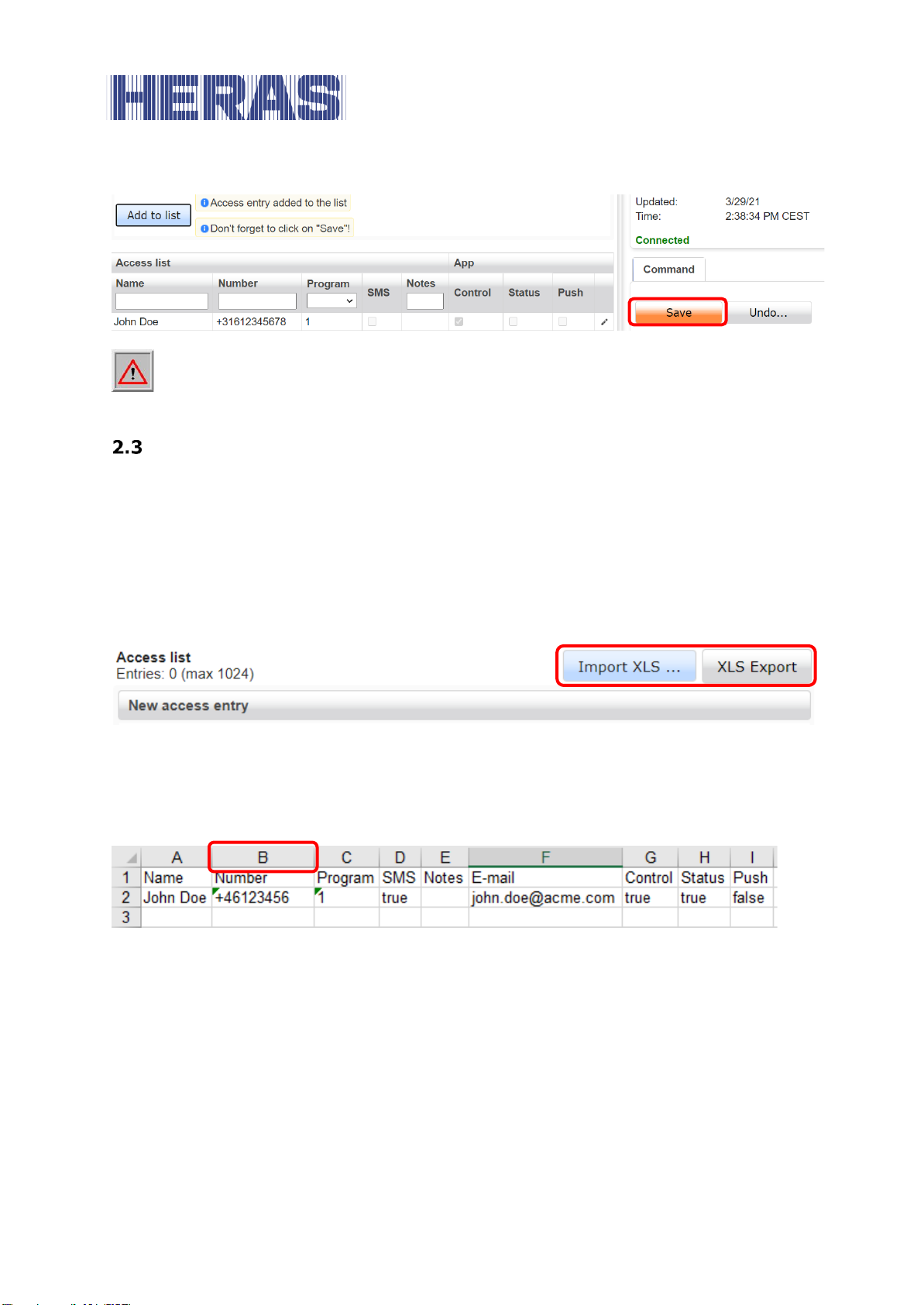
You can add up to 1024 names, telephone numbers and email addresses for the
app to the access list. To add a new record, complete the fields under New access
record and then click on Add to list.
Remember that you must always include the country code (for example +31, +49
or +46) for all telephone numbers. Note that the phone numbers initial zero must
be omitted.
Note that a disabled caller ID cannot be identified by the Heras Cloud Unit.
Access will only be granted when the caller ID of the dialing user is dis-

EN –Translation of the original user manual - 1.4 | 2021
8
played.
Click on the SMS (text message) check box if you want that person to be able to
manage and query the Cloud Unit via text message.
This box must be checked in order for the Cloud Unit to respond to texts from that
number.
The Yearly Time Switch (see chapter 2.7) bar can be expanded to show the con-
tents of each schedule.
The schedule you choose determines when you will have access to and can manage
the functions.
Find out more about the Yearly Time Switch function and how to change the set-
tings under the heading Yearly Time Switch. Here you can only view the Yearly Time
Switch settings, not change them.
Selecting Program 1-5 (Yearly Time Switch program) for a user (eg. John Doe) de-
termines during which times this individual will have access. Typically selecting
Program 1 means that the user will always have access. You could define a custom
program under the Yearly Time Switch tab that will for example grant access only
during weekdays.

EN –Translation of the original user manual - 1.4 | 2021
9
The App options “Status” and “Push” are only visible if you have selected
Connect.
If you have Connect, you can choose not to give every App user the rights to
see Status and Push. These are, for example, relevant for a technical ser-
vice.
If a user with App options is added, the user automatically receives an email
with a link to the Apple store or Google Play store. If someone is not given
this option, you must provide the number of the unit to the user yourself. You will
find this number on the Info tab.
When new access records have been added to the list, you must click on Save to
send the new settings to the Cloud Unit.

EN –Translation of the original user manual - 1.4 | 2021
10
Make a habit of clicking on Save every now and then, as the Cloud Unit au-
tomatically disconnects after a period of inactivity.
IMPORT ACCESS LIST
First, click XLS export to get sample file for update, make sure you have at least
one access item in your list before exporting. This will ensure that you get enough
sample information to properly edit the file. All data in your current access list is
exported and can then be edited in Excel.
Note that importing an access list will replace the previous list.
Open the file with Microsoft Excel.
Select the B column by right-clicking the header to resize it to text via cell proper-
ties. This ensures that the + at the beginning of the phone number is not removed.
You can now add, remove or change items as desired. When you are done, save
the file and click Import XLS, select the file and click Next.
Tabla de contenidos
Otros manuales de Abridor de puerta de Heras