
Hayear HY-1090 Manual de usuario

HAYEAR
Shenzhen HAYEAR Electronics Co., Ltd. http://www.hayear.com
Industrial Camera Microscope
User Manual
HY-1090 Industrial Camera V1.2
Catalogue

HAYEAR
Shenzhen HAYEAR Electronics Co., Ltd. http://www.hayear.com
Foreword ------------------------------------------------------------------------------------------------------ 3
Basic Parameter ----------------------------------------------------------------------------------------------- 3
Secure Guidelines --------------------------------------------------------------------------------------------- 4
Package List --------------------------------------------------------------------------------------------------- 4
Camera Button ------------------------------------------------------------------------------------------------ 5
Remote Control ----------------------------------------------------------------------------------------------- 5
Menu Operation ---------------------------------------------------------------------------------------------- 6
◆Language, Line Setting ------------------------------------------------------------------------------- 6
◆Image Resolution, Image ratio, Mirror contrast setting --------------------------------------------- 7
◆Image Quality, Sharpness, White Balance Setting --------------------------------------------------- 9
◆Color, Exposure, Date, Optical Frequency Setting -------------------------------------------------- 11
◆TF Card, System, Resolution Setting ---------------------------------------------------------------- 13
◆Loop Recording, Date Stamp Setting --------------------------------------------------------------- 13
HAYEAR Software -------------------------------------------------------------------------------------------- 15
Product Qualified Card -------------------------------------------------------------------------------------- 20

HAYEAR
- 3 -
Foreword
HY-1090 is a multifunctional digital microscope with individually designed, developed and
manufactured by Shenzhen Hayear Electronics Co., Ltd. It realizes Full HD, high object distance,
multifunctional and multi-output at the same time. With help of the Hayear measuring software,
it can easily meet many different requirements in many fields, such as industrial overhaul and
teaching demonstration. And it’s appearance design combines more ergonomic consideration,
provides users with better experience. We sincerely wish this product can release your eyes and
improve your work quality. Thanks for your support.
◆In order to better use this product, we suggest you can keep this manual as long as you can. Our
company will not be responsible for any damage caused by non-compliance with this manual.
◆Failure to comply with warnings and instructions may result in electric shock, fire and serious
injury.
◆Failure to comply the instruction may cause the device permanent damage.
◆In order to provide a better customer experience, the product may have minor change during
perfecting. the description in this instruction is only for reference, please kindly understand it.
Basic Parameter
Model
HY-1090
Brand
HAYEAR
Sensor
SONY CMOS 1/2.9 2K Sensor
Video output
2K/1080P Full HD (HDMI output), 2k(USB output)
Sensor size
1/2.9" inch
Pixel size
2.0 × 2.0μm
Resolution
1920×1080P @60FPS;
Still image resolution
5440 X 3056 (16MP)
Video record
Support 2K record
USB Interface
USB
USB Output resolution
1920x1080P 30FPS;
Spectral Response
(Wavelength)
400nm~1000nm
Timed photo/video
Support timed photo/record
Dual-output
Support HDMI/USB output simultaneously
Same screen comparison
Real-time observation and comparison of two products
White balance
Support One-click, Auto and Manual white balance
HDR
Anti-reflective
Storage
TF Card, Maximum support 512GB
PC Support
Support Windows/Mac/ Linux systems, Software with measurement

HAYEAR
- 4 -
function (gift)
Image zoom
7X digital zoom
Language Setting
Chinese, English, Japanese, French, German, Russian, Italian, Korean,
Turkish
Working Voltage
USB 5V / DC 12V 1A
HDR function
Support HDR, Multiple exposure HDR, Digital overlap HDR.
Secure Guidelines
1. During the installation of the equipment, be sure to read this safety guide carefully, operate in
strict accordance with the installation instructions, and keep this manual properly.
2. The power supply voltage of the camera power adapter is AC100V—240V@50-60Hz, please
confirm whether the power supply is within this range before use.
3. The standard power supply of the camera is DC 12V 1A, it is recommended to use it with the
power adapter that comes with the camera.
4. Please use the camera in an indoor environment of 0°C to 50°C and a humidity of less than
90%, and prevent foreign objects from entering the camera. It is forbidden to splash liquids on
the camera to prevent danger.
5. Avoid violent vibration and soaking during transportation, storage and installation, so as not
to damage the product.
6. Please do not disassemble the camera without authorization. There are no user-repairable or
replaceable parts in the camera.
7. Please use a dry soft cloth to wipe the camera case, if the dirt is serious, please use a neutral
detergent to wipe gently.
8. If the image appears grey dot, please use a dust blower to blow the dust off the filter, do not
use detergent to wipe.
Packing list
HY-1090 Camera ---------1 piece
Power supply -------------1 piece
Remote Control ----------1 piece
USB cable ---------------1 piece
Manual ---------------------1 piece
Button instructions

HAYEAR
- 5 -
Remote control & button instruction
Operation instruction
Preparatory work
1. Remove the cover and install lens. △
!Noting: tear off the dust protection in front of the
sensitive film before installing the lens, otherwise the image will be vague!!!
2. Please connect the HDMI cable and DC power supply, at this time, the LED light turns blue,
indicating that the camera is turned on.
3. Connect to the computer for use, only need to plug in the type c cable to connect to the
computer (no power supply required).
Quick Start
◆HDMI mode

HAYEAR
- 6 -
*Boot steps
1. Keep the power supply powered on.
2. Press“ON/OFF” button on the camera.
3. Press“UP/DOWN”button to to digitally zoom in and out; the lens is manually adjusted.
*Photo mode
1. Sort press“OK” to take the photo
*Video mode
1. Press “AE” to enter Video mode, press “OK” to star recording, press OK again to stop
recording.
2. Press “AE” to enter Video mode, press “AE”again Enter preview photo/video mode, press
“OK”can play video and watch images. Press “AE” return to menu.
Language Setting(take English as an example)
Press the MENU button to enter the main menu, press ↓ button to select the language setting, press
OK to enter Language selection. Press ↓ button, when the English option highlight then press OK
button to confirm.
Grid line setting
In photo mode, press MENU button to enter the main menu, select the option (grid line
setting), and press OK to enter the grid line setting.
Press OK to enter and then adjust the option
Press UP/DOWN to select the function you need and press AE to adjust, After the adjustment,
there is no need to save it separately, just press the MENU to exit the menu.

HAYEAR
- 7 -
Image resolution setting
Press Menu button to enter main menu, press Down to find the Image resolution option,
press OK to enter, then press UP/DOWN to select the resolution you need, and press OK to save the
setting. Press Menu again to quit.
Image ratio setting
Press Menu button to enter main menu, press Down button to find the Image ratio option,
press OK to enter, then press UP/DOWN to select the ratio you need, and press OK to save the setting.
Press Menu again to quit.
Mirror comparison setting
Press Menu button to enter main menu, press Down button to find the Mirror comparison,
press OK to enter, then press UP/DOWN to select the comparison mode you need, and press OK to

HAYEAR
- 8 -
save the setting. Press Menu again to quit.
Same screen comparison
Press Menu button to enter main menu, press Down button to find the Same screen
comparison, press OK to enter, then press UP/DOWN to select the comparison mode you need, and
press OK to save the setting. Press Menu again to quit.
One-Click exposure setting
Press Menu button to enter main menu, press Down button to find the One-Click exposure
option, press OK to enter, then press UP/DOWN to select, and press OK to save the setting. Press
Menu again to quit. After turned on this function, adjust the brightness of the light source, the
brighter the brightness, the higher the exposure.
Image quality setting
Press Menu button to enter main menu, press Down button to find the Image quality option,
press OK to enter, then press UP/DOWN to select, and press OK to save the setting. Press Menu again

HAYEAR
- 9 -
to quit.
Sharpness Setting
Press Menu button to enter main menu, press Down button to find the Sharpness option,
press OK to enter, then press UP/DOWN to select, and press OK to save the setting. Press Menu again
to quit.
HDR Setting
Press Menu button to enter main menu, press Down button to find the HDR option, press OK
to enter, then press UP/DOWN to select, and press OK to save the setting. Press Menu again to quit.
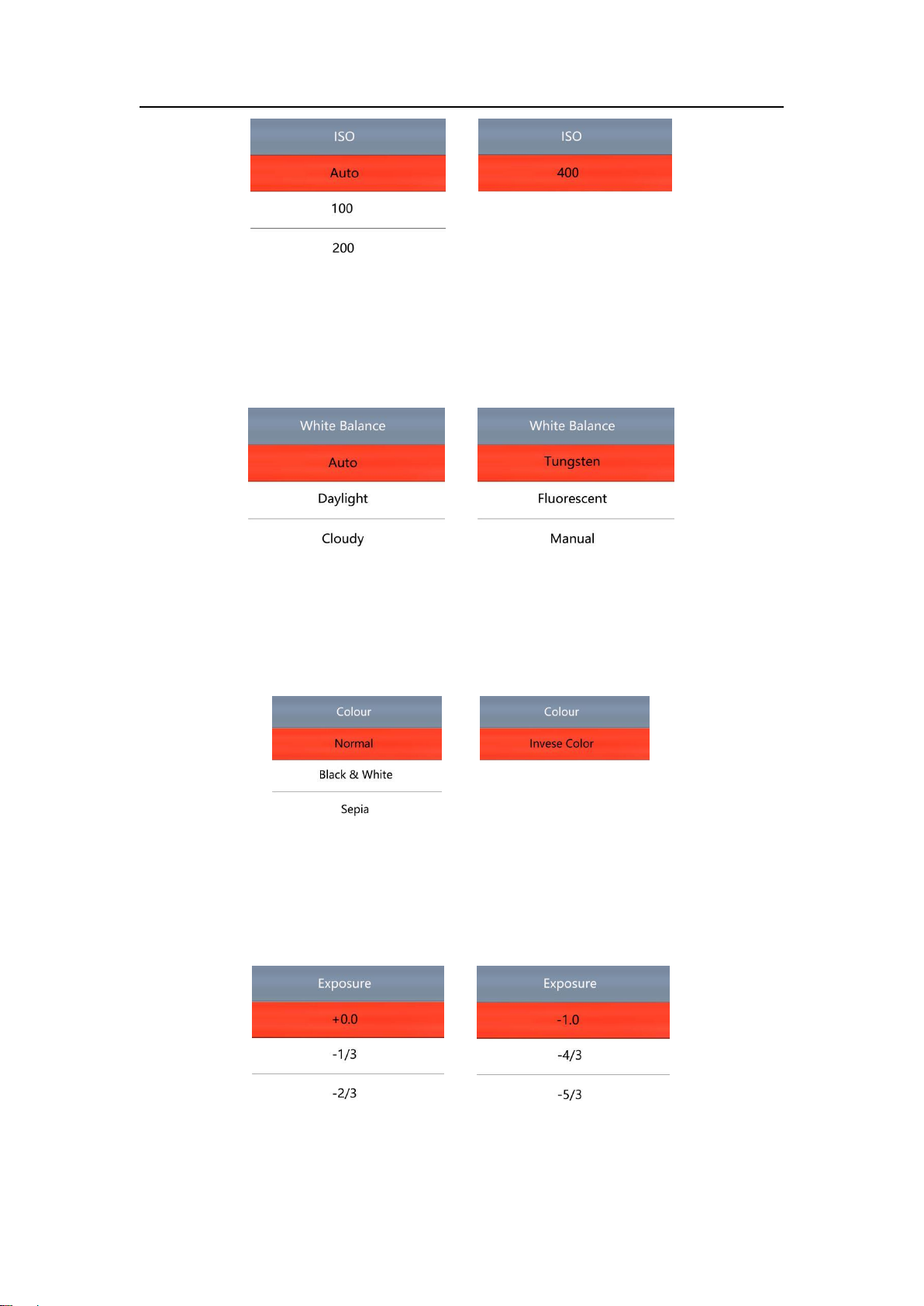
ISO Setting
Press Menu button to enter main menu, press Down button to find the ISO option, press OK
to enter, then press UP/DOWN to select, and press OK to save the setting. Press Menu again to quit.
HAYEAR
- 10 -
White balance setting
Press Menu button to enter main menu, press Down button to find the White balance option,
press OK to enter, then press UP/DOWN to select, and press OK to save the setting. Press Menu again
to quit.
Color setting
Press Menu button to enter main menu, press Down button to find the Color option, press OK
to enter, then press UP/DOWN to select the color you need, and press OK to save the setting. Press
Menu again to quit.
Exposure Compensation
Press Menu button to enter main menu, press Down button to find the Exposure
compensation option, press OK to enter, then press UP/DOWN to select the exposure value you need,
and press OK to save the setting. Press Menu again to quit.
Tabla de contenidos
Otros manuales de Microscopio de Hayear

Manuales populares de Microscopio de otras marcas


VWR
VWR VisiScope 384 Series Manual de usuario

Nikon
Nikon ECLIPSE E200 POL Manual de usuario

Leica
Leica DI C800 Manual

ThermoFisher Scientific
ThermoFisher Scientific Continuµm Manual de usuario

ThermoFisher Scientific
ThermoFisher Scientific Continuµm Manual de usuario

Olympus
Olympus SZ61 Manual de usuario