
Hanson Technology FelTouch 100 Manual de usuario

1
| Hanson Technology Limited
FelTouch 100
User’s Manual

2
Contents | Hanson Technology Limited
Contents
Introduction ........................................................................................................................ 3
About the product ...................................................................................................... 3
Product overview........................................................................................................ 3
Getting Started.................................................................................................................... 5
Product package.......................................................................................................... 5
Remote Control: Front, Back and Side panels ............................................................ 5
Function items ............................................................................................................ 6
USB dongle.................................................................................................................. 8
Installation .......................................................................................................................... 9
Touch actions.................................................................................................................... 10
Operating Modes .............................................................................................................. 13
Function Buttons............................................................................................................... 14
Software compatibility...................................................................................................... 16
Other Technical Specifications.......................................................................................... 17

3
Introduction | Hanson Technology Limited
Introduction
About the product
FelTouch is a wireless remote control device for TV connected media center devices
including Windows based HTPC, Mac MINI, or SurBox.
It is one hand operational, to be an alternative choice against regular mouse and
keyboard. And more -
To receive user commands from user’s finger touch actions, and
To use standard USB interface and USB HID class operations to control host devices
like PC or SurBox –Hanson’s other media center product.
To use touch gestures as a useful tool for man-machine interface. Touch gestures
are already widely being used in Smartphone and modern computers.
FelTouch model 100 comes with QWERTY keypad and PC mouse functionalities,
fully compatible with PC (Windows and Macintosh) work environment.
FelTouch model 110 is the other new model with different keyboard mapping for
horizontal usage for key inputs.
The typical usage area of this device is for home infotainment, to control home media
centers and HTPC (Home Theater PC) that are connected to TV in living room, OR other
places where mouse/keyboard operation is not convenient (for example, no desk and
standing surface for mouse/keyboard operation).
Product overview
A summary of this product features is

4
| Hanson Technology Limited
One hand operation
Companion to SurBox for TV internet browsing and media streaming
Also Work with HTPC, MAC MINI for Connected TV
Suit for office presenter
2.4GHz RF wireless connectivity
Capacitive touch with high sensitivity
Mouse alternative use
Full QWERTY keyboard
Stylish touch, button zero design
Touch gestures for navigation - zoom in/out, scroll up/down
90 degree rotation for landscape operation
Operated by normal AA batteries

5
Getting Started | Hanson Technology Limited
Getting Started
Product package
The product package includes
FelTouch remote control
FelTouch USB dongle
AA Battery X 3
Remote Control: Front, Back and Side panels
Actual top cover pattern is showed in next page.

6
Getting Started | Hanson Technology Limited
FelTouch 100
Function items
1. Notification LED, see description below
(1)
(2)
(3)
(4)

7
Getting Started | Hanson Technology Limited
2. Touch active area
3. Function buttons
4. Keyboard input area
Notification LED
The Notification LED shows:
Green light when power is on and the device is waiting for touch actions,
keyboard input is disabled.
Red light when power is on and the device is waiting for keyboard input. In this
mode, users cannot change window cursor position.
Short flashing of Red light to show the device has recognized a keyboard
character input.
Longer flashing of red light to show the device has detected a function key press.
When finger touches the surface of touch active area, initially the LED will turn off
until recognition of specific touch actions.
Touch active area
Touch active area is an area for user to have touch input actions.
This area is built by a high sensitive capacitive touch sensor, to detect movement of user
fingers.
This device support one finger operations - such as change position, press, release, long
press, and some two finger gestures.
The design uses two layers of operation scheme, to allow function buttons exist together
with touch pad. If user presses a button longer than a designed time, the device will detect it
as a long press, and will activate the button function; otherwise, the device will recognize it
as a normal touch event, to change cursor position, or to join as part of a touch gesture
activity.
This design maximizes the use of active area for touch operations, and at the same time,
allow as many as possible soft buttons for software control purpose.
Function buttons
Function buttons are for
Mode changes of the device. They include power on/off, switch between cursor
mode and keyboard mode, rotate the device 90 degree to more fit into modern
TV/ display landscape view.

8
Getting Started | Hanson Technology Limited
Operating system shortcut functions. Currently this device is customized to support
[Surbox] –Hanson’s other product built by Android OS and Microsoft Windows
some operations.
Keyboard input area
Keyboard input area is for user to input text during edit functions. It emulates QWERTY
keyboard with alphanumeric characters and some special symbols together.
Alternative model option of FelTouch 110 has different keyboard mappings as below
for horizontal usage of keyboard as well as mouse pointer.
USB dongle
FelTouch USB dongle is to companion with FelTouch remote device, to receive data from
remote side in wireless, and later forward the received commands to host devices –PC or
Surbox. This device works as a standard USB HID mouse and keyboard, means users can
choose FelTouch mainly as cursor operation and key inputs (with short messages), and at the
same time, still able to use full function keyboard for text input intensive applications.

9
Installation | Hanson Technology Limited
Installation
To remove the back cover
1. Firmly hold the device with both hands and the front panel is facing down.
2. Pull pack the back cover down with thumb until it disengages from the device.
To install batteries
1. This product is operated by three normal AA size batteries.
2. Install batteries and note the directions of each battery unit.
To hook USB dongle to host PC or Surbox media box
This device operates to support up to 10 meter distance between USB dongle and
FelTouch remote device.
This device can work for 2 months, or last longer, from one time battery change.
However, the actual work time may be different based on various usage patterns and
different battery models.
10
Touch actions | Hanson Technology Limited
Touch actions
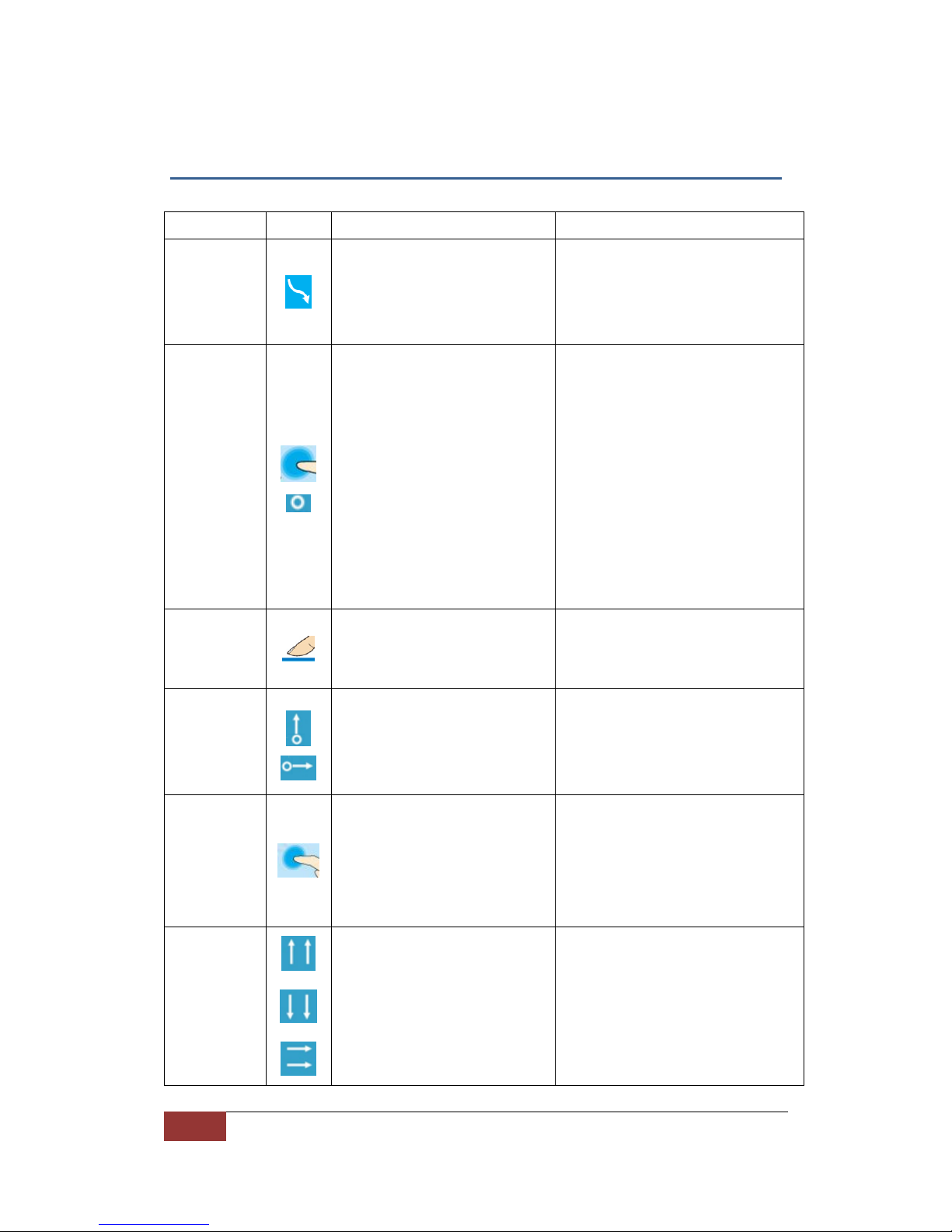
Touch action
Action’s description
Meaning of the action
Finger move
Finger touches the surface of
touch active area, and move.
When action is recognized, the
LED will turn off from green.
To move cursor position
Finger touch
and hold
1. Finger touches the surface
of touch active area, and
2. Holds the position for about
0.1 seconds.
When action is recognized, the
LED will change from dark to
RED color.
To activate the item where the
cursor is.
For PC mouse, it means the left
button is pressed.
This action may be disabled from a
default cursor mode. In this case, it
will be enabled from Cursor
Gesture Mode setting to Browsing
mode. (Please see Cursor mode
chapter)
Finger
release
Release from finger touch.
LED color will recover to
GREEN.
Normally means end of a sequence
of touch action
Touch scroll
1. Finger touch and hold.
2. Finger drag and move.
3. Control the move speed.
4. Finger release.
For Android OS, the move speed
can be measured by software, to
generate an effect of content
scrolling with accelerated speed.
Button press
1. Finger touch and hold the
function buttons.
2. LED will flash RED one time
after the action is detected.
To activate the function buttons –
such as [Home], [Back], [Tool],…
Power button is an exception to
others, has a longer time (1-2 sec.)
until activation.
Parallel line
1. Two fingers touch in parallel,
vertically or horizontally.
2. LED color will change
between GREEN and RED.
To scroll up and down when cursor
is on browsing mode.
Tabla de contenidos


