Hama 53178 Manual de usuario

WIRELESS LAN
00053178
gInstruction manual
WLAN USB Stick 450 Mbps

2
00053178
g
Table of Contents
Introduction 3
Introduction 3
Information on this user manual 3
Copyright 3
Warnings 4
Intended use 4
Liability disclaimer 4
Safety instructions 5
Disposal 5
Description 6
Scope of supply 6
Device elements 6
Function LED 7
Requirements for operation 7
Connecting/disconnecting the
device 8
Inserting the USB WLAN stick 8
Removing the USB WLAN stick8
Installation under Windows 9
Installing the driver and conguration
software 9
Conguration under Windows XP,
Vista / 7 17
Starting the conguration programme
17
Description of the conguration pro-
gramme 18
"Available Networks detail view" 19
"Link information detail view" 20
"Prole List" detail view 22
"Prole conguration"23
"Wi-Fi Protected Setup" 26
Establishing a WLAN connection for
XP, Vista / 7 30
Connecting with the help of the
"Hama Wireless LAN Utility" 30
Establishing a WLAN connection for
Windows 8 33
Deinstalling under Windows XP,
Vista / 7 36
Deinstalling under Windows 8 37
Troubleshooting38
Appendix 40
Technical data 40
Support and contact information 41
For defective products 41
Internet/World Wide Web 41
Support hotline – Hama product support
41
Notes on the EC Declaration of Con-
formity 41
Operating restrictions41
Instruction manual

3
Introduction
00053178
g
Introduction
Introduction
Dear Customer,
By purchasing this device, you have decided in favour of a quality
product from Hama which corresponds to the latest state of develop-
ment with respect to technology and functional performance
Read all the information contained here to quickly familiarise yourself
with the device and to be able to make full use of its functions
We would like to wish you much pleasure while using it
Information on this user manual
This user manual forms an integral part of the WLAN USB stick and
contains important information on the intended use, safety, connec-
tion of the device and the conguration of the software.
Keep this user manual in a safe place and pass it on to any future
owners of the device
Copyright
This documentation and the enclosed software is protected by copy-
right
Any duplication or reprinting of this documentation, in whole or in
part, and the reproduction of the illustrations even in modied form is
only permitted with the written approval of the manufacturer
Hama grants the buyer the non-exclusive right to use the enclosed
software for the operation of the device The Licensee may only
make one copy of the software, which is only to be used for backup
purposes
Unless otherwise indicated, all trademarks and logos mentioned are
copyrighted trademarks of Hama GmbH
Microsoft, Windows and the Windows logo are trademarks of
Microsoft Corporation All other product and company names are
trademarks of their respective owners

4
Introduction
00053178
g
Warnings
The following warnings are used in this user manual:
CAUTION
Awarning of this category indicates potential material dam-
age
If the situation is not avoided, it may lead to material damage
►Follow the instructions in this warning to avoid material damage
NOTE
►Anote contains additional information to simplify the use of the
device
Intended use
This device is intended only for establishing a data connection from
a computer with the help of the enclosed software via a WLAN (Wi-Fi
network) using a WLAN router or via some other WLAN-compatible
device Any use other than previously stated is considered as im-
proper use
No claims of any kind will be accepted for damage resulting from use
of the device for other than its intended purpose The risk must be
borne solely by the device owner
Liability disclaimer
All technical information, data and instructions on installation, opera-
tion of the device contained in this user manual represent the current
status at the time of printing and are based on the best possible
knowledge gained by experience and know-how
The manufacturer assumes no liability for damage or injury result-
ing from failure to observe the user manual, use for other than the
intended purpose, unprofessional repairs, unauthorised modications
or use of non-approved spare parts

5
Introduction
00053178
g
Safety instructions
When using the device, observe the following safety precautions to
avoid any damage or injuries:
■Do not allow children to play with the device The device and the
protective cap can be easily swallowed by children
■Inspect the device for visible signs of damage before use Do not
use a damaged device
■Do not open the device Unauthorised opening and repairs can
lead to considerable danger for the user of the device Only allow
qualied persons to carry out repairs. Improper repairs will invali-
date the guarantee
■Protect the device against moisture and penetration by liquids
■Clean the housing of the device with a slightly damp cloth Do not
use any aggressive or abrasive cleaning agents or solvents
Disposal
CAUTION
Do not dispose of the device as normal household waste. Pay
attention to the disposal instructions in the user manual ap-
pendix
Recycling the packaging material for further use saves raw materials
and reduces waste When no longer required, dispose of the packag-
ing materials according to local environmental regulations
NOTE
►Keep the original packaging during the guarantee period in order
to be able to pack the device properly in the event of a guaran-
tee claim

6
Description
00053178
g
Description
This device is a WLAN network adapter with high data transmission
rate for use with the Universal Serial Bus (USB)
The device allows you to connect your computer directly to a WLAN
access point or WLAN router You can also connect your computer
to other WLAN devices This increases mobility and makes use of all
advantages of wireless connections, high transmission speed and
high-speed connections with maximum operational security
Scope of supply
As standard, the device is supplied with the following components:
●WLAN USB stick with protective cap
●USB 20 docking station
●Driver/instructions CD-ROM
●Short user manual
NOTE
►Inspect the contents of the package for completeness and obvi-
ous signs of damage Report incomplete or damaged items to
your supplier/retailer immediately
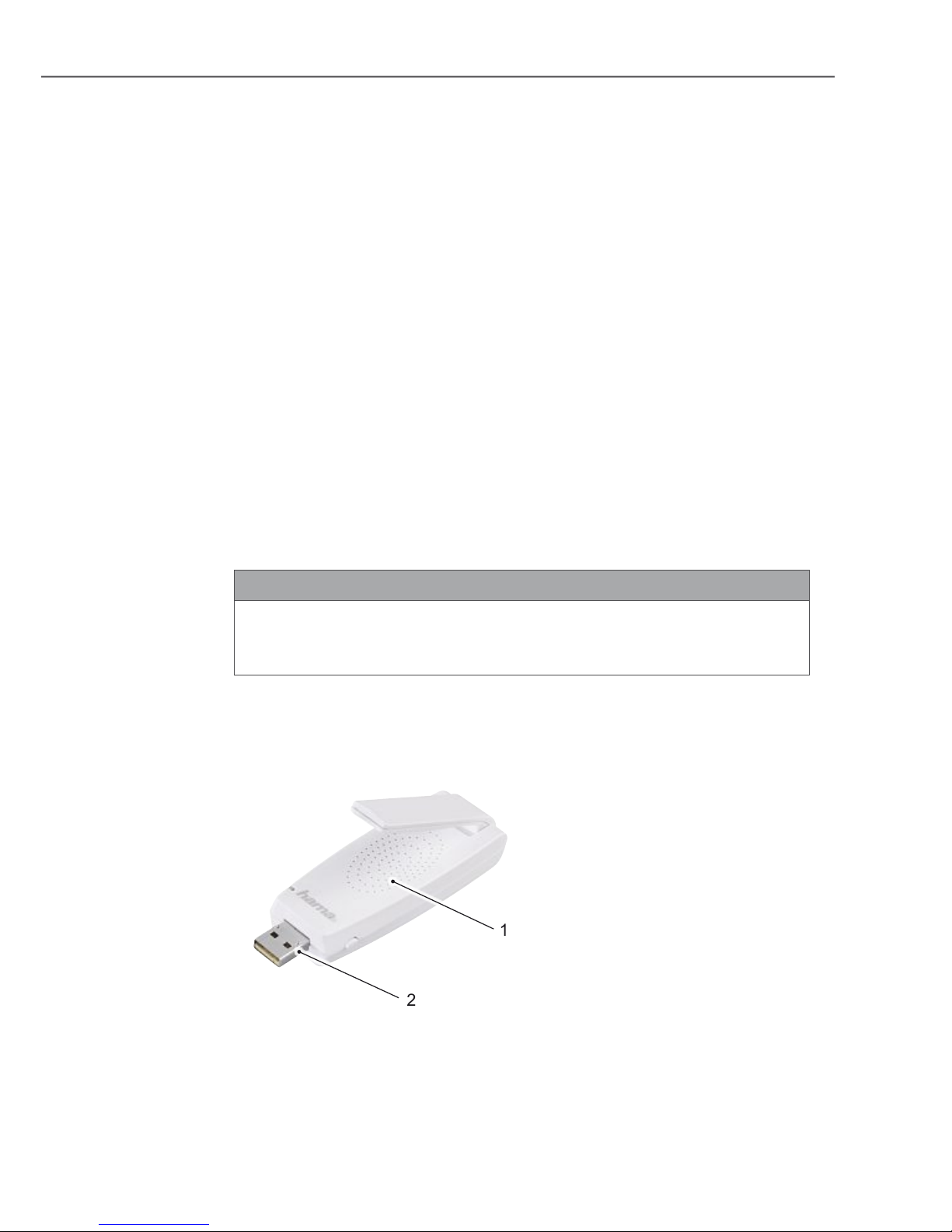
Device elements
1Housing
2USB plug
2
1

7
Description
00053178
g
Function LED
The function LED installed in the device ashes when accessing the
network
Requirements for operation
The following requirements must be met for installation and operation
of the device on your computer:
●Afree USB port on the computer
NOTE
►AUSB 20 port is recommended, USB 11 functions with a
reduced data rate
●Acomputer with one of the following operating systems installed:
–Microsoft®Windows 8 (32-bit or 64-bit edition),
–Microsoft®Windows 7 (32-bit or 64-bit edition),
–Microsoft®Windows Vista (32-bit or 64-bit edition),
–Windows XP®(32-bit or 64-bit edition)
(Service Pack 3 or higher recommended)
●Pentium-class computer or notebook (500 MHz CPU or better)
●At least 256 MB RAM and 50 MB free hard disk space
●ACD-ROM drive
NOTE
►If you wish to connect additional computers to the WLAN, you
need additional WLAN USB sticks

8
Connecting/disconnecting the device
00053178
g
Connecting/disconnecting the device
Inserting the USB WLAN stick
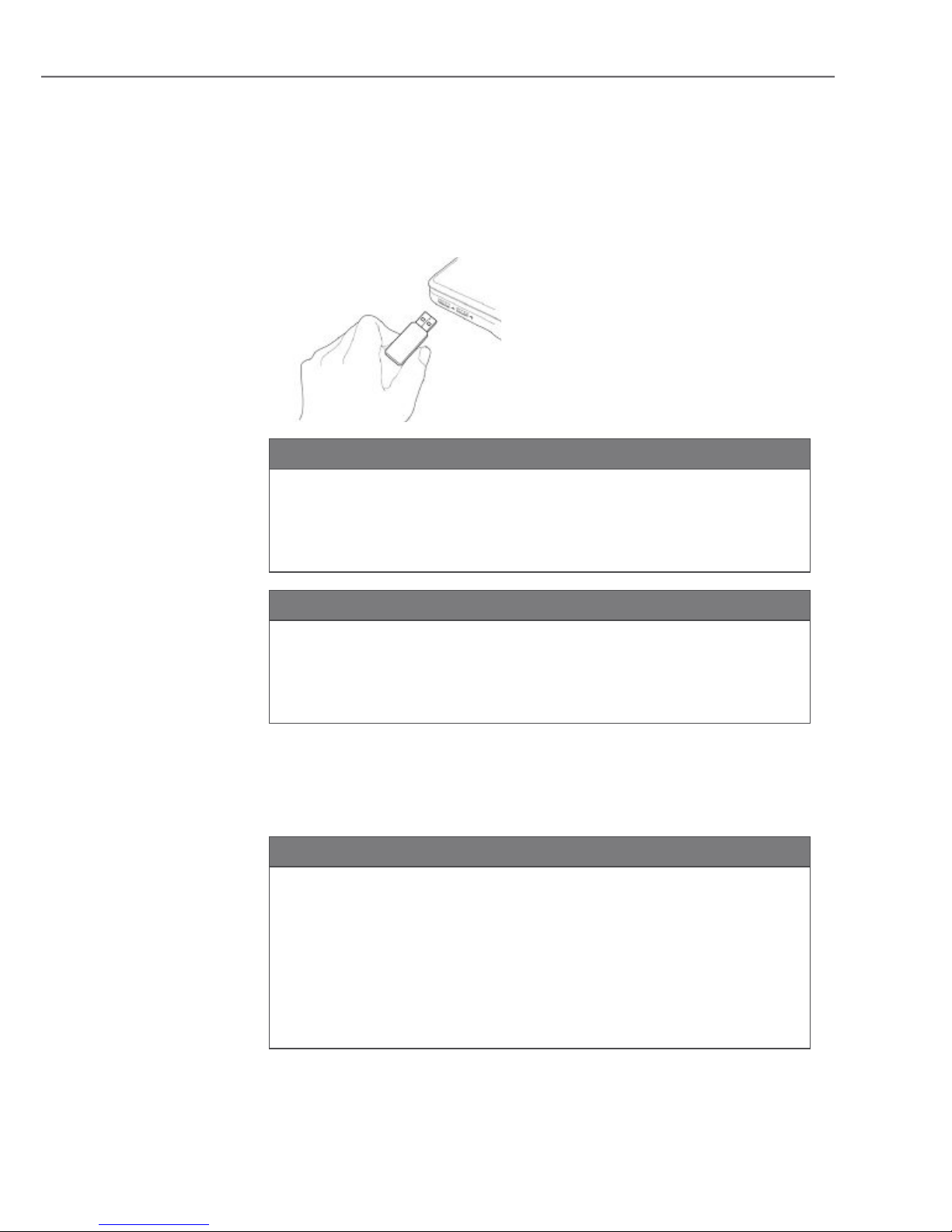
Switch on your computer and insert the device into a free USB
port or USB hub connected to the computer
CAUTION
Do not use excessive force when inserting the WLAN USB
stick into the port This could result in damage to the USB
port of your computer
►Check whether the USB stick ts the other way round.
CAUTION
The USB port or your laptop can be damaged by the pro-
truding USB stick
►Use the USB docking station supplied for connecting to a
laptop
Removing the USB WLAN stick
After shutting down the computer, pull the USB WLAN stick out
of the USB port of the computer
CAUTION
Possible data loss when writing to a network drive.
If the WLAN USB stick is removed during a data transfer, data
may be lost when writing data to the network drive
►Close all open programmes to ensure that all application
data has been saved
►Shut down the computer correctly before removing the USB
WLAN stick

9
Installation under Windows
00053178
g
Installation under Windows
In order to install the WLAN USB stick onto your computer, the fol-
lowing steps must be performed in the specied order:
1) Install the driver and the conguration software using the installa-
tion programme on the CD supplied with the device
2) Reboot the computer
3) Insert the WLAN USB stick
4) Congure the device.
NOTE
Before starting the installation, observe the following instructions:
►Use a USB 20 port for the optimum performance of the device
►Save all data and close all running application programmes
►If you already have another version of the drivers and congura-
tion software installed on the computer, uninstall these rst.
Installing the driver and conguration software
The following describes the installation of the driver and the congu-
ration software for the Windows XP, Windows Vista and Windows 7
and Windows 8 operating systems
NOTE
►The display of the menus may differ according to operating sys-
tem The following illustrations relate to a clean installation of the
respective operating system

10
Installation under Windows
00053178
g
Place the programme and driver CD supplied into the CD drive of
your computers The installation programme starts automatically
NOTE
►If you have deactivated the autoplay function and the installa-
tion programme does not start automatically, start the instal-
lation programme by double-clicking the "autorun.exe" le in
the main directory on the CD
Windows 8
►Just after inserting the CD-ROM, the following text appears:
"Tap to choose what happens with this disk" Click this ac-
cordingly
WINdOWs VIsTA / WINdOWs 7/8
►Execution of the "autorunexe" programme under Windows
Vista, Windows 7 and Windows 8 must be conrmed manu-
ally Click the "Run autorunexe" icon
The main menu of the installation programme is displayed
A
C
B
A – Select language German, English, French
B – Other languages
C – Exit programme
Select your preferred language for installation by clicking one of
the displayed languages (A) For more installation languages,
click button (B)
If you wish to cancel the installation, click the "Exit / Beenden /
Terminer" (C) button
Tabla de contenidos
Otros manuales de Accesorios de red de Hama
Manuales populares de Accesorios de red de otras marcas

Patton electronics
Patton electronics 2888 Manual de usuario

Cradlepoint
Cradlepoint COR IBR1100/IBR1150 Manual de usuario

Paradyne
Paradyne Hotwire 8620 Manual de usuario

Infra Cool
Infra Cool F-1.3 Manual de usuario

Edgewater Networks
Edgewater Networks 4300T Manual de usuario

Edimax
Edimax SB-2200g Manual de usuario

Extreme Networks
Extreme Networks Mogul-100 Manual de usuario

Aaeon
Aaeon FWS-8500 Manual de usuario

Panduit
Panduit Z11C Series Manual de usuario

F5
F5 BIG-IP 10000 Series Instrucciones de montaje

ZyXEL Communications
ZyXEL Communications NMA1115 Manual de usuario

Auerswald
Auerswald COMtrexx Business Manual de usuario