
Gravis GrIP Manual de usuario

Chapter Topics
Book Topics
GrIP User’s Guide
Introduction
Connections
GrIP MultiPort’s Control Modes
The GrIP-Pad
GrIP Software
Troubleshooting
Technical Support
Click on a Topic or click on
the arrow at the bottom of
the page to continue reading
through the book.
Throughout this book, you
can click on green-high-
lighted text to jump to a
related topic.
To return, click the Back
button in the tool bar.
Book Topics


Chapter Topics
Book Topics
GrIP User’s Guide
Chapter 1 – Introduction
Click on green-highlighted
text to jump to a related
topic in the book
To return, click the Back
button in the tool bar at the
top of the page..
Introduction
Thank you for choosing to upgrade your computer gaming environ-
ment with Gravis GrIP™. Your new MultiPort™ and GrIP-Pad™ con-
trollers are based on the patent-pending Gravis Interface Protocol
(GrIP). GrIP technology allows game controllers to communicate bi-
directionally, at high speed, through a standard PC game port.
The PC game port has changed little since its introduction over 15
years ago. It supports a maximum of two controllers, X and Y axes for
each, and two buttons for each controller; and the task of reading a
single analog joystick uses 12 to 14% of CPU cycle time, slowing the
performance of your games. As the developers of today‘s complex
games try to add more players, dimensions, and special functions to
their games, the limitations of the standard game port get in the way.
Gravis GrIP opens the door to radical game development. GrIP technol-
ogy imposes no practical limit on the number of controllers, buttons,
and axes that can be connected to a single PC game port. The
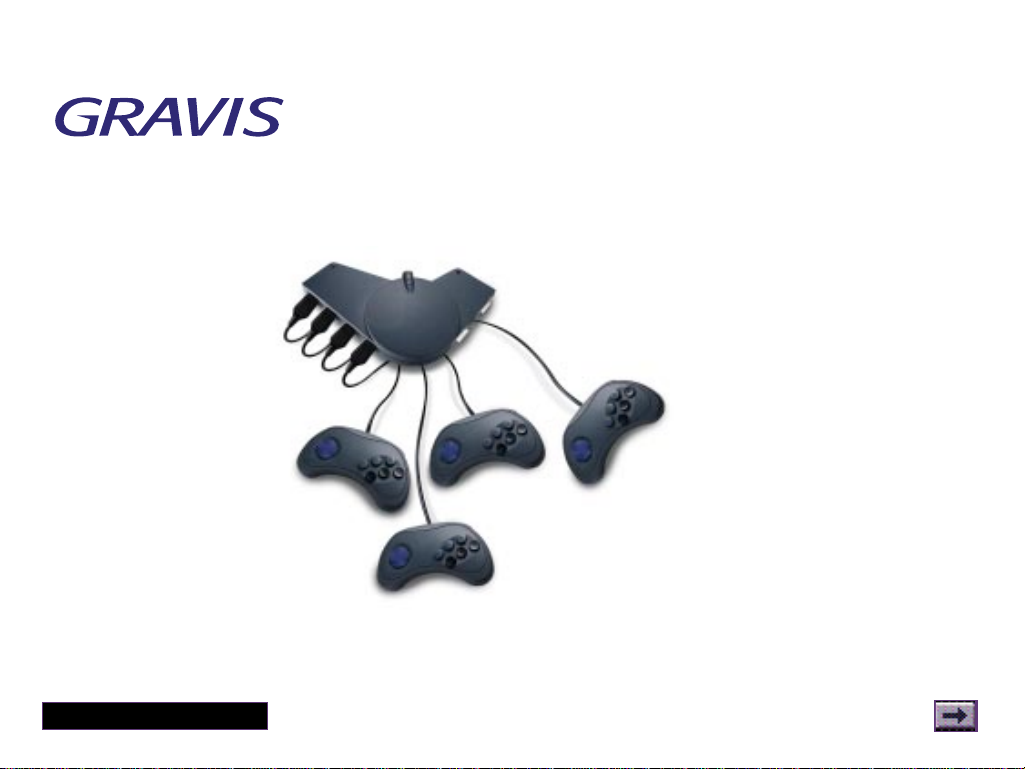
MultiPort allows you to connect four GrIP controllers or two traditional
joysticks. And the MultiPort supports all eight independent buttons on
each connected GrIP-Pad.

Chapter Topics
Book Topics
GrIP User’s Guide
Chapter 1 – Introduction
Reading four GrIP controllers through the MultiPort uses less than 1%
of the CPU cycle time, allowing your games to operate at full speed.
The MultiPort also eliminates the most common game port headaches:
• GrIP eliminates the need for speed compensation.
• The MultiPort is tolerant of half-game port systems (substandard
game ports that support only two axes or two buttons).
• GrIP provides auto calibration, so no software calibration is neces-
sary for games that support Gravis GrIP technology.
The GrIP-Pad’s 8 buttons operate independently in GrIP games, and
can be used in two predefined modes or programmed with keystrokes
for games that do not include direct GrIP support.
...Introduction, cont’d.
Speed Compensation Note
If you are using a speed-
compensating game port, set the
speed compensation level as
usual for Pass-Thru Mode.
When you are running the
MultiPort in GrIP Mode,however,
either turn off the speed
compensation, or make sure that
your game port is set to a
medium compensation level. (For
the game port on the Gravis
MULTIPORT cards,use an UltraJoy
setting between 8–31.)The need
for speed compensation is
eliminated with GrIP,but the
MultiPort may not work well with
a game port set to a low (fast)
compensation level.

Chapter Topics
Book Topics
GrIP User’s Guide
Registration
Complete the registration card in your GrIP package and mail or fax it
back right away. We supply our registered customers with full war-
ranty and technical support. If you have Internet Web access, register
on-line at www.gravis.com. Leave us your e-mail address, and we’ll
send you information on product upgrades, new products, and special
offers.
Chapter 1 – Introduction

Chapter Topics
Book Topics
GrIP User’s Guide
What You’ll Need
• IBM PC or compatible 486DX-66 or better recommended
• DOS 5.0 or greater
• IBM PC-compatible game port
• Double-speed or better CD-ROM drive recommended
(required for initial installation)
• Hard drive
• Windows® 95 required to create custom GrIPKey keysets
Chapter 1 – Introduction

Chapter Topics
Book Topics
GrIP User’s Guide
Connecting the MultiPort
Connecting GrIP Game Controllers
Connecting Standard 15-Pin Game Controllers
Chapter 2
Connections
Click on a Topic or click on
the arrow at the bottom of
the page to continue reading
through the book.
Throughout this book, you
can click on green-high-
lighted text to jump to a
related topic.
To return, click the Back
button in the tool bar.

Chapter Topics
Book Topics
GrIP User’s Guide
Connecting the MultiPort
1. If your computer is running, turn it off to avoid possible electrical
damage to your MultiPort or computer.
2. Plug the MultiPort‘s 15-pin connector into your computer‘s joystick
port. If your game adapter has two joystick ports, use Port A.
Chapter 2 – Connections

Chapter Topics
Book Topics
GrIP User’s Guide
Connecting GrIP Game Controllers
1. With your computer running, move the Mode selector slide switch
towards the two 15-pin joystick ”Pass-Thru“ connectors until the
green LED on the Pass-Thru wing lights up.
This switches the MultiPort into Pass-Thru (standard game port) Mode
and cuts off power to the four GrIP sockets so you can safely connect
GrIP controllers.
The ”GrIP wing“ on the MultiPort has four sockets, labeled Ports 1–4.
2. Attach each GrIP-Pad or other GrIP controller to one of these
sockets.
Chapter 2 – Connections
9-pin GrIP
sockets: Port 1
Port 2
Port 4 15-pin standard joystick
“Pass-Thru” sockets
Port 3
Mode Selector
Switch
Reset Switch
Tabla de contenidos


