GPD XD Plus XD2 Manual de usuario

XD Plus User Manual
Quick Start Guide
1.NOTIFICATION
For better enjoying it, we highly recommend you to read the following information before
starting to use it.
● AVOID leaving your device in high temperature(Upon 35 Centigrade) or in low temperature
(Below Negative 5 Centigrade);
● AVOID crushing your device with any hard objects, which may cause its surface scratches
or some hardware damages;
● AVOID contacting with Benzene, Thinner chemical substances;
● DON'T get close to the strong magnetic and electric field;
● AVOID direct sun light or heater;
● DON'T disassemble your device individually;
● DON’T use your device when driving to avoid traffic accidents;
● DON'T use larger volume to avoid bad effect on your ears;
● PLEASE properly classify before discard;
● PLEASE power off the device before connecting with TF card, after then turn it on.
Otherwise it will influence the device’s function;
● DON’T disconnect your device from computers while formatting system or
download/upload files, which may cause program errors.
Functions
● All-around Game Simulator
Perfectly support Arcade games, Nintendo N64 3D games, GBA games, Sega MD games
and FC games etc.;
Special control button and 360 degrees rocker makes a perfect combination of game control
experience and speed. Meanwhile it has infinite expandability.
● Android Touch Games
Angry birds, Fruit Ninja, Gran Turismo etc..
● Android Gravity Games
Asphalt5, Army Sniper, Hungry Shark,Speed Forge 3D, Labyrinth etc..
● Wi-Fi
Wireless Internet, Support 802.11 b/g/n.
● Social Communication
Facebook, YouTube, E-mail, MSN and Sky etc..
● E-book
Perfectly support PDF format after installing Adobe APKS.
● On-line Video and 1080P HD TV-OUT
● On-line Music
Cloud service makes thousands of music ready for you.
● CAMERA, DV and DC function
GPD XD Plus
Model:XD Plus,XD2, XD3
Brand:GPD
Manufacture:Shenzhen GPD Technology Co., Ltd.

Buttons
Power on: Long press "power" key for several seconds to turn on the device when it is
enough charged.
Standby: Shortly press "power" key to close screen, device is in standby status and save
power. Shortly press "power" key again to open screen.
Power off: Long press power key for several seconds under any interface, then click "OK" to
turn off the device.

Main Interface
1. Function
1. The machine has 5pages for first interface, the main page is in the middle and each 2
pages on side.
2. Interface has 6 emulators for pre-install, touching or press left or right buttion can
enter more APP page.
In interface’s right , the icon is shortcut icon, long press can build or delete
shortcut.The steps like this:
A:Establish:Click “Menu”in interface, enter APP pages or window widget and long
press the icon you want to establish,the icon will appear in interface directly. Then , dragging
the icon left or right to the place you want to put. Finally , loosing your finger and the
establish is finished.
B:Delete: Long press App icon in interface, it will appear “X”in the middle.Then, dragging
the icon to this place, when the icon turns gray and loose is ok.
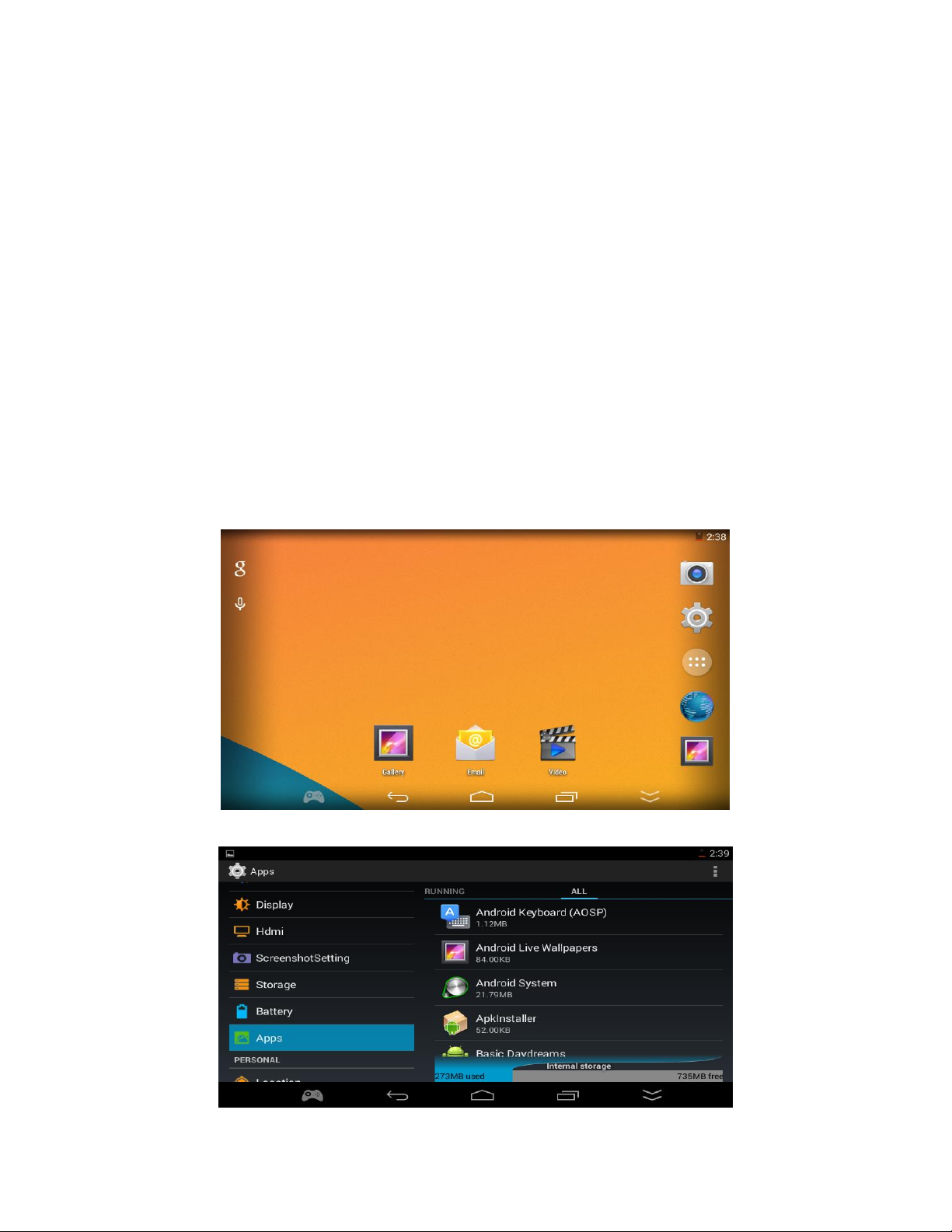
3. Following picture is interface , it divides to Status Bar, Main Page Icon, Search Tool,
Voice Search ,Pre loaded Software ,Suppressible Toolbar etc.
4.Install for Pre-loaded Software

The Android game or running files has copied in interior SD or external SD
root menu file”Apks”(Look 6.1).User need play games or APP , only need click the icon at
interface and it will appear relevant page to install , clicking install and the machine will install
game automatically.
5.Suppressible Toolbar: Clicking is back to last step,Clicking is back
to interface, Clicking can appear task manager,Clicking can appear
emulator page,Clicking can hide toolbar, slide up can appear again.
2.Emulator and Game Support
2.1 Emulator
Clicking ,it can appear emulator like pictur1, then set the button place according
to touch overall arrangement(like arrow in picture1).Finally , clicking save and it can
play.You will find the button turns red .(like picture2 )

Attention:Due to the button have save automatically,the same game only need set
once and exit game need not close emulator function.
2.2 Games support
Perfect support Arcade games, Nintendo N64 3D games, GBA games, Sega MD games and
FC games etc.; provide professional game buttons and 360 degrees joystick;
P.S.:Please find all the simulator games from below folders:
N64 game: /roms/n64roms/ roms Arcade games: /roms/arcaderoms/roms
GBA games: /roms/gbaroms/roms FC game: /roms/nesroms/roms
MD game: /roms/mdroms/roms
If cannot find game in these menu, please drag the game to the equivalents menu from
PC or Files management. If game download from machine , the machine will save it to
equivalent file, when you play the game, only click the equivalent icon is okay.
The APK game and emulator game in interface is in interior equivalent menu, click the icon
and install the game and play it.
2.3 Emulator Games
1. When user put the games to equivalent file, open game classify icon in
interface. Like Arcade Game, clicking the icon and enter the game and use the
emulator to play games.( start to begin, select to coins in or confirm)
If you want to end the game,press “menu”, it appear menu option, it can set
game and exit.But different games has different button.User need to set them
according to your own experience.

2.4 Android Games
The game in interface and program page, clicking the icon and then open the game. The
game which download do not in interface , user need click “ All program ” in the left corner.
Open all Android App list,click the game icon and open the game.
2.5 Exit Games
No matter emulator game or Android are pressing “back” to exit ,emulator games also
can press “Menu” to exit.
3.Manage/upload program and game source file management
3.1 Android games and applications.
In interface, press “Menu”, it will appear ,menu toolbar in the right corner.
Click manage application and enter to interface,program will scan all APK Flash card or TF
card and classify them automatically.

Then open the list which program in ,click the application which want to upload.Then, it
will appear interface to upload.If you want to save data,clicking upload is okay, If not, you
need click”Clear Data”and then upload.
It also can click”System Setting”to set “Application Management”(or install the third
party Android management )to upgrade,upload,clear cache or operate them.
The other way to add Android application is copying Android APK to interior memory or
TF card,through APK installer or files manager to install.
3.2 Emulator Game( Arcade game、GBA game):
A: Add emulator games: The way to add is according to game support in manual and save
games. You also can classify games to interior memory or TF card to download and add new
games.
B:Delete emulator games: Link PC or in “Files Manager” , find machine’s room file and enter
it, and delete games.
4.Internet
Looking through website、QQ all internet application need link Internet.It can operate
after link WIFI successfully.
The machine has WIFI(802.11 b/g/n), but WIFI is off default.
The way to turn on the WIFI: In main interface, press “Menu” ,. It will appear menu
toolbar in the right corner.Click “System Setting”or click “Main Interface” icon and enter
Desktop Menu.Click setting,and find WIFI in wireless and Internet.The WIFI is in “off”status.
Click “Close”or the black frame,the WIFI is on.When the WIFI is on, it will search WIFI route, click the route
you want to link is okay.

PS: It must be in WIFI condition and link it ,Maybe it cannot surf the internet ,because the
wireless router’s internet is useless.please check the connection between router and the The
Internet dialer.
5.Internet Application/Website、Input Method
5.1 Internet Application.
All internet application need link WIFI successfully.Website、QQ、Facebook etc pre-load
software can play from main interface.

5.2 Look Through Website
After linking WIFI , clicking the browser icon or click top-right menu icon to all program.Then
click “Browser” is okay. The system default is Google Browser.
In Google , you can input the website you want.Under “sign in ” ,you can press menu or
top-right menu icon.It will appear menu toolbar. You can set browser now.
PS:The default browser only can open 8 at most, when over the default , the system will
warn “the window is full”.You need close windows and add new one. In addition, the website
will not exit after clearing up the history record.
5.3 Input Method
The system default has two input method:Android English、Pinyin、Google Pinyin.Bur the
Google Pinyin is not open.The way to open is clicking “menu” in main interface and enter to
system setting.Then click “Language and input method”.When you see “Google input
method” in keyboard and select is okay.When you input words, a small keyboard icon appear
in the corner.The small icon will appear the input method you have opened,choose one and
select it is okay.

6.Camera and Default installation Location
6.1 Camera:
The machine has back camera.It can take photos, overview,DV recording. You can change
photo and DV status, the adjustment for white balance, photo balance,exposure, record
quality etc.
6.2 Online Bookstore:
The machine has not online E-Book application, but can download online E-Book like QQ
Read etc.
6.3 Default installation Location:
User can choose interior or SD card to install, it will take effect after restart.
7.Video 、Song Control and USB Connection
7.1 Local Video:
The machine has 1080P decode muti-format video player.Click “Video” from menu.It can
play video in interior and TF card, and also can watch it through HDMI or TV-OUT
transfer it to TV or display screen.If you are not satisfied with video player , you also can
download the third party to expand video ability.Click button, it can put video
window suspension on program interface, dragging it to verge and it disappear.
Este manual sirve para los siguientes modelos
1
Tabla de contenidos
Otros manuales de consola de juegos de GPD