
GEM Cube Manual de usuario
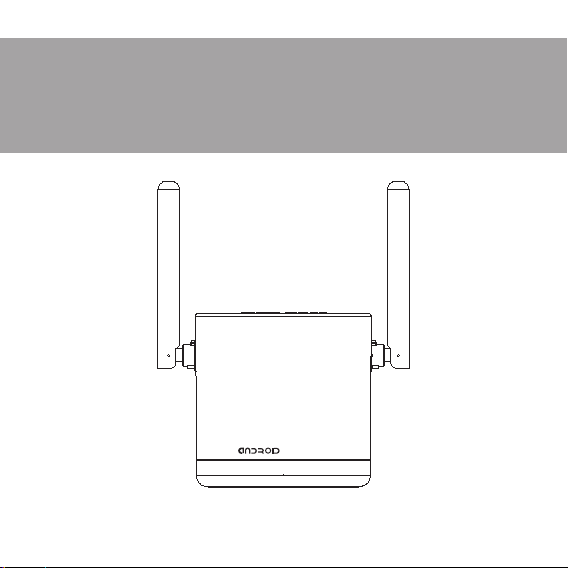
Quick Reference Guide
Please do read user manual before you operate the TV box.
SMART TV

Safety instruction
·Please keep the product in horizontal position. Do not put any heavy stuff on the top of the
TV box.
·Please use the provided power adapter. Do not use the damaged power cable and plug.
·Please avoid to plug power adapter with wet hands.
·Please do not disassemble, modify machine by yourself to avoid any shock and damage to
the TV box.
·Please keep the machine away from the heat source to avoid to damage the machine; The
TV box, it should be put in a well ventilation place.
·Please keep the TV box away from damp and dusty environment to avoid fire and electric
shock.
·Please prompt shut down and unplug power adapter when the machine emitting smoke or
having special smell.
·Please unplug the power adapter when long time not using the TV box.
HDMI
HDMI
TV Box x1 Remote Control x1 Power Adapter x1
DV Cable x1 User Manual x1DM x1
SMART TV

Hardware
Rear Panel
USB1
Ethernet DV out Micro SD
USB2 AV Output
DC IN

Remote Control
【Note】: Functions of the remote control maybe different for different Apps, you may
need to use an external mouse to operate it.
on/off
Main interface
Back
Menu
Volume +
Volume -
Mouse
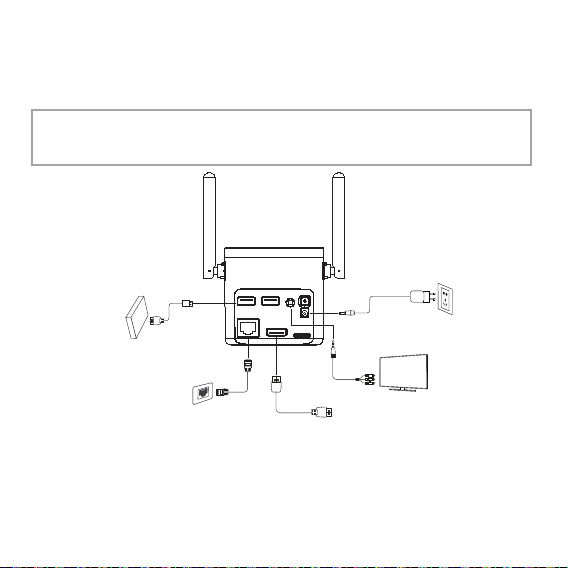
Please refer to below pictures and instructions to connect TV, Power, Network and other
devices.
Note: Before connecting please shut down all the equipment to be connected
(such as this machine and TV power)
Step1 Connection with TV
Connect HDMI/AV cable to HDMI/AV port of the TV box and TV set
Step2 Connection with network
Plug the Ethernet cable to LAN port of the TV box, the other side to LAN port of router or
Ethernet port of home broadband network.
System Connection
Internet Connection
Storage Device
TV
HDMI
HDMI
Power Input

Step3 Connection with Power
Connect the power adapter to the TV box. After power in on, it can start automatically.
Note: Before powering on, Please switch the signal input of the TV to correct source.
Tips: The TV box support Wi-Fi, enter Settings →Network interface Wi-Fi operation
Main Menu Enter Settings→Network
Main Menu Network Setting
·The Status Bar: Show current date, time, network.
·Navigation Bar: Application classification
·Quick application area: Show commonly used
functions or applications for each
·Operate Instruction
·Function area: Slide the Touchpad Turn Right
/Left or Up/Down can switch classification, pressing
Touchpad button enter function or application area.
Quick application area
Application
The Status Bar
Setting

Connect with Wi-Fi
Connect with Ethernet
Enter Aplication classification,
show all applications.
APP
Select Wi-Fi, turn on Wi-Fi and connect an available
Wi-Fi network with correct password.
Install Applications
·Install from app store
After connecting network, you can install app from
app store (such as Google Play).
·Install via U disk or SD card
1)Insert the U disk or SD card that stores .apk files.
Navigate to the .apk file using file browser and
select it, it will open a dialog box allowing you to
install the app, select “Install” and “Install” again to
install the .apk.
【Note】Please do not plug the Ethernet cable
when using Wi-Fi
Select Ethernet, turn on Ethernet, If cannot connect
network with automatic IP, please turn off automatic
configuration functions and set network parameters
manually.
【Note】:When using wired network, the TV box
will automatically close wireless network.
The new application will appear in Aplication
classification menu after installation.
Setting

·The Status Bar: Show current date, time, network.
·Navigation Bar: Application classification
·Quick application area: Show commonly used
functions or applications for each
·Operate Instruction
·Function area: Slide the Touchpad Turn Right
/Left or Up/Down can switch classification, pressing
Touchpad button enter function or application area.
Uninstall Applications System Update
Enter Settings→Advanced →APPS, a list of installed
applications will appear, select the one to be
uninstalled and simply click Uninstall.
Enter to Home->Settings->Soft update, you can see
below info:
·USB upgrade
Copy the update files on SD card or U disk, then
insert SD card or U disk to USB upgrade. Select the
upgrade file to upgrade
·Network upgrade:
Connect to the internet, select ‘network update’, the
machine can be updated when the machines detects
new software.
Note:Please avoid closing power or removing USB
storage device when software is updating

Technical Specifications
CPU
Android OS
Video output
Audio output
Video format
Audio format
Photo format
Network
Operation temperature
Power
Power consumption
ARM Quad 64-bit Cortex-A53 up to1.5GHz
Android 6.0
HDMI2.0b, AV
Optical
H.265 10-bit 4K*2K@60fps,VP9 4K*2K@60fps
H.264, MPGE, MKV, MP4 and other video formats
AAC, WAV, MP3 and other audio formats
JPG, BMP, PNG and other photo formats
2.4G/5GHz MIMO Wi-Fi 802.11ac/b/g/n with dual
antenna
RJ45 Interface 10M/100M adaptive
0℃~40℃
Input: AC100-240V 50/60Hz
Output: DC 5V/2A
<8W

Troubleshooting
The power cord Doesn’t
connect or socket without
electricity
Audio cable is not connected
TV Box in MUTE state
Audio setting is abnorma
Volume is too low
Cable connect is abnormal
Wi-Fi closed or the signal
is too weak
Remote control is not in
the correct direction
Remote control is with low
battery
Remote control is broken
Connected power plug, ensure
normal voltage electrical outlet
Re-connect the Audio cable
Please press mute button to
restore volume
Please enter the audio and video
Settings menu, select the appropriate
sound channel and language
Turn up the volume
Please reconnect internet
Please restart the Wi-Fi or adjust
the position of this machine
Please aim at the front panel's '
SENSOR', then try again
Please change the batteries
Please send it to the local
maintenance station for checking
Issue Possible reason Solution
After turned on,
without any display
TV with images
without Voice
Fail to connect the
network
Controller failure
Tabla de contenidos
Idiomas:


