GE HO98056 Manual de usuario

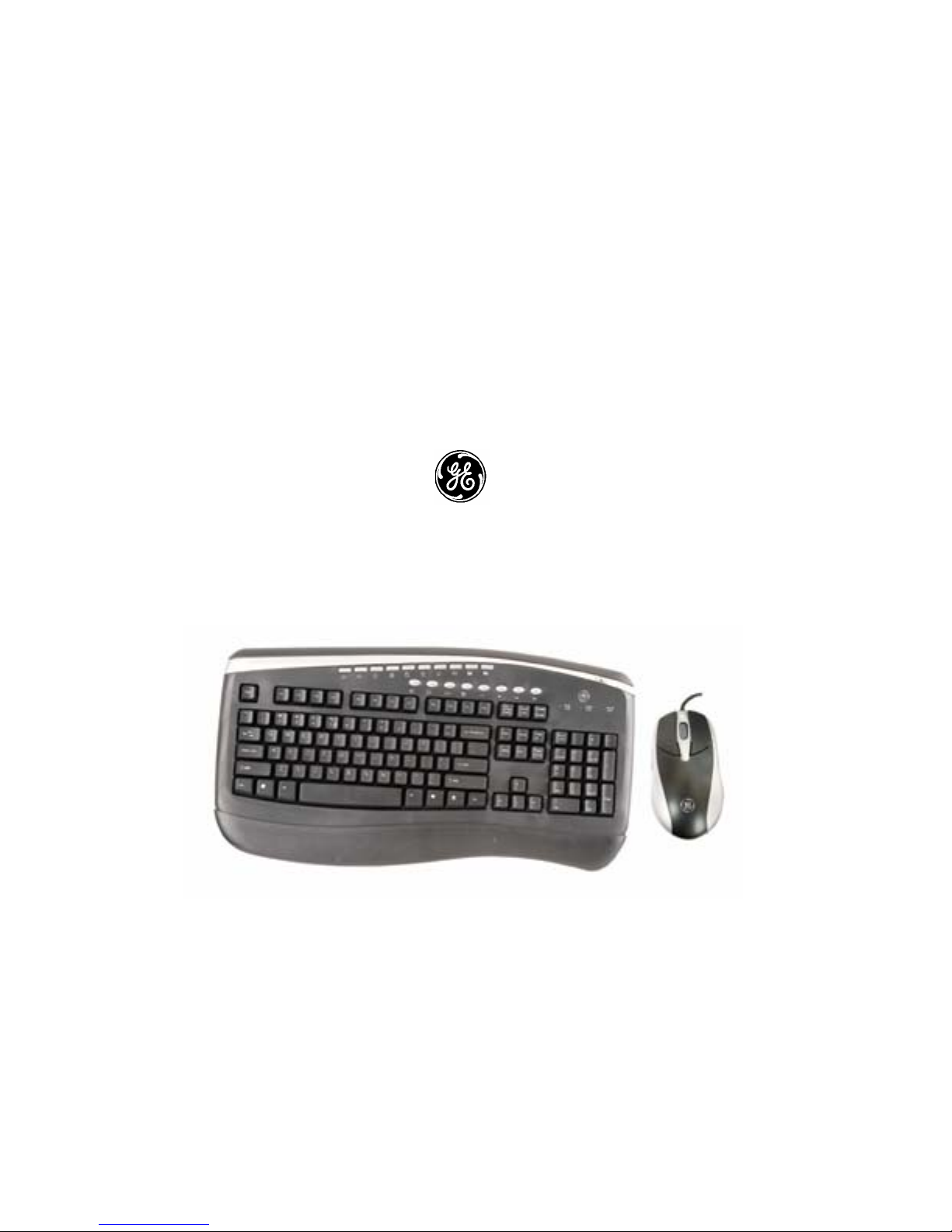
MULTIMEDIA KEYBOARD
AND OPTICAL MOUSE
HO98056
Rev. 2
USER’S MANUAL
www.jascoproducts.com

Page - 2 -
TABLE OF CONTENTS
1. Introduction ------------------------------------------------------------------------------------------------------- 3
2. Feature Description--------------------------------------------------------------------------------------------- 3
3. Package Contents----------------------------------------------------------------------------------------------- 4
4. System Requirements ----------------------------------------------------------------------------------------- 4
5. Hardware Installation Instructions------------------------------------------------------------------------- 5
6. Software Installation Instructions-------------------------------------------------------------------------- 6
7. Keyboard Settings ---------------------------------------------------------------------------------------------- 8
7-1. Programming Hot Keys---------------------------------------------------------------------------------- 8
7-2. Customize the Hot Key Display----------------------------------------------------------------------10
7-3. Scroll Lock, Num Lock & Caps Lock icons ------------------------------------------------------10
8. Mouse Settings--------------------------------------------------------------------------------------------------11
8-1. Scroll Wheel Settings -----------------------------------------------------------------------------------11
8-2. Button Programming ------------------------------------------------------------------------------------12
9. Software Un-Install Instructions---------------------------------------------------------------------------13
10. Special Function Hot Keys --------------------------------------------------------------------------------14
10-1. Description of Multimedia Key Zone--------------------------------------------------------------14
10-2. Description of Internet Key Zone ------------------------------------------------------------------15
10-3. Description of Windows Key Zone ----------------------------------------------------------------16
11. Special Mouse Functions ----------------------------------------------------------------------------------17
12. Troubleshooting ----------------------------------------------------------------------------------------------18
13. 3 Year Limited Warranty------------------------------------------------------------------------------------19
14. FCC Statement-------------------------------------------------------------------------------------------------20

Page - 3 -
Thank you for purchasing the GE branded Multimedia Keyboard and Optical Mouse.
This User’s Manual contains all of the information needed to operate your keyboard
and mouse. Please keep the enclosed CD in a safe place for future maintenance after
installation.
1. Introduction
The Multimedia Keyboard and Optical Mouse are specially designed to optimize your efficiency. With
19 special one-touch keys, you can execute your favorite commands instantly from your desktop! The
5-button optical mouse allows easy scrolling in your applications, and forward and back Internet buttons
that can be programmed to perform other common tasks. The detachable wrist rest and crisp keys ensure
comfort. This solution is designed to maximize your total productivity! You can just plug in the
Multimedia Keyboard and Optical Mouse and it is immediately ready to use, or install the software to
empower the keyboard with more functions.
2. Feature Description
•Optical mouse provides pinpoint precision on almost any surface.
(The mouse may not work on glass, very dark or very glossy surfaces)
•Optical mouse stays clean and won’t wear out.
•7 hot keys for “Internet Zone”.
•7 hot keys for “Multimedia Zone”.
•4 hot keys for “Windows® Zone”.
•Sleep mode to save power.
•Compatible with Windows® 95, NT, 98, ME, 2000, and XP.
•No driver or software required except for special application keys.
•Wrist Rest for added comfort.

Page - 4 -
3. Package Contents
•Multimedia Keyboard
•Optical 5-Button Mouse
•2 USB to PS2 adapters
•Wrist Rest
•CD with Software
•User’s Manual
4. System Requirements
•Pentium 133 MHz or higher processor
•Windows® 95 or later
•Microsoft® Office 95 or later
•Microsoft® Internet Explorer 4.0 or later; Netscape Navigator 4.73 or later; MSN Explorer and
AOL.
•For Windows® 95, 98: 32 MB of RAM recommended
•For Windows® NT, 2000, ME, XP: 64 MB of RAM recommended
•4MB of available hard disk space
•CD-ROM or DVD drive
•2 PS/2 ports
Note:
1. “Sleep” hot key function is available if your system supports power management (ACPI) and has it
enabled and all the peripherals (e.g. VGA, Sound card…) are compatible with power management.

5. Hardware Installation Instructions
The GE Multimedia keyboard and optical mouse can each be connected to either a USB or PS2 port. You
may choose a different connection type for each. Please follow the instructions below for your preferred
connection method.
USB
1. Disconnect the existing keyboard and mouse from your computer.
(Shut down your computer before disconnecting any PS2 device from your computer.
You may restart your computer after the PS2 device is removed.)
2. Plug the USB plug of your keyboard into any USB port on your computer or hub.
3. Plug the USB plug of your mouse into any USB port on your computer or hub.
PS2
1. Shut down and turn off your computer. Failure to do so could damage your computer.
2. Disconnect the existing keyboard and mouse from your computer.
3. Plug the USB plug of your keyboard into the USB port on the USB to PS2 adapter.
4. Plug the PS2 plug of the USB to PS2 adapter into the keyboard PS2 port on the back of your computer.
(This port is usually purple with a small icon of a keyboard as a label.)
5. Plug the USB plug of your mouse into the USB port on the USB to PS2 adapter.
6. Plug the PS2 plug of the USB to PS2 adapter into the mouse PS2 port on the back of your computer.
(This port is usually green with a small icon of a mouse as a label.)
7. Turn on your computer and start your Operating System.
Page - 5 -

Page - 6 -
6. Software Installation Instructions
It is not necessary to load the software in order to use the standard functions of your keyboard or mouse.
The software is only required to use the hot keys and to program the keyboard and/or mouse buttons.
Please read all instructions before you begin. If you are not confident in your ability to load the enclosed
software, please contact a computer technician in your area. It is always a good idea to back up your system
before adding any new software to your computer.
1. Close all open applications before beginning.
2. Uninstall any previously installed third-party keyboard or mouse software from your computer by
going to “Add/Remove Programs” in the Control Panel. Control Panel is located in the Start Menu.
(In some operating systems Control Panel is located under “Settings” in the Start Menu.)
DO NOT remove the standard Microsoft drivers!!
3. Insert the included CD into your CD-ROM drive. It should auto run.
If the CD does not run automatically, you have two options.
a) Click on My Computer located on the desktop or in the Start Menu. Locate your CD drive,
which usually has an icon with a picture of a CD. Double click on the icon with your left mouse
button. Locate “Setup”. Double click on the icon with your left mouse button. The CD should run.
b) Click on Run in the Start Menu. Click on Browse. Locate and click on your CD drive. Click on
“Setup”. Click Open. If your CD drive is your D drive, it should say "D:\Setup.exe" in the Run
window. Click OK. The CD should run.
4. On the “Select Language” screen, “English” is selected by default. Click “Next” to continue.
5. On the “Welcome” screen, click “Next” to continue.
6. On the “Select Destination Directory” screen, you may “Browse” to select an alternate destination for
the keyboard and mouse software folder. It is recommended that you use the default destination. Click
“Next” to continue.

7. On the “Select Program Folder” screen, you may select the folder under Programsin the Start Menu that
the keyboard and mouse menus are placed. It is recommended that you use the default folder. Click
“Next” to continue.
8. On the “Start Copying Files” screen, click “Next” to continue.
9. When prompted, select “Yes, I want to restart my computer now”. Then click “Finish”. Your
computer will restart.
10. After the drivers and software have been loaded and the computer has rebooted, all keyboard and mouse
functions should work properly. Hot keys and mouse buttons can be customized by double clicking on
the keyboard ( ) or mouse ( ) icon in the system tray and selecting from the menu screens. See
section 7 and 8 for more details.
11. Clicking on the Keyboard or Mouse icon in the Control Panel allows you to customize standard
keyboard and mouse functions. The Control Panel is located in the Start Menu. (In some versions of
Windows, the Control Panel is located under “Settings” in the Start menu.)
PLEASE NOTE THE FOLLOWING SPECIAL FEATURES OF YOUR KEYBOARD:
1. After the drivers and software have been installed, there are icons in the system tray for Scroll Lock ,
Number Lock , and Caps Lock to indicate when these items are active (green box with white
characters) or inactive (gray box with gray characters). These icons can be turned on or off in the
Keyboard Settings menu.
2. When Num Lock is active, the green Num Lock LED will illuminate.
Page - 7 -

7. Keyboard Settings
To access the keyboard settings, double-click on the keyboard icon ( ) in the system tray located in the
lower right hand side of your screen.
7-1. Programming Hot Keys
1. Select the hot key you wish to program from the keyboard picture shown below. The selected key will
be highlighted in yellow.
2. Select the desired function from the “Keys” tab.
a. Select from the list shown and click OK. You’re finished!
b. If you don’t see the function you want, click Custom and Set. Continue on to step 3.
Page - 8 -

3. Choose the special function using step a or step b below. You may not reuse shortcuts already utilized
by the keyboard hot keys. This includes things like your web browser and default mail program.
a. Click “Browse” to locate an executable file.
b. Drag the shortcut of an executable application or folder and drop it in the square indicated below.
4. Click Next to continue.
Drop the application or
folder short cut here.
5. Enter a name for the function you have selected. When you use the selected hot key, the function name
will appear in the lower right hand corner of the screen while the application is loading or the folder is
opening.
6. Click Next to continue.
7. Click Finish on the next screen to complete the process.
Page - 9 -

7-2. Customize the Hot Key Display
When you use any hot key, the Function Name and icon are briefly displayed in the lower right hand corner.
You can select the colors and duration of the display from the OSD tab.
1. Select the area you want to change from the Item drop down menu. You can select Window, Frame or
Text.
2. Select the color you would like to change to from the Color drop down menu.
3. Select the amount of time the Function Name and icon are displayed from the Delay drop down menu.
You may select between 1 and 10 seconds.
7-3. Scroll Lock, Num Lock & Caps Lock icons
Frame
Text
Window
On the Key Status tab, check the boxes next to the icons
you want displayed in the task bar.
Uncheck the boxes next to the icons you don’t want
displayed in the task bar.
Page - 10 -
Tabla de contenidos
Otros manuales de Accesorios de computadora de GE


