
Garmin iQue Manual de usuario

iQue® M3
integrated handheld
operating instructions

ii iQue® M3 Operating Instructions
INTRODUCTION > IMPORTANT INFORMATION
© Copyright 2005 Garmin Ltd. or its subsidiaries
All rights reserved. Except as expressly provided herein, no part of this manual may be reproduced, copied, transmitted, disseminated, downloaded or stored in any
storage medium, for any purpose without the express prior written consent of Garmin. Garmin hereby grants permission to download a single copy of this manual onto
a hard drive or other electronic storage medium to be viewed and to print one copy of this manual or of any revision hereto, provided that such electronic or printed
copy of this manual must contain the complete text of this copyright notice and provided further that any unauthorized commercial distribution of this manual or any
revision hereto is strictly prohibited.
Information in this document is subject to change without notice. Garmin reserves the right to change or improve its products and to make changes in the content
without obligation to notify any person or organization of such changes or improvements. Visit the Garmin Web site (www.garmin.com) for current updates and
supplemental information concerning the use and operation of this and other Garmin products.
Garmin®, iQue®, MapSource®, City Select®, and AutoLocate ® are registered trademarks and Que™ and QueGPS™ are trademarks of Garmin Ltd. or its
subsidiaries and may not be used without the express permission of Garmin.
Microsoft®, ActiveSync®, MSN®, the MSN logo, and Outlook® are registered trademarks and Windows Mobile™ is a trademark of Microsoft
Corporation in the United States and/or other countries.
Garmin International, Inc.
1200 East 151st Street
Olathe, Kansas 66062, U.S.A.
Tel. 913/397.8200 or 800/800.1020
Fax 913/397.8282
Garmin (Europe) Ltd.
Unit 5, The Quadrangle
Abbey Park Industrial Estate
Romsey, SO51 9DL, U.K.
Tel. 44/0870.8501241
Fax 44/0870.8501251
Garmin Corporation
No. 68, Jangshu 2nd Road
Shijr, Taipei County, Taiwan
Tel. 886/2.2642.9199
Fax 886/2.2642.9099
June 2005 Part Number 190-00511-00 Rev. A Printed in Taiwan

iiiiQue® M3 Operating Instructions
INTRODUCTION > IMPORTANT INFORMATION
Lithium-Ion Battery Information
Your iQue® M3 contains a non-user-replaceable lithium-ion battery. Please observe the following cautions:
• Do not store or use the unit in temperatures above 50°C (122°F) or below 0°C (32°F). Do not store or use the unit near a heat source,
such as a radiator, stove, or fireplace. If heated, the battery in the unit could explode or vent, posing a risk of fire.
• Do not use any chargers not specified by Garmin. Do not charge the battery under conditions not specified by Garmin, as it may leak
electrolytes, become hot, or explode.
• Do not put the unit into a fire, as it may swell or explode. Do not use near any type of heat source. If the battery leaks electrolytes or
emits a strange smell, discontinue use and move the unit away from the heat source.
• Do not submerge the unit in water or any type of liquid. Do not expose the unit to any type of water, such as rain or moisture, as it might
corrode, become hot, or occasionally not function.
• Keep the unit out of reach of babies and children.
• Do not put the unit in a microwave oven or pressure cooker.
• If you experience any problems with the battery, keep the unit in a safe place and immediately contact Garmin.
• If you must dispose of the unit, contact your local waste disposal department for information on properly disposing of
lithium-ion batteries.

iv iQue® M3 Operating Instructions
INTRODUCTION > TABLE OF CONTENTS
Chapter 1: Getting Started ................................1
Parts of the iQue M3 ....................................................1
Resetting the iQue M3 .................................................3
Opening Programs .......................................................4
Entering Information .....................................................6
Finding Information ......................................................8
Organizing Information ................................................. 8
Chapter 2: Using ActiveSync ...........................9
Choosing What Data to Synchronize ...........................9
Choosing When to Synchronize ................................. 10
Moving Files ...............................................................10
Adding and Removing Programs ............................... 11
Backing Up Files and Settings ...................................13
Synchronizing with an Exchange Server .................... 14
Synchronizing Remotely with Infrared ........................ 14
Chapter 3: Pocket Outlook .............................15
Calendar: Scheduling Appointments and Meetings ...15
Contacts: Tracking Friends and Colleagues ..............17
Messaging: Sending and Receiving E-mail ............... 18
Tasks: Keeping a To Do List ....................................... 20
Notes: Capturing Thoughts and Ideas ........................ 21
Chapter 4: Additional Programs ....................23
Pocket Word ...............................................................23
Pocket Excel ..............................................................25
Pocket Internet Explorer ............................................. 26
MSN Messenger ........................................................28
Windows Media Player for Pocket PC .......................30
Pictures ......................................................................30
Chapter 5: Getting Connected ........................32
Connecting to the Internet from a Modem .................. 32
Connecting to a Network ............................................ 36
Exchanging Data with Mobile Devices ....................... 39
Chapter 6: Customizing Your iQue M3 ..........40
Changing Personal Settings ....................................... 40
Viewing iQue M3 Information ..................................... 43
Configuring Backlight and Power Settings ................. 44
Changing System Settings ......................................... 45
Appendix ..........................................................48
About QueGPS ..........................................................48
Troubleshooting ..........................................................48
Learning About GPS and WAAS ................................49
Caring for the iQue M3 ............................................... 49
Storing the iQue M3 ...................................................49
Specifications .............................................................50
Software License Agreement .....................................51
Index .................................................................53
TABLE OF CONTENTS

1iQue® M3 Operating Instructions
GETTING STARTED > PARTS OF THE IQUE M3
CHAPTER 1: GETTING STARTED
Congratulations on purchasing an iQue® M3! Using your new iQue, you can keep your most important business and personal
information up-to-date and close at hand. Microsoft® ActiveSync® increases the power of your device by allowing you to
synchronize the information on your desktop or laptop computer with your device.
Parts of the iQue M3
SD Card SlotAudio Jack
External Antenna
Connector (covered
by weather cap)
Infrared (IR) Window
Stylus
Microphone/Speaker
Power button
Charging/Notification LED
Calendar button
Contacts button Messaging button
Que button
Scroll button
REC button
(on side of unit) GPS Antenna Release
GPS Antenna
Stylus
Reset button (on bottom of unit)

2 iQue® M3 Operating Instructions
GETTING STARTED > PARTS OF THE IQUE M3
Buttons
Use the buttons to open programs and perform actions. To change how a button behaves or which program it opens, see page 40.
• Power—press and release to turn the device on or off. Press and hold to turn the backlight on or off.
• REC—press to open the Notes program. Press and hold to record a message. Release to stop recording. See page 22.
• Calendar—press to open the Calendar program. See page 15.
• Contacts—press to open the Contacts program. See page 17.
• Scroll—press up, down, left, or right to highlight selections, scroll through pages, and move through lists. Press the center
button to select highlighted options.
• Messaging—press to open the Messaging program. See page 18.
• Que—press to open the Que program. See the Quick Reference Guide for more information.
• Reset—press with the stylus to reset your device. See page 3.
LEDs
The Charging/Notification LED light at the top of your device flashes and changes color:
• Solid Amber—your device is charging.
• Solid Green—your device has finished charging.
• Flashing Green—your device is notifying you of an event or an alarm. See page 16.
• Flashing Amber—your device is in GPS Standby mode. In GPS Standby mode, the screen is turned off but the system
remains on because the GPS antenna is still open. To save battery power, close your GPS antenna when not in use.
Using the Stylus
On your device, use the stylus to select items just as you would use a mouse on your personal computer. To remove the stylus, push
up on the head of the stylus and lift it from the top of the device.
• Tap—touch the screen once with the stylus to open items and select options.
• Drag—hold the stylus on the screen and drag it across the screen to select text and images. Drag the stylus in a list to select
multiple items. If you select an item by accident, drag the stylus away from the item to deselect.
• Tap and Hold—tap and hold the stylus on an item to see a pop-up menu for that item. A blue circle of dots appears where
you are tapping on the screen. When the menu appears, lift the stylus and tap a menu item. Tap anywhere outside the menu to
close it without selecting anything. The items in pop-up menus vary from program to program.
NOTE: Pop-up menus are disabled in QueNav. You cannot tap and hold with the stylus to access features on any
QueNav page.
A pop-up menu

3iQue® M3 Operating Instructions
GETTING STARTED > RESETTING THE IQUE M3
Resetting the iQue M3
You may need to reset your device if it stops responding to stylus taps or button presses or if it stops functioning normally. A “soft”
reset is much like rebooting your personal computer.
To reset your device (soft):
Use the stylus to press and quickly release the Reset button on the bottom of your device.
A “hard” reset erases all entries, records, and settings in your device (erases all data stored in RAM).
IMPORTANT: Use a hard reset only if your device malfunctions severely or if a soft reset does not correct your problem.
To reset your device (hard):
1. Press and hold the REC and Contacts buttons while you press the Reset button with the stylus.
2. Release the Reset button first. Then release the REC and Contact buttons. A blue screen appears asking “Delete all your programs,
data, and settings in memory?”
3. Press the Que button to select Yes or the Calendar button to select No. If you select Yes, another question appears: “Also delete all
your permanent storage?” Select Yes to delete contacts, appointments, and other PIM data. The iQue M3 resets itself.
If other reset methods fail, use the stylus to press and hold the Reset button for approximately 8 seconds. Your device turns on
automatically after you release the Reset button and starts as normal. This method of resetting automatically deletes all user data.
The Today Screen
When you turn on your device for the first time each day, the Today screen appears. You can also display it by tapping (Start)
and then Today. On the Today screen, you can see important information for the day at a glance.
Tap to view appointments.
Tap to view your active tasks.
Tap to view your messages.
Tap to open a program.
Tap to change date and time.
Tap to change owner information.
Tap to change volume of sounds.
Tap to create a new item.
Tap to open QueNav.
Shows current GPS status.
Tap to open System Status window.
Tap to view connection status.
4 iQue® M3 Operating Instructions
GETTING STARTED > OPENING PROGRAMS
Opening Programs
To open any program, you can select it from the Start menu by tapping . When the menu appears, tap the name of the program
you want to open. To access some programs, you need to tap , Programs, and then the program name. To change the programs
that appear in the Start menu, see page 41. To close a program or window, tap or in the top right corner of the screen. You
can have several programs open at one time.
You can also open some programs directly from the Today screen or by pressing buttons on your device.
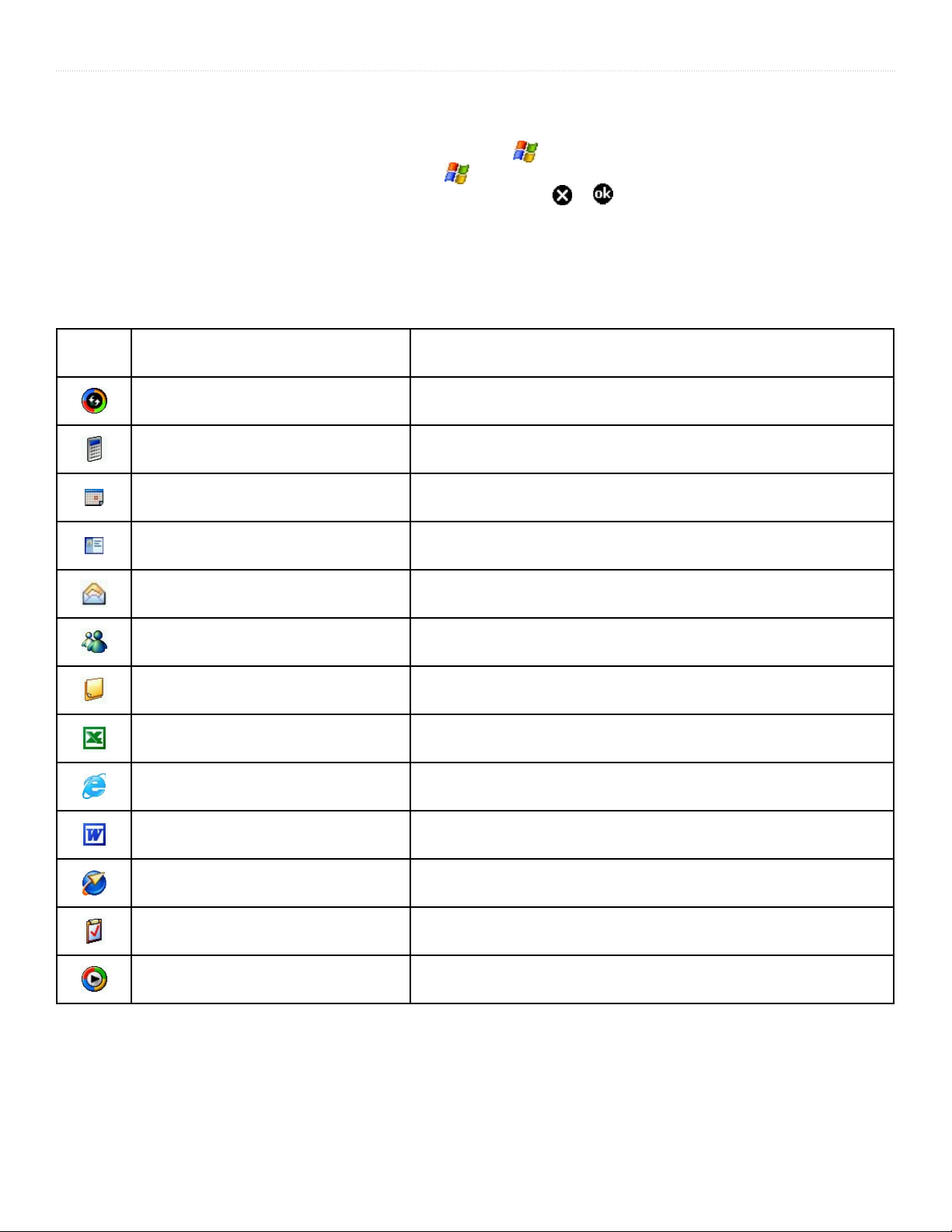
The following table contains a partial list of programs installed on your iQue M3. You can install additional applications at
http://www.microsoft.com/windowsmobile.
Icon Program What You Can Do
ActiveSync Synchronize information between your iQue M3 and
desktop computer.
Calculator Perform basic arithmetic and computations.
Calendar Keep track of your appointments and create
meeting requests.
Contacts Keep track of your friends and colleagues.
Messaging Send and receive e-mail messages.
MSN Messenger Send and receive instant messages with your MSN
Messenger contacts.
Notes Create handwritten or typed notes, drawings, and recordings.
Pocket Excel Create new workbooks or view and edit Excel workbooks
created on your desktop computer.
Pocket Internet Explorer Browse Web and WAP sites and download new programs
and files from the Internet.
Pocket Word Create new documents or view and edit Word documents
created on your desktop computer.
QueNav View your current position on the map, create and save
locations in memory, and navigate routes.
Tasks Keep track of your tasks.
Windows Media Player 10 Play multimedia content (videos and sound files).

5iQue® M3 Operating Instructions
GETTING STARTED > OPENING PROGRAMS
Navigation Bar and Command Bar
The Navigation Bar is located at the top of the screen. It displays the active program and current time. From the Navigation Bar,
you can open and close programs, open the System Status window, check your connectivity, and change the volume of sounds.
The Navigation Bar
In programs, use the Command Bar at the bottom of the screen to perform tasks. The Command Bar includes menu names, buttons,
and the Input Panel button . To create a new item in the current program, tap New. To open a menu or see the action that a
button performs, tap and hold the stylus on the button. If you do not want to activate the button, simply tap anywhere outside the
menu or drag the stylus away from the button.
The Command Bar
Input Panel button
System Status Window
The System Status window provides you with information about your device’s GPS status, backlight, power, and memory. It also
displays a list of all the programs currently running on your device. To open the System Status window, tap the System Status icon
located in the Navigation Bar.
GPS Status Icon Backlight Icon
Power Icon Memory Icon
GPS Status Icon—displays the status of your GPS connection. Tap this icon to access the QueGPS™ page. See page 48 for more
information.
Backlight Icon—displays your current backlight setting. Tap this icon to adjust your backlight settings.
Power Icon—displays your remaining battery power. Tap this icon to adjust your power settings.
Memory Icon—displays your remaining memory space. Tap this icon to adjust your memory settings.
Running Programs—lists all programs currently running on your device. To access a program in the list, tap it. To close a
program, tap and hold on it, then select Close This Program. To close all programs, tap and hold on any program in the list, then
select Close All Programs.

6 iQue® M3 Operating Instructions
GETTING STARTED > ENTERING INFORMATION
Entering Information
Use the Input Panel to enter information in any program on your device. You can type using the soft keyboard or write using
Letter Recognizer, Block Recognizer, or Transcriber. When using each Input Panel method, the characters appear as typed text on
the screen.
To show or hide the Input Panel, tap the Input Panel button . Tap the arrow next to the Input Panel button to choose a method for
entering text.
When you use the Input Panel, your device anticipates the word you are typing or writing and displays it above the Input Panel.
When you tap the displayed word, it is inserted into your text at the blinking cursor. As you continue to use your device, it learns to
anticipate more and more words.
Tap here if
this is the right
word.
With the soft keyboard, you can tap letters to enter information. Letter Recognizer allows you to write letters using the stylus just as
you would on paper. With Block Recognizer you can input character strokes with the stylus that are similar to those used on other
devices. Using Transcriber you can write anywhere on the screen with the stylus, just as you would on paper. Write a sentence or
more of information, then pause and let Transcriber change the written characters to typed characters.
To type with the soft keyboard:
1. Tap the arrow next to the Input Panel button and then tap Keyboard.
2. On the soft keyboard that is displayed, tap the keyboard keys with your stylus.
To write with Letter Recognizer:
1. Tap the arrow next to the Input Panel button and then tap Letter Recognizer.
2. Write letters and numbers in the box just as you would write on paper.
Letter Recognizer
Este manual sirve para los siguientes modelos
1
Tabla de contenidos
Otros manuales de Portátil de Garmin


