GAOMON PD2200 Manual de usuario

Graphics Pen Display
PD2200
User Manual
Windows 7 or later, macOS 10.12 or later

EN
PD2200
www.gaomon.net
2
Precautions
1. Please read this manual carefully before using, and keep it well for future reference.
2. Before cleaning the pen display please unplug the power cord and wipe with a soft damp
cloth, do not use any kind of detergents.
3. Don’t expose this product to water or other liquids. Take care to never spill liquids onto
the pen display, digital pen, power cable, or power adapter.
4. Do not place the pen display or digital pen on where is unstable or a height.
5. Do not place the tablet on where children reaching easily in order to avoid danger.
6.Do not place the display and digital pen close to the magnetic field.
7. Only power supplies shown on the nameplate can be used for the display. If you have
questions about the power supply which you are using, please consult the distributor of
your display.
8. To protect your display, please switch off the power when it is not in use. During
blackouts or not using for long time, please unplug the display from the socket.
9. Don’t overload the socket or lengthen the power wire, which may lead to electric shocks.
10. Make sure no foreign bodies get inside the monitor through grooves and prevent liquid
from splashing on the display as to prevent short-circuit or fire.
11. If the display has a breakdown, do not open the main case and try to repair it by
yourself. Please ask for a service for proper repair and maintenance.
12. When the following situations occur, please unplug the power adapter and you may
need a service for full repair and maintenance:
A. The power wire or plug is damaged or worn out;
B. There is liquid splashed inside of the display;
C. The display has fallen or the LCD is broken;
D. When obvious abnormalities occur to the display.
13. While getting the components replaced, you are supposed to guarantee that the
repairman is using the substitute components specified by the manufacturer. Unauthorized
component replacement might cause fire, electric shocks or other dangers.

EN
PD2200
www.gaomon.net
3
Content
Precautions ...................................................................................................................... 2
1.Product Overview .......................................................................................................... 4
1.1 Product Introduction .............................................................................................................. 4
1.2 Product and Accessories ....................................................................................................... 4
1.3 Display Connection ................................................................................................................ 6
1.4 Driver Installation .................................................................................................................... 7
1.5 Pen Nib Replacement ...........................................................................................................
.
8
2. OSD Setting ................................................................................................................... 9
3. Function Settings ........................................................................................................ 10
3.1 Device Connection Prompt .................................................................................................. 10
3.2 Working Area Setting ........................................................................................................... 11
3.3 Pen Buttons Function Setting ............................................................................................... 15
3.4 Pressure Sensitivity Setting ...................................................................................................16
3.5 Pen Pressure Testing ............................................................................................................ 17
3.6 Calibration ............................................................................................................................ 18
3.7 Enable the Windows Ink Feature .......................................................................................... 19
3.8 Mouse Mode ........................................................................................................................ 20
3.9 Customize Express Keys and Pressure Curve ...................................................................... 21
3.10 Data Export and Import ...................................................................................................... 22
4. Specications .............................................................................................................. 23
5. Trouble Shooting ......................................................................................................... 24
5.1 Possible Breakdowns Related to DISPLAY ........................................................................... 24
5.2 Possible Breakdowns Related to FUNCTIONS ..................................................................... 25
6. Contact Us for After-sales Service ............................................................................. 25

EN
PD2200
www.gaomon.net
4
1.1 Product Introduction
Thanks for choosing GAOMON PD2200 Pen Display. This is a new generation of 21.5'' large size
professional drawing display, which can greatly improve your work efficiency of painting and creation,
and full of fun. You can freely painting and writing, depicting different lines and colors, just as the pen
writes on the paper, which brings you a real shock experience.
To give you a better understanding and using of your tablet, please read this user manual carefully. The
user manual only shows the information under Windows, unless otherwise specified, this information
applies to both Windows and Macintosh systems.
1.2 Product and Accessories
1.2.1 Pen Display
1. Product Overview
Working Area
HDMI Port
Power Port
USB Port
Touch OSD Key
Touch Key
Power Button

EN
PD2200
www.gaomon.net
5
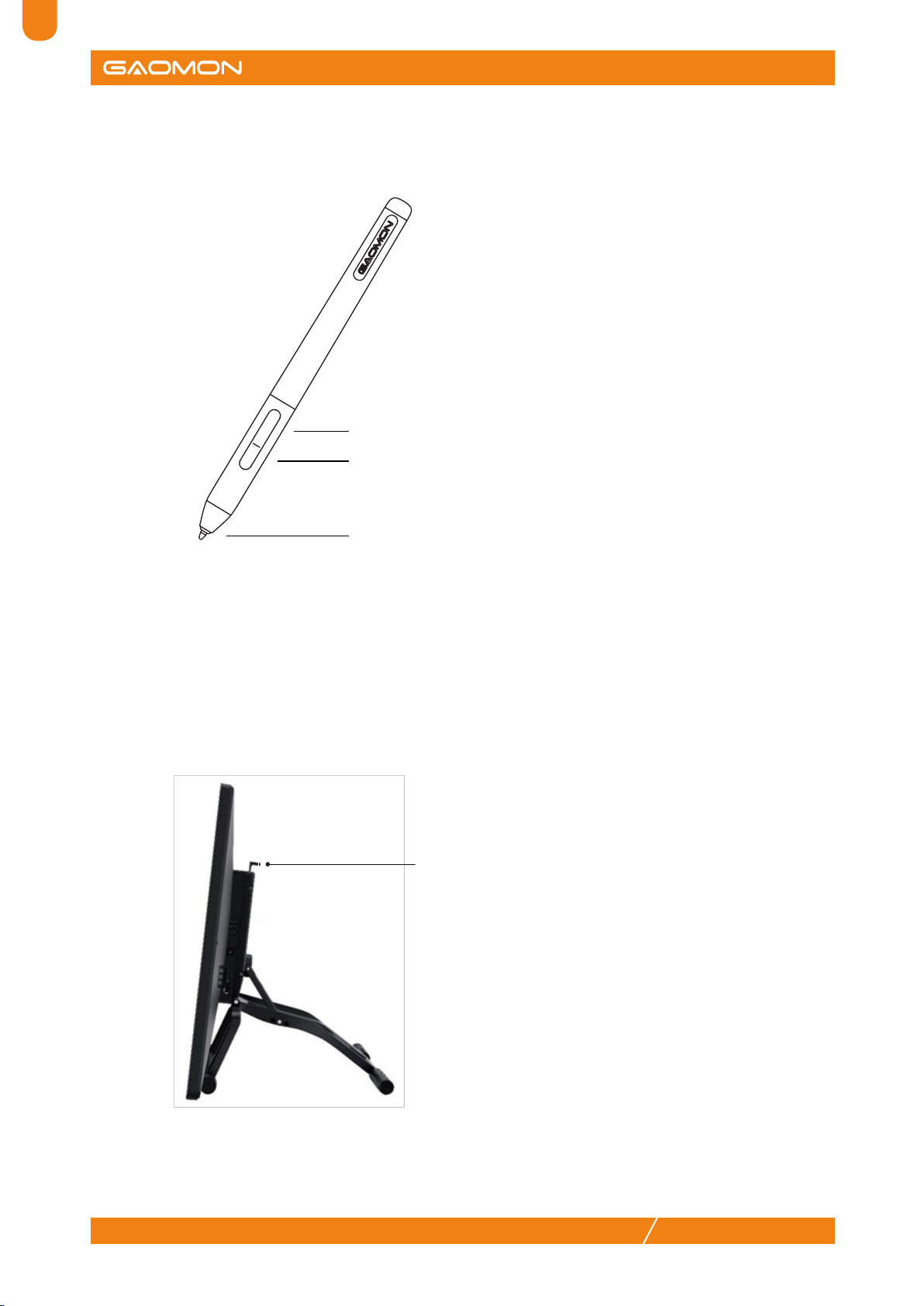
The digital pen is battery-free and boasts 8192levels of pressure sensitivity.
We designed this ergonomic adjustable stand specially for your pen display. You can adjust the angle of
the display according to your usage habit, and it makes you feel more comfortable when painting and
creating.
By dragging this switch to adjust the stand angle
from 15°-85°
1.2.2 Digital Pen
Upper button:Right mouse key function(default)
Lower button: Eraser function(default)
Pen nib: Left mouse key function
1.2.3 Adjustable Stand

EN
PD2200
www.gaomon.net
6
Pen AP32
USB Cable HDMI Cable Power Cable Power Adapter
Pen Holder Replacement Nibs
(Inside the pen holder)
Quick Start Guide
1.3 Display Connection
1. As shown on the below, connect the pen display to your computer with attached power adapter,
HDMI cable and USB Cable.
2. Press the power button on the top of the display to power on the display.
1.2.4 Accessories
USB Cable
HDMI Cable
Power Cable
Power Adapter
Quick Start Guide

EN
PD2200
www.gaomon.net
7
1.4 Driver Installation
1.4.1 OS Support
Windows 7 or later, macOS 10.12 or later.
1.4.2 Install Driver
Please download the driver from our website: www.gaomon.net/download
After finishing installation, you can find the grey driver icon in the system tray area, which means
the driver was installed successfully; when you connect the tablet to computer, the icon will become
orange , which means the driver has already recognized the tablet and you can start using it now.
Note:
1. Before installing, you need to uninstall other driver of similar products, including the old driver of
this product.
2. Before installing, please close all graphics software and anti-virus software to avoid unnecessary
mistakes.

EN
PD2200
www.gaomon.net
8
1.5 Pen Nib Replacement
1. The nib will wear off after using for a long time, then you need to replace a new nib.
2. Unscrew the pen holder and take out a new nib.
3. Insert the old pen nib into the hole at the bottom of the pen holder and tilt the pen to pull out the nib.
4. Insert a new pen nib into the stylus and push the nib until it stops.

EN
PD2200
www.gaomon.net
9
2. OSD Setting
Turn off/on the display: Long press the power key for 3 seconds.
Unlock OSD keys: Long press any of ①②③④ for 6 seconds.
OSD keys automatically get locked: the OSD panel will be hidden without movement for more
than 15 seconds after exiting the menu.
Manually exit the MENU: Touch Auto key for 0.5 seconds.
Automatically exit the MENU: without movement for 10 seconds.
Enter OSD Menu:
① MENU: Call up the menu or confirm.
② + : Up/ Right/ Increase.
③ - : Down/ Left/ Decrease.
④ Auto: Back to previous menu/Exit.

EN
PD2200
www.gaomon.net
10
3. Function Settings
3.1 Device Connection Prompt
1. No Device Detected: The computer does not recognize the tablet.
2. Device connected: The computer has recognized the pen display.
Otros manuales para PD2200
2
Tabla de contenidos
Idiomas:
Otros manuales de Monitor de GAOMON