
FONESTAR PR-3000 Manual de usuario

PR-3000
DLP PROJECTOR
INSTRUCTION MANUAL
PR-3000_MANUAL_(EN)_20171023_Maquetación 1 23/10/17 14:04 Pá ina 1

EN
- 2-
We take this opportunity to thank you for buying this product.
We recommend you read the instruction manual before switching on the machine and follow the instructions
that are given. Keep the manual for future reference.
SECU ITY AND THE ENVI ONMENT
ELECTRICAL SECURITY
Check that the current in the mains connection where the machine is to be installed corresponds to the
power supply of the machine.
To avoid damaging the equipment, electrical shocks, fire or physical injury when you connect or disconnect
the equipment from the power supply, pull the plug firmly out of the mains socket holding the plug, never the
cable.
Always do this with dry hands.
Keep the power supply cable far from sources of heat. Do not put heavy objects on top of it or change it.
Clean dust and dirt off the power supply cable regularly.
Do not open the machine; you could get an electric shock.
CAUTION
While installing the machine, make sure it is switched off and unplugged.
Do not open the machine. Touching the internal parts is dangerous and you could receive an electric shock.
The machine must not be splashed or dripped on. Never place recipients with liquid inside on the machine.
Do not place anything inside the machine.
LOCATION
Place the equipment on a horizontal surface with enough space around it to allow ventilation.
Avoid direct sunlight, heat sources and excessive dust.
Do not place the machine near magnetic fields or static electricity.
Do not use surfaces which vibrate or receive impact.
Do not pile machines on top of one another.
VENTILATION
Never block or cover the ventilation slits on the machine.
Do not expose it to direct sunlight or place it near sources of heat.
PERIODS OF INACTIVITY
When the machine is not going to be used for a long period of time, disconnect it from the mains.
If you are using an adapter, take into account that it will continue using electricity even if the machine is
switched off. If it is not going to be used for a long period of time, disconnect it from the mains.
THE ENVIRONMENT
To save energy, switch the machine off when you are not going to use it for a long time. The machine could
contain substances that are harmful to the environment or human health. To minimize the effect of these
substances the machine must be correctly managed and recycled when you decide to dispose of it.
When you dispose of it remember: it cannot be thrown into a conventional rubbish bin.
If it contains or uses batteries, these must be disposed of separately.
The machine (without batteries) must be disposed of correctly. Put it in a container specially intended for the
collection of electronic and electrical appliances, at the dump or hand it over to the dealer when you purchase
similar equipment, so that the dealer can dispose of it correctly (at no added cost).
PR-3000_MANUAL_(EN)_20171023_Maquetación 1 23/10/17 14:04 Pá ina 2

EN
- 3-
SIGNIFICANCE OF THE SYMBOLS ON THE MACHINE*
The symbol formed by the expression “Class 1 laser product” written in a rectangle
indicates that visible or invisible laser radiation could be produced. Avoid direct expose to
the laser.
The symbol formed by a ray of lightening inside a triangle shows that the machine has
connection terminals or a circuit with areas with a current which could cause an electric
shock, even in normal working conditions.
The symbol formed by an exclamation mark in a triangle shows that the instruction manual
must be referred to for information on how the machine works and its use.
The symbol formed by one square inside another square shows that the machine has
double electrical insulation.
The European Community symbol shows that the machine complies with the current
European Union legislation, as well as its transposition to local legislation.
The symbol of a rubbish bin crossed out and over a horizontal line shows that when the
product is disposed of it must be done properly, placing it in a special selective electronic
and electrical equipment container or through a dealer when purchasing a similar product,
at no additional cost. It also shows that the machine was put on the market after 13th
August 2005 (European Community Directive 2002/96/CE of Electrical and Electronic
recycling, and its Spanish equivalent R.D.208/2005).
In accordance with what is set out in the aforementioned decree, FONESTAR is registered
in the RAEE (Registro de Aparatos Eléctricos y Electrónicos) in a special section REI
(Registro de establecimientos Industriales), with the entry number 001851.
*It is possible that some of these symbols do not appear on the machine.
EXEMPTION OF LIABILITY
The characteristics of the equipment and the content of the manual can change without forewarning.
FONESTA , S.A. does not assume responsibilities regarding the inappropriate use of the equipment or the
information supplied in this instruction manual, and specifically disclaims any implied liability for marketability
or fitness for any other use.
All rights reserved by FONESTA , S.A.
PR-3000_MANUAL_(EN)_20171023_Maquetación 1 23/10/17 14:04 Pá ina 3

- 4-
DESC IPTION
DLP projector of 3,000 ANSI lumens with high brightness halogen lamp. For 30” to 300” screens. X A
resolution (1024 x 768). Compatible with 480p, 480i, 576p, 576i, 720p, 1080i and 1080p.
It has keystone correction which allows the image positioning to be adjusted. It has multiple audio and video
inputs as well as a speaker integrated in the projector itself. It allows the type of projection to be selected:
tabletop or ceiling, frontal or rear projection.
CONT OLS AND FUNCTIONS
UPPE PANEL
1.- Integrated speaker.
2.- ZOOM: image zoom knob in manual mode.
3.- FOCUS: image focus knob in manual mode.
4.- Remote control infrared receiver.
5.- Extractable panel for lamp replacement.
6.- q: projector on/off button.
7.- POWE : LED power indicator.
It lights up orange when the projector is in standby mode.
It flashes orange when the device is being switched on or off.
It lights up green when the projector is operating.
8.- BLANK: temporarily deactivates the image displayed by the projector, leaving the screen the colour set
using the menu options. Press this button again to be able to dispaly the image from the selected input.
9.- TEMP: LED indicator that lights up when a bulb reaches a very high temperature.
10.- Keystone correction and menu option navigation keys.
11.- LAMP: LED indicator that lights up red when the lamp is about to stop working and its replacement is
recommended.
12.- MENU: displays the main menu on the screen and allows you to return to the previous screen/menu.
13.- ENTE : allows the selected menu option to be confirmed.
14.- Navigation keys to move through the different menu options.
15.- SOU CE: allows the required input source to be selected.
16.- MODE: allows colour adjustments to be made to display the image. You can choose among Whiteboard,
PC, Film, ViewMatch, User 1 and User 2.
EN
PR-3000_MANUAL_(EN)_20171023_Maquetación 1 23/10/17 14:04 Pá ina 4

EA PANEL
1.- AUDIO IN 1: stereo audio input, 3.5 mm jack connector. Complementary audio input for COMPUTER 1
and VIDEO inputs, S-Video connector.
2.- VIDEO: S-video input, mini DIN 4 connector.
3.- COMPUTE IN 1: video 1 input, V A connector.
4.- COMPUTE OUT: video output, V A connector.
5.- HDMI: audio/video input, HDMI connector.
6.- S-232: port for remote connection of projector to a computer, female D9 connector. For more
information consult the Projector Remote Control section.
7.- TYPE B USB: update port.
8.- AUDIO IN 2: stereo audio input, 3.5 mm jack connector. Complementary audio input for COMPUTER 2
and VIDEO inputs, composite video connector.
9.- AUDIO OUT: stereo audio output, 3.5 mm jack connector.
10.- VIDEO: composite video input, RCA connector.
11.- Power supply connector.
12.- COMPUTE IN 2: VIDEO 2 INPUT, V A connector.
LOWE PANEL
1.- Adjustable screw for the vertical positioning of
the projected image.
2.- Bolt holes for mount.
- 5-
EN
PR-3000_MANUAL_(EN)_20171023_Maquetación 1 23/10/17 14:04 Pá ina 5

- 6-
EMOTE CONT OL
1.- POWE : projector on/off button.
2.- VGA 1: COMPUTER IN 1 input direct selection button.
3.- VGA 2: COMPUTER IN 2 input direct selection button.
4.- SOU CE: allows selection among the different input
sources.
5.- Keystone correction and navigation keys to scroll
through the different menu options.
6.- MENU: displays main menu on the screen.
7.- Function not available.
8.- MAGNIFY: allows the central part of the image to be
digitally increased x5.
9.- F EEZE: freezes the image. Press the button again to
return to normal playback mode.
10.- LOCK: allows the buttons on the upper panel of the
projector to be locked.
11.- BLANK: temporarily deactivates the image displayed
by the projector, leaving the screen the colour set
using the menu options. Press this button again to be
able to display the image from the selected input.
12.- PATTE N: allows selection among the different
predefined images in the projector.
13.- TIME : activates a countdown timer.
14.- ECO: activates/deactivates low consumption (ECO)
mode.
15.- AUTO SYNC: scans the sources connected to the projector and automatically adjusts the different
configuration parameters depending on the input.
16.- VIDEO: allows selection of the HDMI, composite video and S-Video inputs.
17.- COLO MODE: allows colour adjustments to be made to display the image. You can choose among
Whiteboard, PC, Film, ViewMatch, User 1 and User 2.
18.- ENTE : confirms the selected menu option.
19.- Navigation buttons to use for the different menu options.
20.- MY BUTTON: using the menu options you can assign this button a function of your choice.
21.- EXIT: to return to the previous display/menu.
22.- VOLUME+/-: projector volume controls.
23.- MUTE: activates/deactivates audio output.
24.- ASPECT: allows the screen format to be selected among normal, panoramic, anamorphic or automatic.
EN
PR-3000_MANUAL_(EN)_20171023_Maquetación 1 23/10/17 14:04 Pá ina 6

CONNECTION
Before making any connections, switch the devices off and disconnect them from the mains supply.
It is recommended that you read the whole manual before connecting the devices.
The general connection procedure is as follows:
-First connect the required audio/video sources to the corresponding inputs on the projector. You can
connect, for example, a computer or a laptop with HDMI or V A output, a DVD player with composite
video output.
- If you wish, connect the projector’s 3.5 mm stereo jack audio output to an amplifier in order to amplify
the sound through loudspeakers or directly to some autoamplified loudspeakers.
- Once the connections have been made according to your needs, connect the devices to the mains supply
and switch them on.
- Press the POWER button on the projector or on the remote control to switch the projector on.
Adjust the distance between the projector and the screen according to the following table. Choose the column
16:9 or 4:3 according to the format of the image you are going to project.
Diagonal size Projector-screen distance
Inches Meters Screen 4:3 Screen 16:9
60” 1.52 m 2.3 - 2.6 m 2.6 - 2.8 m
80” 2.03 m 3.1 - 3.5 m 3.5 -3.8 m
100” 2.54 m 3.9 - 4.4 m 4.4 - 4.8 m
150” 3.81 m 5.9 - 6.6 m 6.5 - 7.2 m
200” 5.08 m 7.9 - 8.8 m 8.7 - 9.6 m
250” 6.35 m 9.9 - 11 m 10.9 - 12 m
300” 7.62 m 11.9 m 13.1 - 14.4 m
- 7-- 7-
EN
PR-3000_MANUAL_(EN)_20171023_Maquetación 1 23/10/17 14:04 Pá ina 7

- 8-
INST UCTIONS FO USE
INPUT SELECTION
Press the SOURCE button on the remote control or on the projector itself to
access the list of available inputs.
Select the required input with the navigation buttons up (w) and down (s) on the remote control or on the
projector itself and then press the confirmation button ENTER.
If there is no signal available, the projector will show the message NO SI NAL.
CONFIGU ATION MENU
Press the MENU button on the remote control or on the projector itself to access the projector’s 6
configuration menus. These 6 menus are: PICTURE, VIDEO/AUDIO, SETTIN , OPTION, LAN UA E and
INFORMATION. You can scroll through them using the navigation buttons left (a) and right (d) on the remote
control or on the projector itself. Then, use the navigation button down (s) to access the submenu of the
required option. To return to the main menu, press the MENU button.
PICTU E MENU
COLO MODE SETTING
This option allows the visualisation parameters on the screen to be adjusted.
There are predefined settings: Whiteboard, PC, Film and ViewMatch; and two other options that are freely
configurable: User 1 and User 2.
The settings: Reference mode, Brightness, Contrast, User Color, White intensity and amma can only be
modified by selecting one of the freely configurable modes (User 1 or User 2).
Note: This setting can be made either from this setting in the menu or directly by pressing the MODE button
on the projector itself or COLOR MODE on the remote control.
EFE ENCE MODE SETTING
Allows selection among: PC, Film, ViewMatch and Brighter.
B IGHTNESS SETTING
Its value can be adjusted from 0 to 86.
CONT AST SETTING
Its value can be adjusted from 0 to 92.
EN
PR-3000_MANUAL_(EN)_20171023_Maquetación 1 23/10/17 14:04 Pá ina 8

- 9-
USE COLO SETTING
It allows the Red, reen, Blue, Cyan, Magenta and Yellow to be individually configured, adjusting the Hue
values (from -99 to 0), Saturation (from 0 to 199) and ain (from 0 to 199).
WHITE INTENSITY SETTING
Allows its value to be adjusted from 0 to 10.
GAMMA SETTING
Allows its value to be adjusted from 1 to 8.
COLO SETTING
This option allows the colour temperature and the gain of the Red, reen and Blue channels to be adjusted.
There are predefined settings: Cool, Normal and Warm; and a setting to personalize: User.
ASPECT ATIO SETTING
Allows the aspect ratio of the screen to be selected.
The options available for this setting are: Auto, 4:3, 16:9 and Anamorphic.
Note: This setting can be made both from the setting in the menu and directly by pressing the ASPECT
button on the remote control.
DYNAMIC MODE SETTING
Allows the brightness of the image to be automatically adjusted reducing the consumption of the lamp up to
70%, when this option is activated.
KEYSTONE SETTING
Allows the image to be deformed to be viewed correctly by correcting the differences between the width of
the upper and lower parts of the image that are produced when the projector isn’t positioned at an ideal
angle with the projection surface.
The values of this setting range from -40 to 40.
Note: This setting can be made both from the setting in the menu and directly by pressing the up and down
buttons on the remote control or on the projector itself.
3D SETTINGS
By using this setting we indicate to the projector that the signal that is being projected is a 3D signal in order
to view it correctly.
Its submenu allows setting of: 3D synchronization (activates/deactivates viewing of the 3D signal, 3D Format
(Frame sequential, Frame packing, Side by side or Top-bottom) and Invert 3D synchronization (Activated or
Deactivated).
VIDEO/AUDIO MENU
EN
PR-3000_MANUAL_(EN)_20171023_Maquetación 1 23/10/17 14:04 Pá ina 9
- 10 -
F EQUENCY SETTING
Allows adjustment of the image frequency of the projector with the image frequency of the input signal.
This setting allows values from 0 to 31.
T ACKING SETTING
Allows the projector’s image phase to be set with the input signal image phase.
This setting allows values from -5 to 5.
H POSITION SETTING
Allows the image to be moved slightly on the horizontal axis.
V POSITION SETTING
Allows the image to be moved slightly on the vertical axis.
ZOOM SETTING
Allows the central part of the image projected to be digitally increased x5.
Note: This adjustment can be made both from the setting in the menu and directly by pressing the MA NIFY
button on the remote control.
VIDEO SETTING
Allows more image adjustments to be made: Contour, Tint and Saturation.
AUDIO SETTING
From this setting we can change the volume or directly silence the audio output.
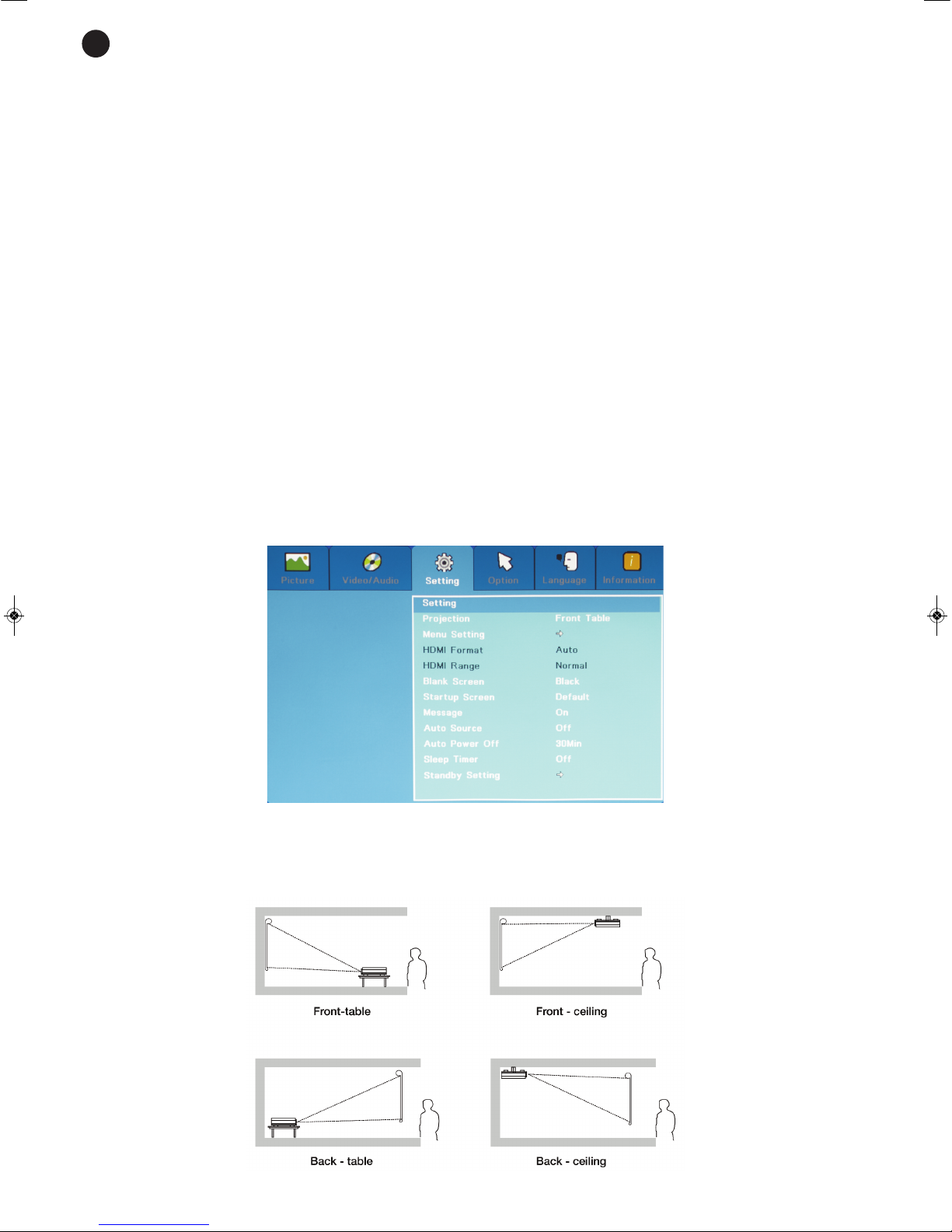
SETTING MENU
P OJECTION SETTING
Allows the position of the projector to be set with regard to the projection screen: front-table, front-ceiling,
back-table or back-ceiling.
EN
PR-3000_MANUAL_(EN)_20171023_Maquetación 1 23/10/17 14:04 Pá ina 10
Tabla de contenidos
Otros manuales de Proyector de FONESTAR


