
FLI Hyperion Manual de usuario

Hyperion Imaging System User’s Guide
Because Your Image Depends On It
Engineering Excellence

Hyperion Rev B. July 2012© Finger Lakes Instrumentation, LLC. 2
Welcome
Thank you for purchasing an FLI camera. We know that your new camera will bring you years of
enjoyment and excellent imaging results.
This User Guide is intended as a reference tool for you to use with the Hyperion Imaging System.
Please read it and follow the procedures to ensure trouble-free installation of your hardware and
software.
If you have any questions about your purchase, please contact us.
Contact Information
Finger Lakes Instrumentation, LLC
7287 West Main St.
Lima, New York 14485
Phone: 585-624-3760
Email: support@i-cam.com
Web: www.icamera.com
Fax: 585-624-9879
FLI Yahoo Group is an active forum for members wishing to discuss FLI imaging systems, share
imaging experiences, techniques, and results, and discuss imaging solutions and problem solving.
The forum is accessible online at http://tech.groups.yahoo.com/group/FLI_Imaging_Systems.

Hyperion Rev B. July 2012 Hyperion Rev B. July 2012
© Finger Lakes Instrumentation, LLC. 3
Table of Contents
Welcome ...................................................................................................................................................................2
Contact Information ..................................................................................................................................................2
Check your Shipment ...............................................................................................................................................4
Product Safety ..........................................................................................................................................................4
Hyperion Imaging System Overview ........................................................................................................................5
System Accessories .................................................................................................................................................6
Liquid Cooling Information .......................................................................................................................................6
Hyperion Imaging System Connections ...................................................................................................................7
Setting-up and Powering Your System .....................................................................................................................8
Installing the FLI Software Installation Kit .................................................................................................................9
3rd Party Software ....................................................................................................................................................9
Conrming Driver Installation ...................................................................................................................................9
Video Mode Setup ..................................................................................................................................................10
Hyperion cameras with interline sensors—10
To use video mode—10
Appendix A - External Triggering ........................................................................................................................... 11
Exposure Active Indicator—11
Shutter Open Indicator—12
Appendix B - Accessories and Ordering Options ...................................................................................................13
Filter Wheels—13
Appendix C – Troubleshooting ...............................................................................................................................15
Appendix D - Warranty for FLI Products .................................................................................................................16
Appendix E - FLI Return Procedure .......................................................................................................................17
Return Addresses by Carrier ..................................................................................................................................18
UPS and Fed Ex Returns—18
USPS Returns—18
Appendix F Four Conductor Power Cable (PT1) ...................................................................................................19
Appendix G Liquid Cooling Options .......................................................................................................................20
The following connection ttings are currently available: —20

Hyperion Rev B. July 2012© Finger Lakes Instrumentation, LLC. 4
Check your Shipment
Please ensure that all the components have arrived safely and verify that all the items you
ordered were properly delivered to you. In the unlikely event of a missing or damaged component,
immediately notify your FLI dealer or FLI.
A camera order should include the following items:
• Camera with shutter cover installed (save this cover)
• Camera Test Report
• USB cable
• 12 volt power supply
• Power supply line cord
• Packing list
• User Guide
If you ordered accessories or options, these items should be included. Please check that your order
is complete.
Product Safety
The Hyperion Imaging System is shipped with a 12-volt power supply. Do not use any other power
supply with this System or use the power supply in a way other than described in this Guide as it may
cause damage to the Camera that will not be covered under the warranty.
If you are concerned about lightning strikes in the area in which you use your Camera, you may want
to take safety precautions as electrical surges can damage electrical equipment. We recommend that
when your Camera is not in use that you unplug the Camera from power and unplug the USB cable
from the Camera.
Hyperion Rev B. July 2012 Hyperion Rev B. July 2012
© Finger Lakes Instrumentation, LLC. 5
Hyperion Imaging System Overview
Hyperion High Performance CCD Cameras set the standard in key performance areas that include:
Download Speeds, Cooling, Low Noise Operation, RBI Anti-Ghosting Technology, Image Quality, and
Linearity. Hyperion cameras are available with a wide variety of sensors that include full-frame front
illuminated, full-frame back illuminated, frame transfer and interline.
The System is ideal for:
• X-ray Applications
• Astronomical Imaging
• Scientic Imaging
• Medical Applications
• Forensic Applications
• Transmission Electron Microscopy
Custom applications have included high altitude imaging, vacuum setup, mine searches, ultra cold
weather installations, and internal lens mounting (within 0.006” of the sensor surface).
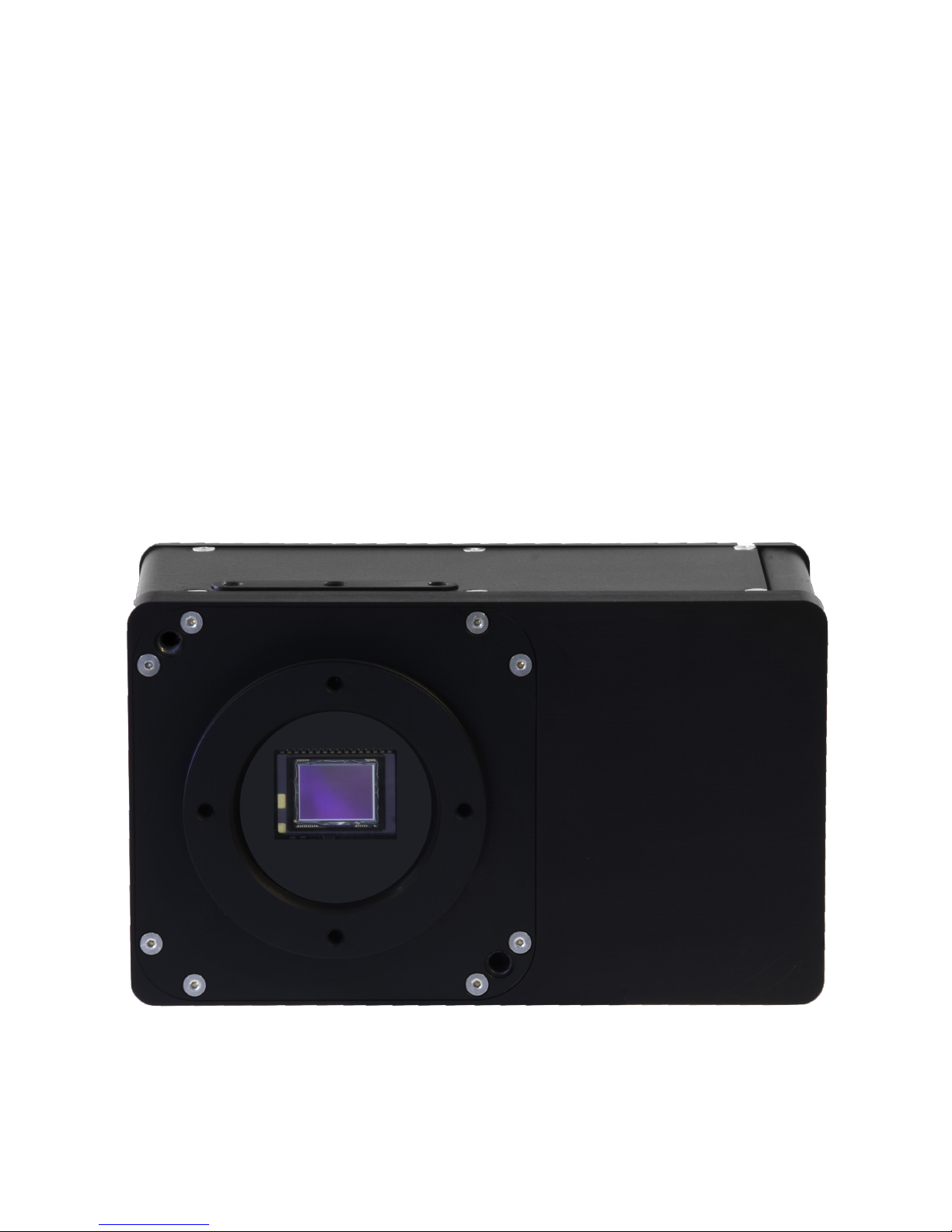
Hyperion Front

Hyperion Rev B. July 2012© Finger Lakes Instrumentation, LLC. 6
System Accessories
A variety of accessories that are available for your Hyperion System are described below.
• Our Color Filter Wheel’s robust mechanical design provides the basis for uncompromised images. Each FLI color
lter wheel is precision engineered with a highly accurate, no-slip drive chain driven and stepper motor. The large
diameter pivot pin and bushing are precision ground and matched for smooth, quiet no-fuss operation night after
night. FLI color lter wheels use no internal lights for homing to protect your images from stray light interference.
• High Speed Filter Wheels use high-performance servo motors featuring rare earth magnets coupled with backlash-
free power transfer to provide ultimate torque which translates to ultimate speed. Filter exchange rates under 30
milliseconds are possible.
• Digital focusers are designed for CCD astronomy where the digital imaging system is mounted very close to correct
focus. The thin designs allow focusing with short-travel optical designs. All of our focusers are ASCOM compliant.
Additional information about the Focuser is available in a separate document, “Focuser User’s Guide” that is
supplied with this product.
• FLI stocks a large variety of adapters for the most popular telescopes. We will design custom adapters to meet your
imaging needs free of charge when ordering an imaging system.
• FLI Research Grade lters are high transmission lters manufactured in the United States with the highest quality
fabrication techniques available. FLI offers a full line of lter types and sizes. Choose from LRGB, Ha, SII, OIII and
UBVRI.
• Threaded shutter cover available for all Hyperion cameras.
Liquid Cooling Information
As a standard, all FLI cameras incorporate a TEC (Peltier) that enables the camera to cool the
sensor. The actual cooling for any given camera will depend on the sensor size and ambient
temperatures. The Hyperion Liquid Cooler can accept a ow rates up to 0.5 gallon/minute (1.91 liter/
min). Please contact FLI with your custom cooling requirements for either air, liquid, or un-cooled
system. Please see Appendix G for all available Hyperion liquid cooling congurations.
Hyperion with optional liquid cooling and dry disconnect ttings
Warning: Using ow rates above the
recommended ow rates may
cause the liquid cooling system to
leak and will void the warranty.
Note: Maximum Hyperion Liquid
Cooler inlet pressure is 50 psig.
Ensure tubing selected has the
proper pressure rating. To avoid
undesired pressure build up in
Liquid Cooler shut off ow on
the inlet side before detaching or
closing outlet connections.

Hyperion Rev B. July 2012 Hyperion Rev B. July 2012
© Finger Lakes Instrumentation, LLC. 7
Hyperion Imaging System Connections
USB 2.0 Interface 6 pin DIN auxiliary I/O 12V power supply in

Hyperion Rev B. July 2012© Finger Lakes Instrumentation, LLC. 8
Setting-up and Powering Your System
Assemble all System components in one area before beginning this set up procedure. The image
below depicts an assembled System.
Note: Run the FLI Software Installation Kit before you set up and power your system to
ensure the system recognizes and correctly initialized the camera.
Setup the components as described in the procedure below.
1. Attach the USB cable between your Hyperion camera and your PC.
2. Connect the 12-volt power supply between the camera’s 4-pin “DC Power Jack” connector
and a wall socket or switched AC power strip. The camera’s fans will start running. Your
computer should display a screen indicating that the system has found new hardware.
Note: Refer to Appendix A for information about external triggering using the 6 pin DIN Auxiliary
I/O connector.
Hyperion Power Supply
Hyperion Camera
USB Cable
Your Computer
120V A.C.

Hyperion Rev B. July 2012 Hyperion Rev B. July 2012
© Finger Lakes Instrumentation, LLC. 9
Installing the FLI Software Installation Kit
Obtain the most up to date software to install and test your System from www.icamera.com/software.
Select the FLI Software Installation Kit. Follow the on screen prompts for the installation instructions.
On screen prompts will indication subsequent steps and its completion.
Note: If an earlier version of the FLI Software is installed on your computer, uninstall/remove
it by following the on screen prompts. Then install the most current version. Overwriting
an old le is not recommended.
Note: Your camera may be enabled with more than one mode or speed. If this applies to your
camera, the selections will be available in the software after installation.
3rd Party Software
3rd party software is available that allows you to control the functions of your camera as well as
process images captured with your FLI camera. Such software includes:
Astroart from MSB software that has a multi-lingual interface (www.msb-astroart.com)
MaximDL from Diffraction Ltd (www.cyanogen.com)
CCDSoft from Software Bisque (www.bisque.com).
Note: Before acquiring one of these or any other software to control your camera we strongly
advise you to check with the software vendor that supports your camera. New cameras
and versions of the software are always being released and may differ in functionality
from previous versions of the same software.
Confirming Driver Installation
Note: Different operating system versions may have slightly different context.
You can determine if the camera drivers have been properly installed after connecting and powering
the camera.
1. Choose the Control Panel from the start menu.
2. Choose System Properties.
3. Select the Hardware tab and select Device Manager.
4. Click the (+) next to Universal Serial Bus Controllers.
5. If the FLI Camera is displayed, the drivers are correctly installed.
6. Right Click on FLI Camera, choose Properties to view the driver status, driver date, etc.

Hyperion Rev B. July 2012© Finger Lakes Instrumentation, LLC. 10
Note: If the driver does not show up un-install FLIGrab then re-install FLIGrab
Video Mode Setup
You can use cameras with interline sensors to focus and center an image in near real-time using FLI
Grab. If you are using 3rd party software refer to its documentation for a similar feature.
Hyperion cameras with interline sensors
• HPx285
• Contact FLI for additional interline sensor information
To use video mode
1. Setup the camera with power and the USB cable as described earlier in this guide.
2. Open FLIGrab then wait for the system to nd the new hardware.
3. From the menu selections, select Grab then Camera Control to display the Grab Control menu.
4. On the Grab Control menu make the following selections or entries: Video as the Type, 3
(recommended) or 2 for X Bin; 0.05 or 0.1 sec for Exposure.
5. Select Grab. The image is displayed.
6. Use the image to focus and center the image.
7. For additional focusing, select Abort. Click the mouse to display the box tool and move the box
over the area on which you want additional focusing. Select Grab then Camera Control. On the
displayed menu, enter 1 in the X Bin eld for the best focus. A value of 1 is the actual resolution.
Select Grab to display the image. Refocus the camera as necessary.
Tabla de contenidos
Manuales populares de Impresora todo en uno de otras marcas

Triumph Adler
Triumph Adler DC 2016 Manual

Epson
Epson WorkForce WF-2510 Guía del usuario

Epson
Epson Stylus Scan 2000 Manual de instalación y operación

Epson
Epson PictureMate Snap PM 240 Manual de instrucciones

Konica Minolta
Konica Minolta bizhub C35 Manual de usuario

Brother
Brother MFC-J430w Manual de usuario


