
Ferguson W02 Manual de usuario
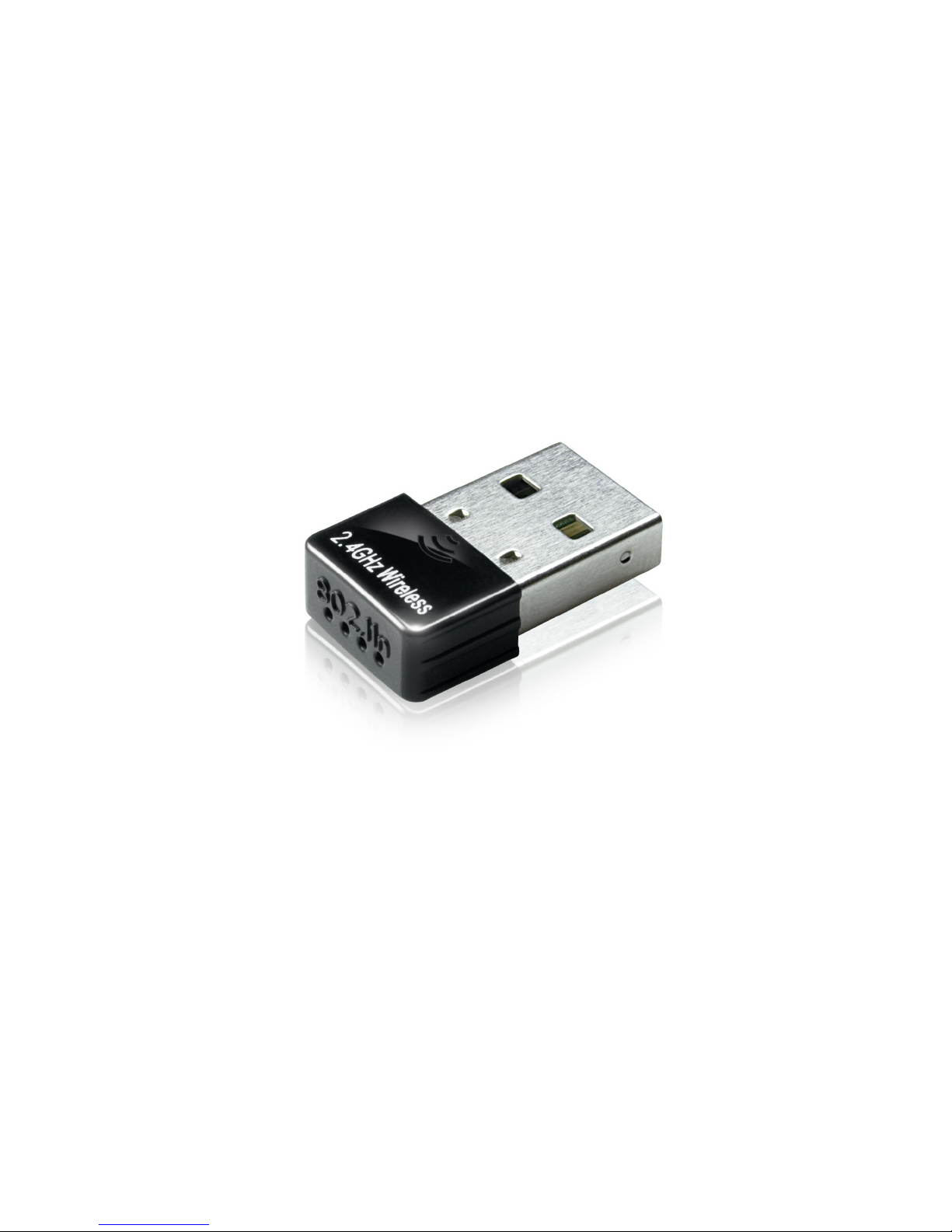
User`s manual
150Mbps
IEEE802.11b/g/n
Adapter Wi-Fi W02

MARKINGS AND SIGNS
R& E Hereby Ferguson Sp. z o.o., declares that the device is in compliance with the
essential re uirements and other relevant provisions of Directive 1999/5/EC. You can
find the Declaration of Conformity on www.deklaracje.ferguson.pl
This product has been designed, tested and manufactured according the European
R&TTE directive 1999/5/EC.
CE logo.
The logo informs that the device conforms to the terms and conditions of Directive
2004/108/EC concerning observance by Member States of provisions regulating
electromagnetic compatibility, and to the terms and conditions of Directives
2006/95/EC concerning observance by Member States of provisions regulating low
voltage electricity and safety with relation to the handling and operation of electrical
e uipment.
Your product is designed and manufactured with high uality materials and
components, which can be recycled and reused.
2

Introduction
Thank you for purchasing the IEEE 802.11b/g /n Wireless USB Adaptor. This
Wireless Adaptor is easy to use and easy to setup. If you have been tired of dealing
with all those messy wires to connect a laptop or PC to office or home network, this
Wireless adaptor is an ideal access solution for wireless Internet connection.
A typical Internet access application for the USB wireless adaptor is shown as the
following figure:
There are two different ways to access Internet:
1. With a wireless adaptor, receiving and transferring signal via a wireless
router, then passed to an ADSL modem, then to local ISP (Internet service supplier)
through a telephone line.
2. With a wireless adaptor, receiving and transferring signal via local AP
(Access Point) or so called Hotpoint directly.
Package Contents:
One IEEE 802.11b/g/n 150Mbps WiFi NANO USB Adaptor.
Installation disc.
User’s Manual.
3

Installation
To install the driver of the USB adaptor, please use administrator user account to
login before the following steps:
ips: the latest original drivers can be down loaded from the website of Ralink
chipset manufacturer http://www.ralinktech.com or from the Ferguson side
http://www.ferguson.pl .To find a correct driver, please identify the chipset type
applied in the adaptor you have.
1. Double click Ralink_***.exe program, which is located in the driver folder in
the installation disc. Such as: G:\WiFi Driver\Windows\ Ralink_RT5370.exe.
Notes: Because the chipset manufacturer Ralink often updates software, the
drivers contained in the disc might be changed without prior notice.
2. Follow the instructions and prompts of the “InstallShield Wizard” to finish the
driver installation:
a.) Select the “I accept the terms of the license agreements”, then click the “Next”.
4

b.) There shows a setup type window, you can select “Install driver only” or
“Install driver and Ralink WALN utility” and then click the “Next”.
ips:
*The Windows XP utilizes a "Wireless Zero Configuration( WZC)" Service built
into the operating system. Many wireless network adaptor cards utilize this
service.
** Ralink- the chipset manufacturer has developed an utility for setting up wireless
connection. If you select this item, you can switch between the Windows XP’s
WZC service and the Ralink WLAN utility service later.
c.) Click the “Install” to confirm the installation, there shows the installation
progress.
5

6

d.) Click “finish” to finish the driver installation.
Wireless Connection
1. After finishing driver installation, insert the USB adaptor to Notebook or PC that
supports USB 2.0/1.1 interface.
Remarks: Make sure to connect the adaptor to an USB port on your computer
directly rather than an USB hub. Although it might work when connecting with an
USB hub, the likelihood of configuration problems will be higher.
7

2. The system shows a wireless utility icon in the
Windows system tray, which locates in the bottom-right
corner of your computer screen, and pops up a message that indicates a new hardware
is found and installed, something like this:
Notes: Before configuring your WiFi access, you need to have your network’s SSID
(service set identifier), security key and authentication type handy. Check the
documentation coming with your router, ask your network administrator to get the
information.
3. If you don't see your network, click “Refresh network list” in the upper left
corner. If you are locating within the valid range of hotspots or wireless routers, all
available networks will be recognized and listed automatically. Click your preferred
network, and then click “Connect” in the lower right corner.
8
Should the service "
Wireless
Zero Configuration ( WZC)"

4. If the network security key hasn’t been inputted before, Windows XP prompts
you to enter the network’s security key to access the wanted SSID. Type the
encryption key that you wrote down earlier in both the Network key and Confirm
network key boxes, and then click “Connect”.
Tips:
If there are free hotspots, simply select the network you want from the list
displayed, then click Connecting. It tries to launch your Internet browser —you
should be connected to the Internet.
If there is a pay hotspot, signing in or up will re uire either to enter your login
information-if you‘re an existing customer, or to enter your credit card information
for payment, it is just decided by you. Then clicking the Connecting, your default
Internet browser will launch and take you to the service provider’s login page. Most
providers have very simple and step-by-step instructions for you to sign up and then
to be connected. Another way to access the service provider’s login page is to
simply launch your Internet browser, if there’s a pay network available, you’ll be
taken directly to the login page.
Should the service of
Ralink
wireless connection utility
§
After the installation of Ralink utility, the system shows a special wireless utility
icon in the Windows system tray:
The icon changes colors according to the wireless signal uality.
1. Double-click the icon or right click the icon and then select “Launch Config
Utility” to launch the utility, the RaUI window appears like:
9

The Ralink wireless utility starts in compact mode as shown above, provides
profile management, the available networks listing, a statistical counter display, Wi-
Fi multimedia (WMM), protected Wi-Fi setup, Cisco compatible extensions (CCX),
call admission control (CAC), radio controls, Ralink driver/utility information, and
help functions. .
2. Clicking the expanding icon can
change to the full mode as shown
below::
For more details about the RaUI utility, please read the help information of
the utility by clicking the tab:
10
Tabla de contenidos


