
FeiYu Tech Vimble 2S Manual de usuario

Instructions
EN V 1.0
3-Axis Stabilized Handheld Gimbal
for Smartphone

Catalogue
1. Overview 1
2
2
2
3
4
4
5
5
2. Start to Use
3. Function Operation
3.1 Function / Modes Introduction
3.2 Joystick
3.3 Function Button Operation
2.1 Charging
2.2 Positioning Lock
2.3 Smartphone Installation
11
11
11
4. Connect and Use Feiyu ON App
5.1 Download the App
5.2 Connect the App
12
12
5.3 Shooting / control interface
5.4 Firmware Upgrade
13
5. Specifications
3.4 Shutter Button Operation
3.5 Focus Button Operation
3.6 Trigger Button Operation
6
7
7
3.7 Light Indicator Explanation 7
3.8 Trigger Button Operation 8
3.9 Landscape and Portrait Shot Switching 8
3.10 Gimbal Initialization 9
3.11 Smartphone Charging 10
2.4 Balancing 3
2.5 Power ON / OFF 4

Vimble 2S is a three-axis handheld gimbal suitable for mobile phones with joystick,
Bluetooth shutter, position lock, extendable bar, etc. The gimbal can stabilize the
smartphone intelligently. The gimbal supports landscape and portrait shooting,
which can also control phone shooting. Connect with Feiyu ON App to achieve
move functions
Suggestion
Vimble 2S includes below information, please read the information before using
the gimbal
iOS Version Android Version
The tutorial videos can be watched at FeiyuTech official website
or scan the QR code as below: http://www.feiyu-tech.com/play/
1. Quick start guide
2. Online instruction
3. Tutorial
Download the Feiyu ON App
Scan the QR code to download the app, or search for "Feiyu ON" in the App Store or
Google Play.
* Requires iOS 9.0 or above, Android 6.0 or above.
Google play
App Store
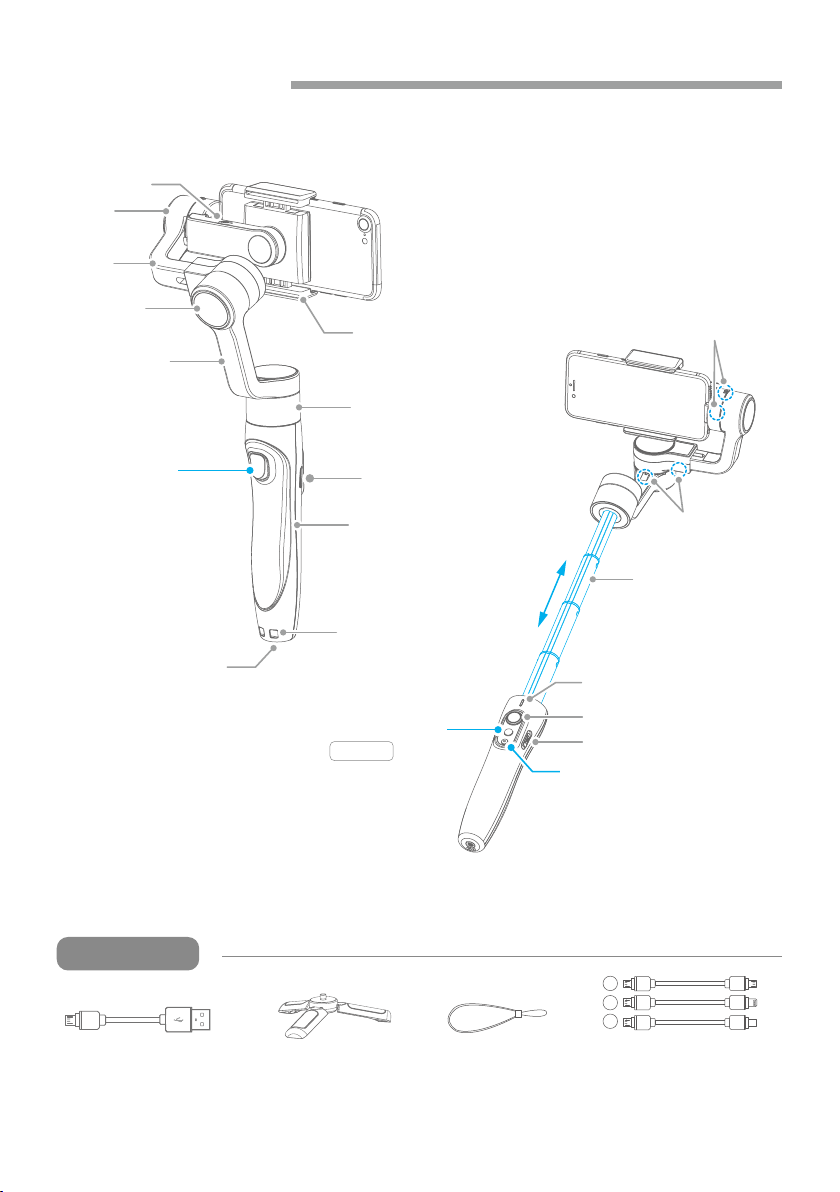
ON / OFF
Roll Axis Lock
Tilt Axis Lock
Focus Button
Function Button
Extendable Range
0~183mm
Shutter Button
Extendable Bar
Status Indicator
Joystick
Roll Axis
Tilt Axis
Cross Arm
Vertical Arm
Wrist Strap Hole
Handle
Micro USB Port
Micro USB Port
for Smartphone
Charging
Smartphone Holder
Pan Axis
1/4 inch
Thread Hole
(Built-in battery)
Function Button
1. Overview
01
www.feiyu-tech.cn
TripodMicro-USB Cable
*This product does not include the smartphone
Wrist Strap
Micro to Micro cable
Micro to Lightning cable
Micro to Type-C cable
a
b
c
a.
b.
c.
Accessories
02
www.feiyu-tech.cn
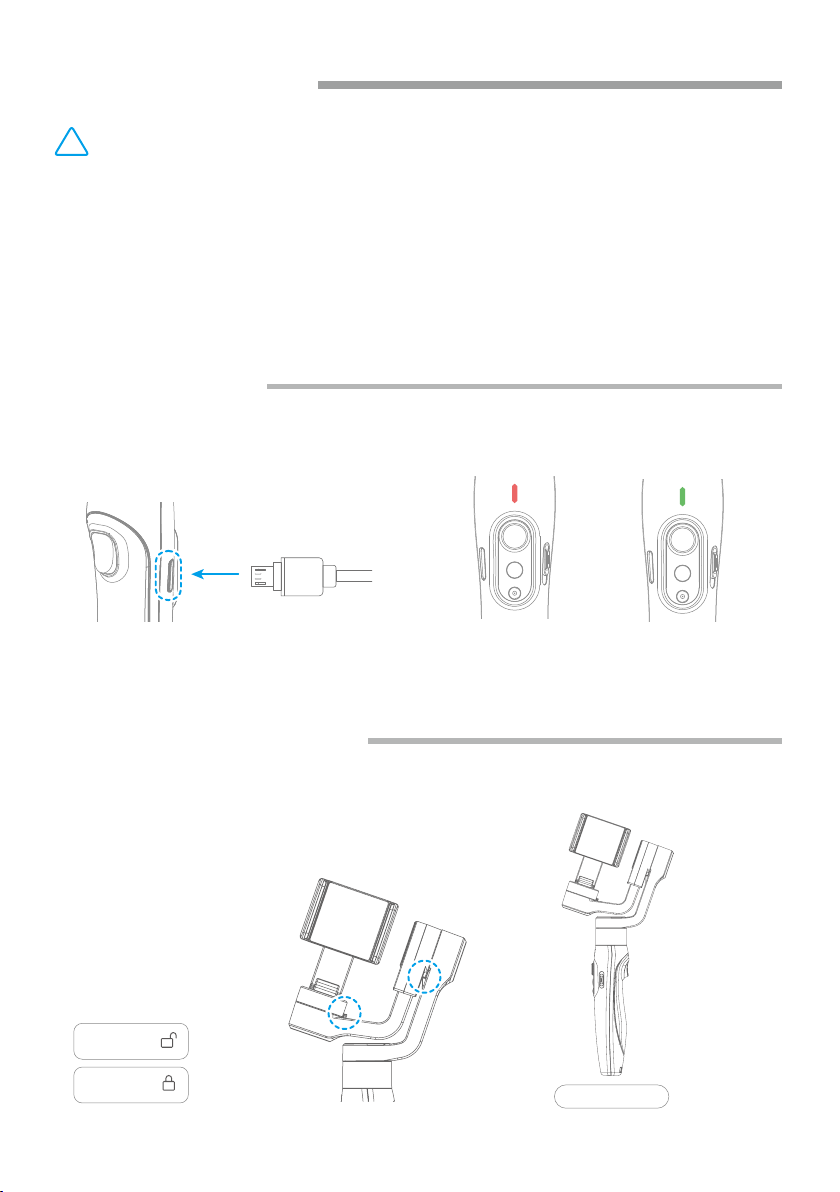
2.1. Charging
2.2. Positioning Lock
Charge completeCharging
Connect the USB cable to charge. The indicator light is red when charging, and
green when fully charged.
Stored Status
Each of the tilt axis and roll axis has positioning lock for storage purposes.
Be sure to unlock them before using the gimbal.
!
(1) Please fully charge the battery before powering on the gimbal for the first time.
(2) If the power is too low, the red light will flash three times every five seconds that
indicating you should charge it immediately.
(3) When not in use, power off the gimbal.
(4) Unlock the three axis clamp before powering on the gimbal.
TIPS
2. Start to Use
Lock
Unlock

2.3 Smartphone Installation
2.4 Balancing
03
www.feiyu-tech.cn
Place smartphone in holder so that the phone is snug against the back of the holder.
It's recommended to remove your smartphone protective case.
Smartphone holder width range : 57-84mm.
Balanced Status
Leftward
Rightward
Cross arm
If the smartphone tilts to left or right after installed the smartphone, please slide
the cross arm to the opposite direction which the smartphone tilts to to balance.
(Balancing before power on)

04
www.feiyu-tech.cn
Make sure unlock the roll and pan lock before powering on the gimbal.
Long press the function button and release it when you hear the tone.
Long press the function button and release it when you hear the tone.
Power OFF
Power ON
2.5 Power ON / OFF
3.1 Function / Modes Introduction
3. Function Operation
Function Button
(Green light will change to blue)
(The red light will turn off)
Pan Mode(Default mode)
Lock Mode
Follow Mode
The roll direction is fixed, and the smartphone moves according to the left-right
movements, up-down movements of the user's hand.
The roll and tilt direction are fixed, and the smartphone moves according to the
left-right movements of the user's hand.
The orientation of the smartphone is fixed.
Reset
Manual Lock
Return to panning mode, three axises return to default position.
Slide the tilt axis to one position for shooting.
Landscape and Portrait Shot
Assist landscape or portrait shooting.

05
www.feiyu-tech.cn
Follow and
rotate
Follow and
rotate
Lock the pan
position
Lock the tilt
position
Pan Mode Default mode
Follow and
rotate
Follow ModeLock Mode
3.3 Function Button Operation
3.2 Joystick
Single tap
(Click once)
(Click again)
Pan Mode
Lock Mode
Function
button Function
Double tap Follow Mode
Triple tap
Quintuple tap
All Follow Mode
Long press Power ON / OFF
*
*
Gimbal Initialization
( Single click the function button to wake up )
*
The button's operation function can be modified on App, after connecting
Feiyu ON App succeeded.
Upward
Move to left Move to right
Downward

06
www.feiyu-tech.cn
3.4 Shutter Button Operation
The gimbal can control the photography after only Bluetooth is connected
with smartphone.
Bluetooth connection
Connect Smartphone
(1)Power on the gimbal, open smartphone bluetooth.
(2)Choose below Bluetooth connection way:
a. Choose Vimble 2S Bluetooth to connect like FY_Vimble2S_xx.
b. Open Feiyu ON app, logon or register via tips to connect.
(3)After Bluetooth connecting successful, the shutter button is activated.
The green light flashes once while other indicator status (About every 5 seconds flashes once)
Single
click
Double click
Photography
Video
( Click again to end the recording the video )
Switch to photo / video mode
Shutter
Button Function Control
the App Control smartphone
camera
via bluetoothFeiyu ON
Triple click Switch front and rear camera
Long time
press
Video recording in shooting mode
*
*We suggest close Feiyu ON App when you control smartphone camera.
( Long press the shutter button again to
end the recording )

07
www.feiyu-tech.cn
Trigger
Button Function
Long press
Double tap Reset
Enter follow mode
(Release trigger button enter into previous mode)
Sliding up-down
(Adjust field-of-view)
Adjust focus
Focus Button Function
*
*
The button's operation function can be modified on App, after connecting
Feiyu ON App succeeded.
3.5 Focus Button Operation
3.6 Trigger Button Operation
Used with Feiyu ON App
3.7 Light Indicator Explanation
Indicator Mode / Status
Pan Mode
Follow Mode
Lock Mode / Initialization
Initialization failure / Malfunction
Indicator status
Flashes once
Blue light
Flashes twice
Constant
Keeps flashing
Low power
Power off
Flashes three times
Red light
Keeps flashing Gimbal powering off
Flashes three times
The current mode of the stabilizer can be identified by the indicator status.
Photo Flashes once
Green light
Constant Video
Bluetooth connected
Power onGreen light change to blue
Green light flashed once
in 5 seconds
While other indicator status
Tabla de contenidos
Otros manuales de Accesorios para teléfonos celulares de FeiYu Tech


