
FATORK D042 Manual de usuario

D042
MODEL NO.

(English)
CATALOG
Safety Instructions......................................................................... 1
Package List................................................................................... 5
Overview.........................................................................................6
Remote Control ............................................................................ 7
Getting Started ............................................................................. 8
Connections .................................................................................. 9
Projector interface connection................................................... 9
3.5 mm audio connection ........................................................... 9
USB connection ............................................................................. 10
HD connection .............................................................................. 12
Wired screen mirroring connection by USB cable........................ 13
WiFi wireless screen mirroring ....................................................... 14
Menu Settings ................................................................................ 19
Projector Installation.................................................................... 20
Technology Features................................................................... 21
Questions & Answers ................................................................... 22
24/7
SUPPORT
LIVE CHAT

Safety Instructions
Setup
Read all instructions before you use this device. Do not make any changes or create
settings not described in this manual. If physical injury, loss of data, or damage is
caused by failure to follow instructions, the warranty does not apply.
1. Do not expose the device to rain or moisture to reduce the risk of fire or electric
shock. Objects filled with liquids, such as vases, should not be placed on this device.
2. Do not place this device on soft surfaces such as tablecloths or carpets.
Otherwise, the device could be a fire hazard.
3. Do not place this device in areas susceptible to excessive dust and dirt or near
any appliance generating a strong magnetic field.
4. To prevent overheating, do not block or clog the ventilation openings.
5. Never place this device in a confined space. Always leave enough space around
this device for ventilation.
6. Protect this device from overexposure to direct sunlight, heat, large temperature
fluctuations, and moisture. Avoid extreme temperatures. This device's proper
operations and storage temperature and accessories are 0°F to 95°F.
7. When this device runs for a long period of time, the surface may become hot.
Shut it down immediately and unplug the charger. Resume operation after this
device has cooled down.
8. Always handle this device with care. Avoid touching the lens. Do not allow
children to operate the device without supervision.
9. Never place heavy or sharp objects on this device.
10. To avoid electric shock, do not disassemble.
11. Use attachments or accessories specified by the manufacturer only.
12. Avoid extreme vibrations as they may damage the internal components.
EN01

● Notice
Hearing Safety
(1) To avoid hearing damage, do not listen for extended periods at high volume. Set
the volume to a safe level.
Charging
(1) The charger is output voltage/ current of DC 12V/2A. The charger should be
installed near this product and should be easily accessible.
(2) When charging, place this device in an environment with an average room
temperature (ranges from 41 °F to 77°F recommended) and good ventilation.
Cleaning
(1) Use a soft, lint-free cloth. Never use liquid, gaseous, or easily flammable cleansers
(sprays, abrasives, polishes, alcohol) to clean.
(2) Do not use any liquid cleaning agents to clean the lens to avoid damaging the
coating film on the lens. Use lens cleaning paper to clean the lens.
Repairs
(1) Do not make any repairs to this device yourself. Only have your device repaired by
an authorized service center.
(2) Improper maintenance can result in injuries or damage to this device.
(3) Refer all servicing to qualified service personnel.
Caution
(1) Possibly hazardous optical radiation emitted from this device.
(2) Do not stare at the operating beam. The bright light may damage your eyes.
Battery
(1) Do not replace the built-in battery by yourself. Contact an authorized service
center to replace it.
(3) Risk of explosion! Keep the batteries away from heat, direct sunlight, or fire. Never
dispose of batteries by burning.
(5) Only replace the batteries in the remote control with the same or an equivalent
type.
(6) Batteries contain chemicals and should be disposed of properly.
(7) Charge this device regularly. Do not store this device with a completely
discharged battery.
(4) Please remove the batteries if the remote control is not used for a long period of
time.
(2) The remote control contains two AAA batteries, which can be swallowed easily.
(Note: Batteries are not included in the package, please purchase them separate-
ly!) Keep the remote control out of reach of the children.
The following safety instructions ensure the long service life of the projector to
avoid fire or electric shock. Please read carefully and pay attention to the
following warnings.
Don't cover the projector ventilation
holes with any material.
Please keep the projector away from
water or any other liquid as it is not
waterproof.
Don't install the projector in sites with
improper ventilation.
Don't install the projector near the
temperature and smoke transducer.
It may cause a sensor failure.
Don't install the projector in hot and
humid sites.
Don't install the projector in dust and
smoke sites.
Don't install the projector in sites with
the direct blowing of the warm and
cool air-conditioned wind.
Please don’t look into the lens when
the projector is working. Otherwise, it
may hurt your eyes.
EN03
EN 02
● FCC Statement
Tips:
Radiation Exposure Statement.
Changes or modifications not expressly approved by the party responsible for
compliance could void the user's authority to operate the equipment.
This equipment complies with FCC radiation exposure limits set forth for an
uncontrolled environment.
This transmitter must not be co-located or operated with any other antenna or
transmitter.
This equipment should be installed and operated with minimum distance of 0.66 ft
between the radiator and your body.
-Reorient or relocate the receiving antenna.
-Increase the separation between equipment and receiver.
-Connect the equipment into an outlet on a circuit different from that to which the
receiver is connected.
-Important announcement Important. Consult the dealer or an experienced radio/TV
technician for help.
● Radiation Exposure Statement
This equipment complies with FCC radiation exposure limits set forth for an
uncontrolled environment. This equipment should be installed and operated with a
minimum distance of 0.66 ft between the radiator and your body.
This transmitter must not be co-located or operating with any other antenna or
transmitter.
NOTE: This equipment has been tested and found to comply with the limits for a
Class B digital device, according to part 15 of the FCC Rules.
These limits are designed to provide reasonable protection against harmful
interference in a residential installation. This equipment generates uses and can
radiate radio frequency energy and, if not installed and used by the instructions,
may cause harmful interference to radio communications.
However, there is no guarantee that interference will not occur in a particular
installation.
If this equipment does cause harmful interference to radio or television
reception, which can be determined by turning the equipment off and on, the
user is encouraged to try to correct the interference by one or more of the
following measures:
This device complies with part 15of the FCC rules. Operation is subject to the
following two conditions:
* First, the projector has automatic upper vertical ±40° ladder correction or
manual correction.
* Second, rotate the focus button to obtain the best clarity.
* Elective Projection Distance: 1.64-9.85 feet.
* If there is any part missing, please contact our customer service email address
in the Quick start guide or contact the seller you bought this device.
1. Blurry Image
Adopting a single mounting hole dual-use design, the projector is compatible
with the standard camera tripod and 1/4 inch screw projector tripod stand.
Meanwhile, you can rotate 45° the screw to meet different angle needs.
2.Mounting Hole
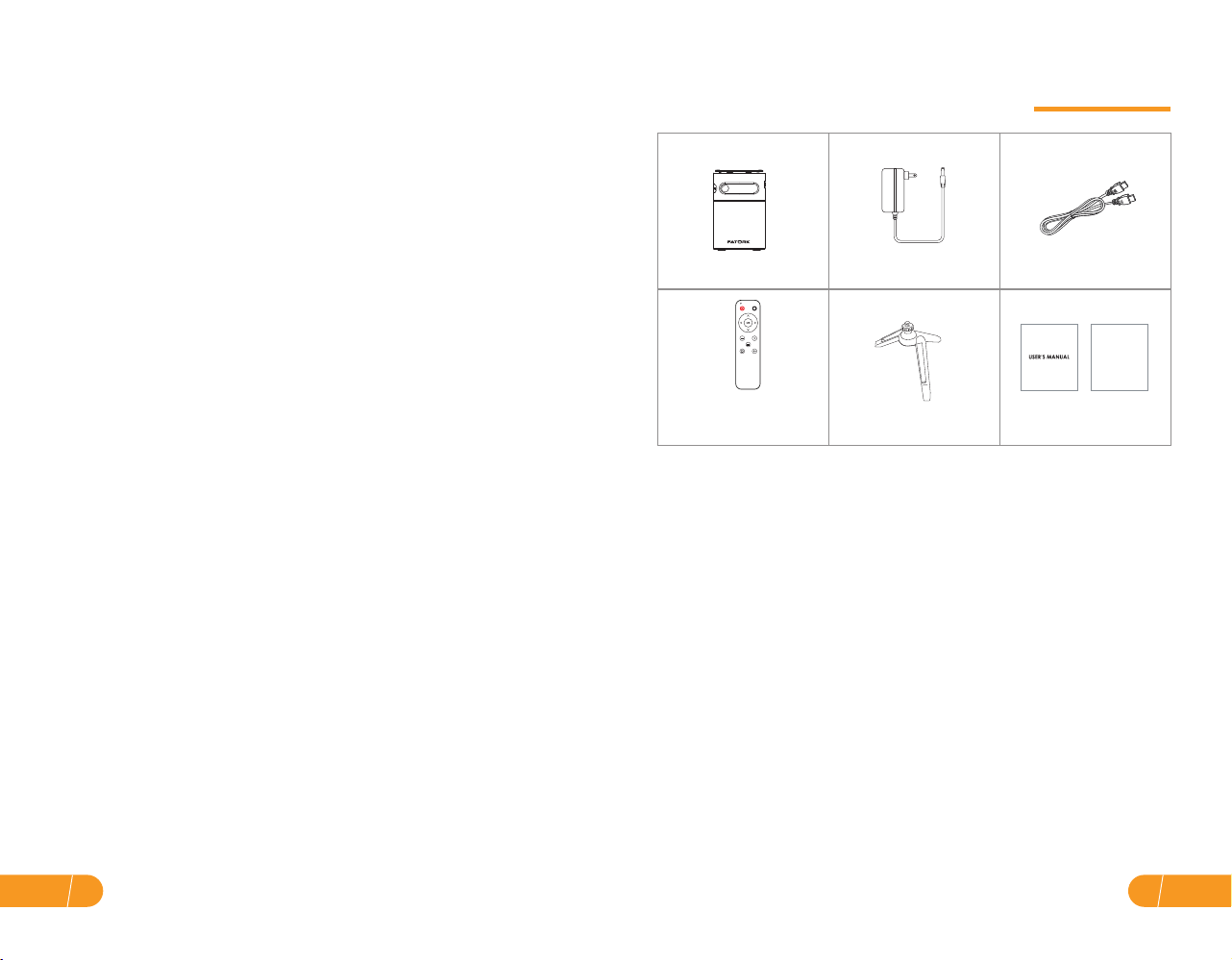
Charger Power Cable ×1Projector × 1
Remote Control ×1
(Batteries are not included) & Quick Start Guide
Bracket ×1
HD Cable ×1
(1) This device may not cause harmful interference, and(2)this device must accept any
interference received, including interference that may cause undesired operation.
Projector User Manual
Quick Start Guide
Package List
EN05
EN 04

Attention:
1. Do not submerge the remote control in the water.
2. Do not put the remote control near fire or in wet or hot places.
3. Do not use old and new batteries together in the remote control.
4. Please take the batteries out if not using the remote control for a long time to
avoid battery leakage.
5. Please point the remote control toward the IR receiver.
6. Please use the remote control within 20 feet distance and 30 degree angle.
7. If this part is missing, please contact our customer service email address in the
quick start guide or contact the seller you bought this device.
Lens Power Switch
Move Left
Volume down
Home menu
Mute
Ok
Focus Adjusting Knob
Menu Return
Move Down
Move Right
Confirm
Move Up
Move Left
Remote ControlOverview
Move Right
Move Down
Move Up
Menu
Volume up
Return
HD
Air Ventilation
(Outlet)
Speaker
USB
DC
Headphone
Connection Holes
On/Off
EN07
EN 06

● Projector interface connection
● 3.5 mm audio connection
a. Use 3.5 mm audio to connect headphones and speaker equipment.
Connect multiple devices and applications.
Connection
HD
EN09
EN 08
Press and hold the
Power button for 2
seconds to turn off the
projector.
Getting Started
Plug the power cord to
the projector/Fully
charge the projector
and turn it on.
Press and hold the
power button for 2
seconds to turn on
the projector.
Adjust keystone and focus ring to get
the best image performance.
(Automatic keystone, vertical: ± 40°)
Connect the projector to WIFI / USB / HD
port support device.
HD Cable
Select the input source.
The mounting bracket
can be adjusted 45°
to the most suitable
angle for viewing. (Or
you can choose not
to use the bracket.)

● USB connection
Insert the USB flash/storage hard drive Into the USB port and choose USB
as the source from the menu.
(The USB icon on the main interface will turn blue after the USB inserts. If the USB
icon on the interface does not display blue, you need to insert it again or
check whether the USB disk is faulty.)
Supported multimedia formats
b. Choose the content which you need to play.
File
Video Play
MPEG1
MPEG2
MPEG4
RM\RMVB
MJPEG
.DAT\.MPG\.MPEG
.MPG
.AVI\.MP4 DIVX,XVID
.RM\.RMVB RV8, RV9, RV10
.AVI
WMV
VC1
JPEG
MP3
M4A
.MP3
.MP4
AAC-LC
HE-AAC
WMA
TEXT .TXTDocument
Dihtital(AC-3)
Optional
BMP
PNG
.JPG
.BMP
.PNG
Picture Play
Audio Play
Format Suffix Decoding
EN11
EN 10

● HD connection ● Wired Screen Mirroring Connection by USB cable
Tips:
iPhone / iPad (iOS system)
a. Use the HD port to connect computers and HD-compatible devices.
Once connected, select the HD signal source. Screen Mirroring with the original lightning cable.
Step 1. Turn on the projector, select"ScreenCast"screen mirroring as the input
source, then go to the next screen and select"iOS Cable Cast".
Step 2. Connect iPhone / iPad and the USB port of projector with the lightning
cable.
Step 3. Select "Trust" in the pop-up window of "Trust This Computer". Enter
your device password. The display of your iPhone/iPad will be projected to the
wall/screen after a few seconds.
1. Mini Display Port to HD Cable, Thunderbolt to HD Adapter are needed to be
compatible with Apple iMac, MacBook, Surface, ThinkPad.
2. Supported resolution:
576P, 480P, 720P, 1080P, 640x480, 800x600, 1024x768, 1280x1024, 1280x720,
1440x900, 1366x768, 1920x1080, 1280x800, 1440x960, 680x1050
EN13
EN 12

Step 2. Select "ScreenCast" Screen Mirroring as the input source to enter "iOS
Cast".
Step 3. Connect your iPhone / iPad to the same WiFi. Open"Screen Mirroring"
on your device and click"ROTACAST-XXXX"to connect.
● WiFi wireless screen mirroring
A. iPhone / iPad / iPod touch (iOS system)
Streaming with your WiFi (wireless connection)
Step 1. Turn on the projector, click "Setup" and select Wi-Fi to connect.
(Or select "ScreenCast" Screen Mirroring as the input source,then go to the
next screen and select "Cast Settings". Setting up your WiFi.)
EN15
EN 14
Tabla de contenidos


