
FANTEM Oomi MultiSensor Manual de usuario

MULTISENSOR

Oomi by Fantem MultiSensor.
6 sensors. 1 impossibly small device.
The corner of your room just got 6 times smarter.
Oomi by Fantem’ MultiSensor looks like nothing that has come before.
It’s a motion sensor and it’s also so much more. Installing this 1 piece
of Z-Wave®technology is the same as installing 6 pieces of Z-Wave
technology. Your home control network will immediately understand
motion, temperature, humidity,light, Ultraviolet and Vibration readings
wherever MultiSensor is installed. Those intelligent readings will equate
to intelligent automation. And intelligent automation will give you the
perfect smart home.
Your MultiSensor comes packaged with a number of accessories that will
help with its installation and operation.
Package Contents:
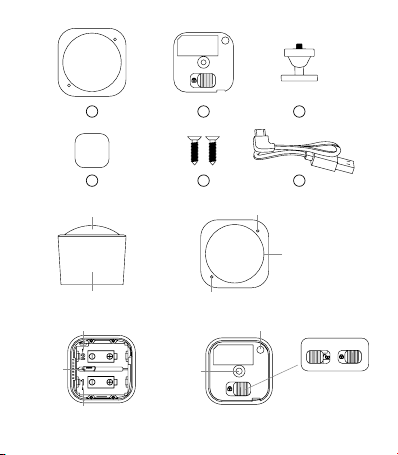
1. MultiSensor
2. Battery Cover
3. Back-Mount Arm
4. Double-Sided Tape
5. Screws (×2)
6. Micro USB Cable
Familiarize yourself with your MultiSensor.
1
1
2
2
1
4
Mition Sensor
Vibration Sensor
USB Port
Secondary battery hold Action Button
Screw hole
Primary battery hold
RGB LED
Temperature
Light Sensor and UV Sensor
2
5
3
6

3
MultiSensor can be powered by battery or by USB with an appropriate
adaptor. For the purposes of installation and setup, even if you
intend to power your sensor with batteries, we recommend usingthe
provided USB cable for setup. For this, you’ll need an adaptor to plug
your USB cable into; this can include any computer USB port and
most smartphone chargers. These steps can be performed in any
location with your home, and not necessarily in your MultiSensor’s nal
installation location.
For a USB powered installation;
Remove the Battery cover via sliding the Unlock button and
separating the two parts of your sensor.
Insert the smaller end of the provided USB cable into your sensor’s
USB port.
Insert the larger end of the USB cable into a computer or adaptor.
Your MultiSensor 6 is now powered on.
Setup your power.
3Quick start.
1.
2.
3.

4
With it powered on, it’s now time to add your MultiSensor to a Z-Wave
network.
For a battery powered installation;
Remove your sensor’s rear cover as shown in the previous step 1.
Insert two CR123A batteries orientated according to the diagram
within your sensor. Your MultiSensor 6 is now powered on.
Note: MultiSensor can be powered by a single CR123A, though
batteries will require changing more frequently. If powering your
MultiSensor with a sole battery, insert it into the battery holder marked 1.
Adding your MultiSensor to a Z-Wave network.
USB Port
Secondary battery hold
Primary battery hold
1.
2.

5
If your Z-Stick is plugged into a gateway or a computer, unplug it.
Take your Z-Stick to your MultiSensor 6.
Press the Action Button on your Z-Stick.
Press the Action Button on your MultiSensor.
You can test if your MultiSensor has been successfully included into
your Z-Wave network by pressing its Action Button. If you press the
button and your sensor’s green LED is solid for a few seconds, then
inclusion has been successful. If the green LED blinks when the button
is pressed, the inclusion has been unsuccessful and you should repeat
the above steps.
Press the Action Button on the Z-Stick to return it to inclusion mode.
Return it to your gateway or computer.
Set your Z-Wave gateway to accept new products.
Press the Action Button on your MultiSensor.
Test that your sensor has been successfully added your Z-Wave
gateway by pressing its Action Button. If you press the button and
If you’re using a specic Z-Wave gateway you may need to refer to its
user manual before proceeding:
1.
2.
3.
4.
5.
6.
1.
2.
3.
If you’re using a Z-Stick from Aeotec:
Action Button

6
MultiSensor can bring its intelligent readings to many locations of your
home. Before deciding on a location, there are some things you should
rst consider.
MultiSensor’s motion sensor uses light and heat readings to determine
motion; sudden light and heating changes can impact the sensor’s
quality of motion readings. As such, your sensor should not be installed
in areas of articial temperature change. Thus, when selecting a location,
avoid placing it beside or near air conditioners, humidiers, and heaters,
and avoid positioning it directly opposite a window or direct sunlight.
If your MultiSensor will be powered by batteries, you should avoid
installing it in a location where the temperature can drop below 0°C /
32°F – this is below the batteries’ working point.
Selecting a location for your sensor also depends on the layout of any
area that you want monitored. Whatever the room or area, please
ensure that it ts with your sensor’s eective motion sensing range as
described in the following diagrams.
Selecting a location for your MultiSensor.
its LED is solid green for a few seconds, then inclusion has been
successful. If the LED blinks green when the button is pressed, the
inclusion has been unsuccessful and you should repeat the above
steps

7
If installing MultiSensor in a corner where the wall meets the ceiling it
can take measurements within a 2.5 x 5 x 5 metres / 8 x 15 x 15 feet
range:
If installing MultiSensor on a ceiling it can take measurements within a 3
x 6 x 8 metre / 10 x 20 x 26 feet range:
Wall
120°
5metres
0.5 metre
2.5 metres
5 metres
8
For optimal performance, your MultiSensor should NOT be mounted
directly on or near metal framing or other large metallic objects. Large
metal objects may weaken the Z-Wave wireless signal MultiSensor
depends on for communication.
With your MultiSensor now a part of your Z-Wave network and
having determined its installation location, it’s time to nish its physical
installation.
There are 2 ways that your MultiSensor can be mounted on on a wall
or ceiling. Most simply it can be placed upon a shelf without the need
to attach further accessories. You can mount your sensor in a corner or
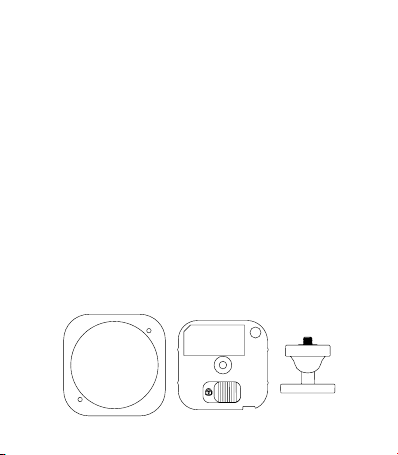
against a wall or ceiling by using the Back-Mount Plate. It’s also possible
to to embed your MultiSensor within a ceiling or wall using its Recessor
accessory (sold separately)
To install your MultiSensor;
Reattach the three parts of your MultiSensor to each other. Unlock the
Battery Cover from the Sensor unit.
Physically install your MultiSensor.

9
Tips: We suggest you choose the second method (using screws to ax
the Back-Mount Arm) would be more stable.
You can ax the Back-Mount Arm by Double-Sided Tape or using the
provided KA2.5×20 mm screws.
To install your MultiSensor with the Back-Mount Plate;
Double-Sided Tape
Or
After you have completed the axing of Back-Mount Arm, you will
need to lock the MultiSensor to the Back-Mount Arm by screwing the
MultiSensor in.
1.
2.
To install your MultiSensor on a shelf;
You can place it upon a shelf without the need to attach further
accessories.
Tabla de contenidos


