
eyeV Skyle Manual de usuario

Visit online: https://eyeV.de
1
for Windows
-User manual -
by

Visit online: https://eyeV.de
2
Contents
Skyle for Windows....................................................................................................................... 3
What is in the box.................................................................................................................... 3
Technical Specifications......................................................................................................... 3
Getting started............................................................................................................................. 4
Assembly.................................................................................................................................... 4
Connect the eye tracker ........................................................................................................ 5
Windows Software ...................................................................................................................... 6
Preparation ............................................................................................................................... 6
Cursor Mode.......................................................................................................................... 8
Pause....................................................................................................................................... 8
Positioning................................................................................................................................. 9
Calibration............................................................................................................................... 10
Profiles...................................................................................................................................... 12
Gaze Selection ........................................................................................................................ 13
Update ...................................................................................................................................... 14
Advanced Settings ................................................................................................................. 14
Improvement.......................................................................................................................... 15
Safety instructions.................................................................................................................... 15

Visit online: https://eyeV.de
3
Skyle for Windows
Thank you for choosing Skyle for Windows. Skyle for Windows is an eye tracker designed
for Windows based system. With the Skyle control software –Skyle Mouse, the complete
PC can be controlled contactless. If you want to integrate Skyle into your own
application, you are free to use the public API. You can find it at github.com/eyev-de.
What is in the box
Software
The Skyle Software for Windows can be downloaded here: https://eyeV.de/dl/Skyle.msi
You can also find the link in the download area at eyeV.de
Technical Specifications
Supply voltage
5V DC
Current consumption
0.9 A
Sampling rate
18 Hz (max. 60Hz)
Accuracy
1° - 2°
Eye tracking mode
Binocular
Operating distance
45 –65cm
Dimensions
282.5 x 42,5 x 39mm (l*w*h)
Device Compatibility
Windows 10 x64
eyeV GmbH reserves the right to make modifications, improvements, corrections, or other changes
without further notice to this document and any product described herein.
eyeV GmbH products are specifically not authorized for use as critical components in life support
devices or applications, where the use can be reasonably expected to result in significant injury
to the user.

Visit online: https://eyeV.de
4
Getting started
This chapter describes the basic setup of the eye control and the installation of the
software.
Assembly
The eye control "Skyle for Windows" is delivered with a magnetic mounting system or a
laptop stand. Supported Brackets are also available from Rehadapt (EyeGaze bracket).
Skyle can also be attached to brackets with M2.5 screws. Please follow the instructions of
the respective holder.
1. Clean the surface of the bottom
edge of the screen so that dirt,
grease and dust are removed.
2. Remove the protective film from
the adhesive tape of the mounting
plate and position it centrally
below the monitor.

Visit online: https://eyeV.de
5
Connect the eye tracker
The eye tracker is connected to the windows computer with the supplied cable.
After a few seconds, the LEDs of the controller start to light up. Skyle is now ready for use.
Please note that we cannot guarantee the functionality of the eye tracker when using a HUB.
3. Press on the metal plate for about 30
seconds with a contact pressure of 20
N/cm2. This corresponds roughly to a
strong thumb pressure.
4. a) Now you can attach the angle
adapter and your Skyle device to the
monitor.
4. b) Alternatively, you can attach the
included clamps to the controller to
place it on the table or a laptop
keyboard.
You can adjust the height by turning the
brackets around.
7

Visit online: https://eyeV.de
6
Windows Software
The software can be used to calibrate the controller, create profiles, or customize the
appearance. The Skyle Mouse can also be used to control the PC's mouse cursor without
physical contact.
Preparation
Download and install the "Skyle" application on your windows system
from the link above. This app is required for the user-specific calibration
of the eye tracker. The app also offers the possibility to display the camera
feed of the eye control to carry out an optimal positioning. The details of
the software are described in the following chapters.
Visit online: https://eyeV.de
7
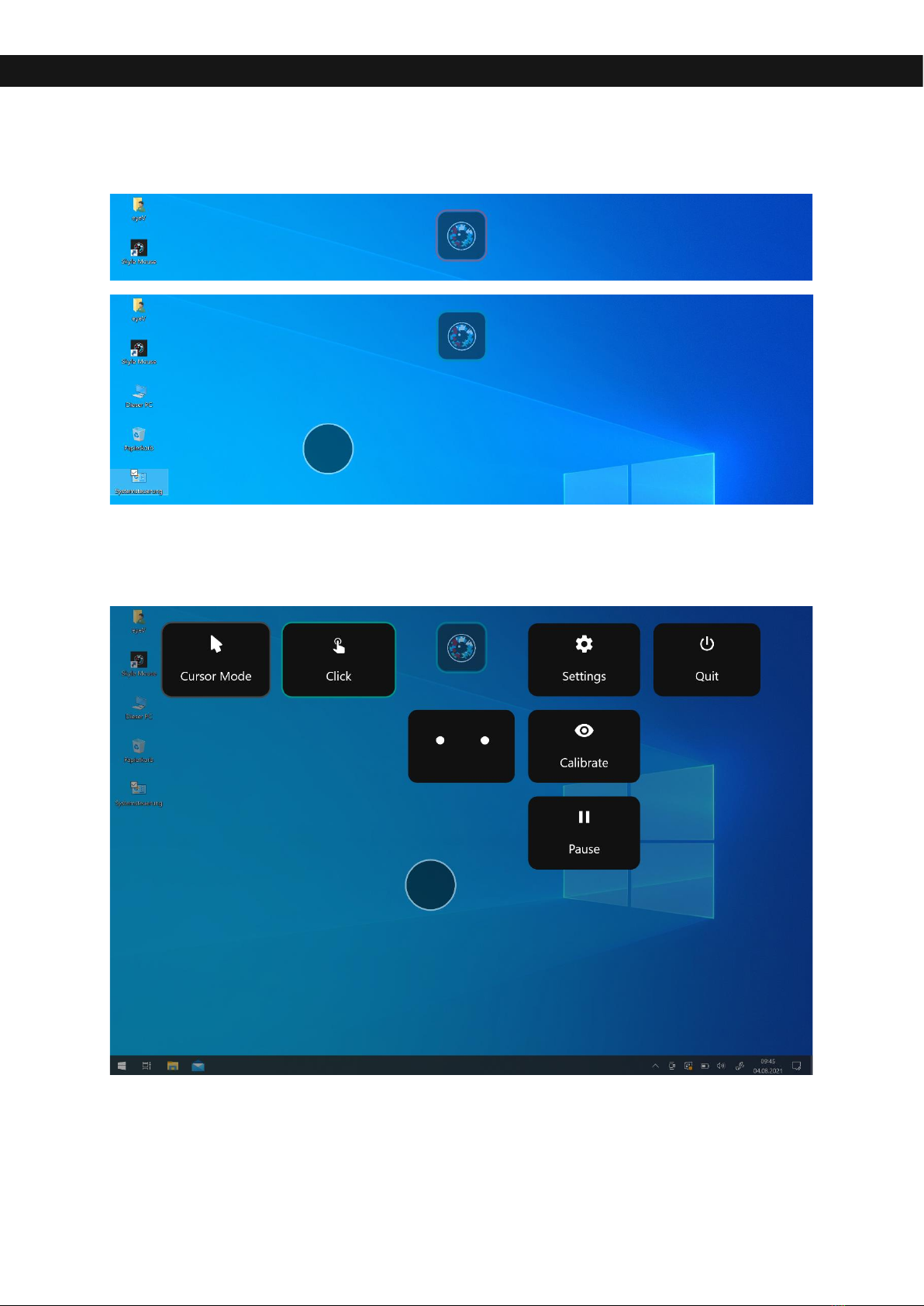
After the application is installed and launched, the cursor moves with the eye movements
and the icon of the „Skyle Mouse“ changes colour from red to green.
Any actions can be performed by dwelling. By clicking on the icon, you get more actions
and options. In this menu you will also find an indication about the detection of the
eyes.

Visit online: https://eyeV.de
8
More actions appear once the default eye control profile is selected.
Most actions are abstractions of the usual input devices, such as mouse and
keyboard.
Next to the setting options and the calibration, there are two other actions which
can only be activated by an external input device and not by the dwell control.
Cursor Mode
The cursor mode attaches the operating system's cursor directly to the Skyle
gaze cursor instead of setting it only when an action has to be performed.
This can be helpful when using applications where the animated cursor can be
distracting or where no dwell animation needs to be visible.
Pause
If the gaze cursor is temporarily not required, it can be deactivated by an external input
device by pressing the pause button for a longer period of time. The eye tracking can be
switched on again by clicking the Resume button that is visible afterwards.
Visit online: https://eyeV.de
9
Positioning
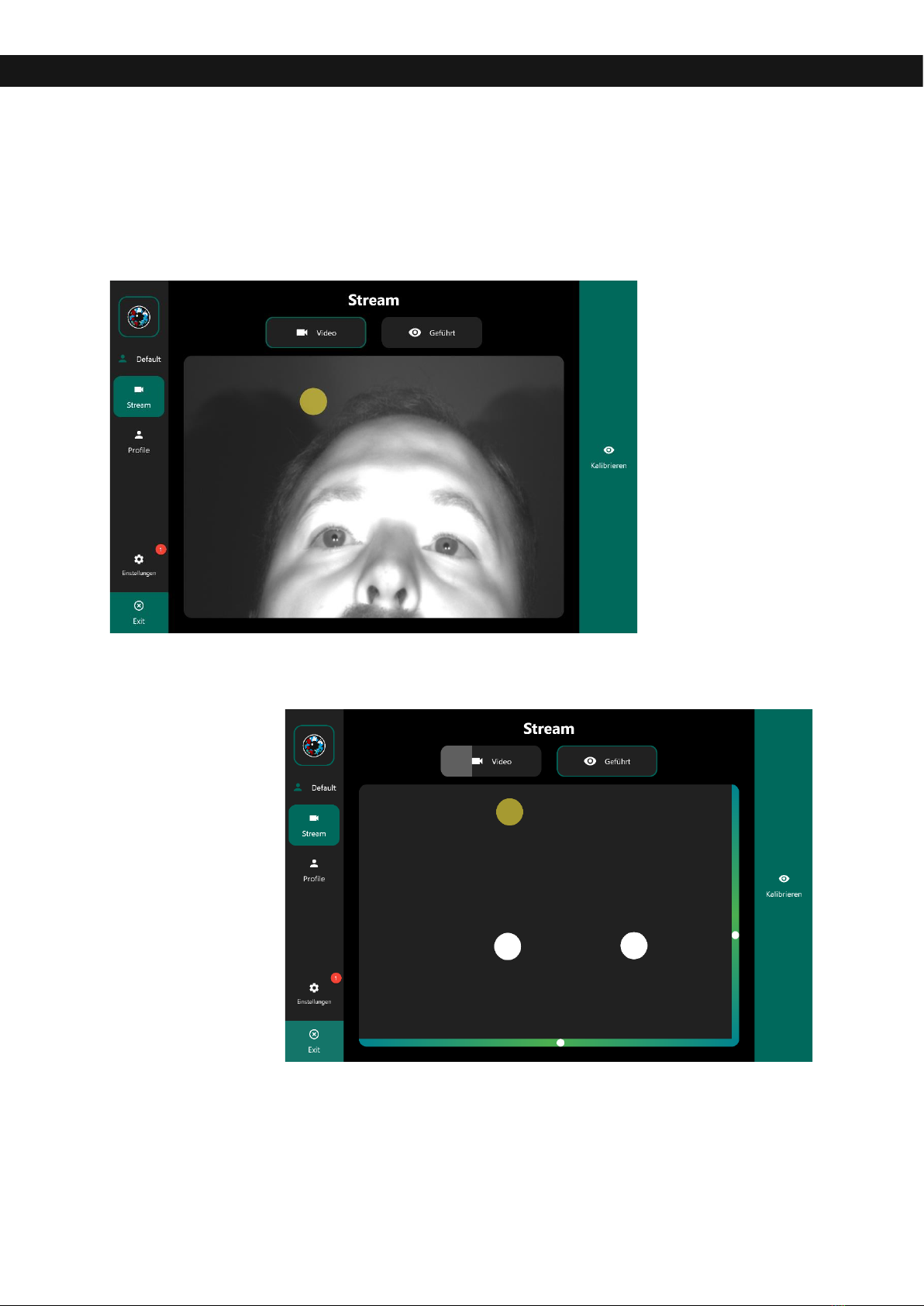
If the eye tracker is ready for use, eye movements are converted into mouse positions. If
not, make sure that the user is positioned correctly. This means that the built-in camera
must recognize your eyes completely. To do this, open the settings that you can access
via the Skyle Mouse (eye icon).
The video stream is turned on by default, but it can also be turned off or toggled so that
only a simplified display with assistance is shown.

Visit online: https://eyeV.de
10
Calibration
Each eye is unique and must therefore be calibrated to control the tablet.
The calibration can be started directly on the start page of the app. If the user is correctly
positioned, the calibration starts with the standard calibration method after a short time.
This can optionally also be changed and started manually. Once this is done, the cursor
jumps to 1-9 different positions which the user must focus on.
Please focus the center of the circle. The appearance of the cursor can also be
customized in the app settings.
Hint: The calibration can also be done step by step, for example when an external push
button, touch gestures or a mouse are connected or executed on the PC. To do this you
can activate this option in this step.
Otros manuales para Skyle
1
Tabla de contenidos


