
Eviant MT7001 Manual de usuario

7 ANDROID™
Tablet
”
MT7001
USER GUIDE

2
Safety Precautions
Do not drop tablet or subject to severe impact.
Do not use the tablet in extreme hot, cold, dusty or damp conditions. Do not expose it to
direct sunlight.
Avoid using the tablet near strong magnetic fields.
Normal functioning of the product may be disturbed by ESD. If so, simply reset and restart
the tablet following the instruction manual. During file transmission, please handle with
care and operate in a static-free environment.
Keep the tablet away from water and other liquids. In the event that water or other liq-
uids enter the tablet, power off the product immediately and clean.
Do not use chemicals to clean the tablet in order to avoid corrosion. Clean with a dry
cloth.
Do not install the tablet in a confined space such as a book case or similar unit. The venti-
lation should not be impeded by covering the ventilation openings with items such as
newspaper, table-cloths, curtains etc.
No naked flame sources, such as lighted candles, should be placed on or near the tablet.
Attention should be drawn to environmental aspects of battery disposal.
Use the tablet in moderate climates.
The manufacturer is not responsible for damage or lost data caused by misuse, or modifi-
cation of the tablet / battery replacement.
Do not attempt to disassemble, repair or modify the tablet. This will void the manufactur-
ers warranty.
If the tablet will not be used for an extended period of time, please charge the battery at
least once per month to maintain battery life.
Charge the battery if:
a) The battery level icon displays an empty battery
b) The tablet powers off automatically when restarted.
c) There is no response when pressing keys with keys unlocked and battery full.
Do not interrupt the connection when the tablet is being formatted or transferring files.
Interruption of this process may cause data to be lost or corrupted.
When the tablet is used as a portable HD device, please use only per the instructions.
Permanent data loss can occur if used improperly.
Please use and install data using the attachments/accessories provided and only accord-
ing to the manufacturer’s instruction.
Please refer to the information on the bottom of the tablet for electrical and safety infor-
mation before installing data or operating the tablet.
To reduce the risk of fire or electric shock, do not expose this tablet to rain or moisture.
The tablet should not be exposed to dripping/splashing liquids. Never place objects filled
with liquid, such as vases, glassware, etc, on the tablet.
The battery should not be exposed to excessive heat such as sunlight, fire or the like.

3
Safety Precautions (Continued)
Please follow responsible procedures for battery disposal.
If the power adapter is disconnected from tablet, the tablet will remain operable as long
as the battery has sufficient charge.
The power adapter is a CLASS II apparatus with double insulation, and no external ground
is provided.
Safety symbol explanation:
The lightning flash with arrowhead symbol within an equilateral triangle is intended to
alert the user to the presence of non-insulated “dangerous voltage” within the product’s
enclosure that may be of sufficient magnitude to constitute a risk of electric shock.
To reduce the risk of electric shock, do not remove the cover (or back) as there are no
user-serviceable parts inside. Refer servicing to qualified personnel.
The exclamation point within an equilateral triangle is intended to alert the user to the
presence of important operating and maintenance instructions in the User Guide pro-
vided with the tablet.
Correct Disposal of This Product. This marking indicates that this product should not be
disposed of with other household waste. To prevent possible harm to the environment or
human health from uncontrolled waste disposal, recycle it responsibly to promote the
sustainable reuse of material resources. To dispose of your used tablet, please use the
return and collection systems available in your area or contact the retailer where the
product was purchased. They can take this product for safe environmental recycling.

4
Listening Precautions
This product respects the current regulations for limiting the output volume of consumer
audio devices to a safe level. By listening to your device with headphones or earbuds at
high volumes, you run the risk of permanent damage to your ears. Even if you get used to
listening at high volumes and it seems normal to you, you still risk the possibility of dam-
aging your hearing. Reduce the volume of your device to a reasonable level to avoid per-
manent hearing damage. If you hear ringing in your ears, reduce the volume or shut off
your device. Other types of headphones may produce higher volume levels. (At full
power ,the prolonged listening of the walkman can damage the ear of the use)
Maximum output voltage<=150mv
Do not use while operating a motorized vehicle. It may create a traffic hazard and is illegal
in many areas.
You should use extreme caution or temporarily discontinue use in potentially hazardous
situations created by obstructed hearing.
Even if your headphones or earphones are the open-air type designed to let you hear
outside sounds, do not turn up the volume so high that you cannot hear what is around
you.
Sound can be deceiving. Over time your hearing “comfort level” adapts to higher volumes
of sound. What sounds “normal” can actually be loud and harmful to your hearing. Guard
against this by setting the volume of your device at a safe level BEFORE your hearing
adapts.
To establish a safe volume level:
Start your volume control at a low setting.
Slowly increase the sound until you can hear it comfortably and clearly without distortion.
Once you have established a comfortable sound level, leave it there.

5
Table Of Contents
Safety Precautions ............................................................................... 2
Listening Cautions ................................................................................ 4
Package Contents................................................................................. 6
Tablet Overview ................................................................................... 6
Navigation Buttons............................................................................... 6
Charging The Tablet ............................................................................. 7
Turning The Tablet On/Off ................................................................... 7
Unlocking The Screen........................................................................... 8
Home Screen........................................................................................ 8
Customizing Screen Items .................................................................... 9
Changing The Wallpaper ...................................................................... 9
Changing System Settings .................................................................... 9
Tips For Using The Touch Screen........................................................ 10
Setting The Date & Time .................................................................... 10
Connecting To Your Wireless Network ............................................... 11
Applications ....................................................................................... 12
Launching The Web Browser ............................................................. 14
Using The Virtual Keyboard................................................................ 14
Reading eBooks.................................................................................. 15
Music Library...................................................................................... 17
Music Playback................................................................................... 18
Playing Video...................................................................................... 19
HDMI Output ..................................................................................... 20
Viewing Photos .................................................................................. 21
Using The Camera .............................................................................. 23
Exploring Files .................................................................................... 24
Setting Up An eMail Account ............................................................. 25
Managing Tasks .................................................................................. 27
Uninstalling Applications.................................................................... 28
Preinstalled Applications.................................................................... 29
Zoodles............................................................................................... 33
Specifications ..................................................................................... 35
Frequently Asked Questions (FAQs) ................................................... 36
Warranty ............................................................................................ 39
Service & Support .............................................................................. 40

6
Package Contents
7” Eviant MT7001 Android Tablet
AC Adapter
Quick Start Guide
User Guide
Tablet Overview
Navigation Buttons
The navigation buttons at the bottom of the tablet can be used as follows:
Return To Previous Screens; Clear Pop Up Menus
Return To The Home Screen From Any Application
Display Individual Application Menu Options
1. Charging Indicator–Lights red during charging,
and lights orange as charging completes.
2. Front Camera Lens
3. Microphone
4. HDMI Jack –Connects to HD TV that supports
HDMI connection.
5. Micro USB Port –Connects to PC via USB cable.
6. Power Port –Connects to the provided AC
adapter for charging.
7. Earphone Jack –connects to stereo earphones.
8. Power –Briefly press to lock or unlock the
screen; press and hold to turn on/off the unit;
press and hold long enough to reset the tablet .
9. Volume Up/Down –Increase & decrease the
volume.
10. Touch Screen
11. Rear Camera lens
12. MicroSD Card Slot
13. Built-in Speakers

7
Charging The Tablet
Plug the power adapter into an electrical wall outlet, connect the adapter to
the tablet to fully charge the battery before use (5 to 6 hrs).
You can use the tablet while the battery is charging.
You can also charge the battery using a USB cable but the charge time required is longer
than when using the AC adapter. Turn off Wi-Fi and reduce screen brightness if you are
charging via USB cable.
Turning The Tablet On / Off
Press and hold the power button for 3
seconds until the splash screen appears,
and then wait until the Welcome screen
appears.
To turn off the tablet , press and hold
the Power button until you see the op-
tion “Power Off”, tap on “Power Off”
and then tap on “OK”.
Tip: For the sake of power saving, this
tablet may sleep with the screen dis-
play locked when there is no touch ac-
tion for a while (depending on the ac-
tual setting of Display-Sleep). You can
briefly press the Power button to wake
it up.

8
Unlocking The Screen
The screen will be locked after the tablet is idle for a few seconds. You need
to unlock the screen by dragging the lock icon rightwards before you
continue to use the tablet .
Home Screen
The Home Screen consists of five separate screens for positioning the
shortcuts, widgets etc.. Slide your finger left or right on the screen to go to
the extended screens.
A. Apps Button- Open the apps menu.
B. ESC Button
C. Home Button- Go to the home screen.
D. Recent Opened Apps
E. Battery Level Indicator
A
B EDC

9
Customizing Home Screen Items
To add a Home Screen item (shortcut, widget etc.), you can tap the
application icon to display all applications and widgets. Hold your tap on an
item to place it on the home page.
HOLD DOWN HOLD DOWN
To move a Home Screen item, hold your finger onto it to highlight, then
drag it to the desired location, and release your finger.
To remove a Home Screen item, hold your finger onto it to highlight,
drag it to the recycle bin symbol “X” and then release your finger.
Changing The Wallpaper
Hold your tap on the Home screen until a menu appears. Tap on
“Wallpaper” and select a picture as the desktop wallpaper.
Changing The System Settings
Tap the Setting icon on the Home Screen to open the settings menu and
change relevant settings for your tablet if necessary.
Settings
Icon
10
Setting The Date & Time
IMPORTANT: Many applications require the Date and Time to be set
correctly according to your geographic location in order to connect with
your accounts or display correct data.
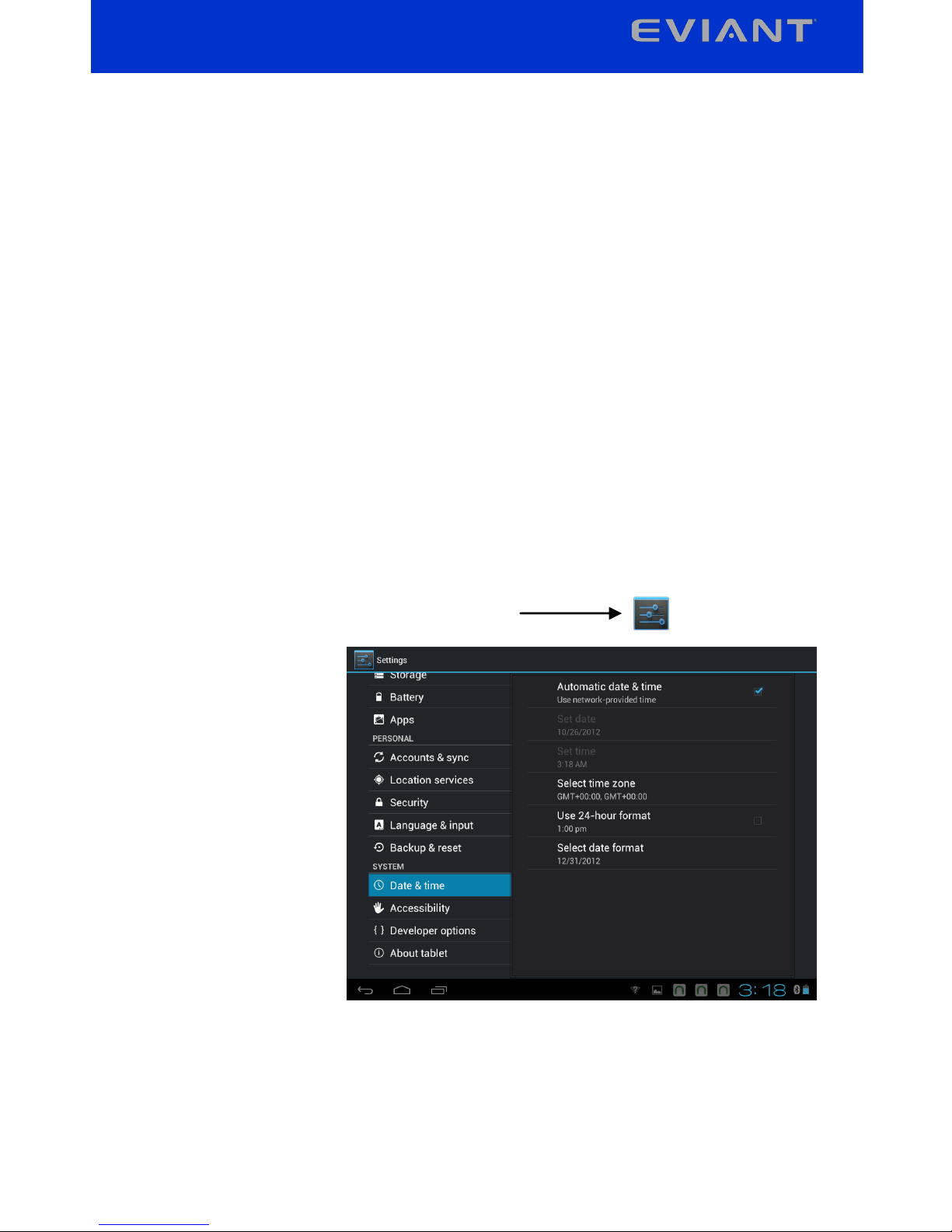
On the Home screen, tap the Settings icon
Under the SYSTEM
header on the left
hand side of the
screen, select Date &
time. Set the time
zone, date and time
according to your
location.
Tips For Using The Touch Screen
When watching a video or listening to music, you can tap on the
progress bar to play any designated section of the file. You can drag the
cursor of the progress bar to any other elapsed time point of the file.
In different browsers (File, Music, etc.), you can hold your finger on the
screen and then drag up and down to scroll through the file list.
In some browsers (File, Music etc.), you may hold your finger on an
item to display options.
Tabla de contenidos
Otros manuales de Tableta de Eviant


