
eSSL F18 Manual de usuario

Security at Fingertips
www.esslsecurity.com
User Manual
F18

Product Overview
F18 is an innovative biometric fingerprint reader for access control application. Offering unparalleled performance
by using an advanced algorithm for reliability, precision and excellent matching speed. The F18 features the fastest
commercial-based fingerprint matching algorithm and high-performance, high-image quality infrared detection
fingerprint sensor. The device offers flexibility to be installed standalone or with any third party access control
panels .that support standard Wiegand signal. All the operations can be done on the TFT-LCD color screen. The
fingerprint image will be displayed on it. That will guide user to put finger on proper position and increase
recognition rate. TCP/IP and RS485 are available that the device can be used in different network. communication.
Auto-discovery tool allows setting and modification of network parameters directly and easily.
F18

I
Contents
1. Operating Instruction .............................................................................- 1 -
1.1 Abbreviated Operating Procedures.......................................- 1 -
1.2 Introduction to Fingerprint Recognition technology ............- 2 -
1.3 About Verification Mode ......................................................- 3 -
1.4 Connection with PC............................................................ - 11 -
1.5 Main menu..........................................................................- 13 -
2. User Management................................................................................- 15 -
2.1 Add user..............................................................................- 15 -
2.2 Manage user........................................................................- 19 -
2.2.1 Search user...............................................................- 21 -
2.2.2 Query attendance record..........................................- 21 -
2.2.3 Edit user...................................................................- 22 -
2.2.4 Delete user...............................................................- 24 -
2.2.5 Add user...................................................................- 25 -
2.3 Card management★...........................................................- 25 -
2.3.1 Enroll card ...............................................................- 25 -
2.3.2 Enroll fingerprint card .............................................- 27 -
2.3.3 Clear card information.............................................- 29 -
2.3.4 Copy card information.............................................- 29 -
2.3.5 Set card parameter value..........................................- 30 -
2.4 Access Control Option★....................................................- 32 -
2.4.1 Time Zone Setting....................................................- 33 -
2.4.2 Holidays Setting.......................................................- 34 -
2.4.3 Group time zone setting...........................................- 36 -
2.4.4 Set Unlock Combination..........................................- 39 -
2.4.5 Access Control Parameters ......................................- 41 -
2.4.6 Duress Alarm Parameters.........................................- 42 -

Contents
II
2.4.7 Anti-passback Setting★..........................................- 44 -
3. Communication Option........................................................................- 47 -
3.1 Network option...................................................................- 47 -
3.2 Serial port option★............................................................- 48 -
3.3 Security...............................................................................- 49 -
3.4 Wiegand option★...............................................................- 50 -
3.4.1 Input configuration ..................................................- 51 -
3.4.2 Output configuration................................................- 52 -
4. System Option......................................................................................- 54 -
4.1 System parameters..............................................................- 54 -
4.2 Data management ...............................................................- 56 -
4.3 Upgrade firmware...............................................................- 57 -
4.4 Display Setting ...................................................................- 58 -
4.4.1 Verification ..............................................................- 58 -
4.4.2 Time display............................................................. - 58 -
4.4.3 Picture cycle interval ...............................................- 59 -
4.4.4 Clock display delay..................................................- 59 -
4.4.5 Interface style...........................................................- 59 -
4.5 Reset ...................................................................................- 60 -
4.6 Other options ......................................................................- 61 -
5. Date Time.............................................................................................- 63 -
5.1 Date Time option................................................................- 63 -
5.2 DLST★..............................................................................- 63 -
6. PenDrive Management ........................................................................- 66 -
6.1 Download data....................................................................- 66 -
6.2 Upload data.........................................................................- 67 -
7. Auto Test..............................................................................................- 69 -
7.1 TFT display test ..................................................................- 69 -
7.2 Audio test............................................................................- 69 -

Contents
III
7.3 Keyboard test......................................................................- 70 -
7.4 Sensor test........................................................................... - 70 -
7.5 Real-time clock...................................................................- 70 -
8. Query Record.......................................................................................- 71 -
9. System Information..............................................................................- 74 -
9.1 Record capacity ..................................................................- 74 -
9.2 Device information.............................................................- 74 -
10. Appendix............................................................................................- 76 -
10.1 Keyboard ..........................................................................- 76 -
10.2 USB .................................................................................. - 79 -
10.3 Quick query of attendance record..................................... - 79 -
10.4 Propaganda picture upload rules.......................................- 80 -
10.5 Card support (ID/EM, MIFARE Card) ★.......................- 81 -
10.6 Web time & attendance ★...............................................- 82 -
10.7 9 Digit Code★..................................................................- 83 -
10.9 Daylight Saving Time★...................................................- 83 -
10.10 Master-slave function ★...............................................- 84 -

- 1 -
1. Operating Instruction
1.1 Abbreviated Operating Procedures
Step 1: Install the device and power it up.
Step 2: Enroll users by registering his/her fingerprints, passwords or
card. Assign users’ security privileges directly on the device.
Step 3: After enrolling users, verify that his/her enrolled fingerprint,
passwords or card is valid.
Step 4: Configure the device communication settings. Then download
the users’ newly enrolled information from the device onto the
Attendance Management on the computer. Data can be transmitted via
TCP/IP, RS232, RS485 and USB client or by using a USB flash drive.
Step 5: Modify users’ information in the Attendance Management, and
upload this newly information to the device after connected. Then the
users’ newly information will be displayed on the screen upon
attendance. (Some models allow directly name edition and other
operation on the device. Therefore, it is no necessary to connect device.)
Step 6: Verify the device displays the correct day and time. Then start to
attendance.
Step7: Download attendance records to the Attendance Management
and statistics them at the end of the month.

F18 User Manual V1.0
- 2 -
1.2 Introduction to Fingerprint Recognition technology
Enroll fingerprint by pressing index finger, middle finger or ring finger .
Proper press:
Improper press:
Make finger center pressed
on the sensor window
Slant Too downward
Upright Too lean
Please adopt the correct way to place the finger to avoid improper
operation led to the identification performance degradation.

- 3 -
1.3 About Verification Mode
When the device is on initial interface, only after successful fingerprint or
password or Card verification, user can save attendance record on the device.
Initial Interface (As shown below):
Notice:
1) If the device have ID module, so Interface of Matrix and Magic style
can be displayed "Press fingerprint or punch card". When have not ID
module, it can be displayed "Please Press fingerprint" only.
2) The device has three interface styles for option. Each style displayed
different contents on the screen. For details please refer to 4.4 Display Setting.
3)As above the "Name" of screen, you can edit different names can be
executed by "Access Control Management Software ".
Fingerprint Matching
F18 User Manual V1.0

F18 User Manual V1.0
- 4 -
(1) 1:N fingerprint matching
Verify the fingerprint pressed on the sensor at present with all
fingerprint data in the fingerprint reader.
Step 1: Press fingerprint properly on the sensor on initial interface.
Step 2: If device says ‘Thank you”, the verification is completed.
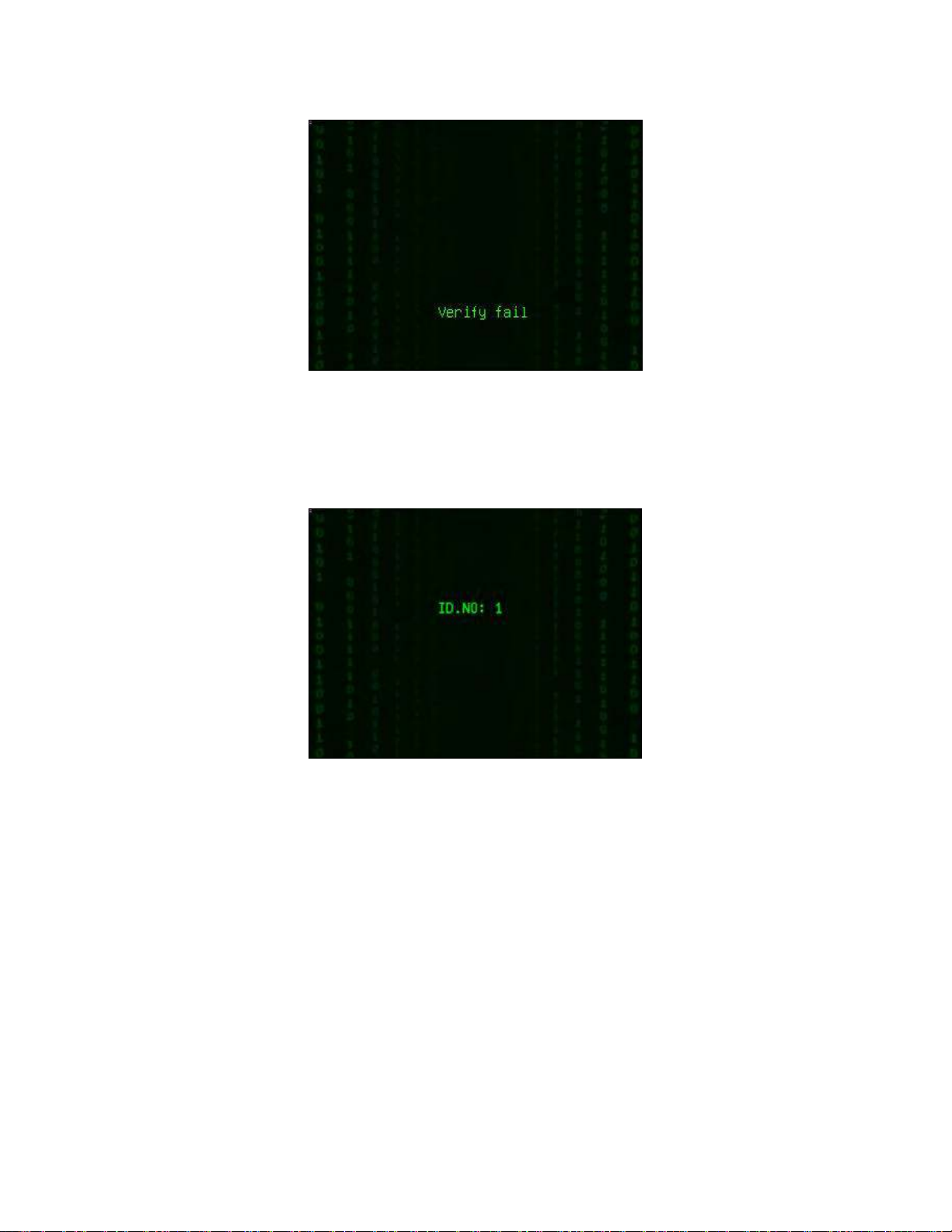
If device says “Please press again”, and displayed "Verify fail" on the screen.
Return Step 1 for the second operation.
- 5 -
(2) 1:1 fingerprint match(User IDfingerprint)
Verify the fingerprint pressed on the sensor at present with the
fingerprint related with user number. Use this method when it is difficult
to identify user’s fingerprint.
Step 1: Input User ID of employee to be verified on initial interface.
Step 2: Press fingerprint properly on the sensor.
F18 User Manual V1.0
Tabla de contenidos
Otros manuales de Controladores de acceso IP de eSSL


