
Envoy 3 EQUIP Manual de usuario

ENVOY 3 EQUIP
SOLAR AUDIO PLAYER
USER MANUAL
TABLE OF CONTENTS
Easy Start 1
Turning the Player On/Off 3
The LCD Screen 4
Selecting Playback Channels 5
Navigating During Playback 6
Playback Screen 8
File Playback Information 9
Radio 11
Radio Screen 13
Speed Control 14
Speed Control Screen 16
LED Torch 17
Pausing/Bookmarking 17
Earphones, Speakers and Volume 18
Using the MicroSD Card 20
Resetting Player Defaults 22
Full Player Reset 23
The Menu System 24
The Menu System Screens 26
Charging Instructions 35
Charging Screen 36
Battery Care 37
Charging/Communication Modes 38
Problems With the Player? 41
Warnings 42
Reset Button 43
1 2
EASY START
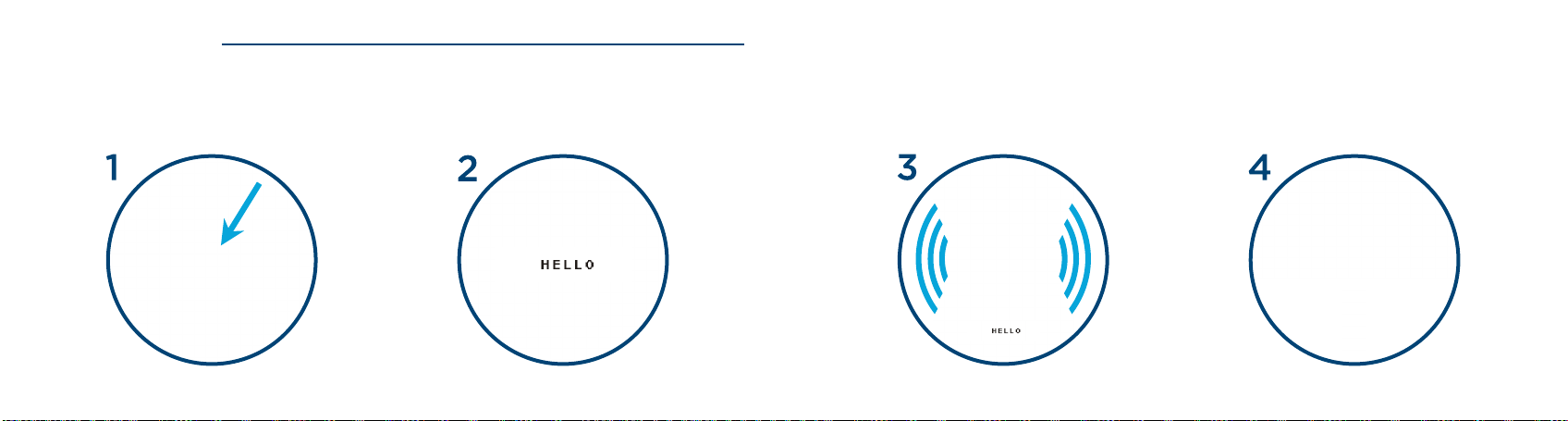
Press and hold the power button until the player chimes and the LCD screen turns on.
The player will begin to play automatically.
or
3 4
TURNING THE PLAYER ON/OFF
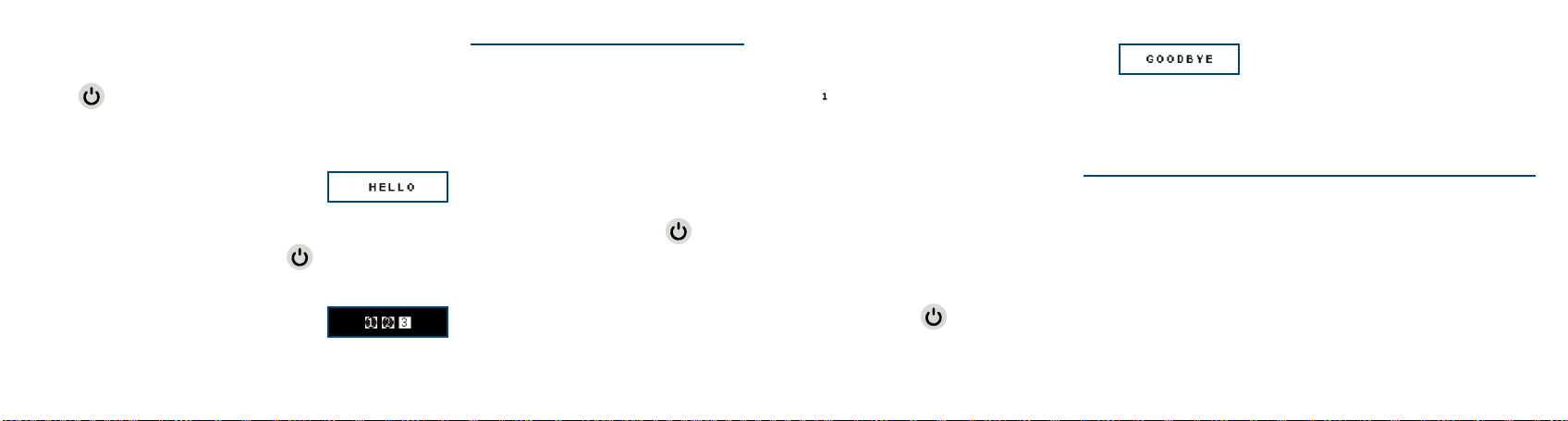
Press in the top center of the keypad for 2 seconds to turn the player on (player
chimes and the LCD screen turns on). The welcome screen is displayed and audio
playback/radio will begin immediately.
The LCD backlight must be on to power the player off. If it is off, click once on to
turn it on. Then press and hold again until the 1-2-3 shutdown warning completes
to turn the player off.
The player will chime again, show the shutdown screen and the LCD screen will turn off.
The player will remember its last mode and playback position/band & frequency when
turned off.
THE LCD SCREEN
This player is unique in that it provides complete information and control via the LCD
screen with an interactive menu system.
The screen has a backlight, which is activated when the player is turned on, turned off
or any time is clicked. The backlight turns off automatically after 30 seconds of
inactivity.
5 6
SELECTING PLAYBACK CHANNELS
The player supports up to 3 Channels for onboard memory and up to 2 Channels
for microSD.
For both memory sources, there should be at least one of Channels 001 and 002
containing audio content.
When in playback mode, a 2-second press on will navigate to the last playback
position of the other Channel (if present).
The information on the screen is always current as modes, contents and settings
change.
For more detail, see illustrations of various screens throughout this manual.
Channel 000 (optional/onboard only) is typically reserved for a player introduction and/
or audible user manual. If a Channel 000 is present, playback will always begin from it
when the player is rst turned on (or after player is reset).
When in playback from onboard or microSD memory, a 2-second press on and
together will navigate directly to the prior playback position of Channel 000 (if present).
From any other mode, a 2-second press on will resume at the prior playback source
and le position.
NAVIGATING DURING PLAYBACK
Each Channel is subdivided into one or more Sections, containing one or more Books,
containing one or more Chapters.
7 8
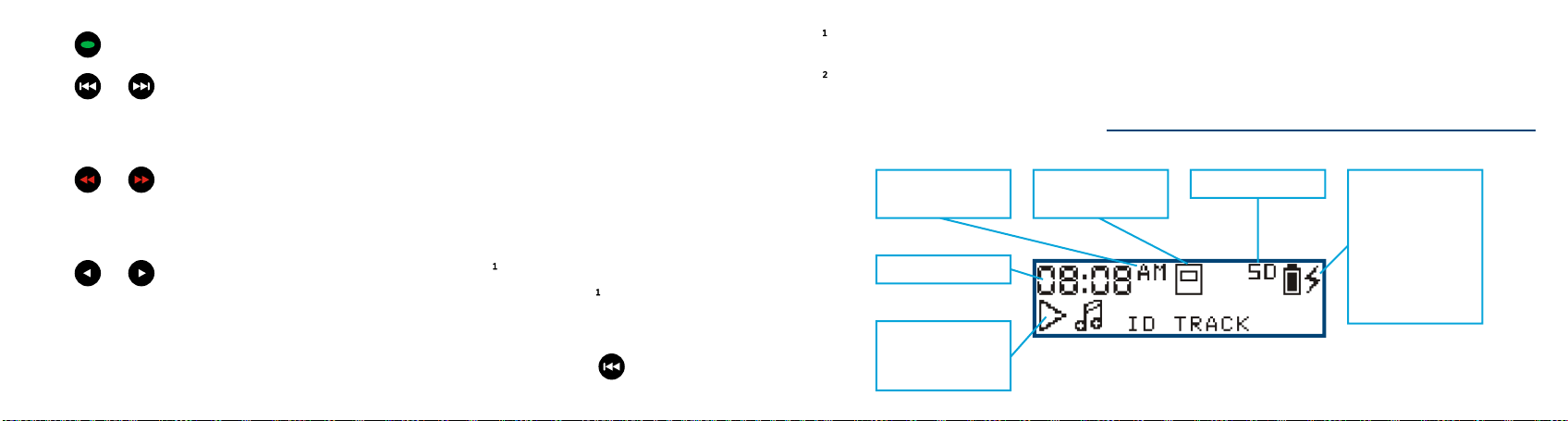
Click to skip to the next Section within the current Channel.
Click or to skip backward or forward one Book. A 2-second press will skip
5 Books at a time. Press and hold will continue until the button is released or the
beginning/end of the Section is reached.
Click or to skip backward or forward one Chapter. A 2-second press will skip
5 Chapters at a time. Press and hold will continue until the button is released or the
beginning/end of the Book is reached.
Click or to jump backward or forward 20 seconds in the current le. Press and
hold will perform a fast rewind/fast forward (in 60-second increments ) until the button
is released or the beginning/end of the le is reached.
To quickly return to the start of a Channel, while in Pause Mode press for 2 seconds.
Actual time may vary.
While in audio playback mode, the Playback screen is displayed.
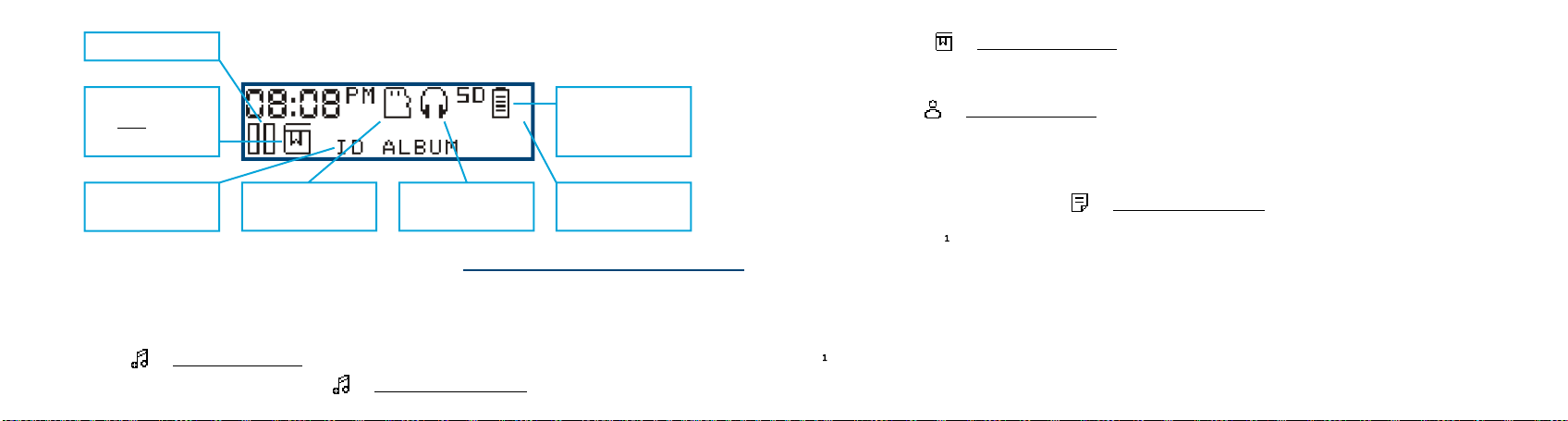
PLAYBACK SCREEN
Playback
indicator:
currently playing
Onboard memory
is current source
AM/PM (or blank
when 24-hour)
microSD is loaded
Clock
Charge indicator:
Blinking when
active, static
when full, blank
when not
connected to
power source
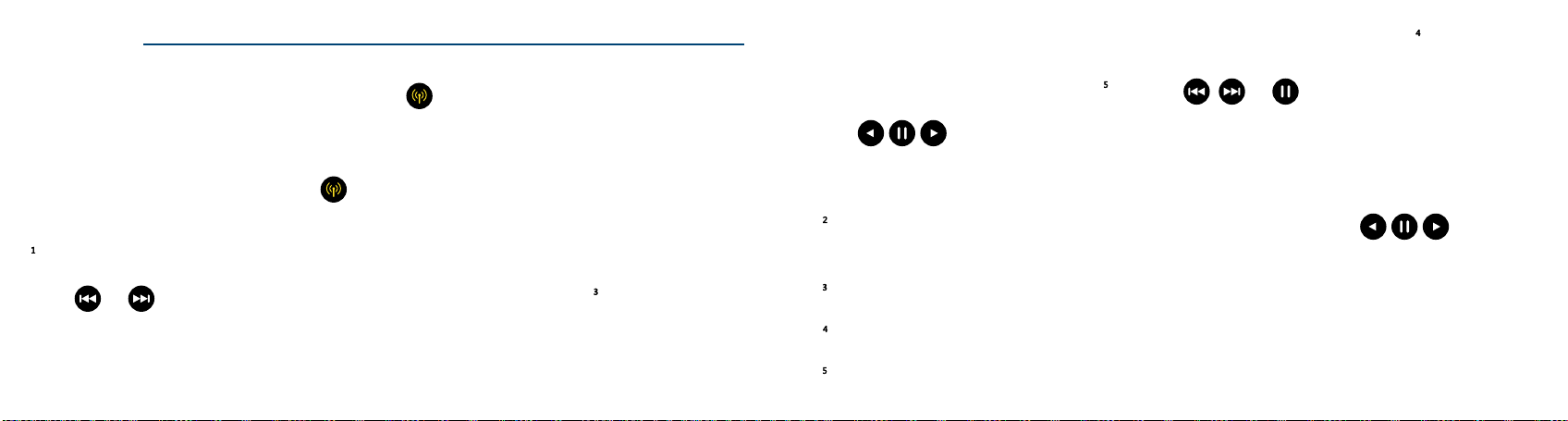
9 10
Icon representing
type of file
information
Audio device is
connected
Not connected
for charging
Battery capacity
indicator: four
bars = 81%-100%
Paused
microSD memory
is current source
Current file
information
FILE PLAYBACK INFORMATION
Available audio le metadata tags are displayed for each le in the following way:
• Track info: + ID3 Track Name
- If Track Name is blank or missing, + Filename.extension
• Album Info: + ID3 Album Name
- If ID3 Album Name is blank or missing, the eld is skipped
• Artist info: + ID3 Artist Name
- If ID3 Artist Name is blank or missing, the eld is skipped
• If ID3 metadata is completely missing
- The player will display only + Filename.extension
• If any tag text is longer than the screen area, it scrolls from right to left
- The eld will show for 3 seconds before scrolling begins
- Once scrolling has nished, the eld is shown for an additional 3 seconds
- Then the next eld is displayed
Any tag text longer than 44 characters will be truncated.
11 12
RADIO
When in playback mode, a 2-second press on will put the player in radio mode
(player will chime). The radio will begin to play from the last band used and the last
frequency set.
If already in Radio mode, a click on will toggle between the 3 bands available: FM,
AM and SW.
While in Radio mode the Radio screen is displayed.
Click or to decrease/increase the frequency by a pre-set value for the current
band. A 2-second press will scan for the previous/next station of the current band. The
frequency display will update as it changes.
When the scan reaches the beginning/end of the band’s frequency range the player
will chime. An additional click will loop and continue the scan from the beginning/end
respectively. To stop an active scan , click on , or .
The buttons may be pre-programmed with individual default frequencies
per band. A click on each will tune the radio to the setting for that button. A 2-second
press will set (or reset) that button to the current frequency.
When the frequency is tuned to one of the programmable buttons ( ), that
button’s symbol will be displayed on the screen.
See Radio Band Spacing Screen for details.
FM: 64.0-108.0 MHz, AM: 520-1720 kHz, SW: 2300-26100 kHz
While scanning is active, you cannot change mode or turn the player off.
13 14
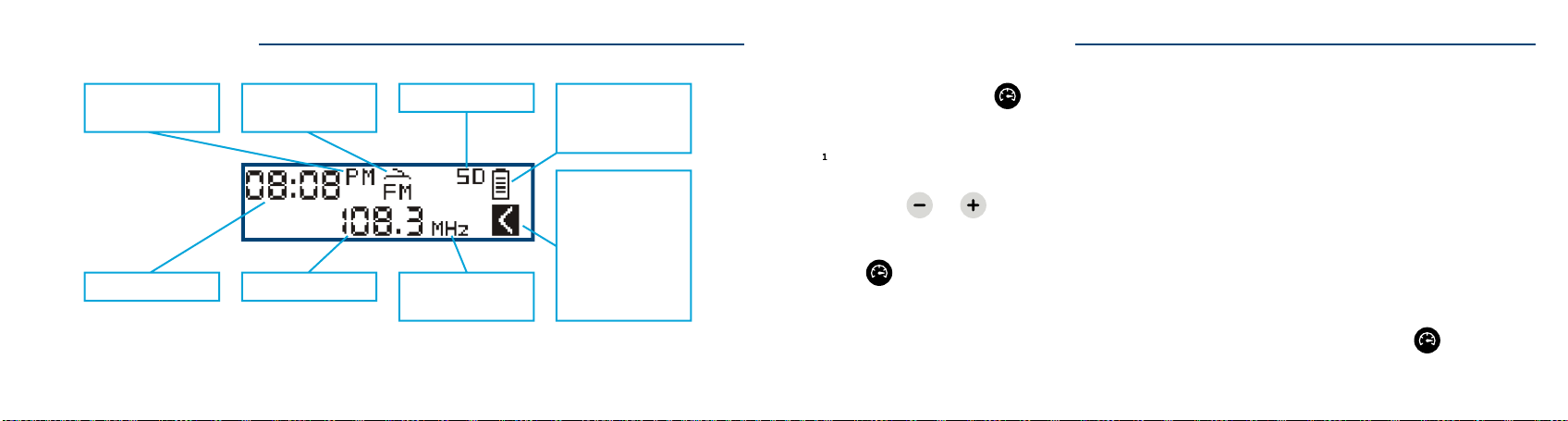
RADIO SCREEN
Current band: FM,
AM, or SW
AM/PM (or blank
when 24-hour)
microSD is loaded
Clock Current frequency
Battery capacity
indicator: four
bars = 81%-100%
When current
frequency is
tuned to one of 3
programmable
buttons, the
button image
shows here
Unit of frequency
measurement
SPEED CONTROL
A 2-second press on will emit a chime and place the player in speed control mode,
allowing you to adjust the audio playback speed.
While in speed control mode, the speed control adjustment screen is displayed.
A click on or will adjust playback speed by one level. Press and hold will
decrease/increase until the minimum (-8) or maximum (+8) speed is reached.
Click again to exit and save the setting. Pressing any other button will exit speed
control mode without saving changes.
To reset the speed to normal (+0), enter speed control mode, then press again for 2
seconds. Player will return to playback mode at normal speed.
15 16
The Speed setting persists when changing modes or after turning the player off.
The Speed setting applies to both onboard and microSD playback.
The Speed Control button is only active during audio playback and may be set while
playback is active or paused.
Speed Control may also be set via the Settings Menu.
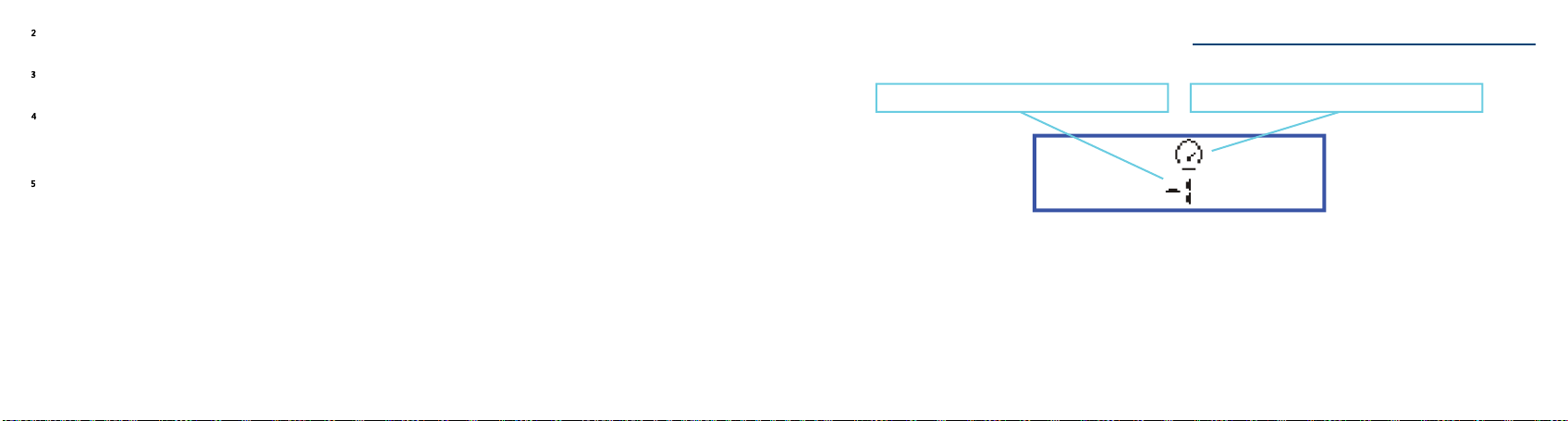
SPEED CONTROL SCREEN
Current speed setting: from -8 to +8 Identifies Speed settings screen
• This is the screen that is displayed when entering Speed Control Mode from playback.
• You may also adjust the speed setting from the Player Settings Menu.
Este manual sirve para los siguientes modelos
1
Tabla de contenidos
Otros manuales de Reproductor multimedia de Envoy


