Elo TouchSystems E221 Manual de usuario

Communication adapter
RS232 over the Ethernet
ELO E221
User manual

ELO E221ZKE001
Table Of Content:
1.0 Introduction.............................................................................3
1.1 Application.........................................................................3
2.0 How does it works?.................................................................4
3.0 Installation..............................................................................4
3.1 Ethernet connection............................................................4
3.2 RS-232 connection.............................................................4
3.3 ower supply......................................................................5
3.4 Driver installation..............................................................5
3.5 Virtual COM port installation............................................5
3.6 Virtual ort settings............................................................8
3.7 Uninstalling the adapter drivers.........................................8
3.8 Adapter configuration over the web interface....................8
3.9 Serial ort profiles...........................................................10
4.0 Testing...................................................................................13
5.0 Troubleshooting....................................................................14
6.0 Ordering info.........................................................................14
7.0 Technical info........................................................................15
1

ELO E221ZKE001
1.0 Introduction
Ethernet as a communication medium becomes widely used not
only in commercial domain, but becomes more popular in industry
automation too. A RS232 interface is intended to connect two
devices with maximal cable length 15 meters. An adapter E221
allows to integrate the RS232 devices into the Ethernet network
thereby bridge long distances.
Bellow described adapter allows to connect two RS-232 devices
over the Ethernet network; it also allows to connect more devices to
a single network gateway (i.e. computer).
1.1 Application
This communication device altogether with supplied software
allows setting up following profiles:
1) Real Port profile. Adapter allows to connect a device with
RS232 interface straight to computer via Ethernet protocol
with virtual port application installed on,
2) Serial Brid e profile. Adapter connects two devices with
RS232 interfaces like they were connected by cable; it is
technique so called “serial tunnelling”
3) TCP socket profile. Configured as TC client or TC
server, establishes connection among these devices
4) UDP socket profile. Configured as UD client or UD
server, establishes connection among these devices.
5) Custom profile. Experienced user can access all settings
both network and serial interfaces.
Furthermore, there is possibility to create G IO port (general
purpose input/output) with five output and/or input binary channels
2

ELO E221ZKE001
to control or diagnose remote device. This G IO maintain ±12V
levels. It can be configured to aware (e.g. by an e-mail) based on
states of those binary inputs.
2.0 How does it works?
The adapter converts RS232 signalling to the Ethernet interface. It
transfers all signals of the RS232 except RI. RS232 interface is
presented with DB9M (D-SUB, Canon), whereas Ethernet is lead
out via standard Ethernet RJ-45 socket.
Adapter can operate with full duplex with maximal bitrate
230kbps. The Ethernet layer can communicate with 10 and
100Mbps.
3.0 Installation
This chapter describes the adapter E221 installation process. The
process is divided to sub-process software and hardware
installation.
3.1 Ethernet connection
Adapter meets IEEE 802.3 specification and is to be plugged in to
the network with straight UT cable. When configured as Serial
Brid e, the cross-over cable should be used instead.
For the first time, the adapter is configured to acquire I address
from DHC server, so in the network must be such a service to
dedicate I address (e.g. A – access point, router..). It can be later
changed to the fixed I address.
3.2 RS-232 connection
A DB9M (D-SUB 9 pin Male) connector is wired as DTE, it means
that device with the same connector (DB9M), wired as DTE, must
3

ELO E221ZKE001
be connected to the adapter with cross-over cable (null modem)
with DB9F (Female) connectors terminated. Device terminated with
DB9F can be connected straight to the adapter or over the straight
cable. All signals, TXD, RXD, RTS, CTS, DTR, DSR, DCD are
transmitted. Rx and Tx activity is indicated by LED indicators.
3.3 Power supply
The adapter can be powered with DC voltage source (range 9 to
24V) with DC connector (outer/inner diameter is 5.5/2.1 mm), inner
pin should have positive polarity. The adapter can be powered via
RS-232 connector too – positive is pin No.9, negative (ground) is
pin No.5. owered status is indicated with green LED. The adapter
is secured against the polarity change.
3.4 Driver installation
The adapter's configuration software can operate on computers
under Operation systems both MS Windows and Linux/Unix, but
only Windows software is enclosed. Supported are version from
Win 98 to Vista. Unix/Linux software can be downloaded from
following address:
http://www.digi.com/support/productdetl.jsp?pid=2469&osvid=0&s=54&tp=1
A RealPort drivers you can find on supplied CD-ROM in
E220_drivers directory. The drivers can be downloaded from web
pages www.elo.cz too. If virtual COM port on C is applicable, it is
neccessary to install the Real ort application. In other cases,
utilities Di iConf and Di iWiz would be used instead.
3.5 Virtual COM port installation
When connected to the network, and link device to a C is
required, it is neccessary to install Virual Port application. Bellow
described process is for Windows X , for other Windows version
4

ELO E221ZKE001
the procedure is similar.
1) Start the Di iWiz application on the dedicated computer,
which will guide throuhgt all installation process; computer
must be connected to the network and capable to reach I
address of the adapter.
2) The „Welcome to the Digi device Setup Wizard” screen will
appear. Click “Next”
3) On the next screen “Discover Device” the adapter with I
and MAC address should be seen. If not, check power,
cabling and DHC service, and click “Refresh” then. Check
off the adapter and click “ ext”.
4) Window “Configure etwork Settings” appears. Leave
DHC or set fixed I address,mask and gateway. Click
“ext”.
5) In window “Select scenario” from a scroll menu choose
“RealPort (COM port redirection)”. Click “ ext”.
5

ELO E221ZKE001
6) In the window “Configure RealPort Settings” choose
“Install Digi RealPort on this computer” and click “ ext”.
7) These settings can be verified in following window “Verify
configuration” eventually corrected by clicking “ ext”. To
acknowledge, click “ ext”
8) On the screen “Save settings” is saved configuration and
started installation of “Serial adapter Di i Connect ME”
and “COM port Di i Connect ME (COMx)”; these device
can be found in Device Manager of the computer.
9) Successful installation ends with screen “Congratulation!”
with report about end of the installation. Click “Finish”, and
wizard ends.
6

ELO E221ZKE001
3.6 Virtual ort settings
User can change settings in Device Manager. There should be
“Multiport serial adapter” caption, under the “Di i connect Wi-
ME” device. Select “Properties”, tab “Advanced”, button
”Properties”. Here user can change a device name, COM port, I
address and port (assign device with I address to the COM port;
you can list all devices in the network by clicking “Browse”), enable
ciphering.
Caption “Di i Connect Wi-ME (COMx)” allows to change
proprietary communication protocol (speed, parity and so on), but
usually it is not necessary as application overrides these settings.
3.7 Uninstallin the adapter drivers
Driver can be uninstalled in Device Manager, caption „Multiport
serial adapter” right click on device “Di i connect Wi-ME”, in
menu select “Uninstall”. After this procedure the devices “Di i
connect ME” from captions “Ports (COM & LPT)” and
“Multiport serial adapter” disappear.
3.8 Adapter confi uration over the web interface
The adapters network layer (Ethernet) can be configured either
with web browser or by an utility. It can be accessed by a Telnet too.
Bellow described is the web-interface. Notice, that entries may
differ version by version.
1. Start configuration utility Di iConf. Here user can see the
configuration, change settings, start Telnet or web session
and restart the adapter. Double click the device or click
“Open web interface”
or put the interface's I address straight to the address line
of the web-browser.
7

ELO E221ZKE001
2. Fill the name and password (default is: root/dbps).Then
configuration window appears.
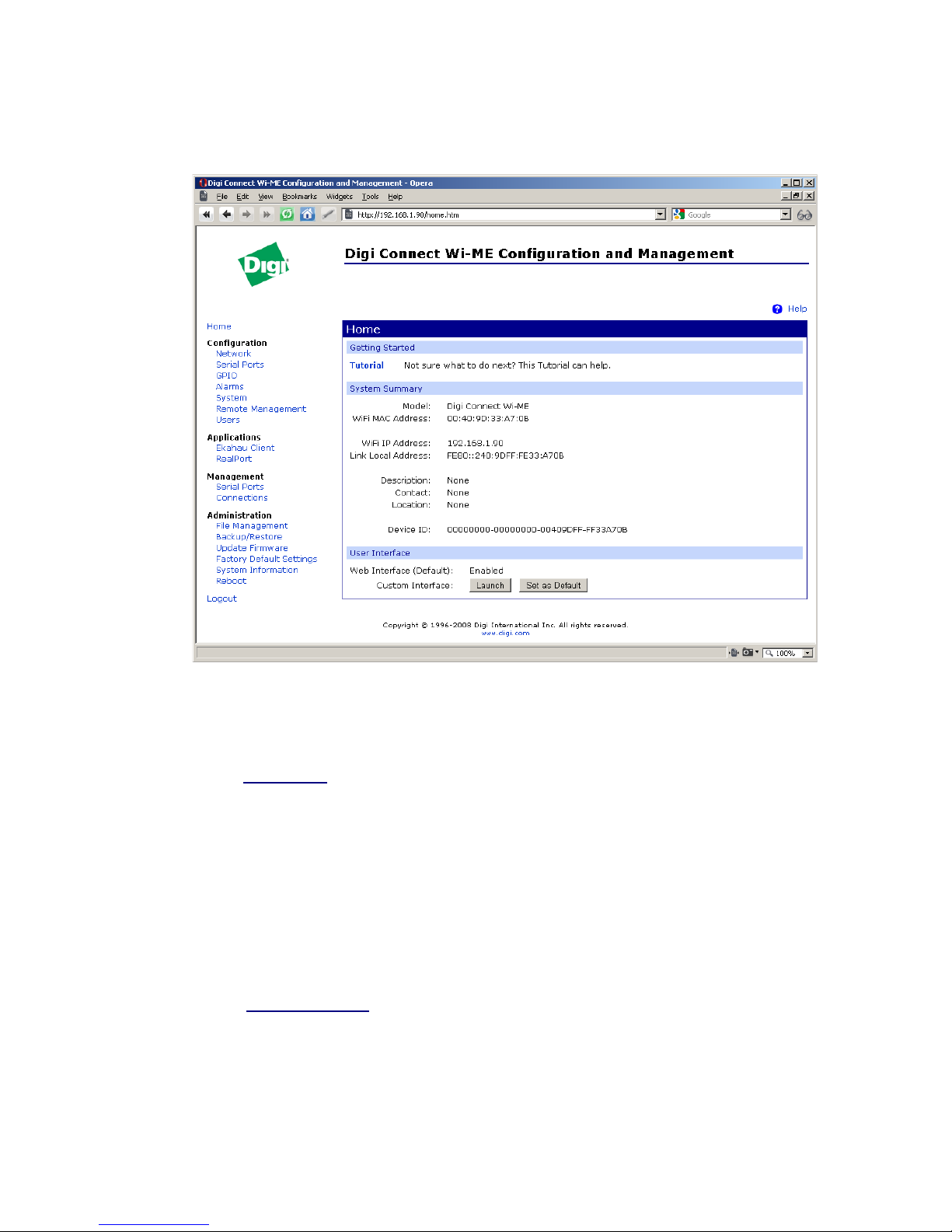
3. Startup window “Home” offers overview of the settings
and there is link to tutorial too.
4. A ” etwork” section contains:
I Settings – I address assignment
Network Services Settings – offers some network services
Advanced Network Settings – other settings
Every settings change must be confirmed with “Apply”
button.
5. A “Serial Ports” section allows to set up device profile as
described in chapter 3.9. User can choose among RealPort,
TCP/UDP sockets, Serial brid e and others.
8

ELO E221ZKE001
6. In a “GPIO” section user can configure all five pins of the
General urpose port as Input/Output/RS232 Control signal.
When some of them are configured as input, it is possible to
enable sending alarms by an e-mail.
7. “Alarms” can be set if either any G IO inputs state
combination comes or required pattern in serial data flow
appears.
8. “System” section stores network ID strings – adapter's name,
administrator contact..
9. “Remote management” enables the remote configuring the
adapter with Connectware Manager
10. In a “Users” section can be be managed user approved to
login and configure the adapter and assigned different rights
for every user.
11. A “Management” section shows active configuration and
allows some changes to that. It depends on chosen profile.
12. “Administration” section allows to customize web interface,
update firmware, backup profile settings, factory reset,
settings overview and remote reboot.
The configuring should be finished by clicking “logout”.
3.9 Serial Port profiles
As mentioned in chapter 1.1, the adapter can operate in different
modes. In the configuration window of the web interface, section
“Configuration \ Serial ports” can be chosen the proper mode by
clicking the “port n” link. The “Serial Port Configuration“ window
appears. Click the “Change Profile...” link, and choose the right
9
Tabla de contenidos
Otros manuales de Adaptador de Elo TouchSystems