
Element EM2PTAD15BS Manual de usuario

USER
MANUAL
15.6"PORTABLE MONITOR
EM2PTAD15BS

LET’S REGISTER YOUR PRODUCT
It’s super easy, just head on over
to elementelectronics�com/register
www
BENEFITS OF REGISTERING YOUR PRODUCT:
Support
Get assistance
quickly by
pre-registering
your product.
News & Oers
Take advantage
of the latest news
and special oers
from Element.
Updates
Stay current
with important
product updates
and notications.
WE’RE HERE TO HELP
We’re available 24 hours a day, 7 days a week
Find resources and get help for product setup, connecting devices,
technical issues, downloading manuals and more!
elementelectronics.com
1.888.842.3577
customerservice@elementelectronics.com
2 YEAR
WARRANTY
Warranty
Receive a
2 year warranty
with product
registration*
*1-year manufacturer warranty with purchase or 2 year
warranty with product registration within 90 days of purchase.

FOR SUPPORT, VISIT
ELEMENTELECTRONICS.COM/SUPPORT 3
TABLE OF
CONTENTS
What’s in the box ����������������������������������������������������� 4
Getting started ��������������������������������������������������������� 4
How to use the folio case ������������������������������������������ 5
Common connectivity options ��������������������������������� 6
Device compatibility ��������������������������������������������������7
On-screen display (OSD) ������������������������������������������� 8
Troubleshooting ������������������������������������������������������� 9
Specications �������������������������������������������������������� 10
FCC statement & disclosures ������������������������������������11
Warranty ���������������������������������������������������������������� 12
Safety instructions ������������������������������������������������ 14

USER MANUAL4
WHAT’S IN THE BOX
GETTING STARTED
1Screen – Monitor display.
2Folio case/stand – Protects
your device and acts as
an integrated stand.
3Stereo speaker – For sound.
Adjust volume via the OSD.
4LED indicator light – Lights red
when the monitor is in standby
mode. Lights green when the
monitor is ready to receive signal.
5button – Quick press to increase
screen brightness, or when within the
OSD move your selection choice up
or increase a value.
6button – Quick press to decrease
screen brightness, or when within the
OSD, move your selection choice down
or decrease a value.
7Power/on-screen display
(OSD) button – Press to power
the monitor on or press and hold
for 3 seconds to power o. When
the monitor is on, press to activate
the OSD. Within the OSD, press
to conrm your selection.
8Mini HDMI input – Accepts
HDMI video signal.
9USB-C video input – Accepts
video signal from compatible
USB-C devices.
10 USB-C power input – Accepts power
via the included USB power supply
or other compatible power supply
capable of outputting at least 15W.
15�6"Portable
Monitor
USB-C to
USB-C cable
Mini HDMI to
HDMI cable
USB power
adapter
USB to USB-C
power cable
13
4
5 8
6 9
7 10
3
2

FOR SUPPORT, VISIT
ELEMENTELECTRONICS.COM/SUPPORT 5
HOW TO USE
THE FOLIO CASE
e folio case provides protection and can be used to support the monitor as a
stand. Its integrated design is built-in to the monitor and should not be removed.
Step 3:
Step 2:
Step 1:
Adjust the screen to
your desired angle by
placing in either of
the grooves.
With the folio case
open, stand the screen
up and place it in a
groove of the cover.
Align the folio case
with the opening at
the top and the screen
facing forward.

USER MANUAL6
COMMON CONNECTIVITY
OPTIONS
Mini HDMI to HDMI Cable
USB-C to USB Cable
USB Power Adapter
Lightning to HDMI
Adapter (not included)
USB-C to USB-C Cable
• Power adapter (included) must be used
to power the monitor.
• Touchscreen functionality is not
supported for this connection type.
• For compatible USB-C devices with DP Alt Mode.
• Power adapter (included) may be required to power the monitor
if source device does not have adequate power supply.
• Touchscreen functionality is supported by compatible USB-C
(DP Alt Mode) Windows devices only.
• Power adapter (included) must be used to
power the monitor.
• Touchscreen functionality is not supported
for this connection type.
Illustrations are for example purposes only. Compatible devices and functionality may vary.
Please visit elementelectronics.com for more details on compatibility.
USB-C to USB Cable
Mini HDMI to HDMI Cable
USB Power Adapter
Connect to iOS Devices
Connect to USB-C Devices
Connect to HDMI®Devices

FOR SUPPORT, VISIT
ELEMENTELECTRONICS.COM/SUPPORT 7
DEVICE COMPATIBILITY
Device Connection
Type
USB Power
Supply
Required?
Touchscreen
Function
Windows devices
with USB-C
(DP Alt Mode)
USB-C to USB-C
cable No* Yes
Mac computer
with USB-C (DP
Alt Mode)
USB-C to USB-C
cable No*
Yes – Limited
functionality, with
1-point touch
recognition.
USB-C phone or
tablet
USB-C to USB-C
cable No* No
iOS device
HDMI via
Lightning to
HDMI adapter
(not included)
Yes No
Game console HDMI Yes No
*Power supply may be required to power the monitor if the source device does not have adequate power supply.

USER MANUAL8
ON SCREEN DISPLAY (OSD)
Luminance
Setup
Brightness Adjusts the brightness of the display
Contrast Adjusts the contrast of the display
Black Level Adjusts the brightness of the darkest parts of the display
Picture Mode Adjusts the picture settings for dierent uses
HDR Toggles HDR on/o for greater color contrast
Color
Setup
Color Temp Adjusts the color temperature mode
Red
Adjusts the brightness of each colorGreen
Blue
Blue Light Filter Adjusts the level of blue light emitted by the display
OSD
Setup
Language Changes the language used in the OSD
H. Position Adjusts the horizontal position of the OSD
V. Position Adjusts the vertical position of the OSD
Timeout Adjusts the time before the OSD deactivates
Transparency Adjusts the transparency level of the OSD
Image
Setup
Image Ratio Adjusts the proportion of display width to height
Overdrive Toggles overdrive on/o to accelerate response time
Adaptive Sync Toggles variable refresh rate technology on/o
Other
Settings
Input Signal Changes the input source
Volume Adjusts the volume output of the speakers
Mute Toggles the mute function of the speakers on/o
Reset Resets the monitor to factory settings
FOR SUPPORT, VISIT
ELEMENTELECTRONICS.COM/SUPPORT 9
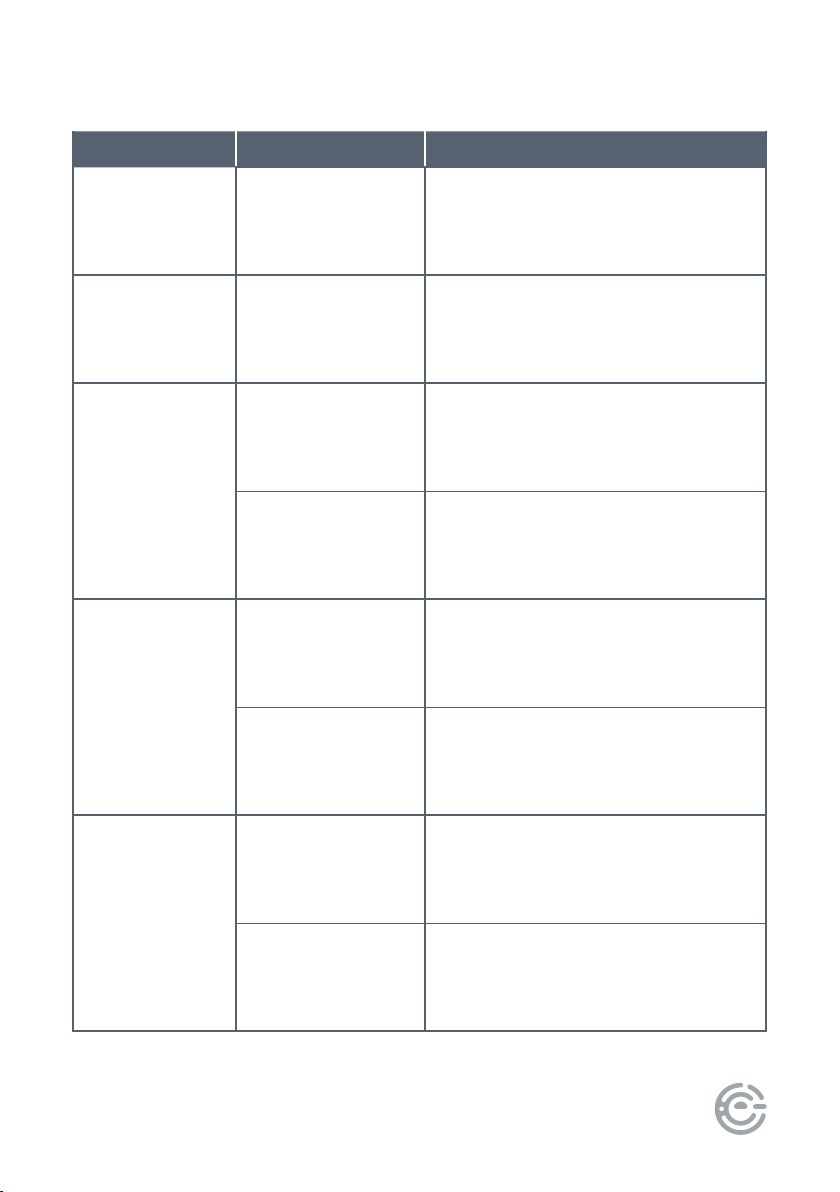
TROUBLESHOOTING
Problem Possible Reason Solution
e start-up
screen is ashing
on and o
Insucient
power supply
Use the included power supply
or ensure your power source is
outputting at least 15W
e touchscreen
isn’t working
Incompatible
host device
Ensure your host device can receive
touch data via USB-C. Note that
touch data cannot be transferred
over a HDMI connection
No screen image
If the LED indicator
is not on
Turn on the monitor with the
power button
If the LED indicator
is green
e monitor isn’t recognizing the
signal, so try reconnecting the
cable and ensuring the host device
is outputting an image
e screen
ashes, blurs or
appears distorted
e host device
is outputting an
incompatible signal
Ensure your host device is set
to 920 x 1080 resolution and
60 Hz refresh rate, or other
compatible resolution
Poor connection Reconnect the cable
e speakers
aren’t working
Mute function is on Change the mute setting in the OSD
e monitor is
not selected as
the audio device
On your host device, make sure
the monitor is selected as the
audio output device

USER MANUAL10
SPECIFICATIONS
Screen Size 15.6" diagonally
Panel Type IPS
Touchscreen 10-point touch for compatible devices
Native Resolution 1920 x 1080
Refresh Rate 60 Hz
Response Time 3 ms (with overdrive function on)
Brightness 270 cd/m
Contrast Ratio 1000:1
Aspect Ratio 16:9
Display Colors 16.7 million
Speakers Stereo, 1W x 2
Viewing Angle 178°(H) x 178°(V)
Power Input 5V/3A (15W)
Inputs USB-C (for power) x 1, USB-C (for display) x 1, Mini HDMI x 1
*Specications are subject to change without notice.
Tabla de contenidos
Otros manuales de Monitor de Element


