
Element EFG272 Manual de usuario

Digital Photo Frame
EFG272
USER MANUAL
A271.indd 1 7/28/08 1:53:26 PM

Important Safety Precautions:
Always follow these basic safety precautions when using your Digital Photo Frame (DPF).
7KLVZLOOUHGXFHWKHULVNRI¿UHHOHFWULFVKRFNDQGLQMXUy.
•'RQRWGURSRUVXEMHFWWKLVSURGXFWWRMDUULQJRUVWURQJYLEUDWLRQV
•Do not expose this product to rain or moisture.
•Do not expose this product to extreme heat.
•Power off the Digital Photo Frame before performing care and maintenance.
•Clean the outer surface or the screen of the Digital Photo Frame with a soft cloth. Do not use liquid
cleaners.
•The LCD panel is made of plastic and can be easily damaged. If the panel is damaged be cautious of
VKDUSREMHFWV
A271.indd 2 7/28/08 1:53:27 PM

Table of Contents
1. Introduction.......................................................................................................................................................................4
2. Features.............................................................................................................................................................................4
3. What’s In the Box .............................................................................................................................................................5
6SHFL¿FDWLRQV ...................................................................................................................................................................5
5. Product Diagram...............................................................................................................................................................6
6. Using Your Digital Photo Frame......................................................................................................................................7
• Use the Control Buttons................................................................................................................................................7
• Charging the Battery.....................................................................................................................................................7
• Select Slide Show Mode or USB Mode ........................................................................................................................8
• Viewing Photos and Entering Display Adjustment Menu ............................................................................................10
• Setup Menu ................................................................................................................................................................ 11
• Setting Interval ............................................................................................................................................................ 11
• Setting Effect...............................................................................................................................................................12
• Setting Brightness.......................................................................................................................................................12
• Setting Language........................................................................................................................................................13
• Setting Current Time...................................................................................................................................................13
• Resetting to Default Settings ......................................................................................................................................14
7. Copying Pictures from the SD card..............................................................................................................................15
8. Deleting Pictures from Internal Memory without using the PC..................................................................................16
9. Storage Capacities .........................................................................................................................................................17
10. Frequently Asked Questions.......................................................................................................................................18
11. Limited Warranty ..........................................................................................................................................................19
12. FCC Statement..............................................................................................................................................................21
A271.indd 3 7/28/08 1:53:28 PM

Introduction
Welcome to the Element Multimedia Photo Frame! Simply connect your Digital Photo Frame to your
computer to download images and then play. It’s as easy as that.
Features
The Digital Photo Frame includes following key features:
¸2.7 inch TFT LCD screen
¸16:9 display
¸Resolution: 480 X 234 pixels
¸Multi-language operation menu
¸%XLOWLQFKDUJHDEOH/LORQEDWWHU\FKDUJHGYLD86%FDEOH
¸Clock Function
4
A271.indd 4 7/28/08 1:53:28 PM

What’s In the Box
• Digital Photo Frame
• User Guide
• USB Cable
• Warranty Card
• Stand
6SHFL¿FDWLRQV
Panel Size 2.7 inches
Screen Resolution (Pixels) 480 X 23 4
Brightness 150 cd/m
Contrast Ratio 150:1
Horizontal / Vertical Viewing Angle 40 / 40 ; 10 / 30
Screen Size Mode 16 : 9
File Format Type JPEG
5
A271.indd 5 7/28/08 1:53:29 PM

6
Product Diagram
12345
6
7
1. Power Button
2. Shift Left Button
3. Enter Button
4. Shift Right Button
5. Menu Button
6. SD Card Slot
7. USB Port
A271.indd 6 7/28/08 1:53:33 PM

7
Using Your Digital Photo Frame (DPF)
Use the Control Buttons:
POWER Power on or off
Move the selection up or left, display the previous photo, set time value
ENTER (QWHUVKRUWFXWPHQXRUVXEPHQXFRQ¿UPWKHKLJKOLJKWHGRSWLRQ
0RYHWKHVHOHFWLRQXSRUULJKWGLVSOD\WKHQH[WSKRWRVHWWLPHYDOXH
MENU (QWHU³6HWXS´PHQXLQDQ\PRGHH[LWVHWXSPHQX
Charging the Battery:
A built-in FKDUJHDEOH Li-Ion battery is supplied with your IUDPH It can offer about 2 hours YLHZLQJ on
your GLJLWDO IUDPH To FKDUJH the battery, simply connect your frame to the USB port of your computer
After FRQQHFWLQJ the system will be in a FKDUJLQJ state automaticallyWith the unit off, the battery will
fully FKDUJH in DSSUR[LPDWHO\ 2KRXUV If the unit is turned on, the battery will be fully FKDUJHG in
DSSUR[LPDWHO\KRXUV
NOTE: While FKDUJLQJ the battery when your frame is turned OFF an indicator will not appear on the
LCD
VFUHHQ The DPF is continuously FKDUJLQJ UHJDUGOHVV of the mode VHOHFWHG When the battery is
IXOO\FKDUJHGLWZLOODXWRPDWLFDOO\VWRSFKDUJLQJ
A271.indd 7 7/28/08 1:53:35 PM

Select Slide Show Mode or USB Mode:
Slide Show
USB Device
When you first connect your Digital Photo Frame (DPF) to the computer,
the DPF will automatically enter the charging state. While the DPF is
is powered on and connected to the computer via the USB cable, a pop
up window is displayed on the screen. Use the arrow keys to select an
option and the “ENTER” key to confirm your selection.
Slide Show Mode: You can view pictures or set system settings.
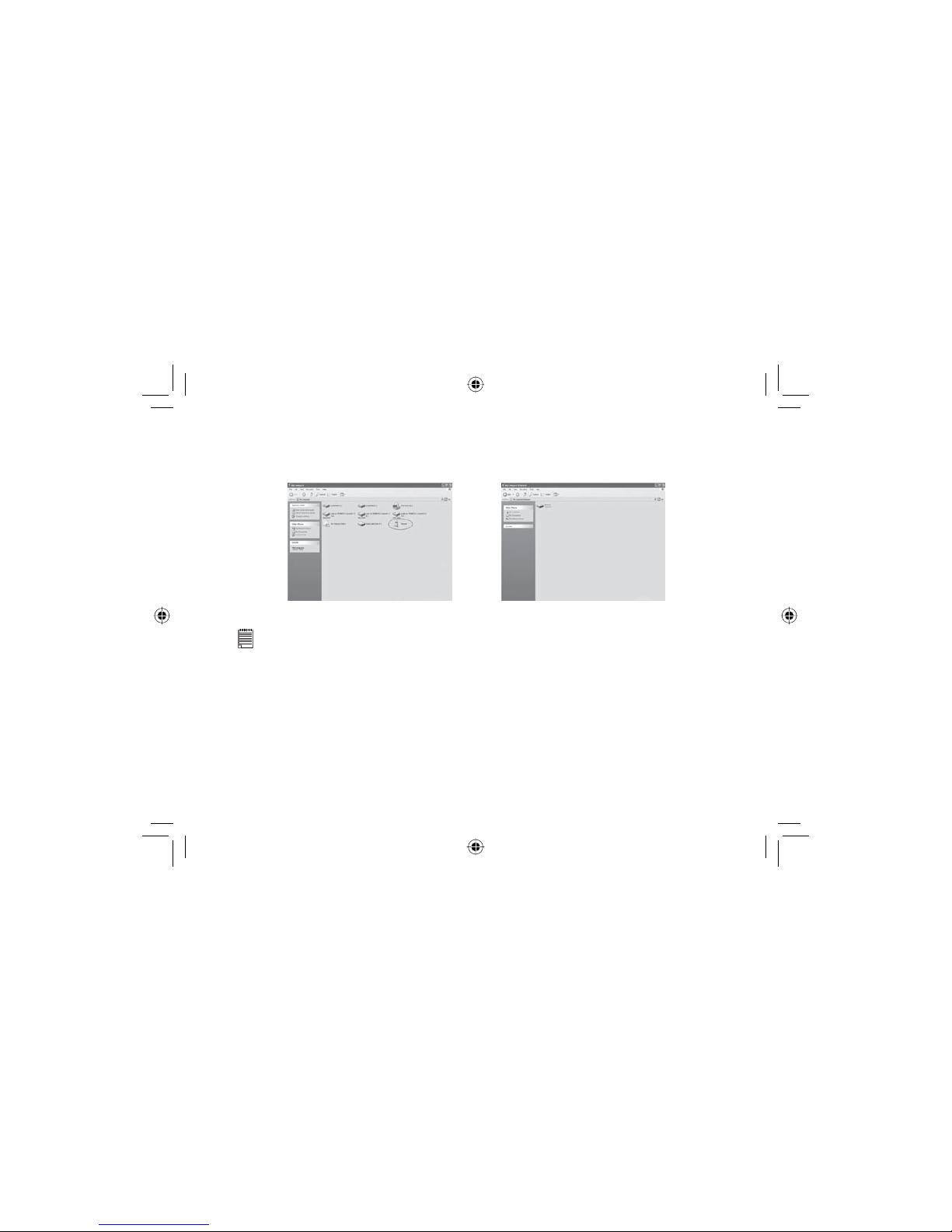
USB Mode: A Removable Disk drive labeled “Element” will appear on your PC. Double click on the
removable disk to open the window and you will see a folder named “Element”. Double click on the folder
to open it. Picture files that have been downloaded to the DPF will appear. You can copy pictures from
your computer to this folder directly or you can create a new folder with in the Element folder. Also, you
can delete pictures stored on your frame from this folder. When copying pictures to your frame, the
system will auto-resize the pictures to make them fit to your frame’s screen resolution. When you are done
copying or deleting the pictures on the DPF, restart the DPF, and select slideshow to view your pictures.
8
A271.indd 8 7/28/08 1:53:37 PM
9
NOTE:
1. In Windows XP, Windows Media Player 11 (WMP11) must be installed. If your XP system already
has service pack 2 installed, your WMP is automatically upgraded to version 11. You can download
WMP 11 from www.microsoft.com. The current link to WMP 11 is located at: http://www.microsoft.
com/windows/windowsmedia/player/11/default.aspx
2. If you are using Windows 2000, you can only copy pictures to your DPF by copying them from an
SD card. Please see the section on “copying pictures from SD card” on page 15.
3. You can copy a folder into your DPF directly. If you want to delete the folder, please do remember to
GHOHWHDOO¿OHVLQWKHIROGHU¿UVWWKHQ\RXFDQGHOHWHWKHIROGHU.
4. The DPF might be recognized as a Digital Still Camera or other devices depending on the drivers
installed on the Windows operating system.
A271.indd 9 7/28/08 1:53:40 PM

10
Viewing Photos and Entering Display Adjustment Menu
thumbnail
16:9
4:3
manual play
clock on
1. Press and hold the POWER button until the DPF is powered on.
The system will enter Slide Show mode automatically.
2. Press the button to select previous picture or press the
button to select next picture.
3. In “SLIDE SHOW” mode, press the ENTER button to enter
display adjustment menu. Press the or button to
select one display mode and press the ENTER EXWWRQWRFRQ¿UP
4. Press the POWER button again to turn the frame off.
Option Description
Thumbnail Enter thumbnail screen. Up to 6 pictures can be displayed at a time.
16: 9 Display the picture in 16:9 display mode
4:3 Display the picture in 4:3 display mode
Manual Play / Slide Show Display one single picture all the time / Start Slide Show
Clock On / Off Display the time setting on the LCD screen
A271.indd 10 7/28/08 1:53:43 PM
Tabla de contenidos
Otros manuales de Marco de fotos digital de Element


