
eInstruction DualBoard 1260 Manual de usuario

DualBoard™
GETTING STARTED GUIDE
Models
1260, 1277, 1285, 1295
1279, 1289, 1297
for Windows, Mac and Linux

© eInstruction (2010). All rights reserved.
No part of this document may be reproduced, transmitted,
transcribed, stored in a retrieval system or translated into any
language or computer language, in any form or by any means,
electronic, mechanical, magnetic, optical, chemical, manual or
otherwise, without the prior written permission of eInstruction.
eInstruction®, Interwrite®, Interwrite Workspace®, and Interwrite
Mobi®are registered trademarks. DualBoardTM is a trademark of
eInstruction in the United States and other countries.
eInstruction offers educators a family of software, student response
systems, interactive whiteboards, mobile interactive whiteboards, data
reporting, and high-quality content. These solutions have been shown
to increase student engagement, while supporting student-centered
collaborative learning and providing real-time assessment feedback to
educators in more than 500,000 classrooms around the world.
Please visit us on the web at www.einstruction.com for product and
support information.

International Warnings
Warning!
• Two people are required to mount DualBoard to avoid personal injury
and/or damage to the board.
• Stabilize the floor stand before repositioning the board. To stabilize the
floor stand, lock down the thumb tabs on the casters, or push the board
against the wall to prevent it from rolling, or place your foot on the floor
stand foot.
• Position the floor stand on a level surface to avoid tipping.
• Lower the DualBoard to the lowest position before moving the floor stand.
• Do not hang objects on DualBoard.
WARNUNG
• Zum Befestigen des DualBoard an der Wand oder am Ständer sind zwei
Personen erforderlich, um Personenverletzung oder Beschädigungen des
DualBoard zu vermeiden.
• Die Höhe des DualBoard kann auch von einer Person allein verstellt
werden, dazu muss jedoch sichergestellt sein, dass der Ständer des
Boards sicher steht und nicht umfallen kann. Dazu entweder die
Laufrollen arretieren, den Ständer gegen eine Wand rollen oder einen
Fuß auf den Ständer stellen, damit das DualBoard beim Verstellen der
Höhe nicht wegrollen kann.
• Stellen Sie den DualBoard-Ständer auf einen ebenen Untergrund, damit
er nicht umfallen kann.
• Stellen Sie das DualBoard vor dem Transport in die niedrigste Position.
• Hängen Sie keine Gegenstände an das DualBoard.
ATTENTION
• Il faut deux personnes pour fixer le tableau blanc sur le mur ou sur le pied
afin d’éviter tout endommagement ou blessure.
• Une seule personne peut ajuster la position du tableau blanc (vers le haut
ou le bas) mais assurez-vous que le pied de sol est bien stable avant de
repositionner le tableau. Abaissez les pattes de verrouillage des roulettes
avec le pouce, poussez le pied contre un mur pour éviter qu’il ne roule ou

placez l’un de vos pieds sur le pied du tableau pour maintenir celui-ci en
place pendant que vous ajustez sa position.
• Positionnez le pied du tableau sur une surface plane afin d’éviter tout
basculement.
• Descendez le tableau blanc jusqu’à la position la plus basse du pied
avant de le déplacer.
ADVERTENCIA
• Dos son las personas recomendadas para instalar la pizarra en la pared
o en la base de pie con el fin de evitar que se produzcan heridas
personales o se dañe la pizarra.
• Una persona puede ajustar la posición de la pizarra hacia arriba o hacia
abajo pero asegurándose de que la base de pie haya quedado estable
antes de intentar colocar el tablero. Fije el bloqueo manual de las
ruedecillas o coloque la base de pie contra la pared para evitar que se
mueva, también puede poner uno de sus pies en la base para sujetarla
cuando ajuste la posición de la pizarra.
• Coloque la base de pie de la pizarra en una superficie nivelada para
evitar que vuelque.
• Baje la pizarra hasta la posición más baja de la base de pie antes de
transladar esta última.
• No cuelgue objetos en la pizarra.
AVVERTENZA
• Due persone devono montare la Lavagna sulla parete o su un cavalletto
per evitare lesioni o danni alla Lavagna.
• Una persona può regolare la posizione della Lavagna verso l’alto o il
basso, ma assicurarsi di stabilizzare il cavalletto prima di tentare di
riposizionare la lavagna. Bloccare verso il basso le linguette di bloccaggio
sulle rotelle o spingere il cavalletto contro una parete per impedirne il
rotolamento, oppure appoggiare il proprio piede sul piede del cavalletto
per tenerlo fermo mentre si regola la posizione della Lavagna.
• Posizionare il cavalletto della Lavagna su una superficie piana per
evitarne il rovesciamento.
• Abbassare la Lavagna alla posizione più bassa sul cavalletto prima di
spostare il supporto.
• Non appendere oggetti sulla Lavagna.

Contents | i
Contents
Chapter 1: Getting Started . . . . . . . . . . . . . . . . . . . . . . . . . . . . . . 1
DualBoard At-a-Glance . . . . . . . . . . . . . . . . . . . . . . . . . . . . . 1
What’s Included . . . . . . . . . . . . . . . . . . . . . . . . . . . . . . . . . . . 2
DualBoard 2
DualBoard Features Menu 3
Pens 4
Optional Accessories . . . . . . . . . . . . . . . . . . . . . . . . . . . . . . . 5
Wireless Communication Hub and Receiver 5
Floor Mount Stand 5
AdjustIt II Stand 5
Interactive Tablets 6
Student Response Systems 6
Calibrating DualBoard . . . . . . . . . . . . . . . . . . . . . . . . . . . . . . 7
Viewing Connected Devices . . . . . . . . . . . . . . . . . . . . . . . . . . 8
Chapter 2: Using DualBoard . . . . . . . . . . . . . . . . . . . . . . . . . . . . 11
How DualBoard Works . . . . . . . . . . . . . . . . . . . . . . . . . . . . . 11
Getting Started with Workspace . . . . . . . . . . . . . . . . . . . . . . 12
Opening Workspace 13
The Workspace Window 13
Workspace Modes 14
Workspace Tools 15
Workspace Tools 17
Annotating a Projected Image . . . . . . . . . . . . . . . . . . . . . . . . 18
Creating a Lesson . . . . . . . . . . . . . . . . . . . . . . . . . . . . . . . . 18
Adding Pages to a Lesson 18
Editing a Lesson 19
Distributing Files 19
Using a Created Lesson 19
Splitting DualBoard into Panes . . . . . . . . . . . . . . . . . . . . . . . 20

ii | GETTING STARTED GUIDE
Chapter 3: Caring for DualBoard . . . . . . . . . . . . . . . . . . . . . . . . 21
Caring for DualBoard . . . . . . . . . . . . . . . . . . . . . . . . . . . . . . 21
Caring for Pens . . . . . . . . . . . . . . . . . . . . . . . . . . . . . . . . . . 21
Charging Pens 21
Changing the Pen Battery 21
Chapter 4: Troubleshooting . . . . . . . . . . . . . . . . . . . . . . . . . . . . 23
Troubleshooting . . . . . . . . . . . . . . . . . . . . . . . . . . . . . . . . . . 23
Additional Support . . . . . . . . . . . . . . . . . . . . . . . . . . . . . . . . 23
Limited Warranty for DualBoard . . . . . . . . . . . . . . . . . . . . . . . . . 25
Declaration of Conformity . . . . . . . . . . . . . . . . . . . . . . . . . . . . . 25

Chapter 1: Getting Started | 1
Chapter 1: Getting Started
In this chapter:
• DualBoard At-a-Glance
•What’sIncluded
• Optional Accessories
• Calibrating DualBoard
• Viewing Connected Devices
DualBoard At-a-Glance
DualBoard
The eInstruction®DualBoard is the first interactive whiteboard
designed specifically to allow two interactive electromagnetic pens to
be used at the same time on a single digital whiteboard. With
DualBoard:
• Students can work simultaneously, in the same or separate areas
of the display as defined by the teacher.
• Pens are seated in the included pen charger, ensuring that a pen is
ready to use when you need it. No need to worry about replacing
batteries.
2 | GETTING STARTED GUIDE
What’s Included
DualBoard ships with the companion Interwrite Workspace®software,
eInstruction pens, and cables required to establish power and
communication with the board.
Simply connect DualBoard to a projector and a computer, calibrate,
and you’re ready to go.
Note: Installation instructions are covered in the DualBoard Quick Start
Guide. If Workspace software was not installed, see your system
administrator. You will need administrative rights on your computer to
install the software.
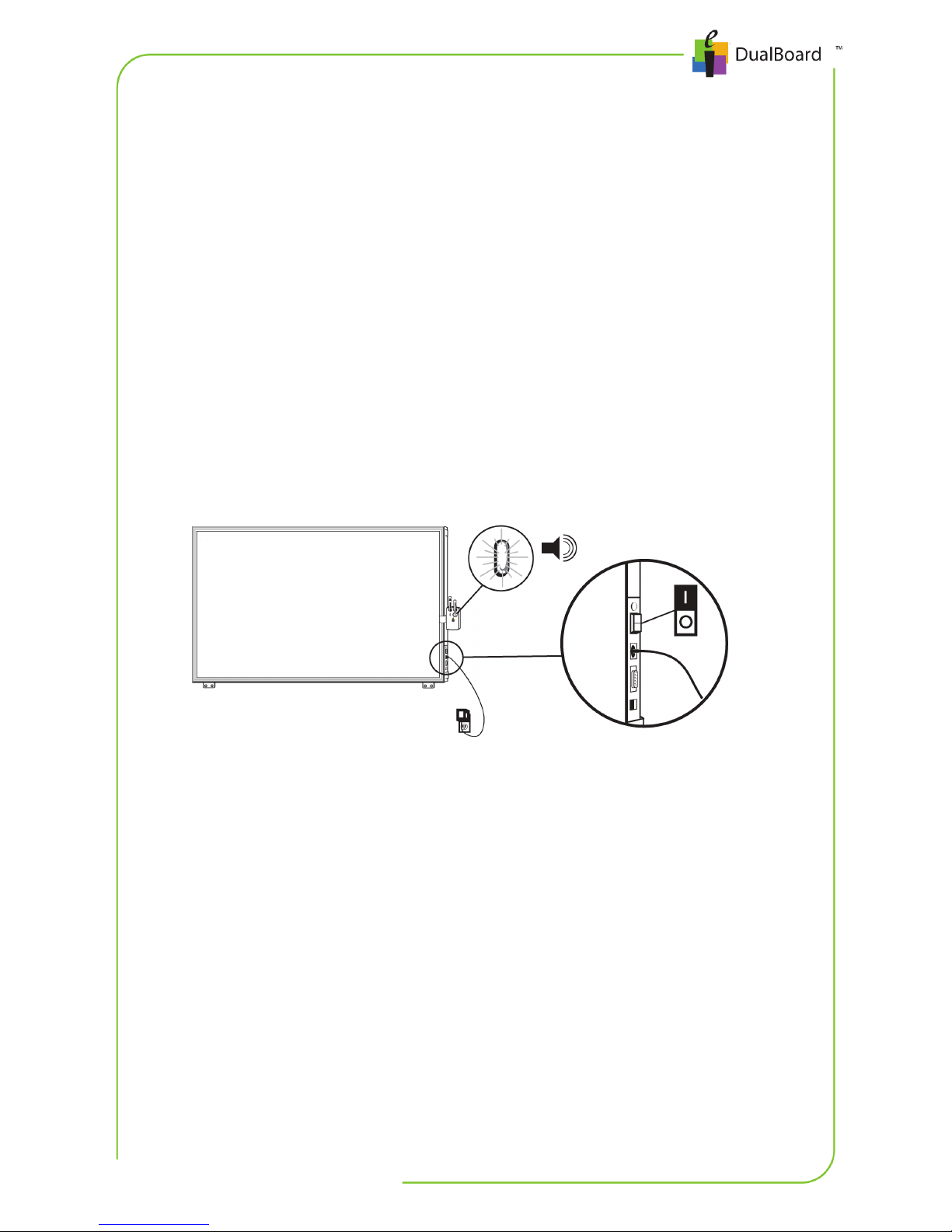
DualBoard
DualBoard is easy to use. Turn on the power switch on the side of the
frame, and you’re ready to go!
Powering DualBoard

Chapter 1: Getting Started | 3
DualBoard Features Menu
DualBoard provides quick access to key Workspace software
annotation tools directly on the board. Simply click the pen on the
desired icon.
DualBoard Features menu
Tip! Customizable function keys allow you to perform a Workspace
function, launch an application or website, or run a macro. From the
Open Workspace
Whitebaord Mode
Display Keyboard
Clear Annotations
Save Pages
Calibrate DualBoard
Lock Connected Devices
Unlock Connected Devices
Customizable Function Key 1
Customizable Function Key 2
Customizable Function Key 3
Mouse Mode
Pen Tool
Highlighter Tool
Eraser Tool
Blank Page
Previous Page
Next Page

4 | GETTING STARTED GUIDE
Workspace toolbar, select Toolbox > Preferences to set your
preferences.
Pens
eInstruction pens function as both a mouse and a virtual pen when
using eInstruction’s Workspace software. A white and a blue pen are
included with DualBoard, allowing two pens to be used at the same
time. An introduction to Workspace is included in the next chapter.
Using the pen
When not using the pens, store them in the pen charger conveniently
attached to the whiteboard. Insert the pen tip-down and listen for the
beep.
Using the pen charger
Note: Pens switch to “sleep” mode after two minutes of inactivity to
conserve power. Simply click the pen tip or rocker button to reactivate.
Battery compartment
Rocker button
Pen tip
Double-click
Right-click (Win) or
Ctrl-Click (Mac)
LED
The pen charger will beep
when the pen is inserted
correctly. A yellow light
indicates the pen is successfully
charging.
Este manual sirve para los siguientes modelos
6
Tabla de contenidos
Otros manuales de Pizarra interactiva de eInstruction


