EFNOTE EFNOTE 3 Manual de usuario

EN
Reference Guide
(for Ver 1.0)

2
Contents
Basic Operation . . . . . . . . . . . . . . . . . . . . . . . . . . . . . . . . . . . . . . . . . . . . . . . . . . . . . . . .4
Panel Description. . . . . . . . . . . . . . . . . . . . . . . . . . . . . . . . . . . . . . . . . . . . . . . . . . . .4
Power On/O . . . . . . . . . . . . . . . . . . . . . . . . . . . . . . . . . . . . . . . . . . . . . . . . . . . . . . 5
Home Screen . . . . . . . . . . . . . . . . . . . . . . . . . . . . . . . . . . . . . . . . . . . . . . . . . . . . . . 6
Widgets. . . . . . . . . . . . . . . . . . . . . . . . . . . . . . . . . . . . . . . . . . . . . . . . . . . . . . . . . .7
Menu. . . . . . . . . . . . . . . . . . . . . . . . . . . . . . . . . . . . . . . . . . . . . . . . . . . . . . .9
Power Menu. . . . . . . . . . . . . . . . . . . . . . . . . . . . . . . . . . . . . . . . . . . . . . . . . . . . . . .9
Menu . . . . . . . . . . . . . . . . . . . . . . . . . . . . . . . . . . . . . . . . . . . . . . . . . . . . . . . . . . . . . . 10
Drum Kit Edit . . . . . . . . . . . . . . . . . . . . . . . . . . . . . . . . . . . . . . . . . . . . . . . . . 10
About the Inst, tone and zone . . . . . . . . . . . . . . . . . . . . . . . . . . . . . . . . . . . . . . . . .11
About the MIDI messages . . . . . . . . . . . . . . . . . . . . . . . . . . . . . . . . . . . . . . . . . . . 12
About the NAME ENTRY screen . . . . . . . . . . . . . . . . . . . . . . . . . . . . . . . . . . . . . . . . 13
Pad Levels . . . . . . . . . . . . . . . . . . . . . . . . . . . . . . . . . . . . . . . . . . . . . . . . . . .14
Inst Library . . . . . . . . . . . . . . . . . . . . . . . . . . . . . . . . . . . . . . . . . . . . . . . . . . 15
Set List . . . . . . . . . . . . . . . . . . . . . . . . . . . . . . . . . . . . . . . . . . . . . . . . . . . . . 16
Click Setup . . . . . . . . . . . . . . . . . . . . . . . . . . . . . . . . . . . . . . . . . . . . . . . . . . 17
Stroke Scope . . . . . . . . . . . . . . . . . . . . . . . . . . . . . . . . . . . . . . . . . . . . . . . . . 18
Accuracy Score. . . . . . . . . . . . . . . . . . . . . . . . . . . . . . . . . . . . . . . . . . . . . . . .18
Rhythm Box. . . . . . . . . . . . . . . . . . . . . . . . . . . . . . . . . . . . . . . . . . . . . . . . . .19
Bluetooth . . . . . . . . . . . . . . . . . . . . . . . . . . . . . . . . . . . . . . . . . . . . . . . . . . . 20
Trigger . . . . . . . . . . . . . . . . . . . . . . . . . . . . . . . . . . . . . . . . . . . . . . . . . . . . . 22
Settings . . . . . . . . . . . . . . . . . . . . . . . . . . . . . . . . . . . . . . . . . . . . . . . . . . . . 24
Connecting to a PC/Mac . . . . . . . . . . . . . . . . . . . . . . . . . . . . . . . . . . . . . . . . . . . . 27
Specications . . . . . . . . . . . . . . . . . . . . . . . . . . . . . . . . . . . . . . . . . . . . . . . . . . . . . . . . 28

3
*Before using this product, read“IMPORTANT SAFETY INSTRUCTIONS”in the Quickstart Guide.
*Read this guide in combination with the Quickstart Guide.
*The information in this document might dier from the sound module you’re using due to dierences of the rmware
version. For the latest rmware update information, refer to the EFNOTE 3/5 website.
*All illustrations and screens appearing in this document are for the purpose of explaining operation, and may dier
from the actual product or specications.
*Specication and design are subject to change without prior notice.
*EFNOTE is a trademark or registered trademark of Ef-Note Inc.
*Windows is a trademark or registered trademark of Microsoft Corporation.
*Mac and macOS are trademarks of Apple Inc., registered in the U.S. and other countries.
*ASIO is a trademark and software of Steinberg Media Technologies GmbH.
*The Bluetooth® word mark and logos are registered trademarks owned by Bluetooth SIG, Inc..
*Company names or product names etc. appearing in this document are the registered trademarks or trademarks of
their respective corporate owners.
For the latest information, please refer to the EFNOTE 3/5 website.
ef-note.com/products/drums/EFNOTE3/efnote3.html
ef-note.com/products/drums/EFNOTE5/efnote5.html
EFNOTE 3 EFNOTE 5

4
Panel Description
Basic Operation
Touch display
Micro USB
(To PC/Mac)
Linear indicator
Ring illumination
Speaker for click
(Inside)
Power (Push)
Value knob (Rotate)
Panel Description
DC in
MULTI-A
cable in
MULTI-B
cable in
Phones (3/4) output
(Mini stereo phone)
Analog audio in
(Mini stereo phone)
*The line (1/2) output and MIDI output (5-pin) are available
with the MULTI-B cable. See the “Quickstart Guide“.
*About the USB connection, see p. 27.

6
Home Screen
Home Screen
Switching drum kits
Previous
drum kit
Kit name
Next
drum kit
Shows kit list
Opening the kit list
1 In the home screen, tap on the center of the kit name area.
Creating a new drum kit / Duplicate the drum kit
1 Open the kit list, and select a drum kit as a source of duplication.
2 Tap
3 Enter the new kit name and tap the OK.
Regarding the name entry window, see p. 13.
Restoring the preset drum kit
1 Open the kit list, and select a preset drum kit that you want to restore.
2 Tap , and tap the OK in the conrmation window.
Deleting the user drum kit (duplicated drum kit)
1 Open the kit list, and select a user drum kit that you want to delete.
2 Tap , and tap the OK in the conrmation window.
Deletes/restores drum kit
Duplicates drum kit
Widgets (p. 7) Menu (p. 9)
Touch to select
*Preset drum kits can be edited, but cannot be renamed or deleted.
*The edited preset drum kit can be restored by“Restore“.
*User drum kits are listed after the preset drum kits and sorted by the drum kit name.

7
Widgets
*For the detailed click setup, see (p. 17).
*When the drum kit is switched, the click sound will be interrupted while loading the kit.
Widgets
These widgets control various settings easily at the home screen.
*Some other widgets can be open from the menu (p. 9).
Phones output level
Bluetooth audio in level
USB audio in level
Analog audio in level
Inst Info
Volume
Pad level
*Clipping may occur when exceeding 85%.
Shows instrument assigned to the pad
Click (Metronome)
Turns click on/o
Click level
Beat (Time signature)
Tempo (BPM)
Activates/deactivates external click speaker
*The line out level can be linked with the phones level (p. 24).
CAUTION
Be sure not to listen to audio at a high volume. It can cause permanent hearing loss.

8
Widgets
Recorder
Records your drum performances by MIDI, for sound check on stage, transferring to your DAW, or later self
review.
Selects target track
Status
Status
Status
Plays target track
Cancels recording
Stops recording
Stops playing
Goes to recording stand-by
Starts recording
Fast rewind
Clears target track
Starts recording automatically when any pad is struck
Fast forward
Rec Standby
Recording
Playing
*Any other audio/MIDI sources are not recorded.
*Tempo and beat settings are not recorded.
*If the recording widget is closed, the recording will be stopped.
*The recorded data will be stored even if the power is turned o.
*The playback will not send any MIDI data.

9
Menu
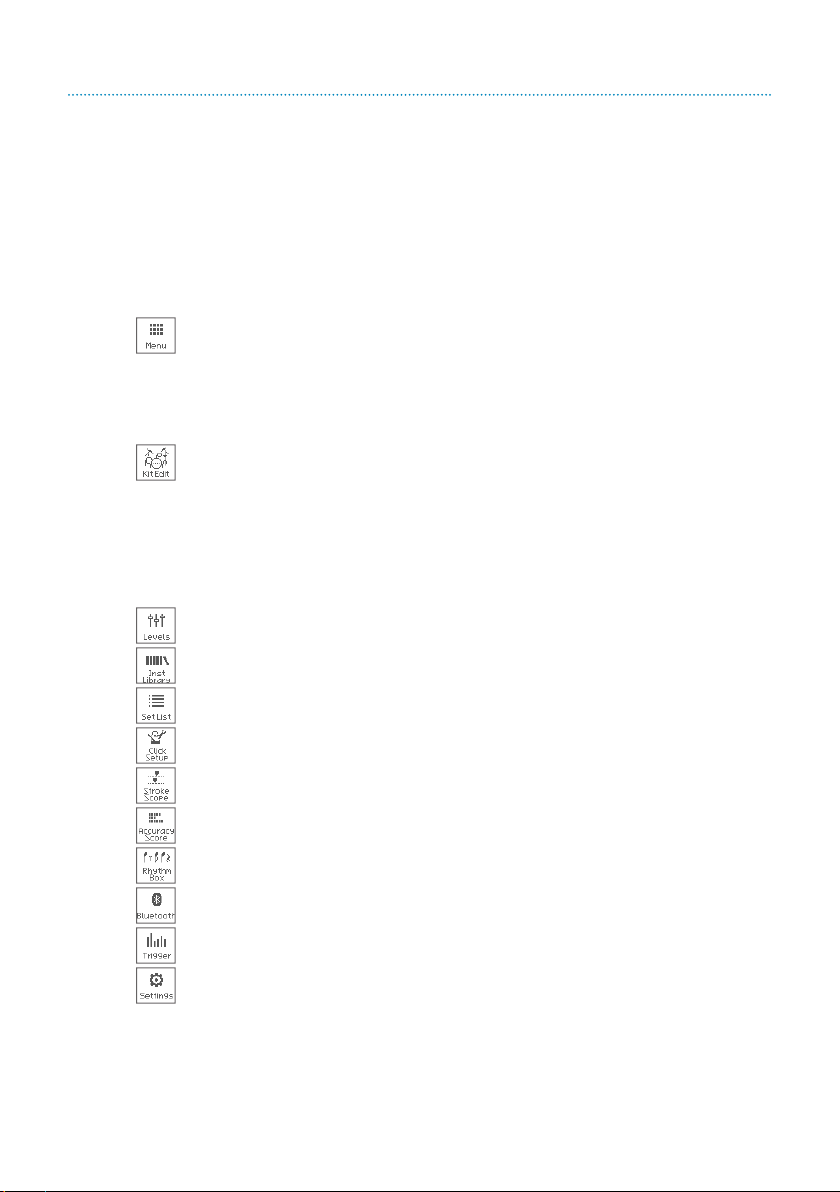
Edits drum kit, changes instrument on each pad
Congures click setup
Shows volume control
Shows pad level faders
Displays your strike points on time-line
Connects Bluetooth device
Estimates your strike accuracy
Congures triggers (pads)
Manages user custom instruments
Provides basic drum beats
Congures general settings
Organizes drum kits for gigs
Closes menu
Menu
This menu takes you to the various screens.
Power Menu
You can access to the power menu from anywhere.
Volume control
Turns power o
Goes back to home screen
Closes menu
1 2
*Push the knob again to close the menu.

10
Drum Kit Edit
Menu
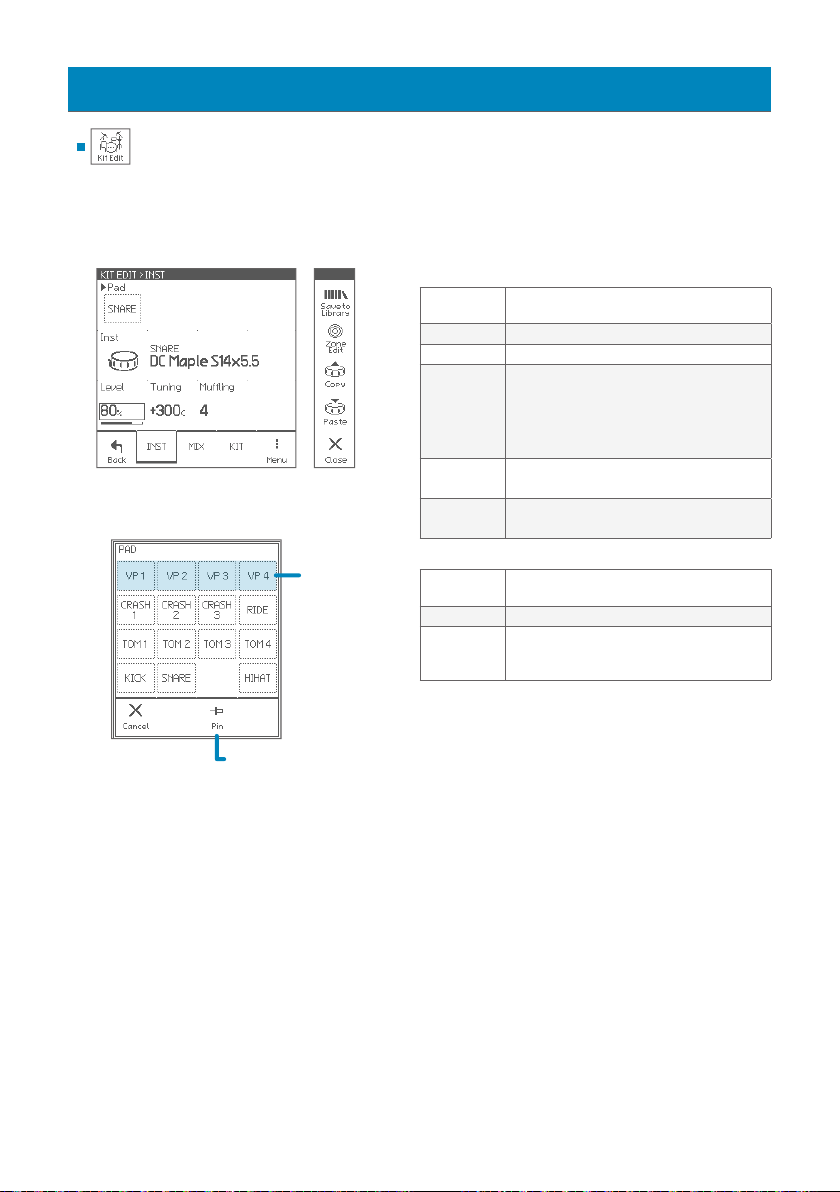
Drum Kit Edit
In this section, you can edit the drum kit.
Parameters for each pad
Pad Selects an edit target pad.
• Can be selected by hitting a pad.
Inst (icon) Selects Inst group
Inst (name) Selects Inst (sound for the pad)
Level
Adjusts pad level
*Clipping may occur when exceeding 85%.
*Adjusts all zones together
• You can also adjust pad levels with faders in
the Pad Levels screen (p. 14).
Tuning Adjusts pitch in cent
*Adjusts all zones together
Muing Adjusts mute amount (sustain)
*Adjusts all zones together
Page Menu
Save To
Library
Saves current Inst settings to the Inst library
(p. 15).
Zone Edit Edits each zone (p. 12)
Copy/Paste
Copies/Pastes current pad (Inst) settings
When paste, the PASTE ITEMS window appear
to select paste items.
PAD window
When pinned, the selected
pad is not changed by
hitting a pad.
INST
VP (virtual pad)
can be played
by the layer
function
(p. 11).
Otros manuales para EFNOTE 3
1
Este manual sirve para los siguientes modelos
1
Tabla de contenidos
Otros manuales de Tambor de EFNOTE