Efficient Networks EEE 802.11b/g Wireless USB 2.0 Adapter Manual de usuario

IEEE 802.11b/g
Wireless USB 2.0 Adapter
User’s Manual
Version: 1.2

IEEE 802.11b/g Wireless USB 2.0 Adapter Version 1.2
2
Table of Contents
1INTRODUCTION ....................................................................................................................4
1.1 FEATURES &BENEFITS..................................................................................................... 4
1.2 PACKAGE CONTENTS........................................................................................................ 5
1.3 USB ADAPTER DESCRIPTION............................................................................................ 5
1.4 SYSTEM REQUIREMENTS .................................................................................................. 5
1.5 APPLICATIONS.................................................................................................................. 6
1.6 NETWORK CONFIGURATION............................................................................................... 7
2INSTALL DRIVERS & CLIENT UTILITY................................................................................ 9
2.1 BEFORE YOU BEGIN ......................................................................................................... 9
2.2 INSTALLING THE DRIVERS.................................................................................................. 9
3USING THE CLIENT UTILITY.............................................................................................. 15
3.1 CURRENT STATUS .......................................................................................................... 15
3.2 PROFILE MANAGEMENT .................................................................................................. 16
3.2.1 Scan for available networks..................................................................................... 17
3.2.2 Create a New Profile................................................................................................ 18
3.2.3 Security.................................................................................................................... 19
3.2.3.1 Security Disabled ............................................................................................ 19
3.2.3.2 WPA – TLS, TTLS........................................................................................... 19
3.2.3.3 WPA – PEAP (EAP-GTC)............................................................................... 21
3.2.3.4 WPA – PEAP (EAP-MSCHAP-V2).................................................................. 23
3.2.3.5 WPA – LEAP................................................................................................... 25
3.2.3.6 WPA – Passphrase......................................................................................... 27
3.2.3.7 802.1x – TLS, TTLS........................................................................................ 28
3.2.3.8 802.1x – PEAP (EAP-GTC) ............................................................................ 30
3.2.3.9 802.1x – PEAP (EAP-MSCHAP-V2)............................................................... 32
3.2.3.10 802.1x – LEAP................................................................................................ 34
3.2.3.11 Pre-Shared Key (Static WEP)......................................................................... 36
3.2.4 Advanced Settings................................................................................................... 37
3.2.4.1 Infrastructure Settings..................................................................................... 37
3.2.4.2 Ad Hoc Settings .............................................................................................. 38
3.3 DIAGNOSTICS................................................................................................................. 39
3.4 ENABLE /DISABLE RADIO................................................................................................ 41
3.5 DISABLE TRAY ICON........................................................................................................ 43
3.6 DISPLAY SETTINGS......................................................................................................... 43
4UNINSTALL THE DRIVERS & CLIENT UTILITY ................................................................ 45
APPENDIX A – SPECIFICATIONS............................................................................................... 47
APPENDIX B – FCC INTERFERENCE STATEMENT ................................................................. 48

IEEE 802.11b/g Wireless USB 2.0 Adapter Version 1.2
3
Revision History
Version Date Notes
1.0 June 9, 2005 Initial Version
1.1 Oct. 12, 2005 Utility Upgrading
1.2 Oct. 14, 2005 Spec Updating

IEEE 802.11b/g Wireless USB 2.0 Adapter Version 1.2
4
1 Introduction
This is a wireless USB 2.0 adapter that supports the IEEE 802.11b/g (2.4GHz) radio
operation. It provides a high-speed wireless connection with data rate up to 108Mbps.
To protect your wireless connectivity, the high-speed wireless USB adapter can
encrypt all wireless transmissions through 64/128/152-bit WEP data encryption and
also supports WPA. Dynamic Frequency Selection (DFS) puts your network on the
cleanest channel in your location. With the high-speed wireless USB adapter, you will
experience the best wireless connectivity available.
This chapter describes the features & benefits, package contents, applications, and
network configuration.
1.1 Features & Benefits
Features Benefits
High Speed Data Rate up to 108Mbps in
Super G mode
Capable of handling heavy data payloads
such as MPEG video streaming.
High Output Power up to 23 dBm Excellent output power spreads the operation
distance
Advanced Encryption Standard (AES),
Temporal Key Integrity Protocol (TKIP) and
Wired Equivalent Private (WEP)
Powerful data security.
IEEE802.1x Client Support Enhances authentication and security.
Support for 802.11e standard Wireless Multimedia Enhancements Quality of
Service support (QoS)
Advanced Power Management Low power consumption in power saving
mode up to 98%.
Support eXtended Range technology eXtended Range technology give Wi-Fi
products twice the range of existing designs
External (changeable) Antenna Changeable Antenna provides users more
flexible to select other antennas

IEEE 802.11b/g Wireless USB 2.0 Adapter Version 1.2
5
1.2 Package Contents
Open the package carefully, and make sure that none of the items listed below are
missing. Do not discard the packing materials, in case of return; the unit must be
shipped in its original package.
hOne Wireless LAN USB Adapter
hOne USB Cable
hOne CD-ROM with User’s Manual Included
hOne Detachable Antenna (2dBi Gain Value)
1.3 USB Adapter Description
The USB adapter is a standard USB adapter that fits into any USB interface. The
USB adapter has a LED indicator and an external high-sensitivity dipole antenna.
1.4 System Requirements
The following are the minimum system requirements in order to use the USB
adapter.
hPC/AT compatible computer with a USB interface.
hWindows 2000/XP operating system.
h20 MB of free disk space for installing the USB adapter driver and utility
program.
USB port
High-sensitivity Dipole Antenna
LED Indicator:
Ad-hoc Mode: Solid Green, whether the
wireless is connected or not.
Infrastructure Mode: Solid green while
connected, and blinking during activity.

IEEE 802.11b/g Wireless USB 2.0 Adapter Version 1.2
6
1.5 Applications
The wireless LAN products are easy to install and highly efficient. The following list
describes some of the many applications made possible through the power and
flexibility of wireless LANs:
a) Difficult-to-wire environments
There are many situations where wires cannot be laid easily. Historic
buildings, older buildings, open areas and across busy streets make the
installation of LANs either impossible or very expensive.
b) Temporary workgroups
Consider situations in parks, athletic arenas, exhibition centers, disaster-
recovery, temporary offices and construction sites where one wants a
temporary WLAN established and removed.
c) The ability to access real-time information
Doctors/nurses, point-of-sale employees, and warehouse workers can
access real-time information while dealing with patients, serving
customers and processing information.
d) Frequently changed environments
Show rooms, meeting rooms, retail stores, and manufacturing sites where
frequently rearrange the workplace.
e) Small Office and Home Office (SOHO) networks
SOHO users need a cost-effective, easy and quick installation of a small
network.
f) Wireless extensions to Ethernet networks
Network managers in dynamic environments can minimize the overhead
caused by moves, extensions to networks, and other changes with
wireless LANs.
g) Wired LAN backup
Network managers implement wireless LANs to provide backup for
mission-critical applications running on wired networks.
h) Training/Educational facilities
Training sites at corporations and students at universities use wireless
connectivity to ease access to information, information exchanges, and
learning.

IEEE 802.11b/g Wireless USB 2.0 Adapter Version 1.2
7
1.6 Network Configuration
To better understand how the wireless LAN products work together to create a
wireless network, it might be helpful to depict a few of the possible wireless LAN PC
card network configurations. The wireless LAN products can be configured as:
a) Ad-hoc (or peer-to-peer) for departmental or SOHO LANs.
b) Infrastructure for enterprise LANs.
a) Ad-hoc (peer-to-peer) Mode
This is the simplest network configuration with several computers
equipped with the PC Cards that form a wireless network whenever they
are within range of one another. In ad-hoc mode, each client is peer-to-
peer, would only have access to the resources of the other client and
does not require an access point. This is the easiest and least expensive
way for the SOHO to set up a wireless network. The image below depicts
a network in ad-hoc mode.

IEEE 802.11b/g Wireless USB 2.0 Adapter Version 1.2
8
b) Infrastructure Mode
The infrastructure mode requires the use of an access point (AP). In this
mode, all wireless communication between two computers has to be via
the AP. It doesn’t matter if the AP is stand-alone or wired to an Ethernet
network. If used in stand-alone, the AP can extend the range of
independent wireless LANs by acting as a repeater, which effectively
doubles the distance between wireless stations. The image below
depicts a network in infrastructure mode.

IEEE 802.11b/g Wireless USB 2.0 Adapter Version 1.2
9
2 Install Drivers & Client Utility
2.1 Before You Begin
Before installing the new drivers of your USB adapter, you need to disable all of the
Wireless LAN drivers that you have installed.
During the installation, Windows 2000/XP may need to copy systems files from its
installation CD. Therefore, you may need a copy of the Windows installation CD at
hand before installing the drivers. On many systems, instead of a CD, the necessary
installation files are archived on the hard disk in C:\WINDOWS \OPTIONS\CABS
directory.
2.2 Installing the Drivers
Follow the steps below in order to install the USB adapter drivers:
1. Insert the CD-ROM that was provided to you in this package. The setup
should run automatically. If the setup does not run automatically, then you
must manually select the setup.exe file from the CD-ROM drive.
2. Once the setup begins you will see the Install Shield Wizard, as the image
depicts below.

IEEE 802.11b/g Wireless USB 2.0 Adapter Version 1.2
10
3. Click on the Next button to continue.
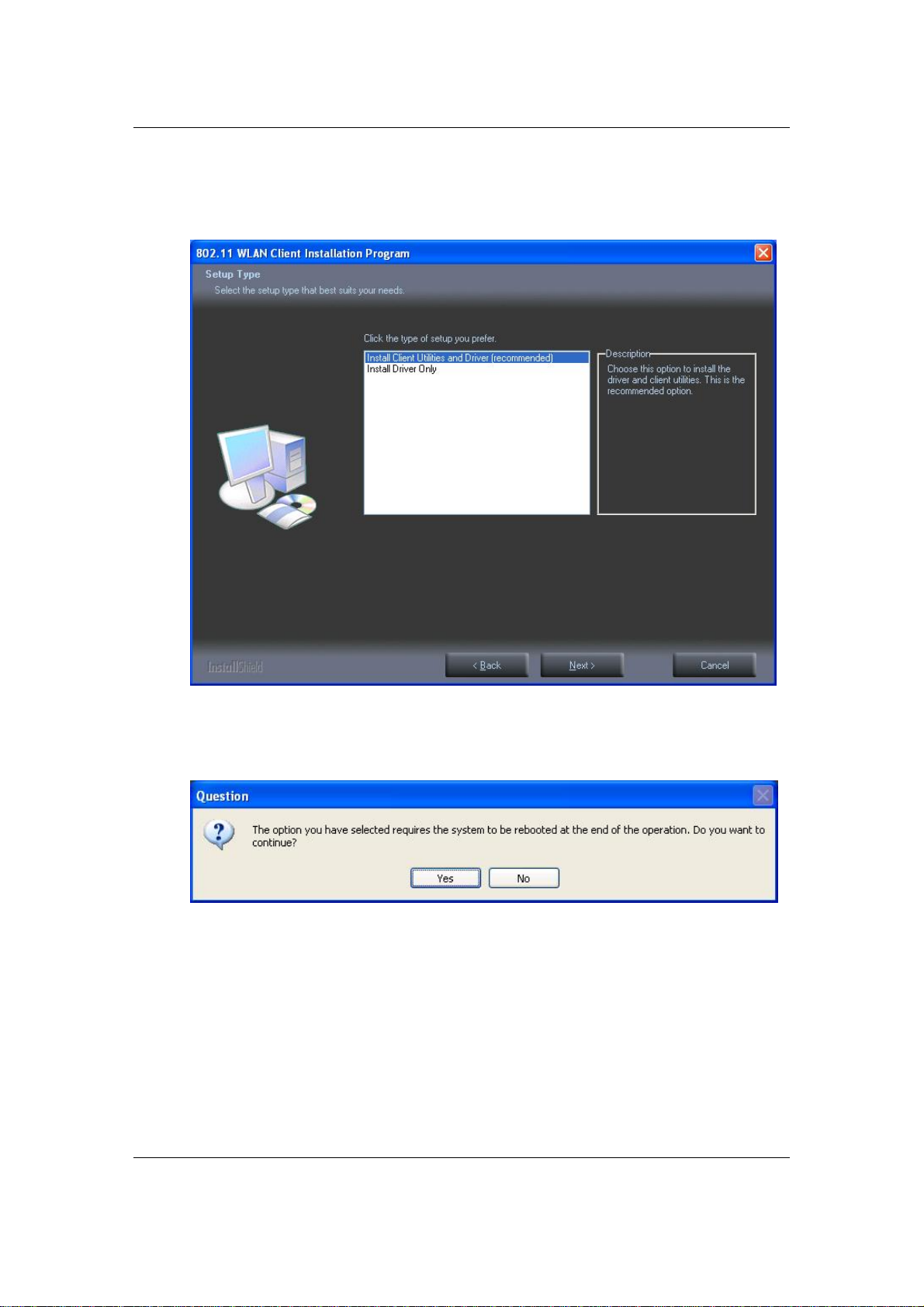
4. The Setup Wizard will then allow you to install the driver & utility or just the
driver. Select the first option: Install Client Utilities and Driver.
5. Click on the Next button to continue.
6. This message informs you that the system must be restarted after the
installation is complete.
7. Click on the Yes button to continue.
Este manual sirve para los siguientes modelos
1
Tabla de contenidos
Otros manuales de Adaptador de Efficient Networks