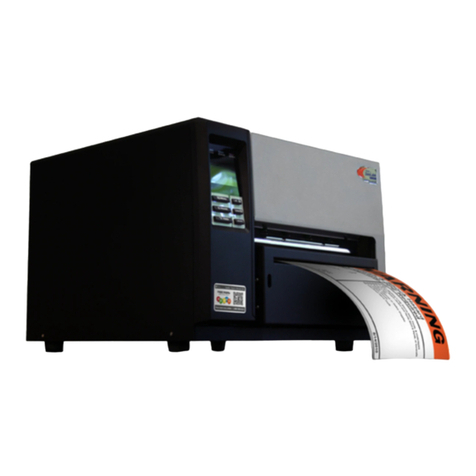
DuraLabel 9000 Manual de usuario

800.788.5572
DuraLabel.com
USER GUIDE
9000

Graphic Products®
, DuraLabel®
, PathFinder®
, Toro®and Lobo®are Registered Trademarks of Graphic Products, Inc.
© 2009, 2015 Graphic Products, Inc.
Minimum System Requirements
Operating System: Windows XP SP2 or later, Vista, Windows 7, Windows 8 or 8.1
Memory: 128MB RAM
Hard Drive: 100MB
Additional Requirements: IT Administrator Privileges
Supplies
DuraLabel supplies and the DuraLabel®9000 printer have been optimized for
compatibility and print quality. Use only DuraLabel supplies from Graphic Products with
your DuraLabel 9000 printer.
Copyright Information
No part of this guide, including the products and software described in it, may be
reproduced, transmitted, transcribed, stored in a retrieval system, or translated into any
language in any form or by any means, except as documentation kept by the purchaser
for backup purposes, without the express written permission of Graphic Products, Inc.
Products and corporate names appearing in this guide may or may not be registered
trademarks or copyrights of their respective companies, and are used only for
identification or explanation and to the owners’ benefit, without intent to infringe.
Specifications and other content contained in this guide are furnished for informational
use only and are subject to change at any time without notice, and should not be
construed as a commitment by Graphic Products. Graphic Products assumes no
responsibility or liability for any errors or inaccuracies that may appear in this guide.

DuraLabel.com | 800.788.5572 Introduction | 1
Introduction
Congratulations on the purchase of your DuraLabel 9000 thermal transfer printer. This
guide will have you printing professional-quality labels and signs in no time!
Call us at 800.788.5572 with any questions about your DuraLabel 9000 printer. We’re
here to help with all your label and sign-making needs.

2| Contents DuraLabel.com | 800.788.5572
Contents
1. Warranties
4
1.1 5-Year DuraLabel Printer Warranty 4
1.1.1 Repairs 4
1.1.2 Batteries 4
1.1.3 Warranty Details 4
1.2 5-Year DuraLabel Premium Vinyl Warranty 5
2. Loading the Printer
6
2.1 Printer Parts 6
2.2 Supplies 7
2.3 Loading Vinyl Supply 7
2.4 Printer Ribbon Parts 10
2.5 Loading Ribbon 11
3. Connecting the Printer
14
3.1 Inserting the Installation CD 14
3.2 Using a USB Cable 14
3.3 Using a Parallel Cable 16
3.4 Upgrading a Driver 19
4. Configuring Printer Drivers 20
4.1 Continuous Vinyl Printing Instructions 20
4.2 Die-Cut Label Printing Instructions 21
4.2.1 Label Supply Calibration 21
4.2.2 Driver Settings 22
4.2.3 Media Sensor Adjustment for Die-Cut Labels with Headers 22
4.2.4 Media Sensor Adjustment for RTK Color Bar Die-Cut Labels 23
4.3 B Mark Label Printing Instructions 24
4.3.1 Label Supply Calibration 24
4.3.2 Driver Settings 24
4.3.3 Adjusting the B Mark Media Sensor 25
4.4 Cutting Labels in Intervals 25
4.5 Adjusting Print Speed 25
4.6 Adjusting Darkness 26
5. Installing Labeling Software
27
5.1 DuraSuite Labeling Software 27
5.2 LabelForge Labeling Software 27
6. Label Creation
28
6.1 Label Creation with Your Word Processor 28
6.1.1 Using Templates 28
6.1.2 Setting up a Microsoft Word Document 29
7. Label Design
30
7.1 Text Boxes 30
7.1.1 Changing Text Box Size 30
7.1.2 Positioning Text Boxes 31
7.2 Graphics 31
7.3 Merging Information, Sequencing Labels 32
7.3.1 Creating an Excel Spreadsheet 32

DuraLabel.com | 800.788.5572 Contents | 3
CONTENTS
8. Configuring Ethernet Card
37
8.1 Setting an Ethernet Port using the Diagnostic Tool 37
8.2 Installing a Driver for the Ethernet Port 37
8.3 Manually Configuring the IP Address 40
8.4 Setting a Static IP 40
9. Cleaning and General Maintenance 41
9.1 Print Head 41
9.2 Cutter 42
9.3 Platen Roller 43
10. Troubleshooting 44
10.1 Speckles Appear Throughout Label 44
10.2 Fading of Text/Graphics Occurs During Printing 44
10.3 Hash Marks Appear Throughout Printing 44
10.4 Solid Printed Line Appears Across Entire Label 44
10.5 Unprinted Horizontal Lines Appear 45
10.6 LED Flashes Between Green “ON-LINE” and Red “ERROR” 45
10.7 Printer is Printing Labels but not Cutting Them 45
10.8 Receive a “No Ribbon” Error Message 46
10.9 Receive a “No Paper” or “Paper Jam” Error Message 46
10.10 Printer Cuts Labels Off-Center or into the Next Label 47
10.11 Wrinkles Appear on Half of Label 47
11. Specifications 50
11.1 Printer 50
11.2 Indicators and Buttons 50
11.3 Communication Interface 50
11.4 Power Requirements 50
11.5 Environment 50
11.6 Label Supply 50
11.7 Ribbon Supply 51
11.8 Printer Body 51

4| 1.1 5-Year DuraLabel Printer Warranty DuraLabel.com | 800.788.5572
1. Warranties
1.1 5-Year DuraLabel Printer Warranty
Graphic Products’ DuraLabel printers are warrantied to be free from
defects in materials and workmanship for a period of five (5) years
from the date of purchase. Within this period, Graphic Products,
Inc. will, at its sole option, repair or replace any components which
fail in normal use. Such repairs or replacement will be made at
no charge to the purchaser for parts or labor, provided that the purchaser shall be
responsible for any transportation cost. This warranty does not cover loss, damages
from accident, or equipment or parts which have been misused, altered, neglected,
carelessly handled, used for purpose other than those for which the printer was
manufactured, or damages resulting from unauthorized service.
1.1.1 REPAIRS
Repairs are warrantied for 90 days. If the original warranty is still in effect, repaired
units will remain under their original warranty or for 90 days from the date of service,
whichever is longer.
1.1.2 BATTERIES
The optional battery packs for the DuraLabel Toro and Lobo portable systems are
warrantied for three years from the date of purchase.
The battery for the DuraLabel 2000 PLUS system is warrantied for one year from the
date of purchase.
1.1.3 WARRANTY DETAILS
The warranties and remedies contained herein are exclusive and in lieu of all other
warranties whether express, implied, or statutory, including any liability arising under any
warranty of merchantability or fitness for a particular purpose, statutory or otherwise.
This warranty gives the purchaser specific legal rights, which may vary from state to
state.
In no event shall Graphic Products be liable for any incidental, special, indirect, or
consequential damages, whether resulting from the use, misuse, or inability to use
the product for any reason including defect. Some states do not allow the exclusion of
incidental or consequential damages, so the above limitation may not apply in all areas.
Graphic Products retains the exclusive right within all warranty periods to repair, replace,
or offer a full refund of the purchase price at its sole discretion. Such remedy shall be
the purchaser’s sole and exclusive remedy for any breach of warranty.

DuraLabel.com | 800.788.5572 1.2 5-Year DuraLabel Premium Vinyl Warranty | 5
WARRANTIES
General maintenance and cleaning of the DuraLabel printer is the purchaser’s
responsibility and is not covered by the warranty. Expendable items or parts such as
label supply and ribbon are not covered by this warranty.
NOTE: SpeciÀc preparation may be required before shipping. Please contact your
Graphic Products representative to ensure correct return procedure: please call
800.788.5572 for details. Graphic Products, Inc. shall not be responsible for any loss
or damages incurred during shipping.
1.2 5-Year DuraLabel Premium Vinyl Warranty
DuraLabel supplies are tested for durability under various conditions, including UV
exposure, moisture, heating and cooling cycles, abrasion, and chemical exposures.
Graphic Products warranties labels made from its Premium vinyl supplies for a period of
five (5) years.
Within five years of purchase and after proper application, Graphic Products will replace
labels made with DuraLabel Premium Vinyl which become unreadable or fail to maintain
adhesion with the labeled surface. In such instance, Graphic Products, Inc. will provide
a one-time replacement roll of the same supply.

6| 2.1 Printer Parts DuraLabel.com | 800.788.5572
2. Loading the Printer
DuraLabel ribbon and vinyl supplies have been optimized for compatibility and print
quality. Only authorized DuraLabel supplies from Graphic Products will print correctly in
the DuraLabel 9000 printer.
An instructional video demonstrating how to load DuraLabel ribbon and supplies is
included on your installation CD.
2.1 Printer Parts
A. Media Sensor (green)
B. Printed Label Opening
C. Print Head
D. Platen Roller (black)
E. Print Head Mechanism
F. Print Head Release Lever (green)
G. Adjustable Media Guides (white)
H. Media Guide Bar (metal)
I. Supply Bar
J. Supply Guides
K. Adjustable Pressure Knobs (green)
L. Printer Cover
A
BD
CF
G
H
I
L
E
L
L
L
H
HH
H
H
H
F
F
F
F
F
F
F
F
F
F
F
D
D
D
D
D
D
D
D
E
G
G
G
G
A
A
A
B
B
B
B
C
C
C
C
C
C
C
C
C
C
J
K
E
E
E
E
E

DuraLabel.com | 800.788.5572 2.3 Loading Vinyl Supply | 7
LOADING THE PRINTER
2.2 Supplies
The DuraLabel 9000 ribbon and other media have been optimized for compatibility and
print quality. Only authorized supplies from Graphic Products will print correctly in the
DuraLabel 9000.
2.3 Loading Vinyl Supply
IMPORTANT! Always turn the printer OFF when loading supplies. Always wait at least 5
seconds before turning power back ON.
NOTE: Watch a demonstration of supply loading,
viewable at DuraLabel.com/duralabel-videos.
A. Open the printer cover by lifting up on the
handle.
B. Push the green print head release lever to pop
up the print head mechanism.
C. Remove and set aside the outside supply guide from the supply bar.
Supply Guide
Supply Bar
Handle on Printer
Cover
Print Head
Print Head Mechanism Print Head Release Lever
H
d
l
G

8| 2.3 Loading Vinyl Supply DuraLabel.com | 800.788.5572
LOADING THE PRINTER
D. Adjust the inside supply guide to cover the number corresponding to the size of
label supply being loaded (see photo below).
E. Place the label supply onto the supply bar.
NOTE: Label supply should roll over the top and
toward the front of the printer.
F. Fit the outside supply guide onto the label bar,
against the label supply but with enough room
for the label supply to rotate with ease.
The inside supply guide is set for 6" label supply.
Supply Guides
Supply Bar
S
Loaded supply and outside supply guide placed on supply bar
S
Loaded vinyl supply moving right to left.
Adjustable Media
Guides (white)
Platen Roller
Print Head Mechanism Supply Guides
Supply Bar
Media
Guide Bar
n
R
Rolle
e
r
e
r
S
Adj
u
G
ui
d
S
S
S
S
S
S
A
A
A
G
Otros manuales para 9000
5
Tabla de contenidos
Otros manuales de Impresora de DuraLabel

DuraLabel
DuraLabel 9000 Manual de usuario

DuraLabel
DuraLabel Toro Manual de usuario

DuraLabel
DuraLabel PRO 300 Manual de usuario

DuraLabel
DuraLabel 9000 Manual de usuario

DuraLabel
DuraLabel 4 TTP Manual de usuario

DuraLabel
DuraLabel 9000 Manual de usuario

DuraLabel
DuraLabel Toro Manual de usuario

DuraLabel
DuraLabel Toro Manual de usuario

DuraLabel
DuraLabel Toro Manual de usuario

DuraLabel
DuraLabel 900 Manual de usuario