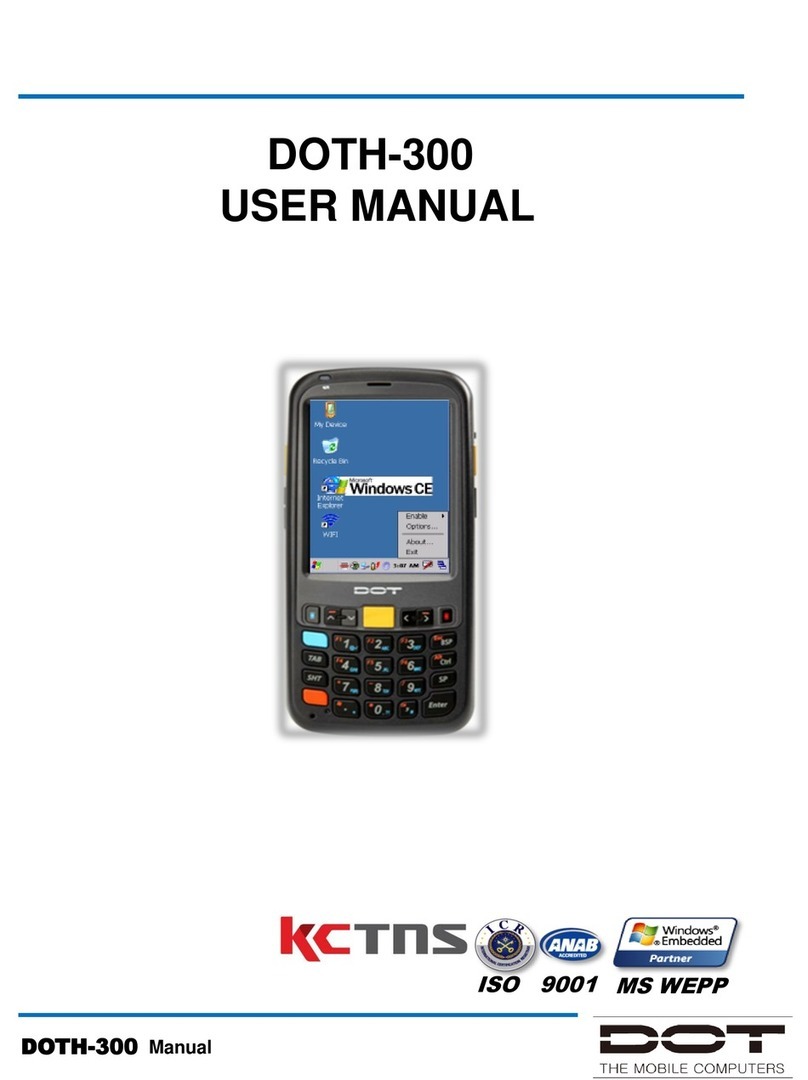
DOT DOTH-500 Manual de usuario

DOTH-500
USER MANUAL
ISO 9001 MS WEPP
DOTH-500 Manual

DOTH-500 Manual
1. This user manual may be changed without notice in accordance with
improvements to the product or changes in available functions.
2. This user manual has been prepared based on information available at the
time of publishing and may have technical or editorial errors or omissions.
3. The screen and shape of the product in this manual may differ from that of
the actual product.
4. All the content of this manual is protected by Copyright Law.
5. All the rights for the software installed on this product belong to DOTel Co.,
Ltd. And are protected by Copyright Law.
6. Among the content specified in this manual, some functions may not be
installed in your PDA (Wireless LAN, Bluetooth)
1. The device have been developed in accordance with the CE directive
1999/5/EC (R&TTE)
2. DOTEL possesses a certified quality assurance system in accordance with
ISO9001
Notice

DOTH-500 Manual
Copyright and Use
1. All the contents in this manual and PDA software are protected by Copyright Law
and all the rights belong to DOTel Co., Ltd.
2. No part of this manual may be duplicated, renovated or translated into other
languages without prior written consent. The act of duplicating, correcting or
distributing this manual without permission is a crime punishable in accordance
with Copyright Law.
3. As to instructions for separate business programs not specified in this manual,
and questions about and after service for such programs, please contact the
software provider.
4. For all other applications or programs installed by the user except the basic
program, each software provider should specify contact information required to
make inquiries or ask for technical support on the product manual or on the
packaging, or enclose a separate manual with contact information.
5. DOTel Co., Ltd. Does not provide any warranty for all the software installed once
PDAs are shipped out of the factory.
6. DOT is a trademark of DOTel Co., Ltd. Protected by law.
7. The logos and product names, Microsoft, Windows and Internet Explorer, are
trademarks of Microsoft and MS Windows CE software installed on this device is
a product officially licensed by Microsoft.
8. All the product names and program names used in this manual and the product
are company names, symbols, trademarks or registered trademarks of each
owner.
9. DOTel Co., Ltd. May ask the application providers to provide their software
loaded in this product on request of mobile communication providers or for
improvement or verification of the products.

DOTH-500 Manual
Contents in Package
Body Micro USB Cable Cradle Touch Film Stylus Pen
Two Standard Batteries A/C Adapter Manual
Standard Accessories
The specification and components of this product may changeAccording to
the situation of the manufacturer.

DOTH-500 Manual
Part Description and Function
①
LCD
Touch screen
on which information is displayed
②
Speaker
Where the
sound is output
③
Buttons
Function
Key
④
Battery Switch
Switch used to mount
or remove the battery
⑤
Battery
Standard capacity
battery
⑥
Power key
Switching the product on/off by pressing and holding
this key
⑦
Reset key
Used
to the product to reboot
⑧
Battery Charge
indicator
Displays
the status of battery charging and complete
⑨
WLAN indicator
Displays
the status of WLAN links
⑩
Stylus pen holder
Stylus pen holder
⑪
Cradle Insertion Hole
Place
to insert the cradle for charging and
synchronization
Learning Basics
Name of Parts

DOTH-500 Manual
Learning Basics
Function Key1
Function Key2
Function Key3
To turn on/off the product, pressing and
holding the power key for three seconds.
To turn on/off the LCD while the device
is on, pressing the power key.
Used to reset the product to reboot it
when a problem has occurred during
use.
Download mode
Pressing and holding the function key3
for 3 seconds while device is turning on.
And then press function key3
Factory reset
Pressing and holding the function key3
and the function key1 for 1 second at
the same time while device is turning on.
And then press function key2
Function of Buttons

DOTH-500 Manual
Learning Basics
Power connection and charging
Connect the device to the cradle.
1
Connect an adapter to the back of the cradle.
2
While charging, the red LED light will be on.
When charging is complete, light will turn green.
3
- The Charging time is calculated based on using the proper
charging cradle.
- Charge, talk and standby time may depending on user
environment.

DOTH-500 Manual
User Interface
WIFI
It can be controlled by pressing on or off as shown in the figure above
after selecting ‘Start’ -> ‘Program’ -> ‘WiFi’ from the tool bar at the bottom
of Windows wallpaper.
WLAN on/off state is maintained even after the system is rebooted.

DOTH-500 Manual
User Interface
Bluetooth
Use this menu to activate or deactivate Bluetooth
function. Bluetooth function can be used only after
turning the module on by pressing ‘Bluetooth On’
button.
When Bluetooth function is not being used, the function
should be turned off by pressing ‘Bluetooth Off’ button
In order to extend the battery life.
Place the Bluetooth device within 10meters of this
equipment.
Press “search Device” button.
Press “Register” button after selecting the Bluetooth
device to be connected from among the list of devices
searched.

DOTH-500 Manual
User Interface
When the window asking to enter the pin code pop up,
enter the pin code and press “Confirm”. Each Bluetooth
device has a unique pin code which is used for
certification. Check the pin code with the manufacturer of
The Bluetooth device.
If ‘Registered Device List’ Window
appears with a popup window
informing that connection is made,
connection is successfully achieved.
If a failure window pops up, the
steps should be taken again from
the step #1 in order.
Caution : Please refer to the manual of the Bluetooth device to be connected with
this equipment as the method to execute each Bluetooth device differs from
one device to another. Prior “Pairing” is required for Bluetooth devices. Once
pairing is done for Bluetooth devices, connection can be made without being
required to pair again later.
However, if pairing information is deleted or the device list item is deleted by
repair, pairing should be done again.
Bluetooth
Otros manuales para DOTH-500
1
Tabla de contenidos
Otros manuales de PDA de DOT