
Displays2go DGCTDSTCH15BK Manual de usuario

1
Displays2go
USER MANUAL
Rev. 06/20
Model: DGCTDSTCH15BK DGCTDSTCH15WH
Description: 15.6'' Countertop Digital Touch Display
Scan QR code to visit
the product page:
Note: Before using the product, please read the instructions carefully!
Do not attempt to disassemble this product. If the product does not work properly, please call
our Customer Service Department at 1-844-221-3393.

2
Displays2go
Contents
Features....................................................................................................................................................3
Safety Warnings and Precautions ...............................................................................................................4
Assembly and Connection..........................................................................................................................7
Packing List...................................................................................................................................................... 7
Interfaces ........................................................................................................................................................ 7
Steps for Assembly.......................................................................................................................................... 7
Remote Control .........................................................................................................................................8
Description of Basic Operation ...................................................................................................................9
Power on/Standby .......................................................................................................................................... 9
Interface and Home Screen............................................................................................................................. 9
Description of Wallpaper Switch................................................................................................................... 10
File Manager ................................................................................................................................................. 10
Local Settings ................................................................................................................................................ 11
Status of Menu Bar ....................................................................................................................................... 12
Slide Show APP Introduction....................................................................................................................12
How to Upload Media Files:.......................................................................................................................... 12
How to Delete the Media Files:..................................................................................................................... 17
Factory Reset:................................................................................................................................................ 18
Choose System Language:............................................................................................................................. 19
Technical Specifications............................................................................................................................20
Troubleshooting the Digital Signage ......................................................................................................... 22
Cleaning and Maintenance.......................................................................................................................24
Names and Contents of Toxic and Hazardous Substances or Elements in the Product .................................25

3
Displays2go
Features
◆ Embedded with Android 7.1 smart operating system and unique UI design, bringing you a more
convenient operation and better visual experience.
◆ High-quality LCD screen as the display, no flicker, low radiation, greatly reducing eye fatigue, eye
protection, high brightness, high contrast, and wide viewing angle; ultra-fast response time greatly
reduces ghosting of fast moving images.
◆ Progressive image processing and industry-leading motion compensation technology improve the
flickering and blurring in the edges of motion picture.
◆ Dynamic contrast technology can significantly improve the clarity and contrast of various screens.
◆ Multi-channel USB interfaces, supporting HD media streaming.
◆ Platform and configurations:
Hardware platform: ARM Cortex-A17, 1.8GHz Quad core processor;
Chip: Mali-T76x series GPU;
High capacity memory: DDR3 2GB, inter FLASH/8GB NAND.
◆ Support 1080 Full HD videos and pictures; 1080p output and 3D output;
◆ Support Full HD video format:
Video: RMVB, FLV, MPEG1/2/4, AVI, DIVX, XDIV, WMV9, H.264, VC-1, MOV, MKV, MP4, TS, M2T, VOB.
Audio: MP3, WMA, WAV, EAAC+, MP2, dec, Vorbis (Ogg), AC3, FLAC (Lossless audio), APE (Lossless audio),
BSAC;
Pictures: BMP/PNG/GIF/JPEG (4088*4088);
◆ Support webpage/Flash playback, can achieve strong touch interactive platform rely on the touch
interactive of webpage/Flash;
◆ Input function:
1) Support multi touch, resistive touch, capacitive touch, IR touch, with touch screen calibration;
2) Support remote control;
3) Support USB mouse/keyboard. Using a mouse for set up is recommended;
◆ Output function: Support landscape and portrait mode once power on;
◆ Support USB flash drive and SD card (can extend TF card);
◆ Multi languages;
◆ Support TTF vector font, distortionless display;
◆ Clock display: Built-in clock IC, it could update time information after networking, correct system
time automatically.
◆ Support Strong network: Support LAN, WIFI and Bluetooth;
◆ Combined with CMS Software. Import video, Television images, pictures, animation, text,
documents, web pages, streaming media, database data into one wonderful section program, which also
could be launched to terminals in different places through network, show the great graphics and
real-time information to people at different places.

4
Displays2go
Safety Warnings and Precautions
Thank you for purchasing the high-performance multi-functional Digital Signage from Displays2go. We
have considered the factors to ensure personal safety in product design and have tested rigorously at the
factory. However, improper installation and use may result in electric shock and fire.
In order to safely use, maximize performance of the unit and extend the life of the product, please read
and follow all instructions carefully before using the product.
Keep the instructions for future reference.
We strongly recommend using a surge protector, or a power strip with internal circuit breaker
to prevent damages to the digital signage.
Symbol Legends:
Warning: May cause personal injury or death
The operation is prohibited
Caution: May cause damage or property loss
The operation must be executed
If any of the following occurs:
Power outage or instable voltage.
Abnormal sound or smell from the unit.
AC power cord is damaged.
Digital Signage is damaged due to drop, knock or impact.
Any liquid or foreign matters fall into the enclosure.
Turn off the Digital Signage immediately, pull out the plug from the power outlet, and ask the
authorized personnel for maintenance timely.
If coal gas or other flammable gas leaks, do not pull out the plug of the LCD Digital Signage or other
electrical appliances; instead, turn off the gas valve immediately, and open the doors and windows quickly.

5
Displays2go
⚫Do not use power supply other than AC 110V, 60Hz.
⚫Cut off the power supply before connecting or disconnecting any cables.
⚫Do not place the Digital Signage at any instable positions, or else it may be damaged or cause fire.
⚫Do not place the Digital Signage in the positions such as:
1. The environment subject to direct strong sunlight, moisture, extreme temperature or too
much dust;
2. The environment with flammable or explosive materials;
3. The environment with flammable or corrosive gases;
⚫Do not use damaged or inappropriate power outlets and ensure that the plugs and outlets contact
properly.
⚫Do not let dust or metal deposits adhere to the plugs and outlets.
⚫Do not damage the power cords:
1. Do not modify the power cords;
2. Do not place heavy objects on the power cords;
3. Keep the power cords away from heat source;
4. Do not pull the cord to remove the plug.
⚫Do not connect too many plugs to one outlet in parallel, or else it may cause fire due to excessive
power consumption.
⚫Do not approach the Digital Signage with open flame (e.g. a lighted candle), or else it may cause
electric shock or fire.
⚫Do not put any sharp objects, metal or liquid into the vents or let them touch the signal terminals
to avoid short circuit, product damage, and electric shock.
Do not touch the plugs with wet hands, it could cause electric shock.
Do not use the Digital Signage in stormy weather, especially when there is lightning; instead, please
disconnect the power and antenna plugs to avoid lightning strike.
Do not disassemble the Digital Signage without permission, or else it may cause electric shock or fire.
Please ask qualified technician for repair.
Note:
Contact Displays2go if you have questions about the operation, debugging and connection of the unit; if
the unit doesn’t work normally, please cut off the power immediately and consult the dealer. The unit is
class-A product, which may cause radio interference in living environment. In this case, please take
feasible measures, and use power plug as the disconnection device.
WARNING

6
Displays2go
⚫Keep the small parts away from children to prevent them from swallowing.
⚫If the Digital Signage won’t be used for a long time, please turn it off and pull out the power plug.
⚫To adjust the position of the Digital Signage, please disconnect all power cords and move slowly to
avoid tip over.
⚫Do not scratch or knock the LCD with hard object, or twist, squeeze the LCD.
⚫Do not turn on the unit immediately when it is moved from a place with low temperature to high
temperature, or else it will cause condensation and malfunction.
⚫Before cleaning the Digital Signage, please pull out the power plug; wipe with soft cloth; do not
use industrial chemicals; prevent foreign matters from entering the machine. Improper cleaning
(such as cleaning solution, water) may damage the product, erase the printed information, and
even cause damage of the components if fluid flows in, resulting in machine failure.
⚫If the unit displays the same screen for a long time or the moving picture has fixed text or icon, it
will leave ghosting on the screen and won’t disappear when the unit is turned off; it is normal and
isn’t covered by the warranty.
⚫The power of the Digital Signage can be cut off by pulling out the plug.
⚫If the LCD screen ruptures and the liquid splashes on the skin, please rinse for 15 minutes with
clean water immediately, and consult your doctor.
⚫Do not apply pressure on the panel.
⚫Use the Digital Signage properly: Use in proper lighting conditions; insufficient lighting or long
time watching will impair your eyesight.
⚫When the plug or coupler is used as disconnection device, it should be easy to operate the device.
⚫Insert the plug into the outlet properly, or else it may cause sparks and fire.
⚫The technical specifications printed herein and on the packaging are subject to change without
prior notice. The Manual may be slightly different from actual operation, and the latter is
applicable.
CAUTION

7
Displays2go
Assembly and Connection
Packing List
Name
Name
1 Digital Signage
⚫
1 Power Cord
⚫
1 Remote Control
⚫
1 M3 Screwdriver
⚫
1 CD disk
⚫
1 M8 Allen wrench
⚫
4 M4x6 Screw
⚫
1 Base
⚫
4 M3x6 Screw
⚫
1 Keys
⚫
Interfaces
1.SIM Port 2. SD Port 3. Rj45 Port 4. USB Port 5. HDMI Port 6. ON/OFF Switch 7. Power port
Note: Please pull out the power plug before installing or disassembling the unit!
Steps for Assembly
1. Place the screen face down on a soft, non-abrasive surface.
CAUTION: Don’t scratch or damage the screen.
2. Use 4pcs M4 screws to fix the base on to the back of the screen, tighten screws with a Phillips
screwdriver.
NOTE: The screen can be mounted in either landscape or portrait orientation.
BASE SCREEN

8
Displays2go
Remote Control
1. Power on/off button.
2. Press this button to return to home screen.
3. Press MENU to organize screens and apps.
4. Mute. Press this button to mute the sound.
5. Upwards Arrow. Move up selection or move the cursor up.
6. Downwards Arrow. Move down selection or move the cursor down.
7. Leftwards Arrow. Move selection to the left or move the cursor left.
8. Rightwards Arrow. Move selection to the right or move the cursor right.
9. Confirm button, select the use menu or setup menu, press this button to confirm
10. Turn volume up
11. Turn volume down.
12. Return to previous page or a level up in an app.

9
Displays2go
Description of Basic Operation
Power on/Standby
Insert the power plug into the outlet. If the Digital Signage has the switch button “I”, turn it on.
In power on state, press the “ ” button on the remote control, and the Digital Signage enters standby state.
Interface and Home Screen
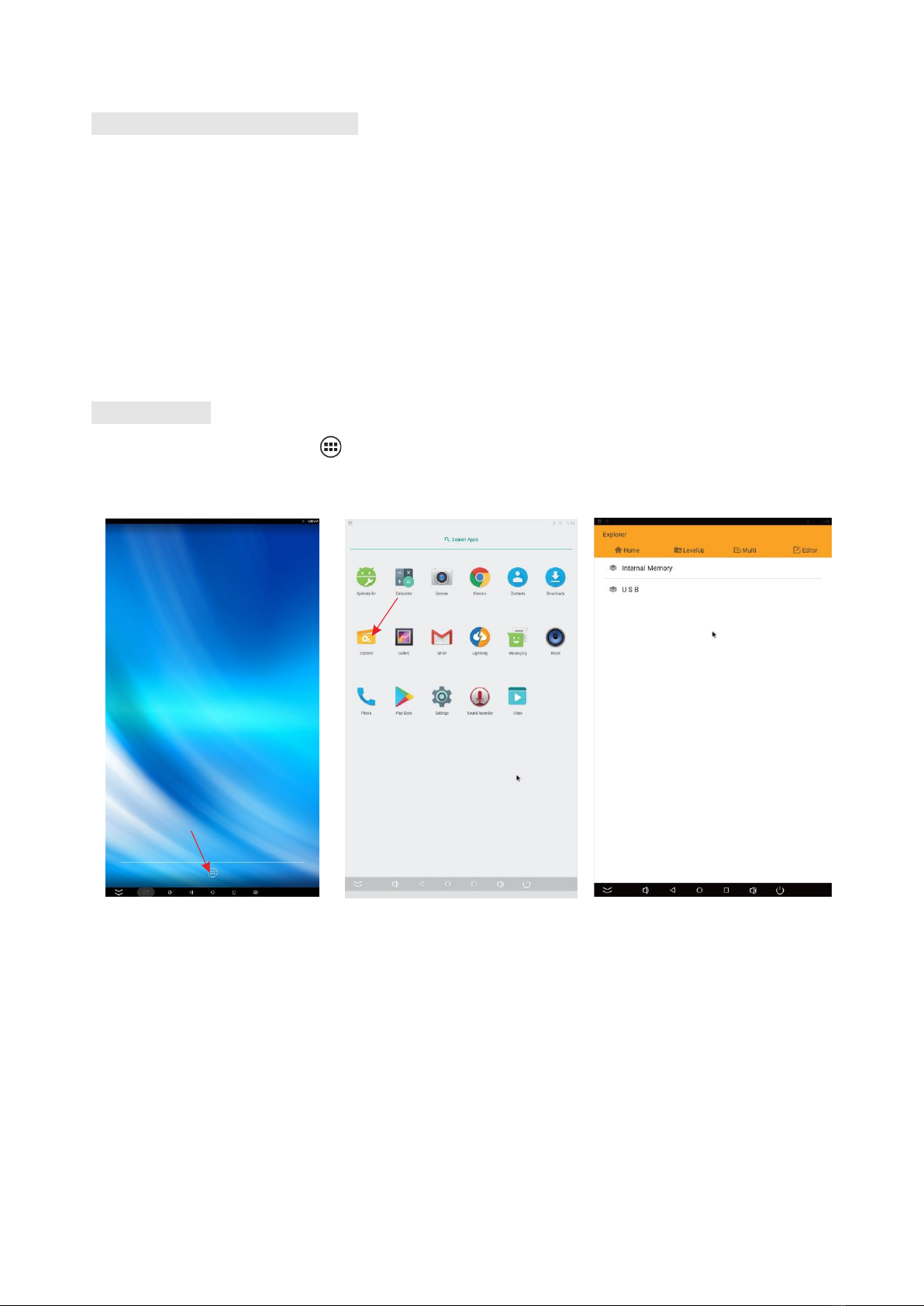
After power on, the machine will launch home screen, as shown below:
10
Displays2go
Description of Wallpaper Switch
We suggest using a mouse to change the wallpaper.
Connect a mouse with the digital panel through USB port, then follow the steps below:
1. click “Setting”
2. At the setting menu, click “Display”
3. At the Display setting menu, click “Wallpaper”, then choose a folder.
4. Then select an image you would like to set up as background.
5. Confirm the selection by clicking “Set wallpaper”.
File Manager
1. Click the Main Apps button “ ” in the Home screen to enter the “APPS” menu interface (Fig. 2);
2. Click the “Explorer” icon in the “APPS” menu interface (Fig. 2) and enter “Explorer” menu (Fig. 3);
3. Choose storage in the “Explorer” menu to read the files from different devices.
Fig. 1 Fig. 2 Fig.3
Este manual sirve para los siguientes modelos
1
Tabla de contenidos
Otros manuales de Panel táctil de Displays2go


Manuales populares de Panel táctil de otras marcas


IBASE Technology
IBASE Technology ASTUT-152-RE1S Manual de usuario

YASKAWA
YASKAWA TP 610C Manual de usuario

B&R
B&R Power Panel C Series Manual de usuario

Beijer Electronics
Beijer Electronics X2 control Manual de usuario

AXIOMTEK
AXIOMTEK GOT321W-521 Manual de usuario

TRIDONIC.ATCO
TRIDONIC.ATCO x-touchBOX Manual de usuario


