DirekTronik LDDS20 Manual de usuario

LDDS20 - LoRaWAN Ultrasonic Liquid Level Sensor
User Manual
last modified by Xiaoling
on 2022/10/27 17:54

User Manual for LoRaWAN End Nodes - LDDS20 -
LoRaWAN Ultrasonic Liquid Level Sensor User Manual
Table of Contents
1. Introduction ........................................................................................................................................................................ 4
1.1 What is LoRaWAN Ultrasonic liquid levelSensor .................................................................................................... 4
1.2 Features ........................................................................................................................................................................ 5
1.3 Suitable Container & Liquid ........................................................................................................................................ 5
1.4 Mechanical .................................................................................................................................................................... 5
1.5 Install LDDS20 ............................................................................................................................................................. 6
1.6 Applications ................................................................................................................................................................... 9
1.7 Precautions ................................................................................................................................................................... 9
1.8 Pin mapping and power on ........................................................................................................................................ 9
2. Configure LDDS20 to connect to LoRaWAN network ................................................................................................ 10
2.1 How it works ............................................................................................................................................................... 10
2.2 Quick guide to connect to LoRaWAN server (OTAA) ........................................................................................... 10
2.3 Uplink Payload ............................................................................................................................................................ 17
2.3.1 Battery Info ........................................................................................................................................................... 17
2.3.2 Distance ................................................................................................................................................................. 17
2.3.3 Interrupt Pin .......................................................................................................................................................... 17
2.3.4 DS18B20 Temperature sensor .......................................................................................................................... 17
2.3.5 Sensor Flag .......................................................................................................................................................... 18
2.3.6 Decode payload in The Things Network ........................................................................................................... 18
2.4 Downlink Payload ...................................................................................................................................................... 18
2.5 Show Data in DataCake IoT Server ........................................................................................................................ 19
2.6 LED Indicator .............................................................................................................................................................. 22
2.7 Firmware Change Log ............................................................................................................................................... 22
2.8 Battery Analysis ......................................................................................................................................................... 23
2.8.1 Battery Type ......................................................................................................................................................... 23
2.8.2 Battery Note .......................................................................................................................................................... 23
2.8.3 Replace the battery ............................................................................................................................................. 23
2.8.4 Battery Life Analyze ............................................................................................................................................. 24
3. Using the AT Commands .............................................................................................................................................. 24
3.1 Access AT Commands ............................................................................................................................................. 24
3.2 Set Interrupt Mode ..................................................................................................................................................... 28
4. FAQ .................................................................................................................................................................................. 28
4.1 What is the frequency plan for LDDS20? ............................................................................................................... 28
4.2 How to change the LoRa Frequency Bands/Region ............................................................................................. 29
5. Trouble Shooting ............................................................................................................................................................ 29
5.1 Why I can't join TTN V3 in US915 / AU915 bands? ............................................................................................. 29
5.2 AT Command input doesn't work ............................................................................................................................ 29
5.3 Why i always see 0x0000 or 0 for the distance value? .......................................................................................... 29
6. Order Info ........................................................................................................................................................................ 29
7. Packing Info ..................................................................................................................................................................... 29
8. Support ............................................................................................................................................................................. 30
Page 2 / 30 - last modified by Xiaoling on 2022/10/27 17:54

User Manual for LoRaWAN End Nodes - LDDS20 -
LoRaWAN Ultrasonic Liquid Level Sensor User Manual
Table of Contents:
•1. Introduction
•1.1 What is LoRaWAN Ultrasonic liquid levelSensor
•1.2 Features
•1.3 Suitable Container & Liquid
•1.4 Mechanical
•1.5 Install LDDS20
•1.6 Applications
•1.7 Precautions
•1.8 Pin mapping and power on
•2. Configure LDDS20 to connect to LoRaWAN network
•2.1 How it works
•2.2 Quick guide to connect to LoRaWAN server (OTAA)
•2.3 Uplink Payload
•2.3.1 Battery Info
•2.3.2 Distance
•2.3.3 Interrupt Pin
•2.3.4 DS18B20 Temperature sensor
•2.3.5 Sensor Flag
•2.3.6 Decode payload in The Things Network
•2.4 Downlink Payload
•2.5 Show Data in DataCake IoT Server
•2.6 LED Indicator
•2.7 Firmware Change Log
•2.8 Battery Analysis
•2.8.1 Battery Type
•2.8.2 Battery Note
•2.8.3 Replace the battery
•2.8.4 Battery Life Analyze
Page 3 / 30 - last modified by Xiaoling on 2022/10/27 17:54

User Manual for LoRaWAN End Nodes - LDDS20 -
LoRaWAN Ultrasonic Liquid Level Sensor User Manual
•3. Using the AT Commands
•3.1 Access AT Commands
•3.2 Set Interrupt Mode
•4. FAQ
•4.1 What is the frequency plan for LDDS20?
•4.2 How to change the LoRa Frequency Bands/Region
•5. Trouble Shooting
•5.1 Why I can't join TTN V3 in US915 / AU915 bands?
•5.2 AT Command input doesn't work
•5.3 Why i always see 0x0000 or 0 for the distance value?
•6. Order Info
•7. Packing Info
•8. Support
1. Introduction
1.1 What is LoRaWAN Ultrasonic liquid levelSensor
The Dragino LDDS20 is a LoRaWAN Ultrasonic liquid level sensor for Internet of Things solution. It uses none-
contact methodto measure the height of liquid in a container without opening the container, and send the value via
LoRaWAN network to IoT Server
The LDDS20 sensor is installed directly below the container to detect the height of the liquid level. User doesn't
need to open a hole on the container to be tested. The none-contact measurement makes the measurement
safety, easier and possible for some strict situation.
LDDS20 uses ultrasonic sensing technology for distance measurement. LDDS20 is of high accuracy to measure
various liquid such as: toxic substances, strong acids, strong alkalis and various pure liquids in high-
temperature and high-pressure airtight containers.
The LoRa wireless technology used in LDDS20 allows device to send data and reach extremely long ranges at
low data-rates. It provides ultra-long range spread spectrum communication and high interference immunity whilst
minimizing current consumption.
LDDS20 is powered by 8500mA Li-SOCI2 battery; It is designed for long term use up to 10 years*.
Each LDDS20 pre-loads with a set of unique keys for LoRaWAN registrations, register these keys to local
LoRaWAN server and it will auto connect if there is network coverage, after power on.
*Actually lifetime depends on network coverage and uplink interval and other factors.
Page 4 / 30 - last modified by Xiaoling on 2022/10/27 17:54

User Manual for LoRaWAN End Nodes - LDDS20 -
LoRaWAN Ultrasonic Liquid Level Sensor User Manual
1.2 Features
• LoRaWAN 1.0.3 Class A
• Ultra low power consumption
• Liquid Level Measurement by Ultrasonic technology
• Measure through container, No need to contact Liquid.
• Valid level range 20mm - 2000mm
• Accuracy: ±(5mm+S*0.5%) (S: Measure Value)
• Cable Length : 25cm
• Bands: CN470/EU433/KR920/US915/EU868/AS923/AU915/IN865
• AT Commands to change parameters
• Uplink on periodically
• Downlink to change configure
• IP66 Waterproof Enclosure
• 8500mAh Battery for long term use
1.3 Suitable Container & Liquid
• Solid Wall container such as: steel, iron, glass, ceramics, non-foaming plastics etc.
• Container shape is regular, and surface is smooth.
• Container Thickness:
• Pure metal material. 2~8mm, best is 3~5mm
• Pure non metal material: <10 mm
• Pure liquid without irregular deposition.
1.4 Mechanical
Page 5 / 30 - last modified by Xiaoling on 2022/10/27 17:54

User Manual for LoRaWAN End Nodes - LDDS20 -
LoRaWAN Ultrasonic Liquid Level Sensor User Manual
1.5 Install LDDS20
Step 1: Choose the installation point.
LDDS20 MUST be installed on the container bottom middle position.
Step 2: Polish the installation point.
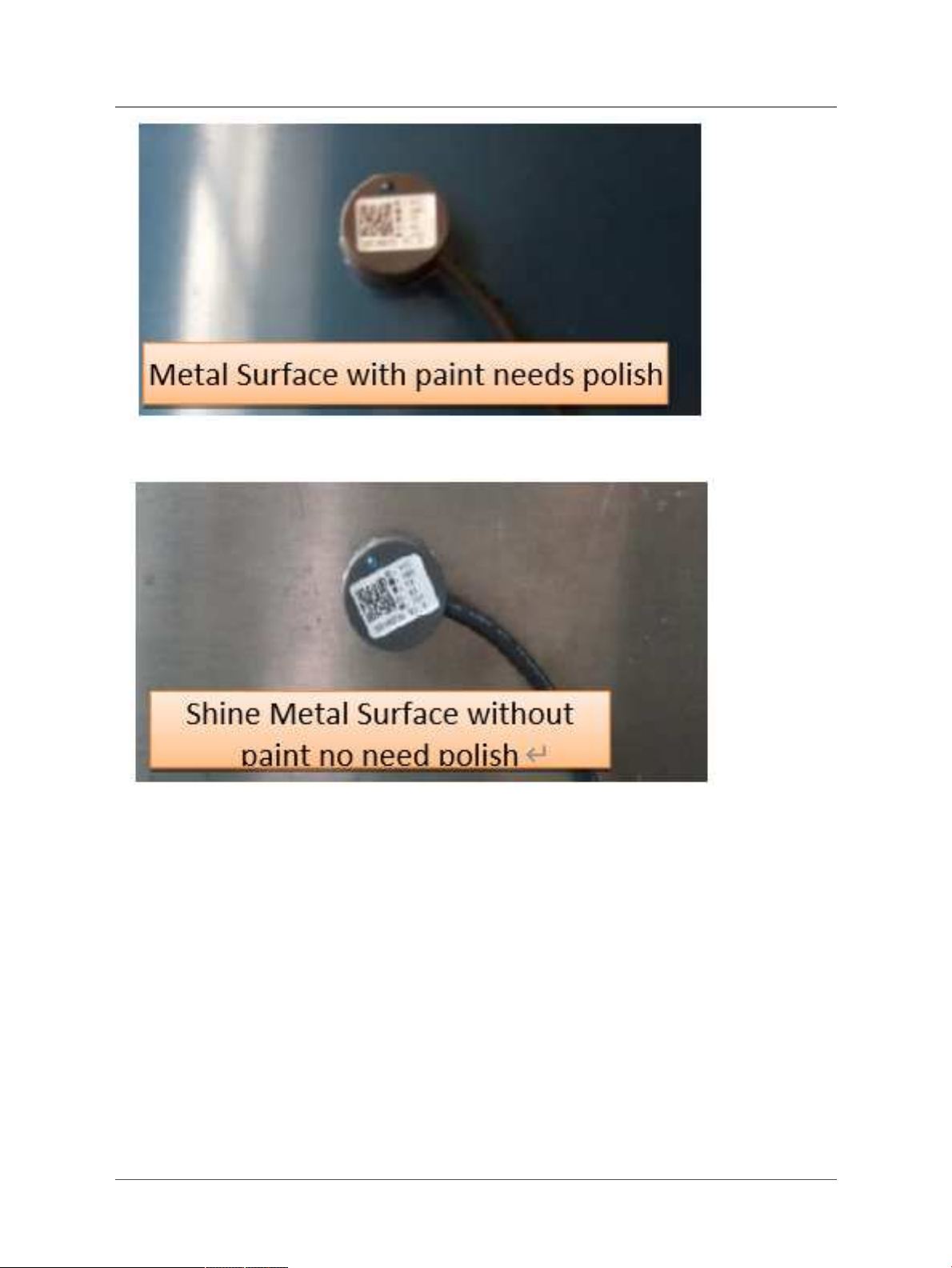
For Metal Surface with paint, it is important to polish the surface, first use crude sand paper to polish the paint level ,
then use exquisite sand paper to polish the metal level to make it shine & smooth.
Page 6 / 30 - last modified by Xiaoling on 2022/10/27 17:54

User Manual for LoRaWAN End Nodes - LDDS20 -
LoRaWAN Ultrasonic Liquid Level Sensor User Manual
No polish needed if the container is shine metal surface without paint or non-metal container.
Step3:Test the installation point.
Power on LDDS20, check if the blue LED is on, If the blue LED is on, means the sensor works. Then put ultrasonic
coupling paste on the sensor and put it tightly on the installation point.
It is necessary to put the coupling paste between the sensor and the container, otherwise LDDS20 won't detect the
liquid level.
Page 7 / 30 - last modified by Xiaoling on 2022/10/27 17:54
User Manual for LoRaWAN End Nodes - LDDS20 -
LoRaWAN Ultrasonic Liquid Level Sensor User Manual
After paste the LDDS20 well, power on LDDS20. In the first 30 seconds of booting, device will check the sensors
status and BLUE LED will show the status as below. After 30 seconds, BLUE LED will be off to save battery life.
LED Status:
• Onboard LED: When power on device, the onboard LED will fast blink 4 times which means detect the sensor
well.
•BLUE LEDalways ON: Sensor is power on but doesn't detect liquid. There is problem in installation point.
•BLUE LEDslowly blinking: Sensor detects Liquid Level, The installation point is good.
LDDS20 will enter into low power mode at 30 seconds after system reset or power on, Blue LED will be off after that.
Note 2:
Ultrasonic coupling paste is subjected in most shipping way. So the default package doesn't include it and user
needs to purchase locally.
Step4:Install use Epoxyabglue.
Prepare Eproxy AB glue.
Put Eproxy AB glue in the sensor and press it hard on the container installation point.
Reset LDDS20 and see if the BLUE LED is slowly blinking.
Page 8 / 30 - last modified by Xiaoling on 2022/10/27 17:54

User Manual for LoRaWAN End Nodes - LDDS20 -
LoRaWAN Ultrasonic Liquid Level Sensor User Manual
Note 1:
Eproxy AB glue needs 3~ 5 minutes to stable attached. we can use other glue material to keep it in the position.
Note 2:
Eproxy AB glue is subjected in most shipping way. So the default package doesn't include it and user needs to
purchase locally.
1.6 Applications
• Smart liquid control solution.
• Smart liquefied gas solution.
1.7 Precautions
• At room temperature, containers of different materials, such as steel, glass, iron, ceramics, non-foamed
plastics and other dense materials, have different detection blind areas and detection limit heights.
• For containers of the same material at room temperature, the detection blind zone and detection limit height
are also different for the thickness of the container.
• When the detected liquid level exceeds the effective detection value of the sensor, and the liquid level of the
liquid to be measured shakes or tilts, the detected liquid height is unstable.
1.8 Pin mapping and power on
Page 9 / 30 - last modified by Xiaoling on 2022/10/27 17:54

User Manual for LoRaWAN End Nodes - LDDS20 -
LoRaWAN Ultrasonic Liquid Level Sensor User Manual
2. Configure LDDS20 to connect to LoRaWAN
network
2.1 How it works
The LDDS20 is configured as LoRaWAN OTAA Class A mode by default. It has OTAA keys to join LoRaWAN
network. To connect a LoRaWAN network, you need to input the OTAA keys in the LoRaWAN IoT server and power
on the LDDS20. If there is coverage of the LoRaWAN network, it will automatically join the network via OTAA and
start to send the sensor value.
In case you can't set the OTAA keys in the LoRaWAN OTAA server, and you have to use the keys from the server,
you can use AT Commandsto set the keys in the LDDS20.
2.2 Quick guide to connect to LoRaWAN server (OTAA)
Following is an example for how to join the TTN v3 LoRaWAN Network. Below is the network structure; we use the
LG308 as a LoRaWAN gateway in this example.
The LG308 is already set to connected to TTN network, so what we need to now is configure the TTN server.
Page 10 / 30 - last modified by Xiaoling on 2022/10/27 17:54
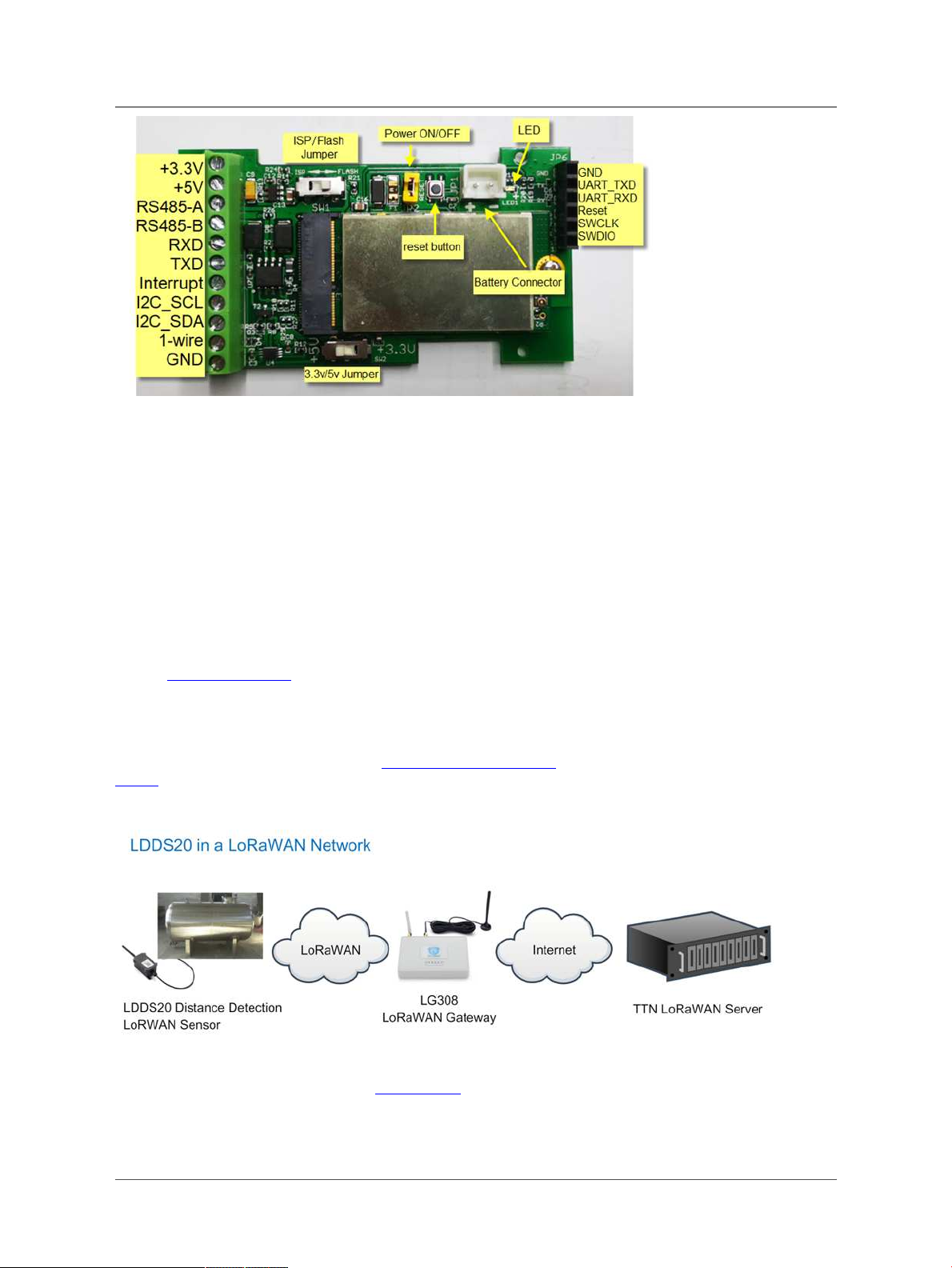
Tabla de contenidos
Otros manuales de Sensor de seguridad de DirekTronik


