Digital Spectrum Solutions MemoryFrame MF-8000 Manual de usuario

TM
Model MF-8000, MF-8104, MF-8115
Premium Edition
User Manual
Version 2.3.0.0

Product Introduction
Congratulations! You are the proud owner of a MemoryFrameTM Wireless Digital Picture Frame. Boasting high-quality image resolution the MemoryFrameTM is the perfect product for
displaying your favorite digital images, video files, or listening to your favorite MP3’s. The MemoryFrameTM includes a patented changeable frame capture system. This allows you to use a
standard 8x10 and 15” frame so your MemoryFrameTM never goes out of style. You can decorate as your lifestyle and tastes change, whether in the home or office. The MemoryFrameTM
displays images in a slide show format, which may also be accompanied by background music. Embedded 802.11 b/g wireless functionality allows the MemoryFrameTM to seamlessly become
part of your home network. This allows the transferring of images, clips, and tracks; no wires, no hassle. The Premium edition of MemoryFrameTM is also web enabled so that you can play or
download images from popular photo sharing sites. MemoryFrameTM Premium also works with Windows Vista or Windows XP equipped with Media Player 11 as a sharing device. This way
Vista or XP can be your own home sharing site.
Features
9Display digital images and videos with or without a computer
9Listen to MP3 audio while displaying images
9Built-in stereo speakers with volume control and Mute
9Built-in 802.11 b/g wireless
9Bluetooth Capable (Requires Bluetooth USB Dongle – Not Included)
9The frame is changeable with standard 8x10 and 15” frames. Your choice is unlimited!∗
9Generous internal memory
9Web enabled for photo sharing
9Support for – CF/SD/XD/MMC memory cards
9Works with Windows Vista®and Windows XP equipped with WMP 11
9TFT-LCD with high resolution, wide view angle and rich color
9Easy to use remote control for displaying and managing your content
9Desktop/Wall Mount
9Landscape/Portrait
Package Contents
MemoryFrameTM comes packaged with the following items:
A. MemoryFrameTM unit
B. Removable Desktop Stand
C. A.C. Power Adapter
D. Remote Control
E. USB Cable
F. User Manual
G. xD Card reader
Setting up the MemoryFrameTM
A. Open the package and remove the protective foam. Remove the protective sleeve from the unit.
B. Install the removable Desktop Stand. There are 3 positions, Landscape, Portrait, and Insert/Remove.
C. Plug in the AC adapter into the power outlet. Plug the other end into the unit.
D. Turn power to the On position via the Power switch. The Power switch is on the right side of the MemoryFrameTM, in the rear.
E. During Power Up the display will present an opening screen with progress bar. When complete it will play the default slide show.
F. If the content is stored on a target flash media card, insert the media into the proper slot.
Connectivity – USB and Media Cards
MemoryFrameTM is equipped with both USB port types for complete USB connectivity. One USB port is used to connect to the PC. In this manner content can be sent to the
frame from the PC. In Explorer, the frame will be identified as an external storage device. The other USB port is for connecting devices such as cameras and thumb drives. A CF
slot is provided for CF cards and CF adapters. A MMC/SD slot is provided for MMC/SD. An external USB card reader is included to support XD media.
Remote Control
Function Description
Power On/Off
Mute Audio On/Off
Vol+ Increase Volume
Vol- Decrease Volume
Back Go back one screen
Play Play content
Clock Display Clock
Menu Go to Menu
Enter Enter/Select
◄Left
►Right
▲Up
▼Down
∗U.S. Patent 6,826,863 B1
2

Replacing Remote Control Battery
On Screen Menu Controls
This feature is included so that content can be managed and controlled. The menu system is activated by pressing the Menu button. The Main Menu is shown below.
Main Menu
The Main Menu is the starting point to navigate to the desired function.
Function Description Sample Screen
Picture
User can play a picture slideshow. User
can specify the source location for picture
files and can select specific pictures to
play. User can copy pictures to internal
memory and delete pictures from internal
memory.
Video
User can play Windows Media Video
(WMV) files*. User can specify the source
location for video and can select specific
videos to play. User can copy videos to
internal memory and delete videos from
internal memory.
Music
User can play music. User can specify the
source location for music files and can
select specific songs to play. User can
copy music files to internal memory and
delete music from internal memory.
Resume
Slideshow User can resume a slideshow for playback.
Theme Change the background color.
Settings
Change MemoryFrameTM settings
Search
wireless
network
Search for available wireless networks
in the area
Stop
music
Stops music playback. If music is
playing selecting “Stop music” will
end the music.
*A WMV Converter utility is included with the MemoryFrameTM CD to allow users to convert different video formats into WMV.
3

Pictures
Function Description Sample Screen
Play
slideshow
Play picture slideshow and specify
source location. Playback functions
support Play All, Choose Individual,
or Pictures by date.
Copy
picture(s) Copy pictures from a specified
source location into internal memory
Delete
picture(s) Delete pictures from internal
memory
Share
picture(s)
Share pictures from device to
another MemoryFrameTM Premium
Edition.
Play Slideshow
When Play Slideshow is selected, the user can specify the location of the picture files.
Note – The entire list of media sources may not be displayed. MemoryFrameTM will only display the removable media types which are inserted and have media files.
Picture Selection
When a source location is selected, the user can specify playing all the pictures found or individual photo selections.
Function Description Sample Screen
Play all
picture(s) Play all the pictures found in the
source location
Choose
individual
picture(s)
Select specific pictures for
playback, once selection is
complete, press ‘Play’ button in
remote control
Choose by
Date Play slideshow by date stamp of
image
Choose Individual Picture(s)
Press the arrow keys to navigate to the desired pictures. Press ENTER to select a picture. Press ENTER again to unselect a picture. Once all the selections have been made, press
‘Play’ in remote control or navigate to Play option and press ENTER.
4

Video
MemoryFrameTM can play properly formatted WMV video files. A WMV converter utility is provided on the software CD to ensure a consistent video experience, and to allow
compatibility with a variety of popular video formats. From the Main Menu, navigate to Video and press ENTER.
The Video Menu features the option to play a specific video file as well as the ability to copy video files into MemoryFrame’sTM internal memory or delete video files from internal
memory. The procedures to play, copy, or delete video files are the same as the corresponding procedures to play, copy, or delete picture files.
Note: Video playback over a network is not currently supported. Video files must originate from internal memory or removable media inserted into MemoryFrameTM.
Music
MemoryFrameTM can play MP3 and WMA music files. From the Main Menu, navigate to Music and press ENTER.
The Music Menu features the option to create a song list, as well as the ability to copy music files into MemoryFrame’sTM internal memory or delete music files from internal
memory.
Press ‘Select new song list’ to select songs that will be added to the song list.
5

The procedures to play, copy, or delete music files are the same as the corresponding procedures to play, copy, or delete picture files.
Playing Background Music during Picture Slide Show
While a song list is being played, the user can resume the previous picture slideshow by pressing the PLAY button on the remote control. Volume can be adjusted using the Vol+
and Vol- buttons on the remote control. During slideshow playback, volume can also be adjusted by pressing the up and down arrow buttons on the MemoryFrameTM. To stop
music press Menu, then select Stop Music.
Settings
This function is used to personalize the frame operation and configuration. This includes slideshow, photo sharing, set clock, sleep settings, language, orientation, network
information, and automatic updates.
From the Main Menu, navigate to Settings and press ENTER.
6

Function Description Sample Screen
Resume slideshow Exits the Settings menu and resumes playback of
previous picture slideshow
Frame orientation Toggles between landscape (horizontal) and portrait
(vertical) display settings
Slideshow Settings Sets slideshow preferences, including slide duration,
transition type, picture order, and music options
Slide Duration This is used to set the slideshow timing. The setting
are 5, 10, 15, 30 seconds, and 1, 5, 30 minutes, and 1
hour.
Slide Transition
This lets you select the transition style between
images in a slideshow. There are 12 settings. One of
them is Random, which randomizes transitions
during a slideshow.
7

Picture Order This lets you select the ordering of images during a
slideshow. The selections are sequential or random.
Music Option This lets you select the way music is played. This
includes Music order and loop control.
Auto Slideshow Update This lets the frame automatically update a slideshow
when new images are added to a photo sharing
account.
Show Online Status
This is a small antenna icon in the lower right of the
screen that shows whether the network is connected
or not. When set to No, the antenna icon is not
shown.
Play received Pictures
only
This lets you play all pictures from a photo sharing
site, or just newly added images. If set to No, all
pictures will be played.
8

Prompt me for new
Pictures
This lets you approve each picture that is in your
photo sharing account and prompts you when a new
image has arrived. When set to No new pictures will
automatically be added to the slideshow.
Video Repeat This lets you set the loop control for video playback.
When set to No, video will be played once. When set
to Yes, the video will loop.
Set time Sets the date and time.
Set time zone
Specify the local time zone
Language Specify the language.
9

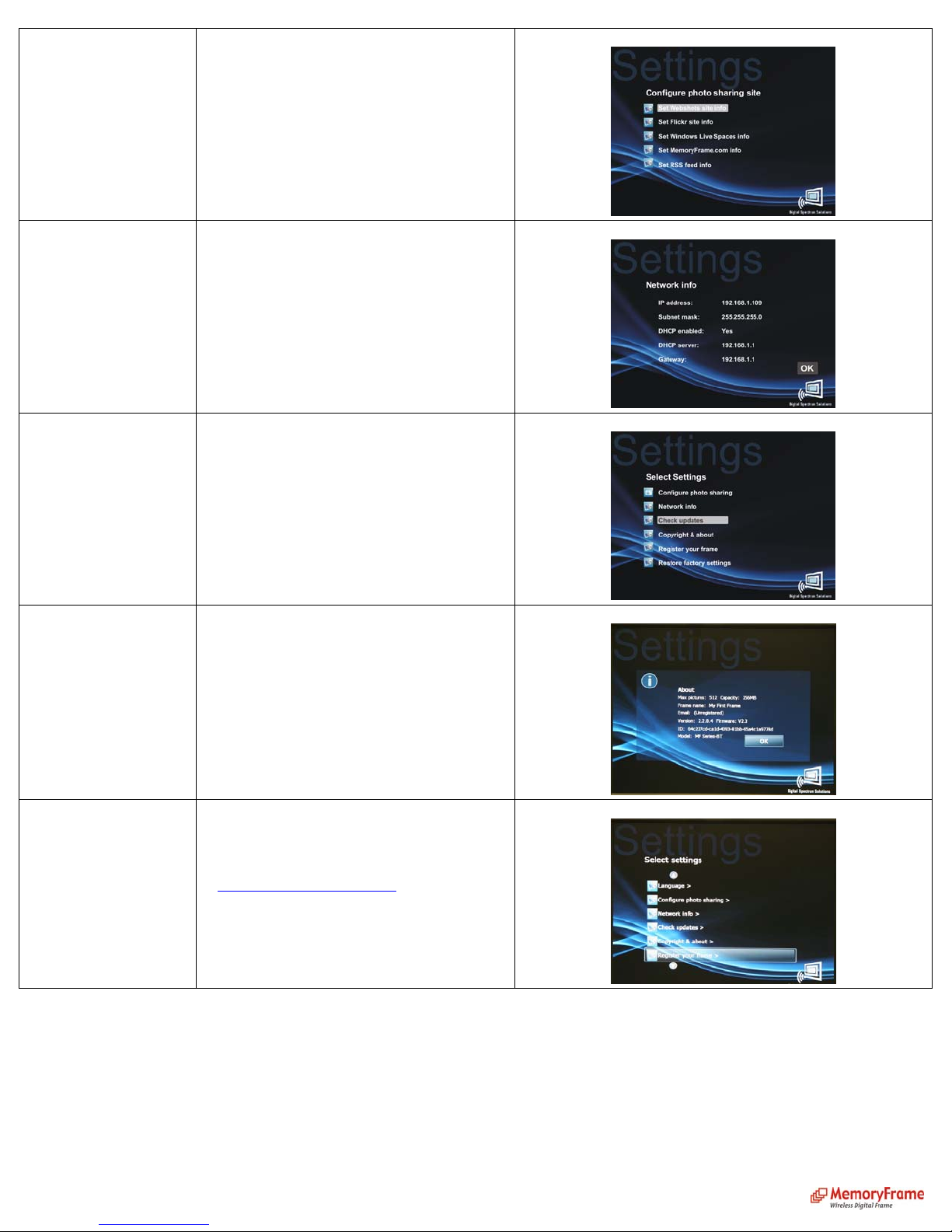
Configure Photo Sharing Enter User Account information for photo sharing
site. User may enter more than 1 account. User may
also input RSS Feeds by inserting RSS URL.
Network Info
Displays network status and configuration
information
Check Updates Checks if a software update is available. This feature
requires an Internet connection.
Copyright & about Click on “About” to get frame information, including
FrameID, Frame Email, Software version #,
Firmware version #.
Register your frame
To register your frames go to
http://www.MemoryFrame.com and sign up for a
free account. This allows pushing albums/pictures to
the frame from MemoryFrame.com photo sharing
site.
10
Este manual sirve para los siguientes modelos
2
Tabla de contenidos
Otros manuales de Marco de fotos digital de Digital Spectrum Solutions