
Digital Blue Disney Mix Max 512MB Manual de usuario


Table of Contents
Getting Started................................................................................................................ 1
Installing Software.........................................................................................................1
Charging the Player .......................................................................................................2
Player Components .......................................................................................................3
Buttons Available for Gaming....................................................................................7
Attaching the Wrist Strap ............................................................................................ 8
Using the Software ........................................................................................................8
Adding Files to the Library.......................................................................................... 8
Using the Mix-It Plug-In ...............................................................................................9
Transferring Files to the Player .................................................................................. 9
Using the Player............................................................................................................10
Listening to Music........................................................................................................11
Making Mix-It Playlists................................................................................................11
Viewing Pictures ...........................................................................................................12
Viewing Videos..............................................................................................................12
Playing Games ...............................................................................................................13
Changing the Settings................................................................................................14
Using SD/MMC Cards..................................................................................................15
Additional Help.............................................................................................................15

Getting Started
Congratulations on purchasing a DisneyMix Max Plus Media player!
The Mix Max Plus enables you to listen to music, view pictures, play games, and
watch videos anywhere!
Installing Software
The included Mix-It Software allows you to make instant mixes that match the mood and style
of the current song playing.
We recommend that you use Windows Media Player (WMP) to organize and sync media to the
player. By default, your computer should have WMP already installed. If it doesn’t, it can be
downloaded from http: //www.microsoft.com.
Note: The PC must be connected to the Internet and have Windows XP or Vista with WMP 10
or higher for the Mix-It Plug-In to work.
To Install the Software:
1. Insert the Software CD into the PC. If the installation doesn’t start automatically, double-
click on the My Computer icon then double-click on the CD Drive. When the installation
screen appears, click“Install.”
2. Follow the prompts to nish installing the software.
3. After installation, start Windows Media Player (WMP). The Mix-It plug-in will launch
automatically.
4. To analyze your music library with the Mix-It Plugin, click“Go.”
Note: To have the Mix-It Plug-In analyze songs, you may need to change the setting of the
Plug-In. To do this, click the Mix-It icon on the desktop in the Start menu. Select “tools” on
the Mix-It screen. Under the tools menu, check the box next to“Use Extended Analysis.”
Then, from the drop down menu next to “Processor Load”, choose“Maximum”.
Charging the Player
You need to charge the player the rst time you use it and also when the battery is low.
Note: The battery lasts approximately 8 hours playing music and 2 hours playing video.
To do this:
1. Remove the USB cover found on the bottom of the device.
2. Connect the player to the PC using the supplied USB cable.
3. The player will begin charging. The battery indicator will ash between‘empty’
and the current charge. Once the battery is fully charged, the indicator will stop ashing.
If this is the rst time the player is connected, wait until Windows detects the player and
follow the Windows prompts.
Note: To charge your Mix Max Plus away from the computer, a USB AC Adapter is available at
www.disneyshopping.com or at your local retailer.
Headphone
Jack
hold power
vol+
vol-
HOLD
hold power
HOLD
vol+
vol-
LR
ENTER
hold
ENTER
USB Port
with cover on

Player Components
Display Screen -Use the Display Screen to view the menu and see what media is playing.
Strap Holder -Attach the wrist strap to the strap holder.
Mix-It button - Use the Mix-It button to instantly create Mix-It playlists or random playlists.
Play/Pause Button - Push to play media, push during play to pause.
Hold switch - Locks the buttons.
Power button - Turns the player on and o.
hold power
vol+
vol-
HOLD
hold power
HOLD
vol+
vol-
LR
ENTER
hold
ENTER
Display Screen
Strap Holder
Mix-It button
Play/Pause Button
hold power
vol+
vol-
HOLD
hold power
HOLD
vol+
vol-
LR
ENTER
hold
ENTER
Power button Hold switch

SD/MMC Memory Card Slot - The SD/MMC Memory Card Slot allows you to use your own
memory card to store more images, songs, and video on the player. You can also listen to Mix
Clips (sold separately) and watch Max Clips (also, sold separately) by inserting them here.
Up/Skip button - Choose the next song, video or photo.
Enter/Play button - Select songs or options, play media.
Left/Backward button - Make selections or rewind songs.
Down/Skip button - See the previous song, video or photo.
Right/Forward button - Choose dierent selections or to skip through songs.
Menu button - Use the Menu button to go back to the previous menu.
Up/Skip button
Left/Backward button Right/Forward button
Down/Skip button
Enter button
Menu button
hold power
vol+
vol-
HOLD
hold power
HOLD
vol+
vol-
LR
ENTER
hold
ENTER
SD/MMC Memory Card Slot

Top of Player
hold power
vol+
vol-
HOLD
hold power
HOLD
vol+
vol-
LR
ENTER
hold
ENTER
hold power
vol+
vol-
HOLD
hold power
HOLD
vol+
vol-
LR
ENTER
hold
ENTER
Bottom of Player
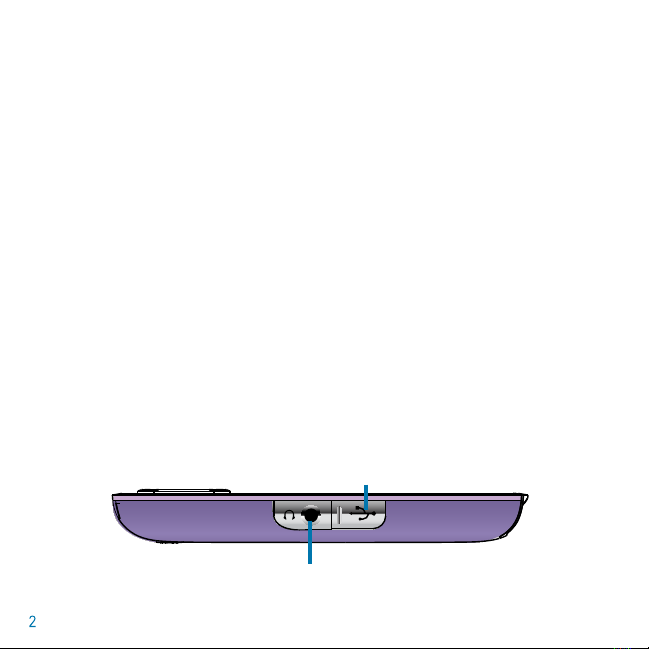
USB Input (under cover) - Connects the player to the computer.
Headphone Jack - Attaches the earbuds to the player.
USB Cable - Use the provided USB cable to connect the player to the PC.
Volume Down/Mute button - Press to lower the volume, press and hold
to mute the player.
Volume Up button - Increases the volume level.
Left button - Use during gameplay, as left softkey.
Right button - Use during gameplay, as right softkey.
Headphone Jack
USB Port (under cover)
Volume Down/
Mute button
Volume Up
Left button Right button

Player Display Screen
Now Playing Icon - Select this icon to see which media is currently playing.
Pictures Icon - Select this icon to access pictures.
Music Icon - Select this icon to access songs.
Settings Icon - Select this icon to change settings on the player.
Lock Symbol - Indicates that the buttons are locked.
Battery Status Icon - Shows how much battery life the player has left.
When the “critically low” symbol appears make sure to charge the player.
Video Icon
Pictures Icon Settings Icon
Now Playing Icon
Battery Status Icon
Lock Symbol
Clock
Music Icon
Mix-It Icon
Games Icon

Mix-It Icon - Shows when you are using the Mix-It function.
Games Icon - Select this icon to play games.
Videos Icon - Select this icon to access videos.
Buttons Available for Gaming
hold power
vol+
vol-
HOLD
hold power
HOLD
vol+
vol-
LR
ENTER
hold
ENTER
Left softkey Right softkey
hold power
vol+
vol-
HOLD
hold power
HOLD
vol+
vol-
LR
ENTER
hold
ENTER
Back
Action
Exit game
D-Pad
Up, Down,
Left, Right
Action
Available softkeys

Attaching the Wrist Strap
Your new Mix Max Plus comes with a wrist strap so you can easily carry your media everywhere.
Insert the loop through the Strap Holder of the camera. Insert the strap through the loop and pull
until snug.
Using the Software
Adding songs to the device is easy! Windows Media Player (WMP) allows you to transfer les from
your PC to the device using the Sync feature on the player. Windows Media Player also uses the
Mix-It feature to instantly mix songs based on the song that is currently playing.
Adding les to the Library
To add music to the Windows Media Player, you can either copy music from CDs you own or you
can purchase music on the internet. Most PCs with Windows XP or Vista have WMP 10 or 11. Older
PCs may have earlier versions.
To “Rip” Music to Windows Media Player 10 and 11:
1. Insert a CD in the drive.
2. A screen will appear giving you some options.
3. Choose “Rip Music From CD”.
4. Windows Media Player will open and automatically begin ripping the music from the CD.
5. When completed, the music can be found in the My Music folder and is accessible with the
Windows Media Player.
Strap
Loop
Otros manuales para Disney Mix Max 512MB
1
Este manual sirve para los siguientes modelos
1
Tabla de contenidos


