
Delphi SkyFi Manual de usuario

Guide
Operating
Radio to the power of X
™
SKYFi™
Warning: This manual and
the SKYFi Installation Guide contain
important safety and operating
information. Please read and follow
the instructions in these manuals.
Failure to do so could result in
personal injury or damage to your
SKYFi or to your vehicle.


Welcome
Thank you for purchasing a SKYFi™ Receiver
by Delphi. Your SKYFi Receiver gives you
access to over 100 XM®Satellite Radio chan-
nels of music, news, and information.
Your SKYFi Receiver must be used with a
SKYFi adaptor kit, such as the SKYFi Home Kit
or SKYFi Vehicle Kit. These kits are available at
retailers where SKYFi main units are sold.
SKYFi Home Kit
SA10004
SKYFi Vehicle Kit
SA10002

CONTENTS
Section 1
Getting Started: Activating SKYFi · · · · · · 2
Section 2
SKYFi Receiver
SKYFi Receiver Controls · · · · · · · · · · · · 4
SKYFi Display Screen· · · · · · · · · · · · · · · 5
SKYFi Remote Control · · · · · · · · · · · · · · 6
Section 3
Basic Operations
Turning SKYFi On and Off · · · · · · · · · · · 7
Basic Channel Selection · · · · · · · · · · · · 7-10
Enlarging Display Text · · · · · · · · · · · · · · 10
Save and Recall Artist Name
and Song Title · · · · · · · · · · · · · · · · · · · 10
Section 4
Menu Commands and Settings · · · · · · · · 11-12
Section 5
Reference
Taking Care of Your SKYFi· · · · · · · · · · · 13
Replacing SKYFi Remote Control
Batteries · · · · · · · · · · · · · · · · · · · · · · · · 13
Technical Information· · · · · · · · · · · · · · · 14
Troubleshooting· · · · · · · · · · · · · · · · · · · · · 15-16
Contacting Customer Service · · · · · · · · · 16
Section 6
Warranty · · · · · · · · · · · · · · · · · · · · · · · · · · · · · 17-18
1

Getting Started: Activating SKYFi
To quickly begin enjoying XM Satellite Radio,
follow these simple steps:
1. Set up your SKYFi Receiver using the instal-
lation instructions included in the SKYFi
Home Kit, SKYFi Vehicle Kit, or other kit, or
with the help of a professional installer.
2. Press the power button to turn the SKYFi
Receiver on and verify that it is playing
Channel 1, the XM Preview Channel.
3. Select Channel 0. The receiver’s eight-
character XM Satellite Radio ID number will
appear on the display. Write the number
here:
Note: Carefully check your XM Radio ID.
The letters I, O, S, and F are not used.
4. Activate your XM Satellite Radio service.
To subscribe, make sure you have a major
credit card and your XM Satellite Radio
ID number handy and contact XM at
http://activate.xmradio.com. You can
also activate your service by calling
1-800-852-9696.
2
Section 1
Caution: Failure to properly follow all installation
instructions may result in personal injury or damage to
your SKYFi or to your vehicle.
Warning: When using this product it is always
important to keep your eyes on the road and your
hands on the wheel. Not doing so could result in injury
to you or to others or in property damage.

3
Section 2
Number keys
Category search
Scroll wheel
Enter button
Power buttonControl keys
Figure 1. SKYFi Receiver.

SKYFi Receiver
SKYFi Receiver controls
The SKYFi unit has eight control buttons,
a scroll wheel, and 10 number keys.
Turns the SKYFi Receiver on or off.
With normal channel display, the
display button toggles between
normal display, large channel num-
ber, and scrolling text. When on the
channel navigation screen, the display
button toggles between channel
name, artist name, and song title.
Memory saves whatever information
is on the display screen for later
recall. Press and hold memory key
to recall information.
Press menu to select and change
receiver configuration options.
Switches between DIRECT entry,
Preset A, and Preset B.
Enters category search and displays
channels grouped by category.
Continued presses step through
available categories. Category
search times out after 6 seconds if
no channels are selected.
The enter button is used to select
channels and menu options.
Use the scroll wheel to scroll through
and select a channel or a menu option.
Number keys are used to select a
channel directly (when in DIRECT
entry mode) by entering its number.
Select presets (when in Preset A or
Preset B mode) by entering the
number of the preset.
4
Section 2

SKYFi Receiver display screen
While tuned to an XM channel, the SKYFi
default display contains information
about that channel and the SKYFi settings.
See figure 2.
Your SKYFi display can be customized.
See the Basic Operations section, beginning
on page 7.
Figure 2. SKYFi Receiver display screen.
Signal strength indicator
(zero to three bars)
Keypad mode (DIRECT,
Preset A, or Preset B)
Channel category
Channel name
and number
Artist name
Song title
5
Section 2
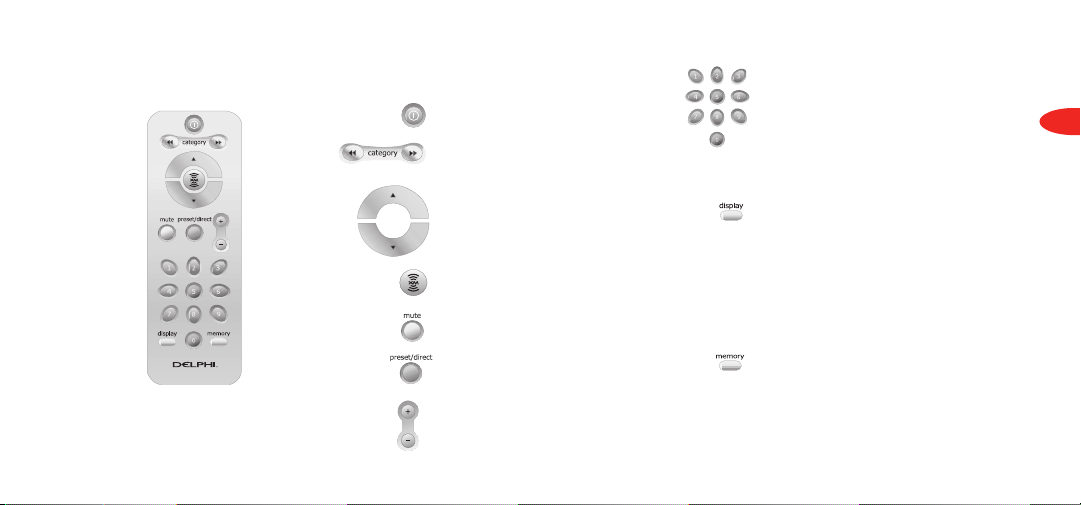
Figure 3. SKYFi Remote Control.
SKYFi Remote Control
Turns the SKYFi Receiver on and off.
Enters category search and steps
through available categories.
Enters channel search and selects
among different channel/menu options
on the screen.
The enter button is used in selecting
channels and menu options.
Mutes the audio.
Switches between DIRECT entry, Preset
A, and Preset B.
Changes to the next (+) or previous (-)
channel.*
Number keys are used to select a
channel directly (when in DIRECT entry
mode) by entering its number. Select
presets (when in Preset A or Preset B
mode) by entering the number of the
preset.
With normal channel display, the
display button toggles between normal
display, large channel number, and
scrolling text. When on the channel
navigation screen, the display button
toggles between channel name, artist
name, and song title.
Memory saves whatever information
is on the display screen for later recall.
Press and hold memory key to recall
information.
6
Section 2
*When SKYFi is connected to the SKYFi Audio
System, these buttons control the volume, and
other channel-selection methods should be used.

Basic Operations
Turning SKYFi on and off
Press on the SKYFi Receiver or SKYFi
Remote Control. When first turned on, the
receiver will automatically tune in to the
last channel listened to and recall the previous
settings.
Please turn off SKYFi and wait for the screen
to go blank before removing it from the home
stand or car cradle. This will ensure that all of
the current settings are saved.
Basic channel selection
SKYFi allows you to select a channel by directly
entering its number, using a preset key, or by
tuning up or down to reach the channel.
Select a channel by number
1. Verify that SKYFi is in DIRECT entry mode.
DIRECT should appear in the upper right
corner of the display. If A or B appears,
press until the display says DIRECT.
2. Enter channel number using the number
keys.
7
Section 3
Tabla de contenidos


