DARTY ER703 Manual de usuario

NOTICE
MARQUE: IT WORKS
REFERENCE: ER703
CODIC: 1390503

EBOOK READER
MODEL ER703
INSTRUCTION MANUAL

1
Table of Contents
WARNINGS....................................................................................................................2
IMPORTANT SAFETY INSTRUCTIONS............................................................................. 2
PACKAGE CONTENTS..................................................................................................... 2
PRODUCT OVERVIEW....................................................................................................2
GETTING STARTED ........................................................................................................3
Turning on an off the rea er ............................................................................4
Charging the rea er............................................................................................ 4
Inserting a memory car into the rea er ........................................................... 4
TRANSFERRING CONTENT FILES ...................................................................................4
READING BOOKS........................................................................................................... 9
Turning a Page..................................................................................................10
Rotating a Page................................................................................................. 10
Zooming in/out................................................................................................. 10
Using the Option menu of the Book Page ........................................................ 11
VIEWING PHOTOS ....................................................................................................... 13
BROWSER HISTORY ..................................................................................................... 14
FILE EXPLORER ............................................................................................................ 14
GAME.......................................................................................................................... 14
SETTINGS ....................................................................................................................14
SPECIFICATIONS .......................................................................................................... 16
DISPOSAL ....................................................................................................................17


2
WARNINGS
This appliance is inten e for omestic househol use only an shoul not be use
for any other purpose or in any other application, such as for non omestic use or in
a commercial environment.
CAUTION
RISK OF EXPLOSION IF BATTERY IS REPLACED BY AN INCORRECT TYPE
DISPOSE OF USED BATTERIES ACCORDING TO THE INSTRUCTIONS.
IMPORTANT SAFETY INSTRUCTIONS
This manual contains important safety instructions an information for proper use of
the evice. Please follow the instructions in this manual carefully.
•Avoi shocks an o not let the evice fall.
•Avoi harsh con itions such as wet or amp places, rain, high humi ity, strong
vibration, extremely high or low temperatures, strong sunlight an places that are
very usty.
•To clean the pro uct, gently wipe the pro uct using only a slightly amp cloth. Do
not use chemical solvents or strong etergents. Never allow water roplets to
remain on the screen.
Symbol
This mark is applie to show the equipment conforms to European safety
an electro-magnetic compatibility stan ar s.
Battery handling and usage
The pro uct is supplie with one rechargeable LI-Polymer 3.7V battery incorporate
in the pro uct which is not accessible an cannot be replace . Therefore when the
pro uct reaches the en of its useful life it must be ispose of at a recycling centre.
PACKAGE CONTENTS
1 x EBook rea er
1 x USB cable
1 x Instruction manual
PRODUCT O ER IEW

3
Front view Bottom view
1. Zoom in/out button
2. Return button
3. M button: to confirm
4. Page orientation button
5. power button
6. / / / buttons
•Turn the page. You can turn multiple pages by pressing the buttons.
•Select the option.
7. ON-OFF power switch
8. DC IN jack
9. USB port
10. TF car slot
GETTING STARTED

4
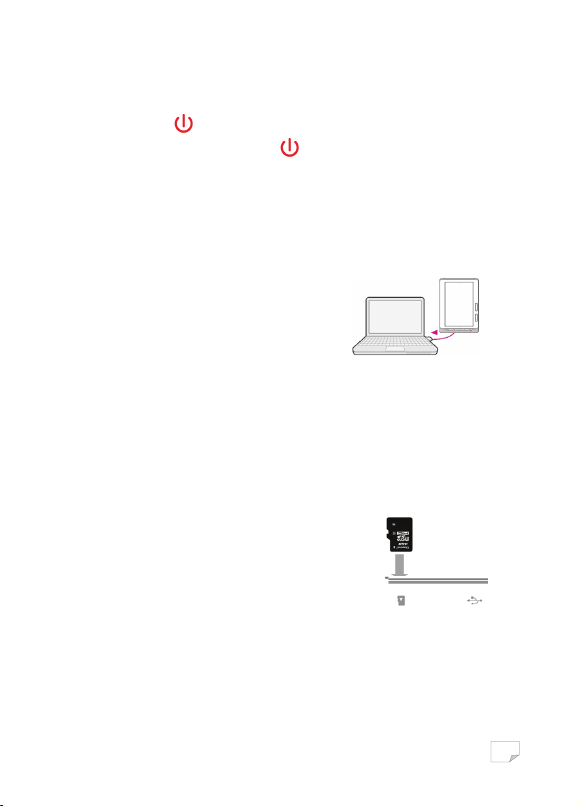
Turning on and off the reader
1. Sli e the power switch on the bottom of the rea er to turn on the rea er.
2. Press an hol until the welcome screen appears.
3. To turn off the rea er, press an hol until the goo bye screen appears or
sli e the power switch to turn off the rea er.
Charging the reader
You nee to charge the rea er when using it for the first time, or when the remaining
battery power is low.
•Connect the rea er to your computer using the
supplie USB cable.
•Connect the rea er to an AC outlet using the power
a apter (not supplie ).
To check the battery status, you can check the battery in icator on the top right of
the screen. Charge the battery when remaining power is low (the fewer green
segments in icate , the lower the remaining power).
The battery should be charged for at least 1 hours before first use to ensure the
best battery life.
Inserting a memory card into the reader
Insert a TF car in the TF car slot the with its label si e up
until it clicks into place.
To remove a memory car form the rea er, gently push in
the memory car an remove the memory car squarely
from the slot.
TRANSFERRING CONTENT FILES

5
You can transfer content files store on your computer or TF car into eBook.
You can transfer the following content files.
•eBook formats:
A obe DRM, PDF, E-PUB, TXT, FB2, PDB, MOBI, RTF
•Picture formats:
JPEG, GIF, BMP, PNG
Compatible to A obe igital e itions
To transfer contents files stored on your computer into eBook,
1. Connect the rea er to your computer using the supplie USB cable.
2. Double-click on My Computer.
3. Double-click on ER703.
4. Double-click on the fol er “books”.
5. Transfer the content files in the fol er.
Downloading eBooks
You can ownloa eBooks from an online eBook store to your computer.
Notes To ownloa eBooks, an internet connection is require on your computer.
1. Access the website http://www.a obe.com/pro ucts/ igitale itions, an then
install the A obe Digital E itions software following the on-screen instructions.
2. In Help>Authorize Computer option, authorise your computer with your A obe ID
an Passwor .

6
3. Activate the rea er.
a) Connect the rea er to your computer with the USB cable.
b) Select the [Data transfer] option.
c) Start up the A obe Digital E itions.
) Click an then click the “Authorize Device…” option to authorise the
rea er.
4. Downloa A obe DRM-protecte eBooks to your computer.
Note
A obe DRM (Digital Rights Management) feature means any control an /or
restriction on a PDF ocument that may inclu e, but not be limite to, access
rights, viewing, cutting, copying, pasting, printing, screen capturing, mo ifying,
e iting, watermarking, an /or ocument au iting (anonymous or authenticate ).
a) Access an online eBook store (http:// arty.numilog.com/) via PC/computer
an search for eBooks.

7
b) Select your favourite eBooks an ownloa them. If the eBook is protecte by
DRM, you shoul be prompte by DRM license information.
c) Click “Open” to start ownloa ing the DRM-protecte eBooks.
) Follow the store instructions to purchase ( ownloa ).
5. Drag your ownloa e eBook un er “All Items”.

8
6. When the rea er is connecte to your computer with the USB cable, an the
A obe Digital E itions shoul recognise the rea er.
7. Click “All Items” to see your ownloa e eBooks an then rag it to the rea er.
Tabla de contenidos
Idiomas: