Daewoo CT6480 Manual de usuario

First Editing : June 1999
Information in this document is subject to change without notice and
does not represent a commitment on the part of Computer Technology
Link Corp.
Daewoo and logo are registered trademarks and CT is a trademarks of
Computer Technology Link Corp.
Microsoft, Drive Space, MS, MS-DOS, Windows, Windows NT, and the
windows logo are either registered trademarks of Microsoft Corporation in
the United States and/or other countries.
IBM, OS/2, and PS/2 are registered trademarks of International Business
Machines Corporation.
Overdrive and Pentium are trademarks and Intel is a registered
trademark of intel Corporation.
Unix is a registered trademark of AT & T.
AMD are registered trademark and K5, K6 are trademarks of
ADVANCED MICRO DEVICES, INC
Cyrix is a registered trademark and 6x86, 6x86MX are trademarks of
Cyrix Corporation.
Licenses for other products mentioned in this manual are reserved by
their owners.
This Operator's Guide is copyright Ⓒ 1999 by Computer Technology Link
Corp. Printed in U.S.A.
Warning : Changes or modifications to this unit not expressly approved by the party
responsible for compliance could void the user's authority to operate the equipment.
User's Manual

Table of Content
Table of Content
Starting---------------------------------------------------------------------------------------------------2
DAEWOO Computer--------------------------------------------------------- 2
Check Items------------------------------------------------------------------ 3
System Setting--------------------------------------------------------------- 4
Ch1. System Configuration----------------------------------------------------------------------5
Front Pannel----------------------------------------------------------------- 5
Back Pannel ----------------------------------------------------------------- 6
Ch2. Start to Install-----------------------------------------------------------------------------------7
1. Check the voltage switch------------------------------------------------ 7
2. Connecting the keyboard and mouse----------------------------------- 7
3. Connecting the monitor-------------------------------------------------- 8
4. Connecting the other devices-------------------------------------------- 8
5. Connecting the power cables-------------------------------------------- 8
Ch3. Upgrading the system--------------------------------------------------------------------10
1. How to open the chassis------------------------------------------------ 10
2. Upgrading the memory------------------------------------------------- 11
3. Installation of the add-on cards --------------------------------------- 13

2
User's Manual
DAEWOO Computer
How to use this manual
◈It is very easy to install the
computer system with this
manual.
Please read this guide carefully,
before you install the computer
system.
is a sign that you should pay an attention.
is a sign of recommendable information.
◈Before upgrading your system or replacing any hardware, please read
Chapter 3 "Upgrading and Replacing" first.
Before opening the system chasis, remember to turn off the system and to disconnect all
cords and cables.
Caution : There is the danger of an explosion if the battery is incorrectly replaced.
Replace the battery with the same or equivalent type recommended by the
manufacturer.
Discard used batteries according to the battery manufacturer's instructions.
The lithum battery in mainboard is used for the RTC backup.
When the battery is used up, change another new one.
Refer to the main board user's guide, when you exchange the external battery.

3
DAEWOO COMPUTER
Check your boxes for the following items
◈CD-ROM Title
◈Installation Diskette
◈Power Cord
◈Mouse
◈User's manual
◈Keyboard
◈Tower

4
User's Manual
System Settings
◈Information that you should know before you intall the system.
▲Please do not overload
the power socket.
▲Do not place magnetic
objects close to the system.
▲Avoid dust or moisture
from the system. ▲Place the system away from a
radio or any electronic receivers.
▲Keep distance between the
system and the wall.
▲Place the system away from
high temperature and direct
sunlight.

5
CH1. SYSTEM CONFIGURATION
The system configuration can be changed to the Main board.
If the system configuration is different to the figure, refer to the Main board user's manual.
CH1. System configuration
Front
1. System On/Off Button
To turn on and to turn off the computer system.
2. H/W Reset Button
This button initializes and restarts the computer.
3. Power LED
The light that indicates the system is working.
4. HDD LED
The light that indicates the system is accessing the Hard Disk Drive.
5. CD-ROM Drive
The drive that can read CD-ROM titles.
6. Floppy Disk Drive
3.5" Floppy Disk Drive that can read a data from, or write a data to.
1. Systom On/Off Button
2. H/W Reset Button
5. CD-ROM Drive
6. Floppy Disk Drive
3. Power LED
4. HDD LED

6
User's Manual CH1. System configuration
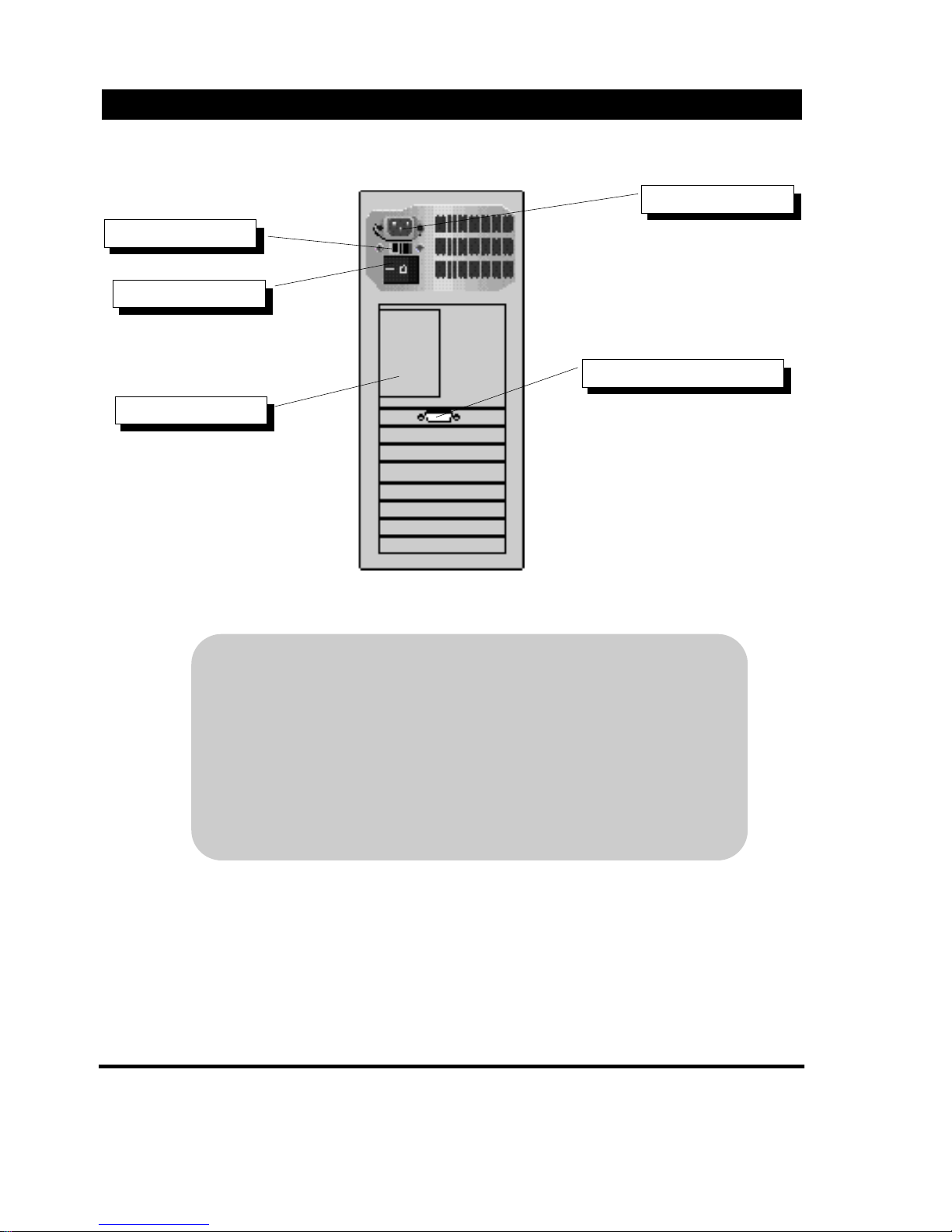
Back Pannel
1. SMPS On/Off Switch
The switch that enables or disables the SMPS.
2. Input Power Select Switch
Two different voltages, 115V and 230V, can be selected with this switch.
3. Input Power Socket
The socket that supports power to the tower.
4. Video Card Connector for Monitor
A monitor can be used through this connector.
2. Input Power Slect Switch
1. Output Power Socket
Refer to B’d Manual
3. Input Power Socket
4. Video Card Connector for Monitor

7
CH2. START TO INSTALL
CH2. Start to install
1. Check the voltage switch
Please check which voltage will be supported to the system. The default
setting of the voltage switch is 230V, but if 115V will be used in the
system, change the voltage switch, which is located at the back of the
tower, to 115V.
Do not connect power cables to the system until you finish all the described installateion.
2. Connecting the keyboard and the mouse
◎Check the keyboard connector which is located at the back of the
tower. ( )
◎Check the mouse connector which is located at the back of the tower.
( )(Refer to the picture)
▲default mode : 230V ▲other mode : 115V

8
User's Manual CH2. Start To Install
Don't put too much force on the connector while you are connecting the devices. It
would be easily connected if the direction of the connector is correct.
The keyboard and the mouse is in PS/2 type.
3. Connecting the monitor
◎Connect the 15pin cable of the monitor to the video card connector at
the back of the tower. The cable on the monitor can be easily
disconnected, so use the two screws on the connector to connect it
firmly.
4. Connecting other devices. (optional)
◎Connect a printer or a scanner.
5. Connecting power cables
◎Connect the power cables of the peripheral devices(printer, speaker)
first.
◎Connect the monitor power cable.
◎Connect the system power cable at last.

9
CH2. START TO INSTALL
While you are connecting the monitor power cable to the output power socket of the
tower, make sure the voltage that the monitor requires is same as the voltage that the
system supports.
Refer to the picture for the connection steps.
②
①
③
Tabla de contenidos
Otros manuales de De oficina de Daewoo