
D-Link MyDlink DCH-S150 Manual de usuario

mydlink™ WI-FI MOTION SENSOR
DCH-S150
QUICK
INSTALLATION
GUIDE
КРАТКОЕ РУКОВОДСТВО ПО УСТАНОВКЕ
GUÍA DE INSTALACIÓN RÁPIDA
GUIA RÁPIDO DE INSTALAÇÃO
快速安裝指南
PETUNJUK PEMASANGAN CEPAT


DCH -S15 0 1
ENGLISH
CONTENTS OF PACKAGING
mydlink™ WI-FI MOTION SENSOR
DCH-S150
QUICK INSTALL CARD
If any of these items are missing from your packaging,
please contact your reseller.
For the full product manual, please go to
http://www.dlink.com
• A router (a D-Link Cloud Router is recommended)
• A broadband Internet connection
• An e-mail account (required to register for mydlink service)
• iPhone, iPad, or Android™ device which supports the mydlink™ Home app*
* Please refer to the mobile app's store page to check whether your device is
compatible.
QUICK INSTALLATION GUIDE
SYSTEM REQUIREMENTS

DCH -S15 0
2
ENGLISH
INTRODUCTION
Automate your connected home devices wirelessly using a PIR motion detection
sensor with the D-Link DCH-S150 mydlink™ Wi-Fi Motion Sensor. With the
DCH-S150, you can automatically turn on devices attached to D-Link Smart
Plugs wirelessly throughout your home. Also, you can stay updated with instant
notications to your mobile device while you’re away from home.
Smartphone
with mydlink™
Home app
Internet Smart Plug
Router
DCH-S150
To make sure your DCH-S150 operates as intended, please read the following
suggestions:
1.Plan the location of your Motion Sensor:
2.Connect your Motion Sensor into an electrical outlet that is not controlled by a
wall switch. This will help you to avoid accidentally turning off power to the device.
3.Verify that your Motion Sensor is facing an open area, free of obstructions.
4.Verify that your Motion Sensor is electrically rated to operate with the power
available in your location.
For your safety, please read the following precautions before installing or using
your DCH-S150:
1.Do not open the device or attempt to repair or service it.
2.Use the device in a dry location, and avoid placing it in a humid environment.
3.Do not submerge the device in liquid or attempt to clean it with liquids or solvents.
To clean the device, disconnect it from the power outlet and use a damp towel.
4.This device should only be used indoors.
SAFETY
BEFORE YOU BEGIN
DCH -S15 0 3
ENGLISH
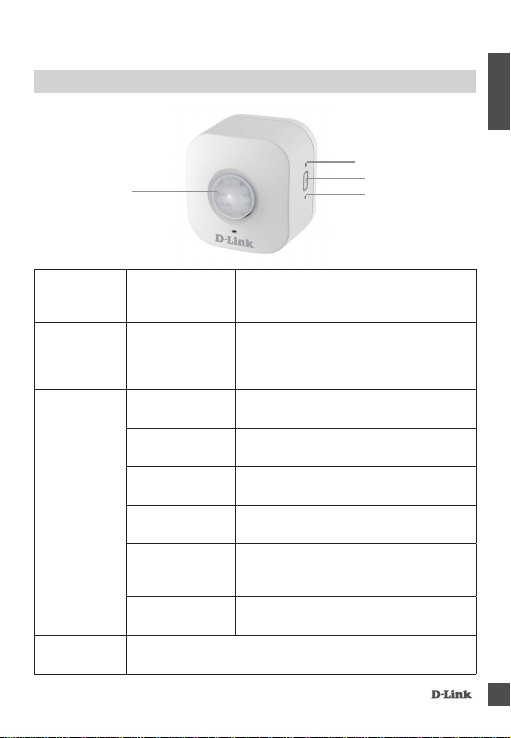
HARDWARE OVERVIEW
Power/Status LED
Reset Button
WPS Button
WPS Blinking Green
Press for one second to start the WPS
connection process. The Power/Status
LED will start to blink green.
Reset Solid Red
Press and hold until the Status LED turns
red in order to reset the device back to
the factory default settings (for about 10
seconds).
Power/Status
LED
Solid Green The DCH-S150 is successfully connected
to your network.
Blinking Green
(slow) The WPS process is in progress.
Blinking Green
(fast) The PIR is detecting motion.
Blinking Orange The Motion Sensor is not properly
connected with your wireless network.
Solid Red
The Motion Sensor is powering on,
attempting to upgrade rmware, or the
device is defective.
Off If the DCH-S150 will not power on, try
plugging the device into another outlet.
Motion
Sensor PIR (Passive Infrared) sensor for detecting motion.
Motion Sensor
FRONT VIEW

DCH -S15 0
4
ENGLISH
PRODUCT SETUP
Step 1:
Download the free mydlink™ Home app from the
App Store (iOS) or Google Play (Android).
Step 2:
First install the mydlink™ Home app on your mobile
device. Then simply tap on the icon to launch the app.
Step 3:
Log into your mydlink account. If you don’t have one,
sign up for a free mydlink account by clicking the
Sign Up! link.
Step 5:
Once the conguration process is complete, use the mydlink™ Home app to
automate your home and stay updated with instant push notications to your
mobile device while you're away from home.
Please refer to the steps below to quickly get your DCH-S150 up and running.
SETUP
Step 4:
Tap Add a new device. Then follow the on-screen
instructions. The wizard will guide you through the
conguration process for your motion sensor.

DCH -S15 0 5
ENGLISH
TROUBLESHOOTING
SETUP AND CONFIGURATION PROBLEMS
1. HOW DO I RESET THE DCH-S150?
When you reset your DCH-S150, it will change your settings back to the factory
default settings. To reset the device, locate the Reset button on the side of the
device. With the device plugged in, press and hold the Reset button until the status
LED turns red (for about 10 seconds).
2. WHY ISN’T THE POWER/STATUS LED TURNING ON WHEN I PLUG IN MY
DCH-S150?
If the Power LED is not turning on:
• Make sure the outlet you are using is working properly. Try plugging in another
device to see if it works.
• Make sure that if the outlet is controlled by a light switch, it is in the ON position.
• Try a different outlet to see if the Motion Sensor works there.
3. WHY CAN’T I CONNECT TO MY WIRELESS ROUTER?
If you are having trouble connecting to your wireless router, try plugging the
DCH-S150 into a location that is closer to your router. After the Power/Status LED
turns solid green, you can unplug the Motion Sensor and move it to the desired
location.
4. WHAT APP DOES THE DCH-S150 WORK WITH?
The DCH-S150 works with the mydlink™ Home app.
5. WHERE CAN I FIND THE MYDLINK™ HOME APP?
You may download the free app from the App store (iOS) or Google Play Store
(Android). Search for the app by typing in “mydlink Home”.
6. HOW DOES THE MOTION SENSOR WORK WHILE I AM AWAY FROM HOME?
Remote access of the DCH-S150 is enabled once you have registered and linked
your Motion Sensor through mydlink. You will be able to control your Motion
Sensor from anywhere using your iOS or Android device.*
*Your DCH-S150 must be connected to your home Wi-Fi network for remote access.

DCH -S15 0
6
ENGLISH
TECHNICAL SUPPORT
You can nd software updates and user documentation on the D-Link website.
Tech Support for customers in
Australia:
Tel: 1300-700-100
24/7 Technical Support
Web: http://www.dlink.com.au
E-mail: [email protected]
India:
Tel: +91-832-2856000
Toll Free 1800-233-0000
Web: www.dlink.co.in
E-Mail: [email protected]
Singapore, Thailand, Indonesia,
Malaysia, Philippines, Vietnam:
Singapore - www.dlink.com.sg
Thailand - www.dlink.co.th
Indonesia - www.dlink.co.id
Malaysia - www.dlink.com.my
Philippines - www.dlink.com.ph
Vietnam - www.dlink.com.vn
Korea:
Tel : +82-2-2028-1810
Monday to Friday 9:00am to 6:00pm
Web : http://d-link.co.kr
New Zealand:
Tel: 0800-900-900
24/7 Technical Support
Web: http://www.dlink.co.nz
E-mail: [email protected]
South Africa and Sub Sahara
Region:
Tel: +27 12 661 2025
08600 DLINK (for South Africa only)
Monday to Friday 8:30am to 9:00pm South
Africa Time
Web: http://www.d-link.co.za
E-mail: [email protected]
D-Link Middle East - Dubai, U.A.E.
Plot No. S31102,
Jebel Ali Free Zone South,
P.O.Box 18224, Dubai, U.A.E.
Tel: +971-4-8809022
Fax: +971-4-8809066 / 8809069
Technical Support: +971-4-8809033
Egypt
1, Makram Ebeid Street -
City Light Building - oor 5
Nasrcity - Cairo, Egypt
Tel.: +2 02 23521593 - +2 02 23520852
Technical Support: +2 02 26738470
Kingdom of Saudi Arabia
Ofce # 84 ,
Al Khaleej Building ( Mujamathu Al-Khaleej)
Opp. King Fahd Road, Olaya
Riyadh - Saudi Arabia
Tel: +966 1121 70008
Technical Support:
+966 1121 70009
General Inquiries: info.sa@ dlinkmea.com
Tech Support: support.sa@ dlinkmea.com
Pakistan
Islamabad Ofce:
61-A, Jinnah Avenue, Blue Area,
Suite # 11, EBC, Saudi Pak Tower,
Islamabad - Pakistan
Tel.: +92-51-2800397, 2800398
Fax: +92-51-2800399
Karachi Ofce:
D-147/1, KDA Scheme # 1,
Opposite Mudassir Park, Karsaz Road,
Karachi – Pakistan
Phone: +92-21-34548158, 34326649
Fax: +92-21-4375727
Technical Support: +92-21-34548310, 34305069

DCH -S15 0 7
ENGLISH
TECHNICAL SUPPORT
Iran
Unit 5, 5th Floor, No. 20, 17th Alley , Bokharest
St. , Argentine Sq. ,
Tehran IRAN
Postal Code : 1513833817
Tel: +98-21-88880918,19
+98-21-88706653,54
Morocco
M.I.T.C
Route de Nouaceur angle RS et CT 1029 Bureau
N° 312 ET 337
Casablanca , Maroc
Phone : +212 663 72 73 24
Lebanon RMA center
Dbayeh/Lebanon
PO Box:901589
Tel: +961 4 54 49 71 Ext:14
Fax: +961 4 54 49 71 Ext:12
Email: [email protected]
Bahrain
Technical Support: +973 1 3332904
Kuwait:
Technical Support: + 965 22453939 / +965
22453949
Türkiye
Büyükdere Cad. Ferro Plaza No:155
D: 1 K: 1 Zincirlikuyu / Istanbul
Tel: +90 (212) 289-56-59
Email: [email protected]
לארשי
רטנס ןולטמ
20 םימישגמה 'חר
7060 ד"ת ,49348 ת"פ ,ןולטמ תירק
03-9215173 :לט
073-7962797 :לט
[email protected] :יללכ ל"אוד
[email protected] :הכימת ל"אוד

DCH -S15 0
8
РУССКИЙ
КОМПЛЕКТ ПОСТАВКИ
БЕСПРОВОДНОЙ ДАТЧИК ДВИЖЕНИЯ С
ПОДДЕРЖКОЙ mydlink™
DCH-S150
КАРТА УСТАНОВКИ
Если что-либо из перечисленного отсутствует, пожалуйста,
обратитесь к поставщику.
Для ознакомления с полным руководством пользователя
посетите Web-сайт http://www.dlink.ru
• Маршрутизатор (рекомендуется маршрутизатор с поддержкой mydlink)
• Широкополосное подключение к Интернет
• Учетная запись e-mail (требуется для регистрации на портале mydlink)
• iPhone, iPad или Android™ устройство с поддержкой приложения mydlink™
Home*
* Пожалуйста, перейдите на страницу магазина мобильных приложений для
проверки совместимости устройства.
КРАТКОЕ РУКОВОДСТВО ПО УСТАНОВКЕ
СИСТЕМНЫЕ ТРЕБОВАНИЯ
Otros manuales para MyDlink DCH-S150
7
Tabla de contenidos
Idiomas:
Otros manuales de Sensor de seguridad de D-Link


