D-Link DKVM-IP1 Manual de usuario

D-Link®DKVM-IP1
1-port COMBO KVM Over IP
User Manual
v. 1.00

Table of Contents
1Introduction.............................................................................................................. 4
1.1Features ...................................................................................................................................5
1.2Package Contents ....................................................................................................................6
1.3Specifications ...........................................................................................................................7
1.4System Requirements ..............................................................................................................8
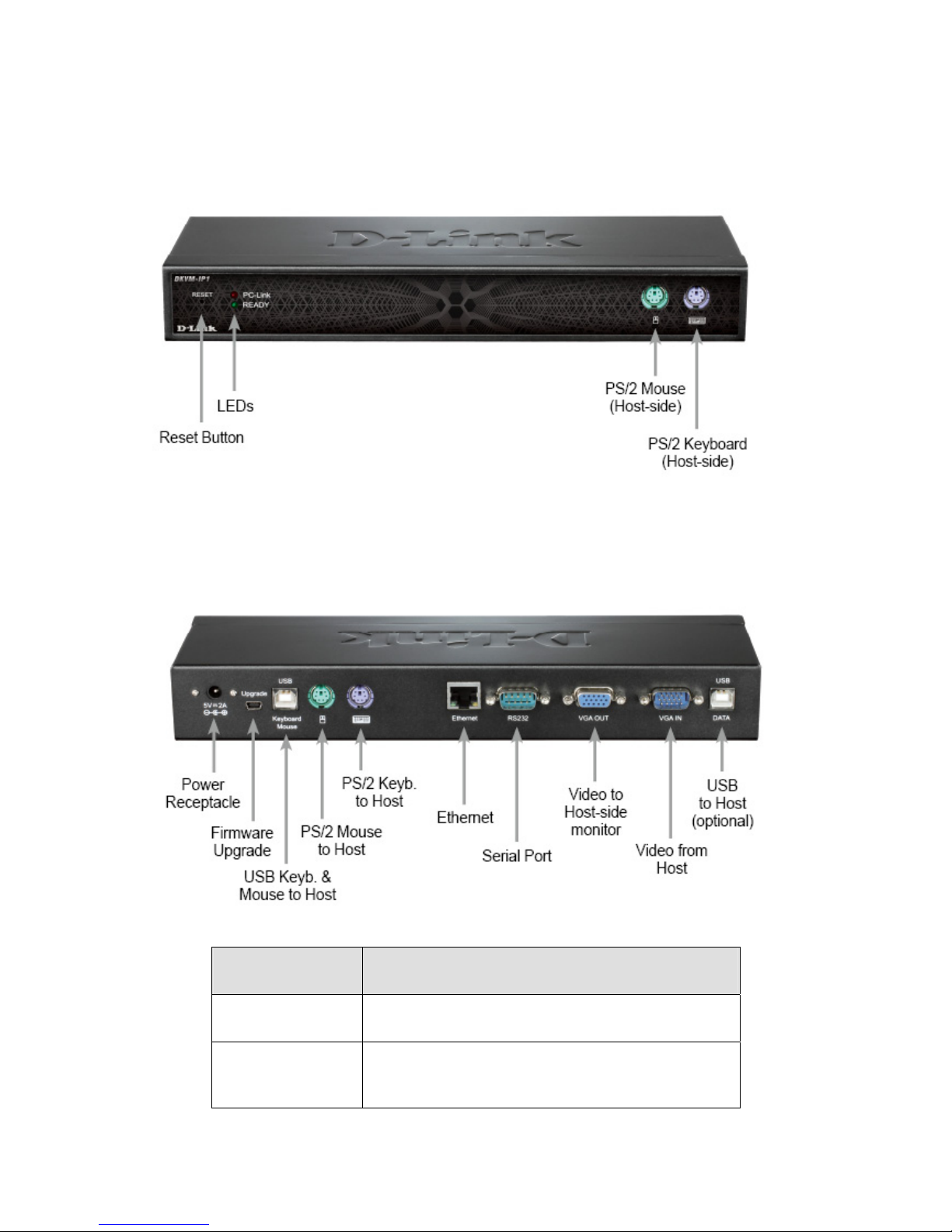
1.5Physical Diagrams....................................................................................................................9
1.6Cable Connection Diagram ....................................................................................................10
1.7Hardware Installation Procedure............................................................................................11
1.7.1Connecting the DKVM-IP1 to a Host computer............................................................11
1.7.2Connecting the DKVM-IP1 to a Multi-Port KVM Switch ...............................................12
1.8When the server is up and running (Capabilities) ..................................................................13
1.9When the computer/server fails (Diagnostics) .......................................................................14
2Configuration......................................................................................................... 15
2.1Initial Network Configuration with the setup software ............................................................15
2.2Configuration Setup via Serial-based Console ......................................................................20
2.3Keyboard, Mouse, and Video configuration ...........................................................................21
2.3.1DKVM-IP1 keyboard settings .......................................................................................22
2.3.2Mouse settings for the Host and Remote systems.......................................................22
2.3.3Mouse Synchronization Modes ....................................................................................24
2.3.4Creating a Hotkey for Fast Sync/Free Mouse ..............................................................25
2.3.5Synchronizing the Mouse Pointers (Double Mouse Mode) ..........................................26
2.3.6Troubleshooting Mouse Synchronization (Double Mouse Mode) ................................27
2.3.7Video Modes.................................................................................................................28
3Usage...................................................................................................................... 29
3.1Prerequisites ..........................................................................................................................29
3.1.1HTTP as the Primary Interface.....................................................................................29
3.2Logging into or out of the DKVM-IP1 .....................................................................................32
3.2.1Logging in .....................................................................................................................32
1

3.2.2Using the Web GUI.......................................................................................................33
3.2.3Host Console Preview ..................................................................................................35
3.3The Host Console...................................................................................................................36
3.3.1Opening the Host Console window ..............................................................................37
3.3.2Control Bar of the Host Console...................................................................................39
3.3.3Host Console window Status Bar .................................................................................48
4Menu Options of the Web Management GUI....................................................... 49
4.1Remote Control ......................................................................................................................49
4.1.1KVM Console................................................................................................................49
4.1.2Telnet Console .............................................................................................................50
4.1.3Remote Wakeup...........................................................................................................55
4.2Virtual Media ..........................................................................................................................60
4.2.1Drive Redirection ..........................................................................................................62
4.2.2Virtual Drive ..................................................................................................................64
4.2.3CD/DVD Disk Image.....................................................................................................65
4.2.4Floppy Disk Image........................................................................................................69
4.2.5Creating a Disk Image ..................................................................................................72
4.2.6Making a Drive Redirection ..........................................................................................74
4.3User Management..................................................................................................................78
4.3.1Change Password ........................................................................................................78
4.3.2User Management ........................................................................................................79
4.4KVM Settings..........................................................................................................................81
4.4.1User Console................................................................................................................81
4.4.2Keyboard/Mouse ..........................................................................................................85
4.4.3Video.............................................................................................................................86
4.5Device Settings ......................................................................................................................87
4.5.1Network.........................................................................................................................87
4.5.2Dynamic DNS ...............................................................................................................90
4.5.3Security.........................................................................................................................93
4.5.4Certificate......................................................................................................................96
2

4.5.5Serial Port...................................................................................................................100
4.5.6Date/Time ...................................................................................................................102
4.5.7Event Log....................................................................................................................104
4.5.8Authentication.............................................................................................................108
4.5.9USB ............................................................................................................................110
4.5.10Config File...................................................................................................................110
4.6Maintenance.........................................................................................................................111
4.6.1Device Information......................................................................................................111
4.6.2Event log.....................................................................................................................112
4.6.3Update Firmware ........................................................................................................113
4.6.4Unit Reset...................................................................................................................115
5Resetting the DKVM-IP1 to Factory Defaults.................................................... 116
6FAQ....................................................................................................................... 117
7Troubleshooting.................................................................................................. 118
8Addendum............................................................................................................ 124
8.1Key Codes............................................................................................................................124
8.2Video Modes ........................................................................................................................126
8.3User Role Permissions.........................................................................................................127
8.4Suggested Video Settings for Different Bandwidths ............................................................128
8.5Well-known TCP/UDP Port Numbers...................................................................................129
8.6Protocol Glossary .................................................................................................................130
3

1 Introduction
NOTE: In this manual, the term “Host” and “Host system” refers to the computer or
server that is connected to the DKVM-IP1. This is therefore the computer/server that can
be remotely controlled from a “Remote” computer by an administrator, or “Remote-side
user”. The term “Host Console” refers to the redirected view of the video monitor that is
connected to the “Host” computer – as it is displayed in a window on the Remote
computer that is controlling or monitoring the Host system. The term “local” refers to
things that are in close physical proximity to a specified system. For instance, the “local”
console (KVM controls) of the Host system will be redundant during the periods when the
Remote-side user controls the Host system with his or her “local” console. For the
purpose of clarity, these terms will be capitalized in sentences where it needs to be made
clear that the term refers to the user-manual-specific definition of the word (Remote, Host,
Local, etc.), and not the general definition of the word.
The DKVM-IP1 provides convenient, remote KVM access and control via LAN or Internet.
It is installed on the Host side and transmits a Remote computer’s control INPUT (mouse
and keyboard) to the Host computer. It also captures, digitizes, and compresses the
video OUTPUT signal of a Host computer and then transmits it to the Remote computer.
This DKVM-IP1 provides a non-intrusive solution for remote access and control all the
way down to the BIOS level of the Host. The remote access and control software only
runs on the device’s embedded processors, not on mission-critical servers, so it does not
interfere with server operations, or affect network performance.
This means that administrators can securely gain BIOS-level access to remotely located
computers for maintenance, support, failure recovery, and even remote wakeup over the
Internet or LAN. All communications are secured by SSL authentication and encryption.
This DKVM-IP1 can be used in conjunction with a KVM Switch for remote access to
multiple computers.
4

1.1 Features
KVM Over IP
Manage servers remotely from anywhere
Remote KVM (keyboard, video, and mouse) access over the Internet, or analog telephone
line (modem needed)
USB Host-side computer interfaces
Full control in any OS – in BIOS level, during boot-up, or in normal operating mode
Remote power wakeup on the Host computer
Remotely controlled mass storage and redirection
Remote control over Java-enabled Browsers
No additional software needed on client console side
SSL secure access through certified authentication and data encryption
256-bit SSL encryption binding with all transmitted data
Persistent logging of all important events
Up to 63 user profiles that can each be assigned to one of three levels of user authorization
Auto-optimization of the frame rate and video quality according to bandwidth availability
Automatic sensing of video resolution for best possible screen capture
High-performance mouse tracking and synchronization
Firmware updates via web interface
KVM Transmission
Transmission of video signals through a Remote computer with support for screen
resolutions up to 1600 x 1200 at 60 Hz with 16/8/4/2/1-bit video encoding and manual and
automatic adjustment
Supports all standard VGA and VESA modes (graphics and text)
Works with all web browsers
5

Network access
Access via 10/100 Mbps LAN
Communication over TCP/IP port 80 and port 443 (reconfiguration possible)
IP-configuration via DHCP/BOOTP or static IP
HTTP and HTTPS (secure) Web Server
Works with standard Hayes-compatible modems
Supports modem speeds of up to 115200 bps
Automatic adjustment of the video-compression ratio according to available bandwidth
1.2 Package Contents
The product you purchased should contain the equipment and accessories in this list:
1-port Combo KVM Over IP device (DKVM-IP1)
External power adapter DC 5 V / 2 A
RS-232 (Female-to-Female) cable 1.8 m (null modem type)
3-in-1 cable containing a PS/2 keyboard cable, a PS/2 mouse cable, and a VGA cable
USB cable (1 Type A Male to 1 Type B Male connector) to connect the DKVM-IP1 to the Host
system for file sharing, or as an alternative connection (USB) for the Host’s keyboard and
mouse.
CD-ROM (software utilities and user manual)
6

1.3 Specifications
Specifications
Number Of Computers Controlled 1
Red for PC Linking
LEDs
Green for IP Ready
Compliant with these USB Versions USB1.0 / USB1.1 / USB2.0
Compliant with this HID Version USB HID 1.11
Video 1 x HDB-15 (Male)
USB (KB & MS) 1 x USB B-type (Female)
PS2 Keyboard 1 x PS/2 mini-DIN 6-pin (Female)
PC Connectors
PS2 Mouse 1 x PS/2 mini-DIN 6-pin (Female)
Video 1 x HDB-15 (Female)
Keyboard 1 × PS/2 mini-DIN 6-pin (Female)
Console Ports
Mouse 1 × PS/2 mini-DIN 6-pin (Female)
Firmware upgrade connector 1 x mini USB (Female)
Serial port 1 x RS-232 (Male)
Ethernet port 1 x RJ45
Virtual media port 1 x USB B-type (Female)
Remote computer screen resolution Up to 1600 x 1200 at 60 Hz
DDC, DDC2 Monitor Supports DDC2B,
(max resolution up to 2048 x 1536 at 60 Hz)
Operating systems supported Windows 98 / 98SE / ME / 2000 / XP / Vista / 7 / 2003,
Mac OS 9 / OS X, Linux, Sun Micro OS
Power By external power adapter – DC 5 V / 2 A
Hot-pluggable Yes
Device driver No
Dimensions (LxWxH) 27.5 x 7.8 x 3.8 cm (10.8 x 3.1 x 1.5 inches)
Unit Weight 780 g (1.72 lb)
Housing material Metal
7

Operating Temperature 32 to 122 °F (0 to 50 °C)
Storage Temperature 4 to 140 °F (-20 to 60 °C)
Humidity 0% to 80%RH
1.4 System Requirements
Hardware
On the Host computer/server side:
One computer, or a server, or a serial console.
On the Host console side:
A PS/2 keyboard and mouse, and one VGA monitor. (These peripherals will only be
needed for normal operation and will become redundant during the periods when the
Host computer will be controlled remotely via the DKVM-IP1.)
On the Remote computer side:
Any computer that is connected to the same network that the target DKVM-IP1 is
connected to, whether that be a LAN or the Internet.
Software on the Remote computer
Java Runtime Environment : version 1.5 or above
Browser: Microsoft Internet Explorer 6 or above, Netscape, Mozilla, or Safari
8

1.5 Physical Diagrams
Front View
Rear View
LED Functions
PC-Link Red – indicates that the DKVM-IP1 is linked to a PC
Ready Green – blinks once every second when the system
is ready
9
Otros manuales para DKVM-IP1
2
Tabla de contenidos
Manuales populares de Cajón de LCD de otras marcas

Acnodes
Acnodes KD 8228 Manual de usuario

Ameriwood
Ameriwood 9524328PCOM Manual de usuario

Kesseböhmer
Kesseböhmer TANDEM solo Manual de usuario

Crystal Image Technologies
Crystal Image Technologies RMD-151-A Series Manual de usuario

APW Wyott
APW Wyott Ease Extreme HDX-1-120 Manual de usuario

NTI
NTI RACKMUX-V17-N Manual de usuario

GRASS
GRASS DWD XP Manual de usuario

StarTech.com
StarTech.com DuraView RACKCONS1701 Manual de usuario

Fisher & Paykel
Fisher & Paykel IZONA CoolDrawer RB36S Manual de usuario

Synergy Global Technology
Synergy Global Technology LCD1U17-44 Manual de usuario

Fujitsu
Fujitsu RC25 Manual de usuario

Acnodes
Acnodes RK 1000B Manual de usuario