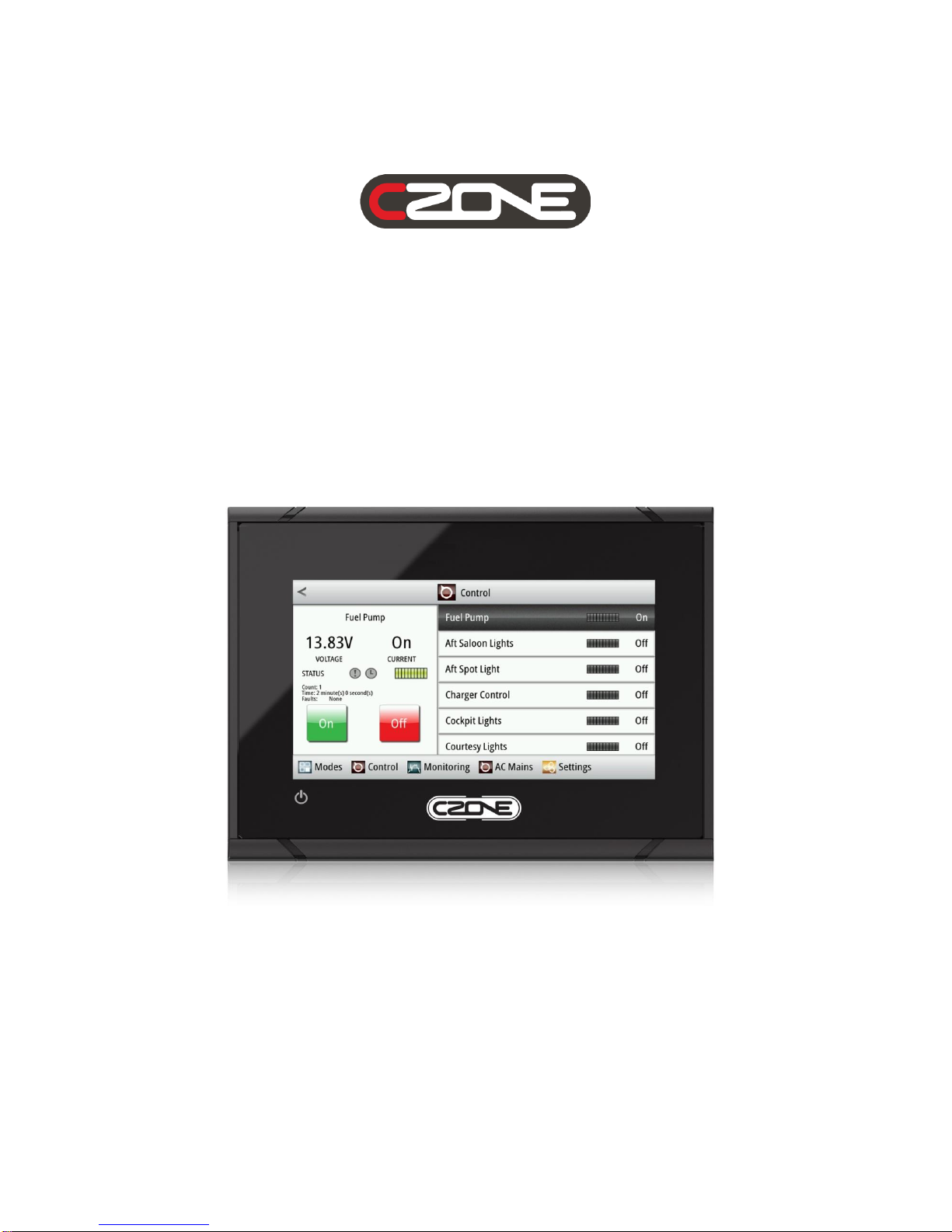
CZone Touch 5 Guía

Touch 5 User & Installation Manual
v1.1

EN / CZone Touch 5 User & Installation Manual
2
Copyright
This document is copyright 2016 under the Creative Commons agreement. Rights are granted to
research and reproduce elements of this document for non-commercial purposes on the condition that
BEP Marine is credited as the source. Electronic re-distribution of the document in any format is
restricted, to maintain quality and version control.
Important
BEP Marine strives to ensure all information is correct at the time of printing. However, the company
reserves the right to change without notice any features and specifications of either its products or
associated documentation.
Translations: In the event that there is a difference between a translation of this manual and the
English version, the English version should be considered the official version.
It is the owner’s sole responsibility to install and operate the device in a manner that will not cause
accidents, personal injury or property damage.

3
EN / CZone Touch 5 User & Installation Manual
Table of Contents
1GENERAL INFORMATION.............................................................................................................5
1.1 Description ..............................................................................................................................5
1.2 Overview .................................................................................................................................5
1.2.1 Front Controls..................................................................................................................5
1.2.2 Rear Connections............................................................................................................5
1.2.3 In The Box.......................................................................................................................6
1.2.4 Card Reader....................................................................................................................6
2INSTALLATION...............................................................................................................................7
2.1 Mounting Location...................................................................................................................7
2.2 Panel Mounting .......................................................................................................................7
2.3 Wiring......................................................................................................................................7
2.4 Power Control Connection......................................................................................................8
2.4.1 Power Control Unconnected...........................................................................................8
2.4.2 Power Control To Supply Positive (Auto On)..................................................................8
2.5 NMEA 2000 Backbone............................................................................................................8
3GETTING STARTED.......................................................................................................................9
3.1 First Power Up.........................................................................................................................9
4OPERATIONS IN DETAIL.............................................................................................................11
4.1 Accessing a Function within its Group..................................................................................11
4.1.1 Groups of Functions, and the Tabbed Main Menu........................................................11
4.2 CZone Functions by Group...................................................................................................12
4.2.1 Modes............................................................................................................................12
4.2.2 Control...........................................................................................................................14
4.2.2.1 DC Control and AC Control Circuits..........................................................................15
4.2.3 Monitoring......................................................................................................................16
4.2.3.1 DC Monitoring ...........................................................................................................16
4.2.3.2 AC Monitoring............................................................................................................18
4.2.3.3 Tanks.........................................................................................................................19
4.2.3.4 Alarms.......................................................................................................................20
4.2.3.5 Systems in Operation................................................................................................22
4.2.4 Settings .........................................................................................................................23
4.3 Updating Software.................................................................................................................23
4.3.1 Checking Current Software Version..............................................................................23
4.3.2 Updating Software via microSD....................................................................................23
4.4 Wireless Interface Setup.......................................................................................................24
4.5 Connecting iPad to Touch 5..................................................................................................25
5SPECIFICATIONS.........................................................................................................................27

EN / CZone Touch 5 User & Installation Manual
4
5.1 Technical Specifications........................................................................................................27
5.2 Dimensions............................................................................................................................27
6EC DECLARATION OF CONFORMITY........................................................................................28
Table of Figures
Figure 1. Battery & Power Connections...................................................................................................7
Figure 2. Touch 5's Tab based Main Menu ...........................................................................................11
Figure 3. Home-page for the Monitoring Functional Group...................................................................11
Figure 4. Modes Configuration Example................................................................................................13
Figure 5. Control Page...........................................................................................................................14
Figure 6. Monitoring Page......................................................................................................................16
Figure 7. CZone Alarm Severity Definition.............................................................................................20
Figure 8. CZone iPad App Favourites Page Example...........................................................................26
Figure 9. Dimensions.............................................................................................................................27

5
EN / CZone Touch 5 User & Installation Manual
1 General Information
1.1 Description
The CZone Touch 5 is a 5” colour touch-screen, which operates as a Display Interface on any new or
existing CZone network. It is designed for a wide range of applications, and can withstand the harsh
marine and recreational vehicle environments. With its bright touch screen and multiple levels of
backlighting, the Touch 5 provides fast and positive operation in all visibility conditions. Together with
toughened glass and water proofing, this makes it suitable for exposed locations. The Touch 5 can
also be configured as a Wireless Interface, allowing wireless control and monitoring with the CZone
iPad App.
1.2 Overview
1.2.1 Front Controls
1.2.2 Rear Connections
1. 12VDC Power and NMEA 2000
2. MicroSD Card Reader
3. Unused
1. Touch Screen
2. Power Button –Press and
hold to turn the unit ON

EN / CZone Touch 5 User & Installation Manual
6
1.2.3 In The Box
1.2.4 Card Reader
Used for attaching a microSD memory card. The memory card can be used for software updates. The
card reader door is opened by pulling the rubber cover open. The card reader door should always be
securely shut immediately after inserting or removing a card, in order to prevent possible water
ingress.
1
2
3
5
4
1. Touch 5
2. Sun Cover
3. Panel mount gasket
4. Power/NMEA cable
5. Panel mount screws

7
EN / CZone Touch 5 User & Installation Manual
2 Installation
2.1 Mounting Location
Choose the mounting locations carefully before you drill or cut. The unit should be mounted so that
the operator can easily use the controls and clearly see the screen. Be sure to leave a direct path for
all of the cables. The unit has a high-contrast screen, and is viewable in direct sunlight, but for best
results install the unit out of direct sunlight. The chosen location should have minimal glare from
windows or bright objects. Choose an area where the unit will not be subjected to excessive vibration,
or heat. Good ventilation is required.
Warning!: Inadequate ventilation may cause the unit to overheat. The unit is designed to
operate in temperatures from -15° C to +55° C (+5° F to +131° F).
2.2 Panel Mounting
The screws and gasket used for panel mounting are included in the box. For mounting instructions,
refer to the Panel mounting template.
2.3 Wiring
Warning!: Before starting the installation, be sure to turn electrical power off. If power is left on
or turned on during the installation, fire, electrical shock, or other serious injury may occur. Be
sure that the voltage of the power supply is compatible with the unit.
Warning!: The unit has a voltage rating of 12 V DC, it is not suited for use with 24 V DC
systems.
The unit is powered by 12 V DC. It is protected against reverse polarity, under voltage, and over
voltage (for a limited duration). The plug of the supplied power cable has two discrete cables exiting
from it. The thickest of the two cables provides the following:
Power into the system (Red and Black wires).
Controlling power state of the unit (Yellow wire)
Figure 1. Battery & Power Connections
1. Power cable
2. 12 V DC positive wire (red) shown with fuse holder fitted
3. 12 V DC negative wire (black)
4. Power control wire (yellow)

EN / CZone Touch 5 User & Installation Manual
8
5. 12 V DC supply
6. NMEA 2000 cable and connector
Connect Red to (+) DC using a 3 amp fuse. Connect Black to (-) DC.
2.4 Power Control Connection
The yellow Power Control wire in the power cable is an input that will turn on the unit when power is
applied.
2.4.1 Power Control Unconnected
Device will turn on when the power button on the front of the unit is pressed. Leave the yellow Power
Control wire disconnected and tape or heat-shrink the end to prevent shorting.
2.4.2 Power Control To Supply Positive (Auto On)
Device will turn on immediately when power is applied. Common the yellow wire with the red wire
after the fuse.
2.5 NMEA 2000 Backbone
Run an NMEA2000 cable from the NMEA2000 connector to an NMEA2000 network backbone

9
EN / CZone Touch 5 User & Installation Manual
3 Getting Started
3.1 First Power Up
If connecting Touch 5 to an existing CZone network, ensure the display has been added to the CZone
configuration file and assigned a dipswitch. Every CZone device on a network requires a unique
dipswitch to operate correctly, and the Touch 5 has a virtual dipswitch. Refer to the CZone
Configuration Tool manual for this process.
1. Turn on the circuit breaker or switch supplying power to the Touch 5.
2. The CZone splash-screen will appear for about 10 seconds then the text ‘Starting
Configuration Claim’. Touch 5 will now read the CZone configuration file from the network.
3. When configuration has been successfully read the text ‘Configuration Successful’will
appear. It is also possible to write the configuration to the network at a later date for new
installations.
4. Select the virtual dipswitch from the list of configured CZone devices, for new installations the
dipswitch can be set by selecting Dipswitch from the Settings > System page.

EN / CZone Touch 5 User & Installation Manual
10
5. Once dipswitch has been set the Modes page from the configured system will appear.
6. To ensure network connections are good and that the display can see the rest of the CZone
devices go to the Settings > Network page and check configured modules are showing
‘Online’.
7. Update software if a newer version is available. Refer to Chapter 4.3 for this process.
8. Touch 5 is now ready for use.
Tabla de contenidos
Otros manuales de Panel táctil de CZone
Manuales populares de Panel táctil de otras marcas

IBASE Technology
IBASE Technology ASTUT-152-RE1S Manual de usuario

YASKAWA
YASKAWA TP 610C Manual de usuario

B&R
B&R Power Panel C Series Manual de usuario

Beijer Electronics
Beijer Electronics X2 control Manual de usuario

AXIOMTEK
AXIOMTEK GOT321W-521 Manual de usuario

TRIDONIC.ATCO
TRIDONIC.ATCO x-touchBOX Manual de usuario