
Crystal Vision REMIND-E Manual de usuario

Crystal Vision Ltd., Lion Technology Park, Station Road East, Whittlesford, Cambridge, CB22 4WL, England.
E-mail: [email protected] Website: www.crystalvision.tv Tel: +44(0) 1223 497049 Fax: +44(0) 1223 497059
REMIND-E
1U remote control panel
for use with an Ethernet network

REMIND-E User Manual R1.1 Crystal Vision
REMIND-E User Manual R1.1 115/05/2008
Contents
1Introduction 3
2Hardware installation 4
2.1Connection details 4
2.2Controls 4
The panel start up displays 4
Menu tree 5
Setup menu 5
Scanning for frames 7
Manual frame selection 8
Status menu 8
3Controlling frames and cards 9
Selecting different modules 10
Node numbers 12
Navigating the display 12
4Trouble shooting 13
Fault finding guide 13
Frequently asked questions 13
5Specification 14
6Appendix 1 15
Setting up and connecting via the Ethernet 15
Changing the IP Address 15
Adding a frame serial number 17
Naming 18

REMIND-E User Manual R1.1 Crystal Vision
REMIND-E User Manual R1.1 215/05/2008
Updating software 18
Crystal Vision Introduction
REMIND-E User Manual R1.1 315/05/2008
1Introduction
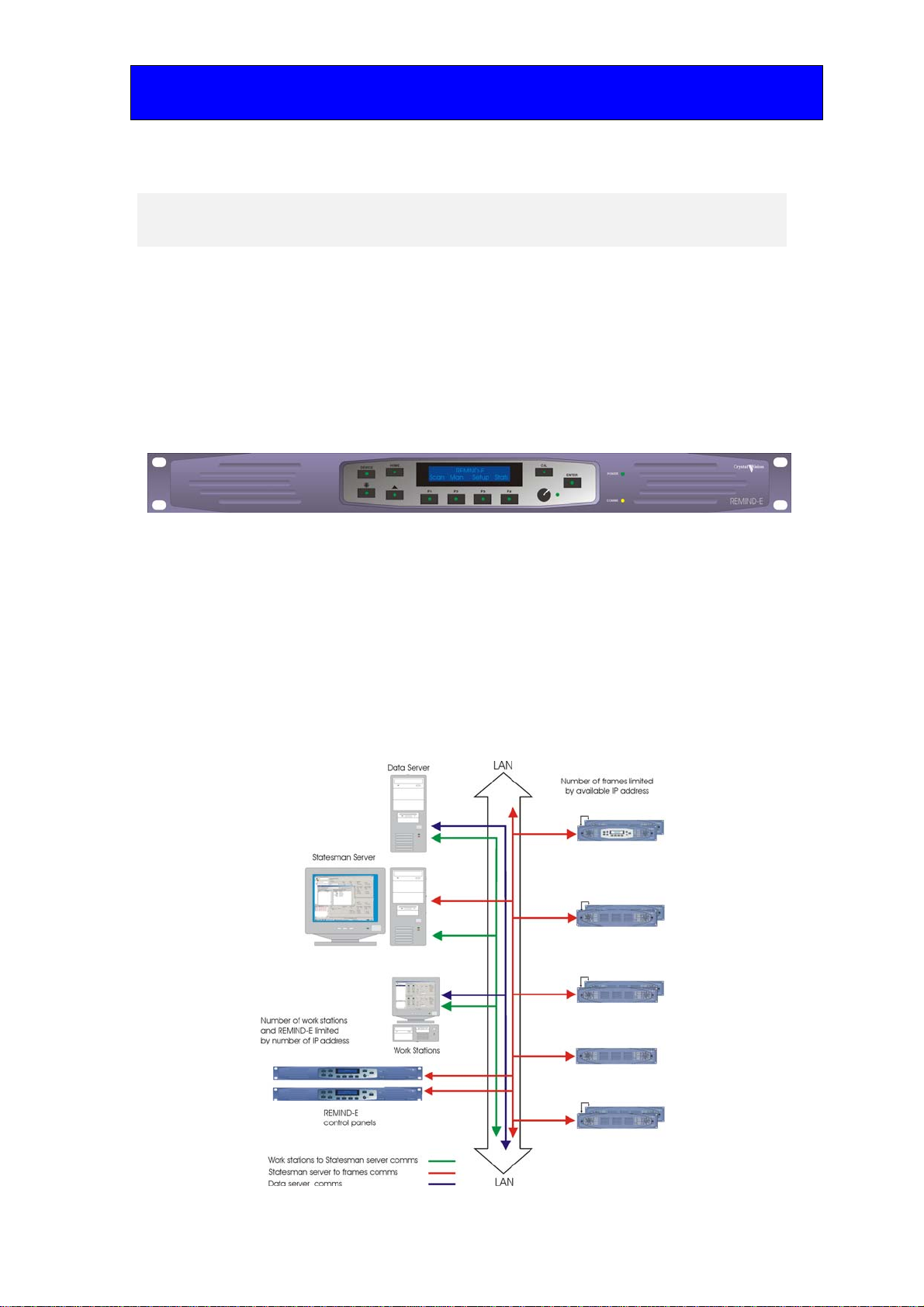
The REMIND-E is a 1U remote control panel that can control any number of Crystal
Vision Ethernet enabled frames over an Ethernet network allowing the operator to
effortlessly select the frame they wish to control.
REMIND-E is able to apply custom frame names to help the user identify the frame being
communicated with. It is also possible to connect multiple control panels allowing any
frame to be controlled from a number of locations.
Simultaneous front panel control alongside Statesman CPU control is also possible.
REMIND-E
The main features are as follows:
•User friendly
•Connection by standard CAT5 patch cable.
•Multiple REMIND-E control panels used on a single system
•Number of frame controllable only limited by available IP addresses
•Ideal alternative to PC control.

Crystal Vision Hardware installation
REMIND-E User Manual R1.1 415/05/2008
2Hardware installation
2.1 Connection details
The REMIND-E only requires two connections, the IEEE mains (plug supplied) and a
CAT5 patch cable to the local area network servicing the frames to be controlled.
REMIND-E rear view
2.2 Controls
The REMIND-E has a two-line 20-character display, a rotary control and a number of
push switches some which have internal LEDs which will be illuminated to indicate an
active switch.
The panel start up displays
At power up all seven key LEDs will illuminate and after a brief delay the display will
enter the home menu.
The REMIND-E panel control menu
The REMIND-E has four sub menus which are reached by way of the four soft keys F1-4.
The rotary control is used to scroll within a menu and input data. The further dedicated
keys are largely used once the panel is in control of a frame.
The four REMIND-E menus are:
F1 – Scan (search for all frames connected to the local Ethernet).
F2 – Man (manually connect a frame with a known IP address).
F3 – Setup (manually set the REMIND-E IP address or select DHCP).
F4 – Stats (Serial number, software version and current IP address).

Crystal Vision Hardware installation
REMIND-E User Manual R1.1 515/05/2008
Menu tree
Control panel menu
Setup menu
On initial installation the IP address of the REMIND-E will be set to the IP address used
by the Crystal Vision production department. It is likely this will need to be changed to
prevent clashing with existing equipment such as a second REMIND-E or to one that is
within the customers preferred range of addresses.
Changing the REMIND-E IP address
There are two ways of changing the IP address of REMIND-E. This can be done either
manually or by enabling dynamic host configuration protocol (DHCP) if supported. Both
methods are described below.
Manual configuration
From the home menu press the soft key F3 to enter the setup menu. Once in the setup
menu, if necessary rotate the shaft control to display ‘Set REMIND-E IP Adrs’ and press
the soft key F2, this will be indicated by the illuminated button LED.
If DHCP is enabled a warning message will appear in place of this menu and it will be
necessary to disable DHCP before manually changing the IP address.
The following will be displayed.
Changing the REMIND-E IP address

Crystal Vision Hardware installation
REMIND-E User Manual R1.1 615/05/2008
The new IP address is entered with the shaft control one digit at a time. The active digit is
indicated by the * which can be moved left or right using the F1 and F4 soft keys. Once
the new address is compete press the ENTER key to accept the new address.
The display will now indicate that it is required to reboot the REMIND-E. This is
necessary before the new IP address is actioned. Rotate the rotary shaft control to display
the reboot menu and press soft key F2.
REMIND-E Reboot menu
Once the F2 soft key has been pressed you will be asked to confirm this action by
pressing the F3 soft key.
Confirm reboot message
REMIND-E will now briefly indicate that it is rebooting after which the panel will blank
before restarting in the home menu. To confirm that the new IP address is in place enter
the Stats menu by pressing the F4 soft key and scroll the rotary shaft control to show the
IP address status.
Auto IP address configuration (DHCP mode)
From the home menu press the soft key F3 to enter the setup menu. Once in the setup
menu rotate the shaft control to display ‘REMIND-E DHCP’.
DHCP menu

Crystal Vision Hardware installation
REMIND-E User Manual R1.1 715/05/2008
Soft key F2 LED will be illuminated. Pressing F2 will cause brackets to be inserted before
and after the message and the ENTER soft key LED to illuminate. Rotating the rotary
shaft control will change the message from <disabled> to <Enabled>.
DHCP enable menu
Press the ENTER soft key to confirm the selection. To enable DHCP mode the REMIND-
E will require a reboot. When requested to reboot rotate the shaft control to show the
reboot menu and press the F2 soft key. You will then be requested to confirm that you
wish to reboot the REMIND-E by pressing the F3 soft key.
REMIND-E will now briefly indicate that it is rebooting after which the panel will blank
before restarting in the home menu. To confirm that the new IP address is in place enter
the Stats menu by pressing the F4 soft key and scroll the rotary shaft control to show the
IP address status.
Scanning for frames
Pressing the F1 soft key will enter the scan menu. The user will then be invited to press
the F2 soft key to initiate the scan. On completion of the scan the number of frames found
will be reported and a list of their IP addresses or if named their names will be available.
Rotating the shaft control will scroll through the address information.
Available frames
Note: The list will be compiled in the order that the frames answer the pole request, which is
likely to vary with subsequent poles.
Once a frame has been selected from the polled list the frame controls are initiated by
pressing the Enter key. At this point the REMIND-E will effectively become an active
control panel for the selected frame and will display the last page accessed in that frame.
Tip: To return to the REMIND-E home menu at any time press the DEVICE followed by the
Up Arrow soft keys.

Crystal Vision Hardware installation
REMIND-E User Manual R1.1 815/05/2008
Manual frame selection
If a frame IP address is already known it is possible to manually select that frame from
the manual menu. To enter the manual menu, press the F2 soft key from the home menu.
Manual menu
The new IP address is entered with the shaft control one digit at a time. The active digit is
indicated by the * which is can be moved left or right using the F1 and F4 soft keys. Once
the new address is compete press the ENTER key to action the selection.
The selected frame IP address will be displayed briefly followed by the last page accessed
in that frame.
At this point the REMIND-E will effectively become an active control panel for the
selected frame and will display the last page accessed in that frame.
Tip: To return to the REMIND-E home menu at any time press the DEVICE followed by the
Up Arrow soft keys.
Status menu
The status menu is entered from the home menu by pressing the F4 soft key. Rotate the
rotary shaft control to display the software version, panel serial number and the current
REMIND-E IP address.

Crystal Vision Controlling frames and cards
REMIND-E User Manual R1.1 915/05/2008
3Controlling frames and cards
As previously mentioned in the introduction chapter, the information presented on the
REMIND-E display will depend on the state the frame was left in when last interrogated.
This could be any of the available card menus, frame menu or if this is the first access
after power on, the message - ‘Statesman Mode Press CAL to Exit’ - will be displayed.
The message displayed will determine the appropriate action to take.
Once a frame has been selected for control the REMIND-E will behave as though it was
an active front panel fitted to that frame.
Note: Should the controlled frame be already fitted with an active control panel both panels will
mirror each other as any actions are carried out. Both panels will have complete control of
the frame.
This chapter describes the controls available to the REMIND-E when it is in control of a
frame.
The panel operational modes
The active panel has five operational states or modes:
•Device mode - select a card to control from a list of those detected
•Card mode – control the selected card using the menus provided by the card
•Statesman mode – start-up mode optimised for Statesman control (default)
Notes: There are also panel and frame diagnostic modes, which are provided for factory use and
for Crystal Vision support personnel.
After powering a frame it will automatically enter Statesman mode.
Statesman mode is entered by default
To continue with control panel operation or configuration, press the ‘CAL’ key once. A
second press of the ‘CAL’ key will return the panel to Statesman control.
When Statesman mode is exited, the Device menu will display the name of the last
module detected together with its location number.
Tabla de contenidos
Otros manuales de Panel de control de Crystal Vision


