
Crypto WUA150N Manual de usuario

W
WU
UA
A1
15
50
0N
N
Wireless 150Mbps USB Adapter with
external antenna
U
Us
se
er
r
M
Ma
an
nu
ua
al
l
Version 1.0

WUA150N User Manual
2
1 Introduction
1.1 Product Features
● Compliance with IEEE 802.11n, 802.11g,802.11b
● Data rates up to 150Mbps or 802.11n
● External Omni Direc$onal antenna
● Strong network security with WEP,WPA, WPA-PSK, AES
● Windows XP/VISTA/7/Win8/Win8.1 compatible
1. System Requirements
● Windows XP/VISTA/7/Win8/Win8.1 operating systems
● PC with Pen$um 300MHz system or above
● 32MB RAM
● One available USB port
● One CD-ROM drive
Package Contents
WUA150N Wireless USB Adapter
Installation CD (Drivers, Utility, User’s Manual)
QUG and Warranty
2 Installation Procedure
.1 Driver and Utility Program Installation
Note: For proper operation, do not connect the Wireless-LAN USB Adapter to your
computer be ore you install the so tware. I you do, wait or the Found New Hardware
screen to display and click “Cancel”, otherwise, the installation process will likely be
adversely a ected.
I you have installed other Wireless USB Adapter driver & utility be ore, please uninstall
the old version irst.
.1. Installation under Windows Win7/Win8/Win8.1
I the system does not install the driver automatically, please ollow the below steps:
Use the Quick installation setup or you can execute the “Setup.exe” program inside the
CD, select the ollowing

WUA150N User Manual
3
Then select windows or Mac according to your system and a ter you press next wait or
Installation o the Utility
When done Click “Finish”
Select Yes, I want to restart my computer now and click Finish to reboot your computer
Note:
To make sure that the installation is success ul, you can
check it through the Device Manager.

WUA150N User Manual
4
3 Utility
Follow the below way to open the Utility:
Once the installation is complete, you can con igure the Wireless-LAN USB Adapter to
connect to a wireless access point (AP). The wireless con iguration utility will start
automatically, and you’ll also ind a tray icon at the lower right in your Windows systems
tray.
Right-click the icon in the system tray, then select the “Open Con ig Utility”
The con iguration utility will scan or wireless networks within range. Click “Refresh” to
re resh the list o available wireless networks. To join a Particular network that displays,
select it and click “Add to Profile.”
WUA150N User Manual
5
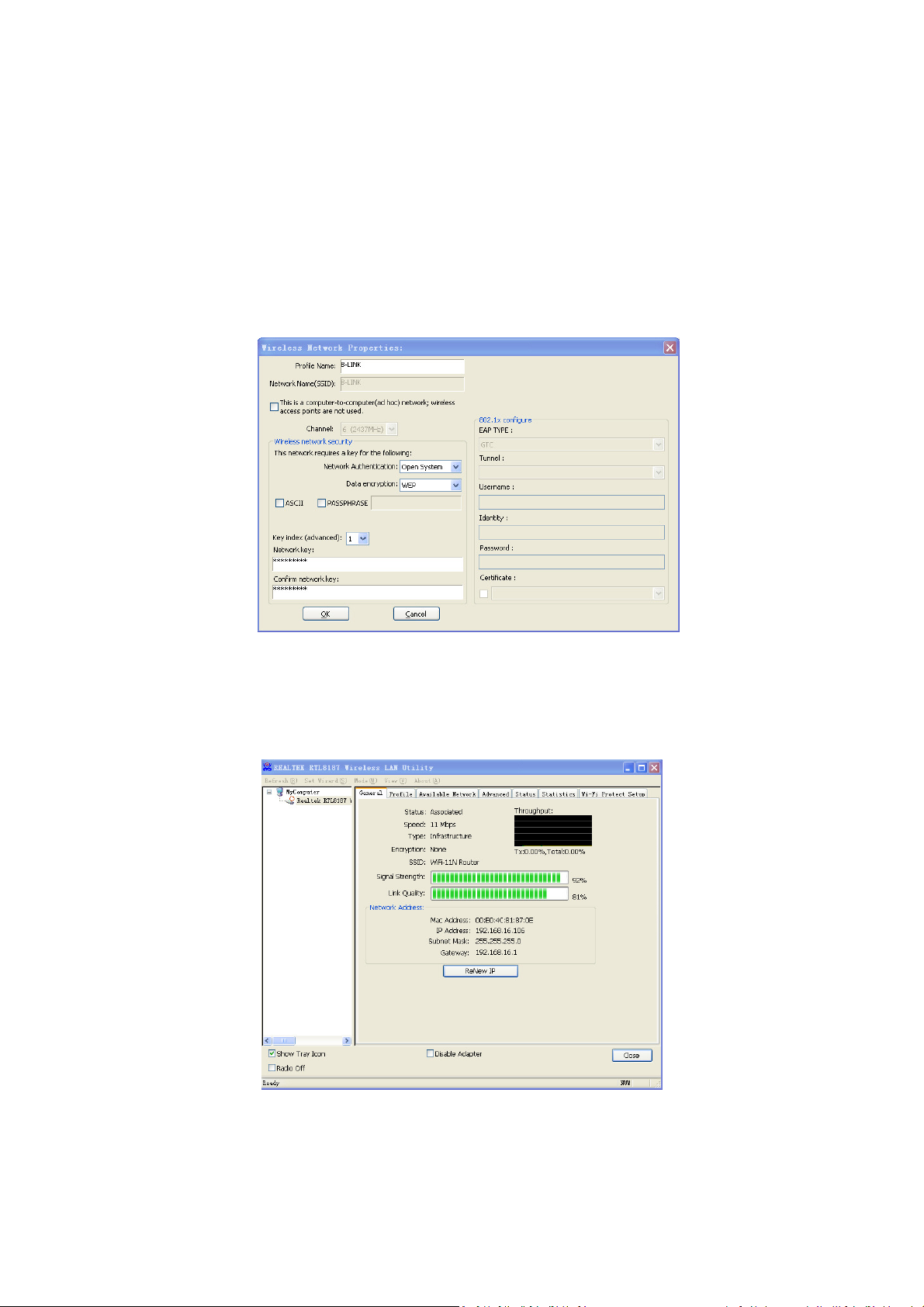
I the wireless network uses encryption, you need to input the correct encryption
key. The con iguration utility automatically suggests the correct authentication type
(see the drop-down list), and you should not change the suggested value.
NOTE: For WPA/WPA2 networks, you need to select the correct encryption type, as
well (AES or TKIP). These settings depend on how the wireless network is set up. Only
the owner o the wireless network can provide the required in ormation.
I the wireless access point is success ully connected, you’ll see.

WUA150N User Manual
6
3.1 Using the Configuration Utility
The Con iguration Utility allows you to establish a wireless connection and con igure the
connection settings. It provides important in ormation on the connection quality and
the behaviour o the wireless channel and allows you to ully optimize the per ormance
o your WUA150N USB Adapter.
Right click the icon in the system tray there are some items or you to operate the
con iguration utility.
•
Open Con ig Utility
Select “Open Con ig Utility” to open the con iguration utility.
•
About
Select “About” to show the utility in ormation.
•
Hide
Select “Hide” to hide the utility in the system tray.
•
Quit
Select “Quit” to close the utility
3. Utility Overview
There are several parts in the utility screen. Please re er to the ollowing table or the
description.
A
C
D
B
E

WUA150N User Manual
7
Parameter Description
Refresh – Re resh card list
Mode – There are two modes: Station and Access Point. I
“Station” is selected, the card works as a wireless card. I
“Access Point”
is selected, the card will works as a wireless
AP.
About – To check the version o the utility, select this
item.
This is a list or you to con igure several cards in your PC
rom the utility.
Show Tray Icon – To show the icon in the system tray,
select the item.
Radio Off – This unction is or you to turn o or turn on
the radio o the card. I the radio is turned o , the card
will not work.
Disable Adapter – This unction is or you to disable or
enable the card.
It is the status bar that displays the current status o the
utility.
There are several tabs in the block or you to setup the
unction o the card. Please re er to the description in the
ollowing sections.
3.3 Available Network
When you open the Con iguration Utility, the system will scan all the channels to ind all
the access points/stations within the accessible range o your card and automatically
connect to the wireless network with the highest signal strength. From the “Available
Network” tab, all the networks nearby will be listed. You can change the connection to
another network.
A
B
C
D
E

WUA150N User Manual
8
Parameter Description
Available Network(s) This list shows all in ormation o the available wireless
networks within the range o your card. The in ormation
includes SSID, Channel, Encryption, Network
Authentication, Signal and etc. I you want to connect to
any network on the list, double-click the selected
network.
Re resh Click “Re resh” to update the available networks list. It is
recommended that re resh the list while you have
changed the connection network.
Add to Pro ile Add pro ile stores the setting o a network, so that you
can connect to the network quickly. To add the selected
network to a pro ile, click this button.
3.4 General
To check the connection status o WUA150N USB, select “General”. This screen shows
the in ormation o Link Speed, Network Type, Encryption Method, SSID, Signal Strength,
Link Quality and Network Address o the card.

WUA150N User Manual
9
Parameter Description
Status It will show the connection status o the card.
Speed It shows the current speed
Type Infrastructure – This operation mode requires the
presence o an 802.11 Access Point. All communication
is done via the Access Point or Router.
Encryption It displays the encryption setting o the current
connection including
None, WEP, TKIP or AES.
SSID The SSID (up to 32 printable ASCII characters) is the
unique name identi ied in a WLAN. The ID prevents the
unintentional merging o two co
-
located WLANs.
Signal Strength It indicates the wireless signal strength.
Link Quality It indicates the wireless link quality.
Network Address It shows the MAC, IP address and other in ormation o
the card.
3.5 Profile
The “Pro iles List” is or you to manage the networks you connect to requently. You are
able to Add/Remove/Edit/Duplicate/Set De ault to manage a pro ile.

WUA150N User Manual
10
Parameter Description
Available Pro ile(s) This list shows the pre erred networks or the wireless
connection. You can add, remove, edit, duplicate the
pre erred networks or set one o the networks as the
de ault connection.
Add/ Remove/ Edit
Button
Click these buttons to add/ delete/ edit the selected
pro iles.
Duplicate I you like to build up the new pro ile with the same
settings as the current pro ile, then you can select this
eature.
Set De ault To designate a pro ile as the de ault network or the
connection rom the available pro iles list, click the
button.
Otros manuales para WUA150N
2
Tabla de contenidos
Otros manuales de Adaptador de Crypto

Crypto
Crypto BT 100 Manual de usuario

Crypto
Crypto WU150N Manual de usuario

Crypto
Crypto WU300N Manual de usuario

Crypto
Crypto WUA150N Manual de usuario

Crypto
Crypto AirData 150 S2 USB Manual de usuario

Crypto
Crypto WU150N Manual de usuario

Crypto
Crypto WU300N Manual de usuario

Crypto
Crypto WUA150N Manual de instrucciones


