
COX URC7820 Manual de usuario

UNIVERSAL REMOTE CONTROL
USER’S GUIDE
CONTROL REMOTO UNIVERSAL
GUíA DEL USARIO
M7820BP1.indd 1 3/13/2007 3:53:51 PM

TABLE OF CONTENTS
Introduction ........................... 3
Features And Functions ................. 4
Installing Batteries ..................... 8
Programming Device Control............. 9
Programming TV/VCR Combo Control .... 10
Searching For Your Code ............... 12
Checking The Codes .................. 13
Programming ID Lock.................. 14
Programming Channel Control Lock. . . . . . 15
Using The Master Power Key............15
Re-Assigning Device Keys ............. 16
Changing Volume Lock ................ 17
Troubleshooting ...................... 18
Additional Information ................. 19
Manufacturer’s Codes.................. 38
TABLA DECONTENIDOS
Introducción ................................ 21
Características y Funciones .................. 22
Instalación de las Baterías .................... 26
Programación de Control de Dispositivos ...... 27
Programación de Control de Combos TV/VCR . . 29
Búsqueda de su Código . . . . . . . . . . . . . . . . . . . . . . 30
Comprobación de los Códigos ................ 31
Programación del Bloqueo de ID............... 32
Programación del Bloqueo del Control de Canal
....32
Utilización del Botón de Encendido Principal ... 33
Reasignación de Teclas de Dispositivos ........ 34
Cambio del Bloqueo de Volumen .............. 35
Resolución de Problemas..................... 36
Información Adicional ........................ 37
Códigos del Fabricante ..................38
2
M7820BP1.indd 2 3/13/2007 3:53:51 PM

INTRODUCTION
The Cox Universal Remote Control by Universal
Electronics is our latest generation universal remote
control. It is designed with sophisticated technology
that will allow you to consolidate the clutter of all of the
original remote controls in your home entertainment
system. Moreover, it’s packed with easy-to-use features
such as:
•Preprogrammed to operate the cable converter
supplied by Cox Communications
•Preprogrammed interactive technology links hot keys
to your interactive service
•Master Power key for master on/off control of all your
equipment with a single keystroke
•Cable ID Lock to lock your remote control for use
only with the cable converter
•Channel Lock to lock channel selection only to the
cable converter
•Code Search to help you program control of older or
discontinued components
•Code library for video and audio devices
•Color-coded keys to quickly locate popular functions
•Dedicated keys to control popular functions on your
DVR (Digital Video Recorder)
Before using the product, you will need to program it
to operate the specific home entertainment devices you
wish to control. Follow the instructions detailed in this
manual to set up your unit, and then start enjoying your
new remote control.
3
M7820BP1.indd 3 3/13/2007 3:53:51 PM

FEATURES AND FUNCTIONS
Use the illustration below to locate features on the Cox
Universal Remote Control and then study the Key Charts (on
the next three pages) to learn how they function.
4
M7820BP1.indd 4 3/13/2007 3:53:53 PM

KEYCHARTS
Use SETUP for all programming
sequences.
Press POWER once to turn on or
off a home entertainment device.
Press and hold MASTER POWER
for 3 seconds to turn on or off all
home entertainment devices
(see Using The Master Power
Key on page 15).
Press AUX,DVD, TV, or CABLE
once to select a home entertainment
device to control. Each key has an
embedded LED (red light) that
blinks upon selection and
indicates that the remote control
is working and is sending signals.
In the DVD and TV modes, use REW,
PLAY, FFWD, STOP, and PAUSE to
control your VCR, DVD player, or
PVR. To record a program in the
DVD or AUX mode, press RECORD
twice.
In the CABLE mode, use these keys
(except RECORD) to control VOD
(Video On Demand).
Press to replay the last 8 sec
onds of a program or recording
(Insatnt Replay)
Press On DEMANDonce to
access Cox Communications On
DEMAND Menu.
Press DVR LIST once to display a
list of the recorded shows on your
PVR.
Press LIVEto return to watching
live TV.
Use INFO to display the current
channel and program information
Use PAGE+ to page up through
menu screens and program guide)
5
M7820BP1.indd 5 3/13/2007 3:53:55 PM

Press HD ZOOM to change the
aspect ratio on your Scientific
Atlanta or Motorola HD receiver.
(Not available on all receivers.)
Use the Cursor keys to move the
cursor in the program guide and
menu screens, and to navigate
within the interactive service.
Use SELECT to choose options
and PPV events, and to tune pro
grams from the program guide.
Use GUIDEto display the program
guide.
Use PAGE- to page down through
menu screens and program guide.
Use EXIT to exit your cable
converter’s menu and guide.
Use A, B, or Cto access additional
cable features (see your cable
converter’s manual).
Use SETTINGS to access addition-
al cable features (see your cable
converter’s manual).
Press MENU once to display the
available interactive services.
Use VOL+ (or VOL–) to raise (or
lower) the sound volume.
Press LASTonce to recall the
last channel.
Use FAVto cycle through your
favorite channels stored in your
cable converter.
Press MUTE once to turn the
sound off or on.
6
M7820BP1.indd 6 3/13/2007 3:53:57 PM

Use CH+ (or CH–) to select the
next higher (or lower) channel.
Use INPUT to control the input
select feature on most TVs.
In CABLE mode, use INPUT to view
other video sources (A or B) instead
of cable.
In all othermodes, use INPUT
to watch TV or video programs on a
desired device. For amplifiers/receiv
ers, use INPUT to select an input
source.
Press ENTER once after entering
channel numbers on some televi
sions.
Use the keypad (0~ 9) to directly
select channels (e.g., 09 or 31).
Use Picture in Picture
SWAP to
switch images and sound between
the main and window pictures.
Use Picture in Picture
ON-OFF to
switch the Picture-In-Picture fea-
ture on or off (if available on your
TV or cable service).
Use Picture in Picture MOVEto
move the window picture to differ
ent positions in the main picture.
Use Picture in Picture CH+ (or CH-)
to select the next higher (or lower)
PIP channel.
7
M7820BP1.indd 7 3/13/2007 3:53:58 PM

8
INSTALLING BATTERIES
1. On the back of the remote control, push the
tab and lift off the battery cover.
2. Obtain two (2) fully-charged AA alkaline
batteries. Match the + and – marks on the
batteries to the + and – marks in the battery
case, then insert the new batteries.
3. Align the cover’s keys with the case’s holes
and press the cover back into place. The tab
should click when the cover is locked.
4.
Test the unit by pressing POWER and any
mode key (for example, AUX, DVD, TV, or
CABLE). If the batteries are inserted correctly,
the selected mode key will blink once.
NOTE: Whenever batteries need replacement, the
remote control will cease to operate. Simply replace the
batteries and the remote control will be restored to its
full functionality, complete with your favorite settings.
❶
❸
❷
M7820BP1.indd 8 3/13/2007 3:53:59 PM

9
PROGRAMMING DEVICE CONTROL
The Cox Universal Remote Control is preprogrammed to
operate your cable converter, an RCA TV, a SONY DVD,
and a Pioneer audio receiver. To control devices other
than the default brands, perform the following steps;
otherwise skip this section:
NOTES: To control a VCR player, or a PVR, program the
DVD key. To control a stereo amplifier or receiver, program
the AUX key. For TV/VCR Combo control, skip this section
and perform the instructions on the next page.
If you have another brand of cable converter and inter-
active service you would like to control, you’ll first need
to unlock the cable ID Lock before changing the con-
verter code—see Programming ID Lock on page 13.
1. Turn on a device and, if applicable, insert
video media (e.g., cassette or disc).
NOTE: Please read steps 2–4 completely
before proceeding. Highlight or write down
the codes and device you wish to program
before moving on to step 2.
2. On the remote control, press a device key
once (e.g., AUX, DVD, TV, or CABLE). Press
and hold SETUP until the selected mode key
blinks twice, then release SETUP.
3. Use the Manufacturer’s Codes (starting on
page-38) to locate the the type of device and
brand name, then enter the first four-digit
code for your device. If performed correctly,
the selected mode key will blink twice.
NOTE: If the selected mode key emits a
long blink, the code is invalid. Repeat steps
2 through 3 and try entering the same code
again.
4. Aim the remote control at the device and press
M7820BP1.indd 9 3/13/2007 3:53:59 PM

10
POWER once. The device should turn off. If it
does not, repeat steps 2–3, trying each code for
your brand until you find one that works. If it
still does not work, try searching for the code
(see Searching For Your Code on page 12).
NOTE: If the device does not have a POWER
key, press the (Play) key.
5. Repeat steps 1–4 for each device you want the
the remote control to control. For future refer-
ence, write down each working device code in
the following boxes:
AUX
AUX Device ____________________
VCR
TV
CABLE
PROGRAMMING TV/VCR COMBO CONTROL
If you own a TV/VCR Combo, perform the following
instructions to control this device:
1. Turn on your TV/VCR Combo and insert a
video cassette.
2. On the remote control, press DVD once.
Press and hold SETUP until the DVD key
blinks twice, then release SETUP.
3. Use the setup codes for TV/VCR combos on
page-56 to locate the brand name and then
enter the first four-digit code for your TV/VCR
Combo. If you perform this procedure correctly,
the DVD key will blink twice.
NOTE: If the DVD key did not blink twice
after entering the code’s last digit, then repeat
steps 2 through 3 and try entering the same
code again.
4. Aim the remote control at your TV/VCR
M7820BP1.indd 10 3/13/2007 3:54:00 PM
Tabla de contenidos
Idiomas:
Otros manuales de Mando a distancia de COX

COX
COX XR11 Manual de usuario

COX
COX URC-2220-R Manual de usuario

COX
COX Contour 2 Manual de usuario

COX
COX Cox Universal Remote Control Manual de usuario

COX
COX URC8820 Manual de usuario

COX
COX Contour 2 Manual de usuario

COX
COX MINI BOX BIG BUTTON REMOTE CONTROL Manual de usuario
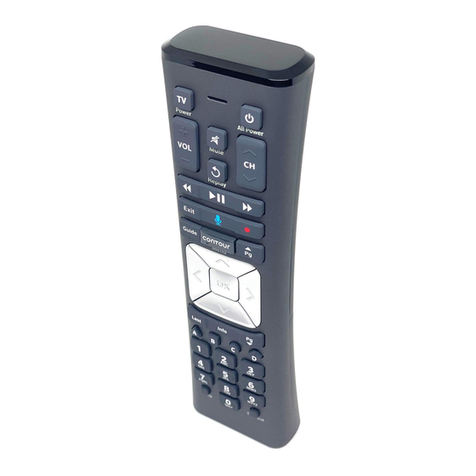
COX
COX XR11 Manual de usuario

COX
COX Custom 4 Device Manual de usuario

COX
COX Cox Universal Remote Control Manual de usuario


