Coppernic Access Manual de usuario

Access
Quick Start and Regulatory Guide
| Non-Contractual Pictures |
QSG 200144 A00

DEVICE
HANDSTRAP
EU PLUG
NOTICE
CABLE MICRO USB C | USB A
BATTERY
BOX
POWER SUPPLY
TEST REPORT
WHAT'S IN THE BOX ?
Access
Page 02 | 12
1
2
123
45
6 7 89
4
5
6
7
8
9
Access
Quick Start and Regulatory Guide
QSG 200144 A00
3

PRODUCT OVERVIEW
| Non-Contractual Pictures |
Access
Page 03 | 12
2D imager
led indicators
5’’ touch panel volume keys +/-
P3 function key
SCAN | KEY RIGHT
menu keys
RETURN | HOME | RECENT APPLICATIONS
on | off button
P1 function key
KEY LEFT UP
P2 function key
SCAN | KEY LEFT DOWN
USB-C
connectors for charging
battery latch
battery door
camera
Access
Quick Start and Regulatory Guide
NFC antenna area
flash
battery latch
buckle for handstrap
QSG 200144 A00
receiver
extension connectors

Setting up your device
NANO SIM | MICRO SD cards installation
•Press the left and right latches at the same time and remove the battery.
•Insert the Micro SD card into SD slot
•Insert Nano SIM card into SIM slot
Page 04 | 12
Micro SD card
Access
Quick Start and Regulatory Guide
Micro SD card
Nano SIM card (slot 1)
Nano SIM | SAM card (slot 2)
QSG 200144 A00

NOTE
Make sure that the latches are properly positioned to the left and right so that the battery door closes properly.
CAUTION
1. Replace the battery only with an identical battery or with an equivalent type of battery recommended by Coppernic.
2. Please recycle used batteries in accordance with current regulations.
Setting up your device
Battery installation
•Insert the battery, lower part first.
•Press the upper side of the battery until you hear a "click".
Page 05 | 12
Access
Quick Start and Regulatory Guide
QSG 200144 A00

Page 06 | 12
Setting up your device
Access
Quick Start and Regulatory Guide
CAUTION
Please make sure the device being charged fully when using Access at first time.
DEVICE:ACCESS
Remove the BATTERY
•Press the left and right latches at the same time.
•Remove the battery.
Charge the BATTERY
Before using the Access, please charge the battery using one of the following accessories approved by COPPERNIC.
1. Insert the micro USB-C cable into the Access and the USB Acable into the power supply.
> The Micro USB C | USB A cable is included in the device’s box.
> The power supply is included in the device box.
QSG 200144 A00
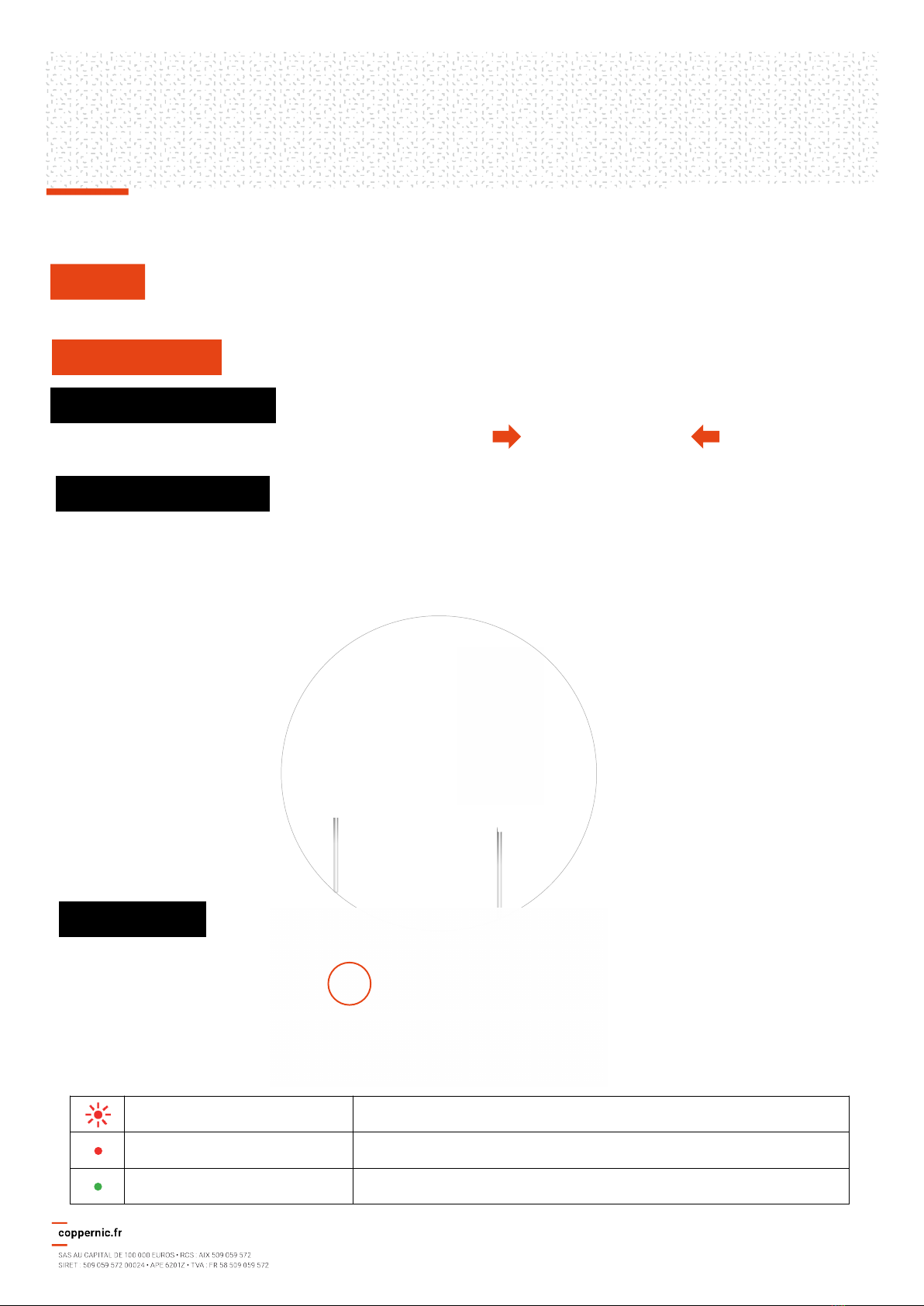
Red LED blinks
Low battery -Battery level <= 15%
Red LED
Battery is charging -Battery level > 15% and < 95%
Green LED
Battery is fully charged ->=95%
LED indicators

Setting up your device
Page 07 | 12
Red LED
Power connected and low battery power
Green LED
Connected to power supply and battery charged
Access
Quick Start and Regulatory Guide
QSG 200144 A00
battery charger
CAUTION
Charge batteries in temperatures from 0°C to 40°C. The device or cradle always performs battery charging in asafe and
intelligent manner.At higher temperatures (e.g. approximately +37°C) the device or cradle may for small periods of time
alternately enable and disable battery charging to keep the battery at acceptable temperatures.The Access and its cradle
indicates when charging is disabled due to abnormal temperatures via its LED.
CRADLE: DS-ACCESS-1000
The LED indicator shows the connection status of the docking station as well as the battery charge status.
1. Insert the Jack Power Adapter into the docking station and the power supply into the socket.
> Power supply is included in the docking station box.
BACK VIEW

Using your device
TURNING ON | TURNING OFF your device
Power On | Press and hold for 3 seconds the ON | OFF button.
Power Off |Press and hold for 2 seconds the ON | OFF button and select “Power off” in the
dialog box.
Reboot | Press and hold for 2 seconds the ON | OFF button and select “Reboot” in the dialog
window to restart the device.
Suspend Mode | Press and release the ON | OFF button to place the device in suspend mode.
The display will be off and go into a low power state to conserve battery power.
Reset | Press and hold the ON | OFF button during 30s.
Page 08 | 12
Access
Quick Start and Regulatory Guide
QSG 200144 A00

Using your device
DATA CAPTURE | photos & videos
Use cameras to take photos and record videos.
1. Go to the Home screen > select "Camera" > press the camera icon to take a picture/ switch to the video icon and
press for video recording.
2. Press the icon to switch between cameras (front | back).
NOTE
Ensure device memory or extend Micro SD card space is available.
Highly suggest to use camera app which is included in Android OS already. Using 3rd party application may cause any
malfunction.
DATA CAPTURE | barcode scanner
CAUTION
Class 2laser when open.
Do not stare into beam or view with optical instruments.
Complies with 21cfr1040.10 and 1040.11 except for deviations pursuant to laser notice no.50,dated June
24,2007 and IEC/EN 60825-1:2014.
Scan with the imager
•Use the "B-Manager" application provided by Coppernic to set up the reader and the "B-Scan" application to read a
barcode.
Side-Key Remapping for scanning
•Go to "Settings" > Select "Remap key & Shortcut".
•Select function keys P1, P2 or P3.
•Press the "Remap Shortcut" button.
•Press the ""B-Scan"" button.
•Press the scan button to trigger a capture.
•The red laser lights up to assist aiming, and the scan is ready when the beep sounds.
Page 09 | 12
Access
Quick Start and Regulatory Guide
QSG 200144 A00

Page 10 | 12
CAUTION
Only use accessories tested and approved by COPPERNIC to ensure compliance with European standards.
Operation of the device without regulatory approval is illegal.
Wireless Device Country Approval
Regulatory markings, subject to certification, are applied to the device signifying the radio(s) are approved for use in the European
countries under CE coverage.
For 2.4GHz or 5GHz products :Europe includes Austria, Belgium, Bulgaria, Czech Republic, Cyprus, Denmark, Estonia, Finland,
France, Germany, Greece, Hungary, Iceland, Ireland, Italy, Latvia, Liechtenstein, Lithuania, Luxembourg, Malta, Netherland, Norway,
Poland, Portugal, Romania, Slovak Republic, Slovenia, Spain, Sweden, Switzerland and the United Kingdom.
Country Roaming
This device incorporates the international roaming feature which will ensure the product operates on the correct channels for the
particular country of use.
Ad-Hoc Operation (5GHz Band)
Ad-Hoc operation is limited to Channels 36-48 (5150 –5250 MHz).Use of this band is restricted to indoor use only, any other use
will make the operation of this device illegal.
Federal Communication Commission Interference Statement
This device complies with Part 15 of the FCC Rules.Operation is subject to the following two conditions:
•This device may not cause harmful interference.
•This device must accept any interference received, including interference that may cause undesired operation.
NOTE
This equipment has been tested and found to comply with the limits for aClass Bdigital device, pursuant to Part 15 of the FCC
Rules.These limits are designed to provide reasonable protection against harmful interference in aresidential installation.
This equipment generates uses and can radiate radio frequency energy and, if not installed and used in accordance with the
instructions, may cause harmful interference to radio communications.
However, there is no guarantee that interference will not occur in aparticular installation.If this equipment does cause harmful
interference to radio or television reception, which can be determined by turning the equipment off and on, the user is encouraged
to try to correct the interference by one or more of the following measures:
•Reorient or relocate the receiving antenna.
•Increase the separation between the equipment and receiver.
•Connect the equipment into an outlet on acircuit different from that to which the receiver is connected.
•Consult the dealer or an experienced radio/TV technician for help.
FCC CAUTION
Any changes or modifications not expressly approved by the party responsible for compliance could void the user's authority to
operate this equipment.
This transmitter must not be co-located or operating in conjunction with any other antenna or transmitter.
Please delete this sentence after 6/2, 2014,if EUT follow NEW U-NII rule.
Operations in the 5.15-5.25GHz band are restricted to indoor usage only.
Access
Quick Start and Regulatory Guide
QSG 200144 A00
Tabla de contenidos
Otros manuales de PDA de Coppernic