
Conceptronic CHD3SU Manual de usuario

NEDERLANDS
1
Conceptronic Grab’n’GO CHD3SU
Snelstart handleiding
Hartelijk gefeliciteerd met de aanschaf van uw
Conceptronic Serial ATA naar USB 2.0 Harddiskbox.
In de bijgaande Snelstart handleiding wordt stap voor stap uitgelegd hoe u de Conceptronic
Serial ATA naar USB 2.0 Harddiskbox installeert.
Ingeval van problemen adviseren wij u onze support-site te bezoeken (ga naar:
www.conceptronic.net en klik op ‘Support’). Hier vindt u een database met veelgestelde
vragen waar u hoogstwaarschijnlijk de oplossing voor uw probleem kunt vinden.
Heeft u andere vragen over uw product die u niet op de website kunt vinden, neem dan
Voor meer informatie over Conceptronic producten kunt u terecht op de Conceptronic
website: www.conceptronic.net.
Bij software/drivers installatie: Het is mogelijk dat onderstaande installatie iets afwijkt van
de installatie op uw computer. Dit is afhankelijk van de Windows versie die u gebruikt.
1. Introductie
Met dit product kunt u op een snelle en eenvoudige manier extra ruimte beschikbaar
maken op uw Desktop of Notebook computer. U kunt een Serial ATA harde schijf in de
CHD3SU monteren om u te voorzien van draagbare opslagruimte.
De harde schijf box is ideaal voor het overzetten van data, het maken van back-ups of
voor gebruik als 2e harde schijf op uw computer.
2. Inhoud van de verpakking
De volgende onderdelen dienen aanwezig te zijn in de verpakking:
1x CHD3SU
4x HDD Montageschroef (niet meegeleverd indien er al een SATA-schijf geassembleerd is)
1x CHD3SU Spanningsadapter
1x USB Kabel
1x Standaard voor CHD3SU
1x Snelstart Handleiding
1x Garantiekaart

NEDERLANDS
2
3. Hardware Installatie CHD3SU
3.1 De CHD3SU monteren (Indien er geen harde schijf aanwezig is)
Als u de CHD3SU heeft aangeschaft met een voorgemonteerde harde schijf kunt u
deze stap overslaan en doorgaan bij stap 3.2.
a. Verwijder de 2 schroeven aan de achterzijde van de CHD3SU en verwijder de
achterplaat.
b. Schuif de harde schijf slede voorzichtig uit de behuizing.
c. Schuif de SATA harde schijf voorzichtig in de slede. De SATA connector van de
slede dient in de harde schijf gedrukt te worden.
Let op: De CHD3SU is ALLEEN geschikt voor Serial ATA schijven (SATA-I, SATA-II) !

NEDERLANDS
3
d. Plaats de slede op zijn kop en gebruik de 4 meegeleverde schroeven om de schijf
aan de slede vast te zetten.
e. Schuif de slede terug in de behuizing, plaats de achterplaat terug en gebruik de 2
schroeven om de achterplaats vast te zetten op de slede.
3.2 Kabels aansluiten
a. Sluit de spanningsadapter aan op uw stopcontact en op de CHD3SU.
b. Verbind de USB kabel met de CHD3SU en met een vrije USB poort op uw
computer.
c. Gebruik de schakelaar op de achterzijde van de CHD3SU om het apparaat aan te
zetten. Het Conceptronic Logo op de voorzijde zal blauw oplichten.
Windows 2000 & XP zullen de schijf automatisch herkennen. Er is geen
stuurprogramma installatie benodigd om de CHD3SU te gebruiken.
4. Veilig loskoppelen van de Harddiskbox
Het apparaat moet eerst uitgeschakeld worden voordat u het apparaat uit uw
computer haalt, anders kan er data verloren gaan. U kunt de ‘USB Mass Storage
Device’ loskoppelen door te dubbelklikken op het icoon op uw taakbalk.
‘Hardware apparaat uitwerpen of loskoppelen’ (“Remove or eject hardware
components” ) verschijnt op het scherm nadat u dubbelklikt. Stop hier het USB
apparaat en bevestig met ‘uitwerpen’ of ‘loskoppelen’ . Er verschijnt een
waarschuwing als u het apparaat niet de-activeert voordat u het loskoppelt van uw
computer.

NEDERLANDS
4
5. Een partitie aanmaken en formatteren op de CHD3SU
Het is mogelijk dat de schijf die u gebruikt nog niet gepartitioneerd/geformatteerd is.
In deze situatie zal de CHD3SU geen schijf weergeven binnen uw besturingssysteem.
Om een partitie te maken en/of te formatteren kunt u de standaard Windows
applicatie gebruiken.
1. Klik op “Start”, “Uitvoeren”, geef het commando “diskmgmt.msc” en kies “OK”.
2. Selecteer de externe harde schijf en klik met de rechtermuisknop. Indien er al
een partitie aanwezig is die u wilt verwijderen, kies “Partitie Verwijderen”. Kies
voor het maken van een nieuwe partitie voor de optie “Nieuwe Partitie...”.
3. De “Wizard Nieuwe Partitie” zal verschijnen. Klik op “Volgende”.
4. Kies bij het aanmaken voor “Primaire Partitie” en klik op “Volgende”.
5. Geef een grootte voor de nieuwe partitie. Standaard staat deze maximaal. Klik op
“Volgende”.
2
Let op: Het partitioneren of formatteren van een harde schijf zal alle bestaande
data op de schijf verwijderen!

NEDERLANDS
5
6. U kunt een stationsletter toewijzen. Standaard wordt de eerst beschikbare
stationsletter gebruikt. Klik op “Volgende”.
7. Controleer of het bestandssysteem op “NTFS” staat. Daarnaast kunt u een
volumenaam toewijzen aan de schijf en kiezen voor snel formatteren. Klik op
“Volgende” om door te gaan.
8. U krijgt een samenvatting van de gemaakte opdrachten. Door op “Voltooien” te
klikken worden de gemaakte opdrachten uitgevoerd en is de harde schijf klaar
voor gebruik.
De harde schijf in uw CHD3SU is nu klaar voor gebruik.
7
7

ENGLISH
6
Conceptronic Grab’n’GO CHD3SU
Quick Installation Guide
Congratulations on the purchase of your
Conceptronic Serial ATA to USB 2.0 Harddiskbox.
The enclosed Hardware Installation Guide gives you a step-by-step explanation of how to
install the Conceptronic Serial ATA to USB 2.0 Harddiskbox on your PC or notebook.
When problems occur, we advise you to go to our support-site (go to
www.conceptronic.net and click ‘support’). Here you will find a lot of possibilities to solve
your problems.
When you have other questions about your product and you cannot find it at our website,
For more information about Conceptronic products, please visit the Conceptronic Web Site:
www.conceptronic.net.
The Software installation as described below, may be slightly different from the installation
on your computer. This depends on the Windows version you are using.
1. Introduction
This product provides a fast and easy way to add extra storage space to your Desktop
or Notebook. You can assemble a Serial ATA hard disk in the CHD3SU to provide you
with portable storage.
The hard disk box is perfect for transferring data, making backups or for use as a
second hard disk on your computer.
2. Package Contents
The following items must be present in your package:
1x CHD3SU
4x Screw for HDD assembly (not included when CHD3SU is pre-assembled)
1x CHD3SU Power Supply
1x USB Cable
1x Stand for CHD3SU
1x Warranty Card 1x Quick Installation Guide
ENGLISH
7
3. Hardware Installation CHD3SU
3.1 Assembling the CHD3SU (When no hard disk is installed yet)
If you bought the CHD3SU with a hard disk pre-installed, you can skip this step and
continue to step 3.2
a. Remove the 2 screws at the back of the CHD3SU and remove the back plate.
b. Gently slide the hard disk tray out of the housing.
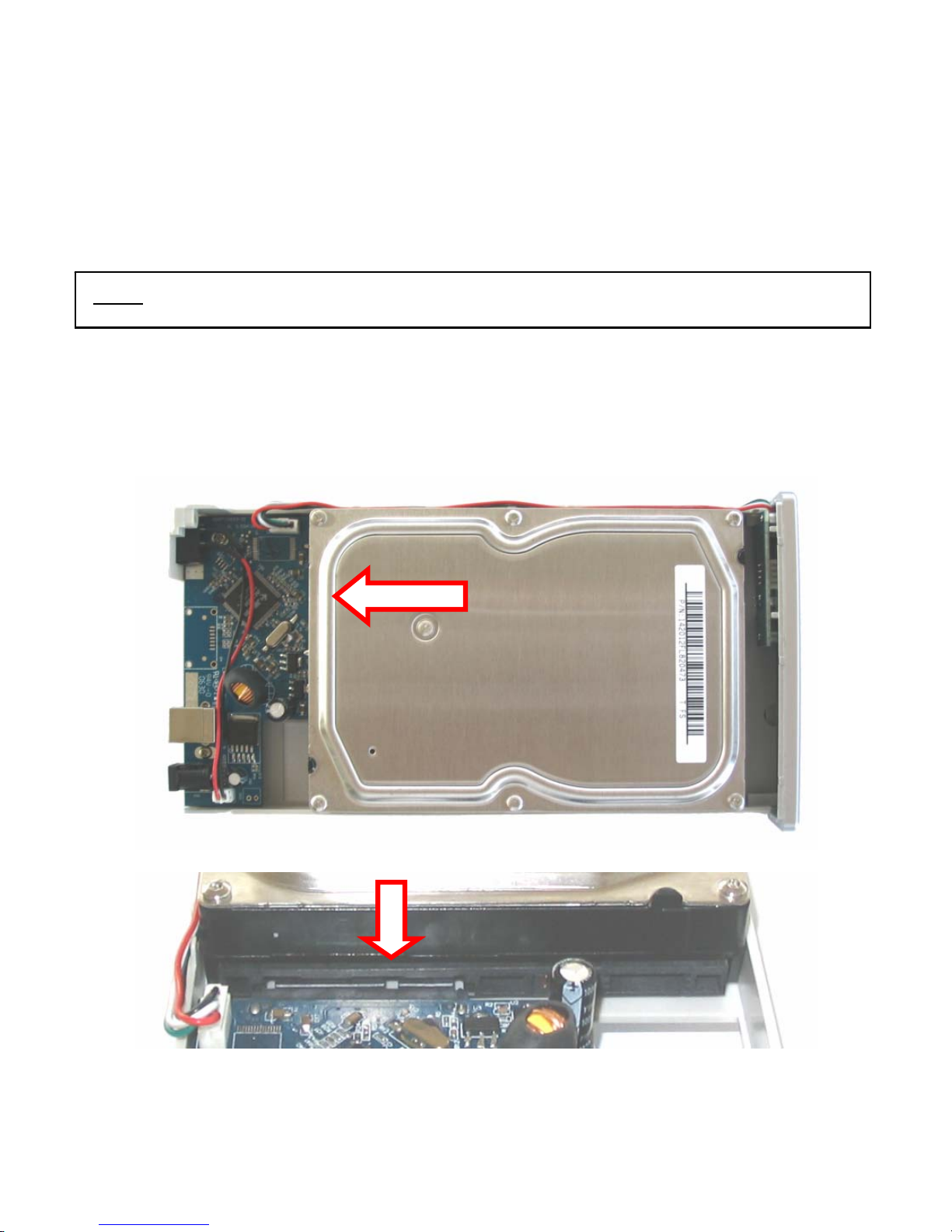
c. Gently place the hard disk in the tray. The Serial ATA connector of the tray will
connect to the interface on the Harddisk.
Note: The CHD3SU can only be used with Serial ATA hard disks (SATA-I, SATA-II) !

ENGLISH
8
d. Turn over the tray and use the 4 supplied screws to fasten the hard disk to the
tray.
e. Slide back the tray in the housing, attach the back plate to the backside of the
tray and use the 2 screws to fasten the back plate.
3.2 Cable connections
a. Connect the power supply to the power outlet and to the hard disk.
b. Connect the USB cable to the CHD3SU and to a free USB port on your computer.
c. Use the power switch on the back of the CHD3SU to turn on the device. The
Conceptronic Logo on the front of the CHD3SU will light up blue.
Windows 2000 & XP Automatically will recognize the hard disk. No driver installation
is required to operate the CHD3SU.
4. Safely removing the Harddiskbox
The device must be deactivated before disconnecting the device otherwise data could
be lost. You can deactivate “USB Mass Storage Device” by double clicking the icon in
the taskbar.
“Remove or eject hardware components” appears on the screen after double clicking.
Activate the appropriate USB component here and confirm with “Deactivate”. A
warning appears if you do not deactivate the device before disconnecting.

ENGLISH
9
5. Create and format a partition on the CHD3SU
It is possible that the hard disk you are using is not partitioned/formatted yet. In this
situation the CHD3SU will not show a replaceable hard disk with partitions in your
operating system. To create and/or format the partition on the CHD3SU, you can use
the default Windows format utility.
1. Click on “Start”, “Run”, execute the command “diskmgmt.msc” and press “OK”.
2. Select your external hard disk and right click on it. If there is a partition present
which you want to delete, choose “Delete Partition”. To create a new partition,
select “Create New Partition”.
3. The “New Partition Wizard” will appear. Click “Next”.
4. Select the option “Primary Partition” and click “Next”.
5. Set up the size of your new partition. It is set to the maximum size by default.
Click “Next”.
6. Assign a drive letter for your new partition. By default, the first free drive letter
is assigned. Click “Next”.
2
Note: When creating and/or formatting the Harddisk all current data will be
deleted!

ENGLISH
10
7. You can make different settings to format the hard disk. At “File System”, you
can choose between NTFS or FAT32. You can also assign a volume name for the
partition and choose for “Quick Format”. Click “Next” to continue.
8. You will see a summary of the selected commands. By selecting “Finish”, all
commands will be executed and your hard disk will be ready to use.
The hard disk built-in your CHD3SU is now ready for use.
7
7
Note: Partitions bigger than 32GB can only be formatted with the NTFS file system
when using Windows Disk Management!
Otros manuales para CHD3SU
1
Tabla de contenidos
Idiomas:
Otros manuales de Recinto de Conceptronic

Conceptronic
Conceptronic CHD3UL Manual de usuario

Conceptronic
Conceptronic CHD3DUSB3 Manual de usuario

Conceptronic
Conceptronic Grab'n'GO CHD3UL Version 2.0 Manual de usuario

Conceptronic
Conceptronic HDE02B Manual de usuario

Conceptronic
Conceptronic DDE03G Manual de usuario

Conceptronic
Conceptronic CH3ENAS Manual de usuario

Conceptronic
Conceptronic StreamVault CSVW25DC Manual de usuario

Conceptronic
Conceptronic CHD3SU Manual de usuario

Conceptronic
Conceptronic CHD3DUW Manual de usuario

Conceptronic
Conceptronic CH3B2E Guía del usuario


