
Comtrend Corporation GS-7608 Manual de usuario

!
!
Quick Installation Guide
GS-7608 | 8-Port PoE Gigabit Ethernet Smart-Lite Switch
I. Product Information
I-1. Package Contents
1. GS-7608 PoE Switch
2. QIG
3. Manual CD
4. Power Cable
5. 4 x Foot Pads
6. Rack-Mount Kit
1(
2(
3(
4(
5(
I
6(

2!
!
I-2. Hardware Overview
Front Panel
The front panel of the switch consists of:
•8 x 10/100/1000Mbps RJ-45 Ports
oPorts 1-8 are PoE Capable
•A Series of LED Indicators
Rear Panel
The rear panel of the switch features the AC power connector

3!
!
I-3. LED Indicator
Power/SYS:
LED Status
Mode
Description
Green
On
Power on
Blinking
System boot-up
Off
Off
Power off or fail
Link/ACT:
LED Status
Mode
Description
Green
On/Blinking
1000Mbps
connected/data
transmitting
Amber
On/Blinking
10/100Mbps
connected/data
transmitting
Off
Off
Disconnected or fail
PoE Max:
LED Status
Mode
Description
Green
On
PoE power output is over
90% of the PoE power
Off
Off
PoE power output is
under 90% of the PoE
power
PoE:
LED Status
Mode
Description
Green
On
PoE power output is on
Off
Off
PoE power output is off

4!
!
I-4. Desktop Installation
Install the switch on a desktop by attaching the cushioning rubber
feet to the bottom corners of the switch to protect against
external vibration. Allow adequate space for ventilation between
the device and any objects around.
I-5. Rack-mounting Installation
The switch can be mounted in an EIA standard-sized 19-inch rack
that can be placed in a wiring closet with other equipment. To
install the switch, please follow these steps:
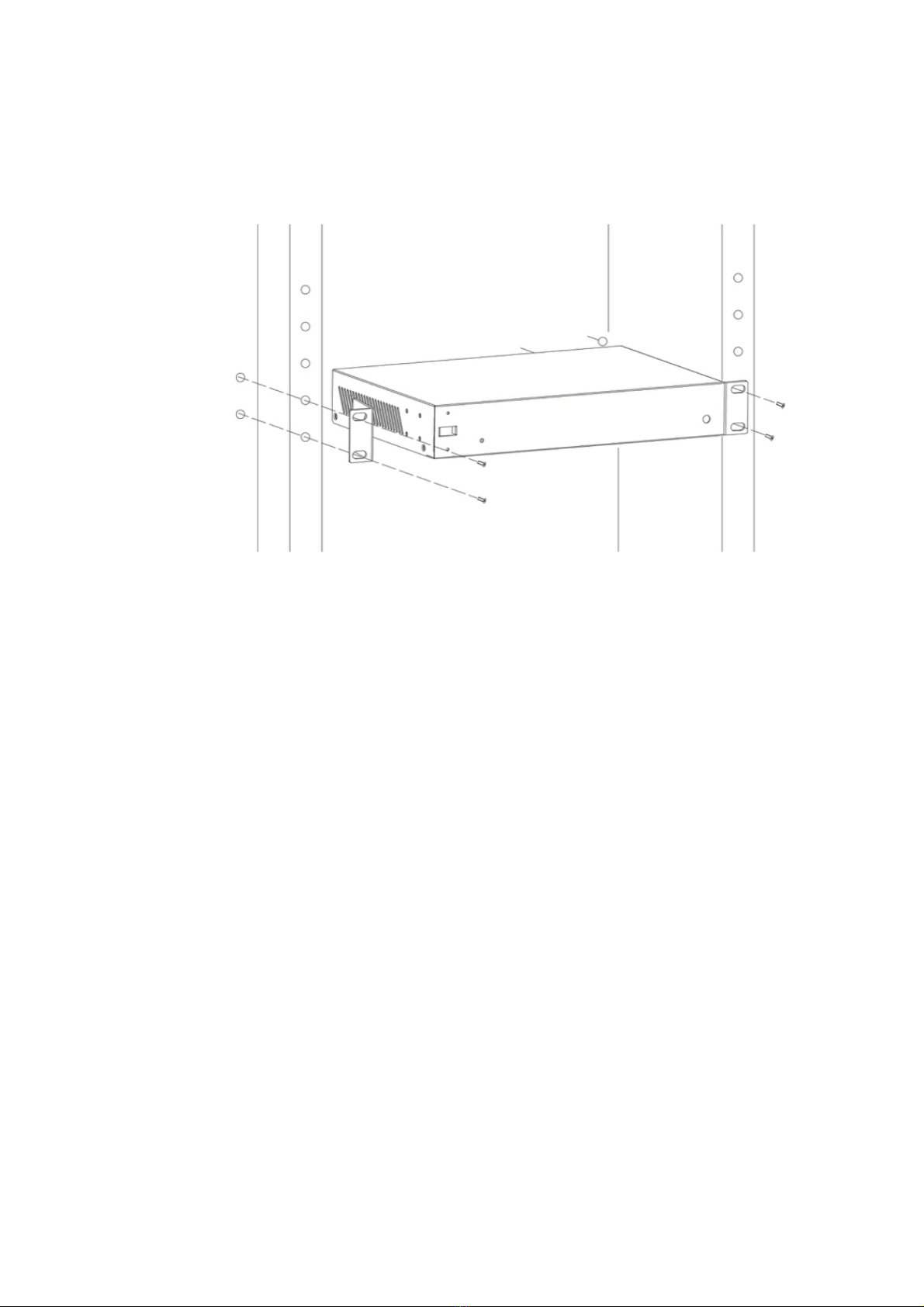
1. Attach the mounting brackets on the switch’s side panels
(one on each side) and secure them with the screws
provided.
Bracket Installation
5!
!
2. Use the screws provided with the equipment rack to mount
the Switch on the rack and tighten it.
Rack Installation

6!
!
II. Quick Setup
II-1. Switch to End Device
1. Connect the switch to local power with the included power
cable.
2. Use a standard Cat 5/5e Ethernet cable to connect the switch
to end devices as shown below. Switch ports will automatically
adjust to the link rate of the device to which it’s connected.
Optionally, any port can be used to uplink to an existing network.
Application Diagram
II-2. Login
1. Open a web browser and go to the switch’s IP address.
2. Enter the access point’s default IP address 192.168.169.1 into
the URL bar of a web browser.
Gateway
VoIP
Phone
IP
Camera
Access
Point
Switch
II

7!
!
3. You will be prompted for a username and password. Enter the
default username “admin” and the default password “admin”.
4. You will arrive at the switch configuration window as shown
below:

8!
!
FOR MORE HELP: For instructions on advanced features, FAQ, etc., please visit
our online Product Webpage.
Your Device is Now Connected!
(
For more information:
YouTube: https://www.youtube.com/user/ComtrendConnection
Facebook: https://facebook.com/Comtrend
Website: http://us.comtrend.com/
Support: Visit our website or call 1-877-COMTREND (1-877-266-8736)
!
III
V
Otros manuales para GS-7608
2
Tabla de contenidos
Manuales populares de Conmutador Gigabit Ethernet de otras marcas

ANTAIRA
ANTAIRA LNX-1002C-SFP Series Manual de usuario

KTI Networks
KTI Networks KGD-600-B Manual de usuario

Conceptronic
Conceptronic CGIGA5A Manual de usuario

Ubiquiti
Ubiquiti EdgeSwitch 24 LITE Manual de usuario

ANTAIRA
ANTAIRA LNP-1202G-SFP Series Manual de usuario

Tripp Lite
Tripp Lite NG5 Manual de usuario