
ComfortNET CTK02AA Instrucciones de montaje

ComfortNet HiDef Control
HOMEOWNER’S GUIDE
HiDef Communicating Control System
FOR SMART HVAC SYSTEMS
Part No. CTK02AA

Message to the Homeowners
Your premium ComfortNet™control system is designed to give
you and your family the indoor comfort you desire. It’s easy to
use, energy-efficient and reliable. It ensures your system is set up
properly, running at its most efficient and provides optimal comfort.
Introduction to your ComfortNet™
HiDef Control
Your ComfortNet control is designed to regulate and communicate
with your central heating and cooling control. This control system
has the ability to share information so that you will enjoy efficient
comfort throughout your home.

ComfortNet HiDef Control Homeowner’s Guide / 1
Control System Overview................................................................................ 2
Quick Start Guide ............................................................................................. 4
Navigating Through Your Control System Menus.......................................... 4
Set the Current Time and Day ...................................................................... 5
Choose the System Setting .......................................................................... 6
Energy Saving Factory Pre-Program ............................................................ 6
Using Your Control system .............................................................................. 7
System Setting.............................................................................................. 7
Auxiliary Heating........................................................................................... 8
Temporary Temperature Hold ....................................................................... 8
Permanent Temperature Hold ....................................................................... 9
Choosing the Fan Setting ............................................................................. 10
Maintenance Reminders............................................................................... 11
Setting Up Your Control system Options ....................................................... 12
Clock and Display Settings menu ................................................................. 12
Heating Program/Cooling Program............................................................... 14
Fan Setting Menu.......................................................................................... 15
Control System Setting Menu ....................................................................... 16
Air Filter Maintenance/UV Lamp Maintenance/Humidifier Maintenance ...... 18
Programming Your Control system................................................................. 20
Planning Your Program ................................................................................. 20
Enter the Heating & Cooling Programs......................................................... 21
Diagnostics ....................................................................................................... 23
Alert Information Detail ................................................................................. 23
Reset Operation............................................................................................ 24
Record of Control system Options Selected................................................. 26
Service Information....................................................................................... 26
Contents

2 / Homeowner’s Guide ComfortNet HiDef Control
8
10
9
6
5
4
3
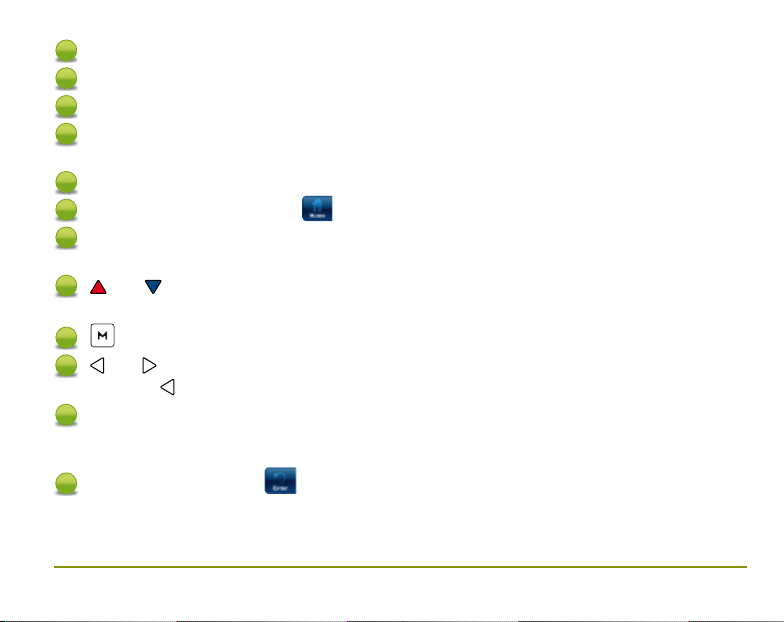
Control System Home Screen Display and Controls
1
78
2
10
12 11
ComfortNet HiDef Control Homeowner’s Guide / 3
1The indoor temperature
2The relative indoor humidity
3The day of the week and the time
4The outside temperature if outdoor sensor
is connected
5The desired temperature or setpoint
6Indicates system setting or .
7This button selects system settings Cool,Heat,EM,Auto, or Off.
In the menus, this button is used to display the Home screen
8and move the temperature up and down.
Also used to navigate through menus
9is used to enter any menu function of the control system
10 and used to move through the menu settings.
Also, the is used to exit the temperature hold function
11 This button selects the fan operation On or AUTO. Also the Enter
button in the control system menus used to save entries and display
previous menu.
12 Indicates Fan mode or .

4 / Homeowner’s Guide ComfortNet HiDef Control
Your control system features a simplified easy to understand menu structure.
Navigating through any menu in your control system uses the same approach.
Press to enter the Main Menu
Highlight a menu item using the or buttons
Enter the item by pressing
Use the or and the or to change menu items and settings
Press the Home button to display the Home Screen.
Press the Enter button to save any changes
you have made and display the previous menu.
If no button is pressed for two minutes, you will return to the home screen
without saving changes.
Navigating through your control system menus

ComfortNet HiDef Control Homeowner’s Guide / 5
Press to enter the Main Menu
Set the Current Time and Date
On the Main Menu, highlight and enter Clock
and Display Settings.
Highlight and Enter Time & Date.
Set the time and date using the or
buttons.
Press to highlight Minute, AM/PM, Month,
Day or Year.
The control system will automatically assign
the correct day of the week after the date is
set.
Press the Enter button when finished.
Note: If system power is lost for more than
eight hours, the clock will have to be
reset. Programming and configuration
settings will be saved.

6 / Homeowner’s Guide ComfortNet HiDef Control
Choose the System Setting
From the Home screen, press the button as
shown to choose the system setting.
Factory Pre-Programmed Heating and Cooling Schedule
If you want to change the heating and/or cooling programs in your control system,
see the “Programming Your Control system” section.
Wake Up
(Morning)
Leave for Work
(Day)
Return Home
(Evening)
Go to Bed
(Night)
Heating Program 6:00 AM 70oF 8:00 AM 62oF 5:00 PM 70oF 10:00 PM 62oF
Cooling Program 6:00 AM 75oF 8:00 AM 83oF 5:00 PM 75oF 10:00 PM 78oF
Energy Saving Factory Pre-Program
Your control system is programmed from the factory with the energy saving settings
shown below for every day of the week. If this program meets your needs, simply
select either Cool,Heat or Auto using the System button and press to begin
program operation.

ComfortNet HiDef Control Homeowner’s Guide / 7
System Setting
Press the System button to choose whether you want your system to be in Cool, Heat,
EM or Auto mode.
Control system controls only
the cooling system.
Control system controls only
the heating system.
Heating and Cooling systems
are off.
Emergency setting available
only when the control system
detects a heat pump in the
system. When selected, system
will use only the backup heat.
Auto Changeover is used
where both heating and
cooling may be required
during the same day. AUTO
allows the control system to
automatically select heating
or cooling depending on the
indoor temperature and the
selected heat and cool temperatures.
This control system will not allow you to
program a conflict between Heating and
Cooling setpoints.
For example: In the morning heating
is required. During the day, the
temperature gets warmer and you want
the air conditioner to run. The control
system will automatically change the
system mode from heating to cooling.
The temperature you desire in your home
can be changed by pressing or .

8 / Homeowner’s Guide ComfortNet HiDef Control
Auxiliary Heating
(Heat pumps only)
If you have a heat pump, your system will
automatically activate Auxiliary Heating when the
outside temperature is too cold for the heat pump to
efficiently heat your home. When Auxiliary Heating is
called for, the display will show “Aux” with the Heat
icon. In dual fuel applications “Aux” will indicate gas
furnace operation.
Temporary Temperature Hold
You can temporarily adjust the temperature in your
home at any time while your control system is running
a program by pressing either the or . Your control
system will maintain this desired temperature for four
hours (default). The display will show “Hold at” by
the desired temperature, and “Hold Until” with the
time the temporary hold will end. The display will also
briefly show “Press or to set the Hold Time”.
While this message is displayed, you can change the
time that you wish to have the Hold end.
Press the button to cancel a temporary hold. The
desired temperature will display the current program
setting.
Otros manuales para CTK02AA
1
Tabla de contenidos
Otros manuales de Sistema de control de ComfortNET


