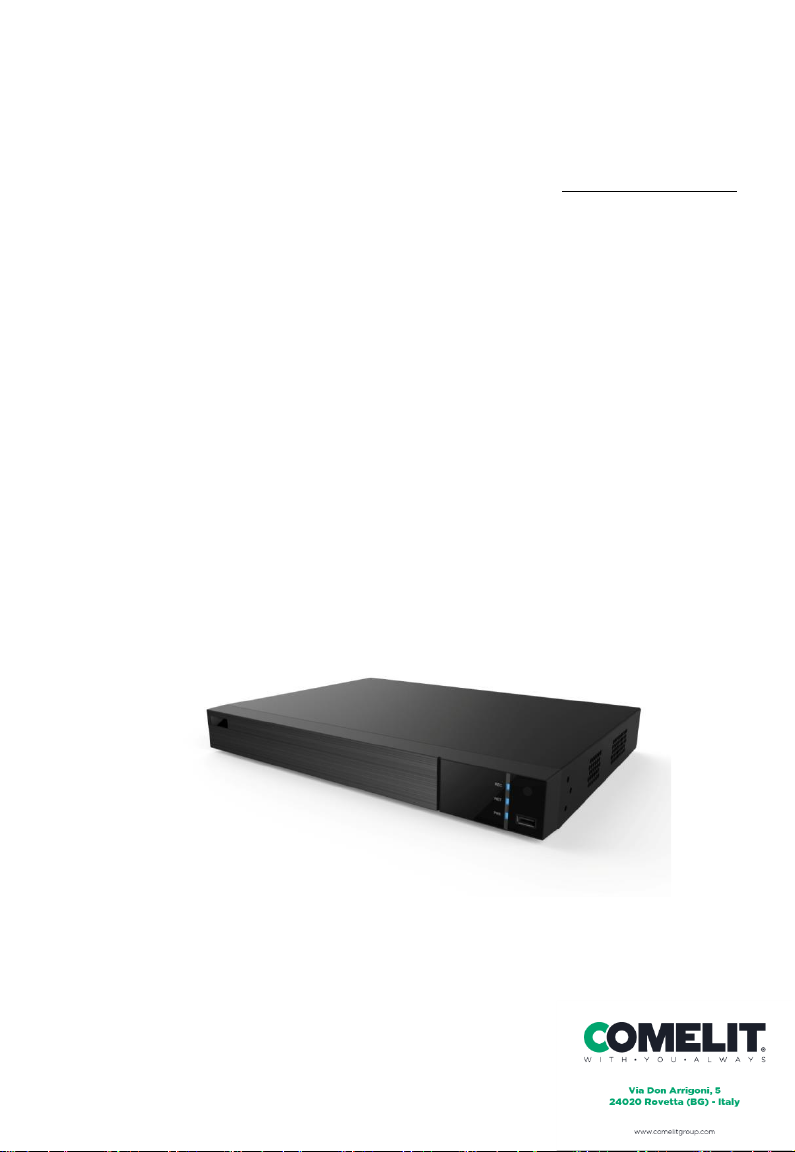
Comelit DEC0804 Manual de usuario

HD
Decoder
User Manual

HD Decoder User Manual
Please read this instruction carefully before operating the unit and keep it for further
reference
Notes
⚫Please read this user manual carefully to ensure that you can use the device correctly and
safely.
⚫There may be several technically incorrect places or printing errors in this manual. The
updates will be added into the new version of this manual. The contents of this manual are
subject to change without notice.
⚫This device should be operated only from the type of power source indicated on the
marking label. The voltage of the power must be verified before using the same. Kindly
remove the cables from the power source if the device is not to be used for a long period of
time.
⚫Do not install thisdevice near anyheat sources such as radiators, heat registers, stoves or
other devices that produce heat.
⚫Do not install this device near water. Clean only with a dry cloth.
⚫Do not block any ventilation openings and ensure proper ventilation around the
machine.
⚫This machine is for indoor use only. Do not expose the machine in rain or moist
environment. In case any solid or liquid get inside the machine’s case, please turn off the
device immediately and get it checked by a qualified technician.
⚫Do not try to repair the device by yourself without technical aid or approval.
⚫This manual is suitable for many models. All examples and pictures used in the manual
are from one of the models for reference.

HD Decoder User Manual
Contents
1Introduction.............................................................................................................. 1
1.1 Summary........................................................................................................... 1
1.2 Features............................................................................................................. 1
1.3 Front-panel Descriptions................................................................................... 2
1.4 Real-panel Descriptions.................................................................................... 2
2Login ......................................................................................................................... 4
3Device Running Mode.............................................................................................. 5
3.1 Video Settings................................................................................................... 5
3.1.1 Video Management.............................................................................................................. 5
3.1.2 Video Group Settings........................................................................................................... 6
3.2 Decoding Settings............................................................................................. 7
3.2.1 Plan Settings........................................................................................................................ 7
3.2.2 Output Settings.................................................................................................................. 12
3.3 Device Settings ................................................................................................13
3.3.1 Upgrade Settings ............................................................................................................... 13
3.3.2 Reboot Settings.................................................................................................................. 13
3.3.3 Reset Settings.................................................................................................................... 13
3.3.4 Affiliation Settings ............................................................................................................ 14
3.4 System Settings................................................................................................15
3.4.1 Basic Settings.................................................................................................................... 15
3.4.2 Display Settings................................................................................................................. 15
3.4.3 Time Settings..................................................................................................................... 16
3.4.4 Network Settings............................................................................................................... 16
3.4.5 User Settings...................................................................................................................... 17
3.4.6 Backup Settings................................................................................................................. 17
3.4.7 Alarm Settings................................................................................................................... 17
4Platform Running Mode.........................................................................................19
4.1 Affiliation Settings...........................................................................................19
4.2 Network Settings..............................................................................................19
4.3 Other Settings...................................................................................................20
4.4 Connect to Platform.........................................................................................20
5Specifications...........................................................................................................22

HD Decoder User Manual
1
1Introduction
1.1 Summary
The decoder is a 4-channel professional decoder, which adopts high-performance SOC
decoding chip. It not only supports multi-channel standard-definition and high-definition
network videos decoded on TV wall independently (in device running mode), but also it can
be managed in an integrated way by video surveillance management platform (in platform
running mode). Therefore, this decoder can be widely used in banks, schools, intelligent
buildings, transportation, environmental protection, supermarkets, gasoline stations, housing
estates, factories, etc.
1.2 Features
Decoding & Display
⚫4*HDMI@1080P; HDMI1 and HDMI3 support 4K
⚫4*VGA output, 4*BNC output
⚫Support PS, RTP,TS,ES package format(in platform running mode)
⚫Support NTSC&PAL video format
⚫H.265 HP/MP/BP and H.264 HP/MP/BP
⚫8CH 8MP@30fps or 16 CH 4MP@30fps or 32CH1080P@30fps 64CH 720 P@30fps
⚫G.711A/G.711U
⚫1 CH audio input; 4 CH audio output
⚫1 CH talkback
Decoding Control
⚫Support live view and playback decoding
⚫1/4/9/16/25/36 screen display mode
⚫Splicing, picture-in-picture, roaming
⚫View cameras or camera groups in sequence
⚫A&V streams can be acquired actively and passively
⚫A&V streams can be directly acquired from IPC/DVR/NVR by SDK private protocol
⚫A&V streams can be acquired from NVMS platform or encoding devices by RTSP/RTP
protocol
⚫A&V streams can be acquired from IPC by ONVIF protocol
Device Management
⚫Superior-subordinate management
⚫A maximum of 64 decoders can be manageable

HD Decoder User Manual
2
⚫Access
⚫Provide HTTP API protocol to third-party platform
⚫Support platform running mode and device running mode
Operation and Maintenance
⚫Support device search
⚫Support WEB client access, configuration and management
⚫Support time zone, time and date settings
⚫Support IP address, subnet mask and gateway settings
⚫Support data port and HTTP port settings
⚫Support data backup and restoration
⚫Support remote reboot and one-button reset
⚫Support online and U-disk upgrade
⚫Support dual gigabit Ethernet ports, load balancing
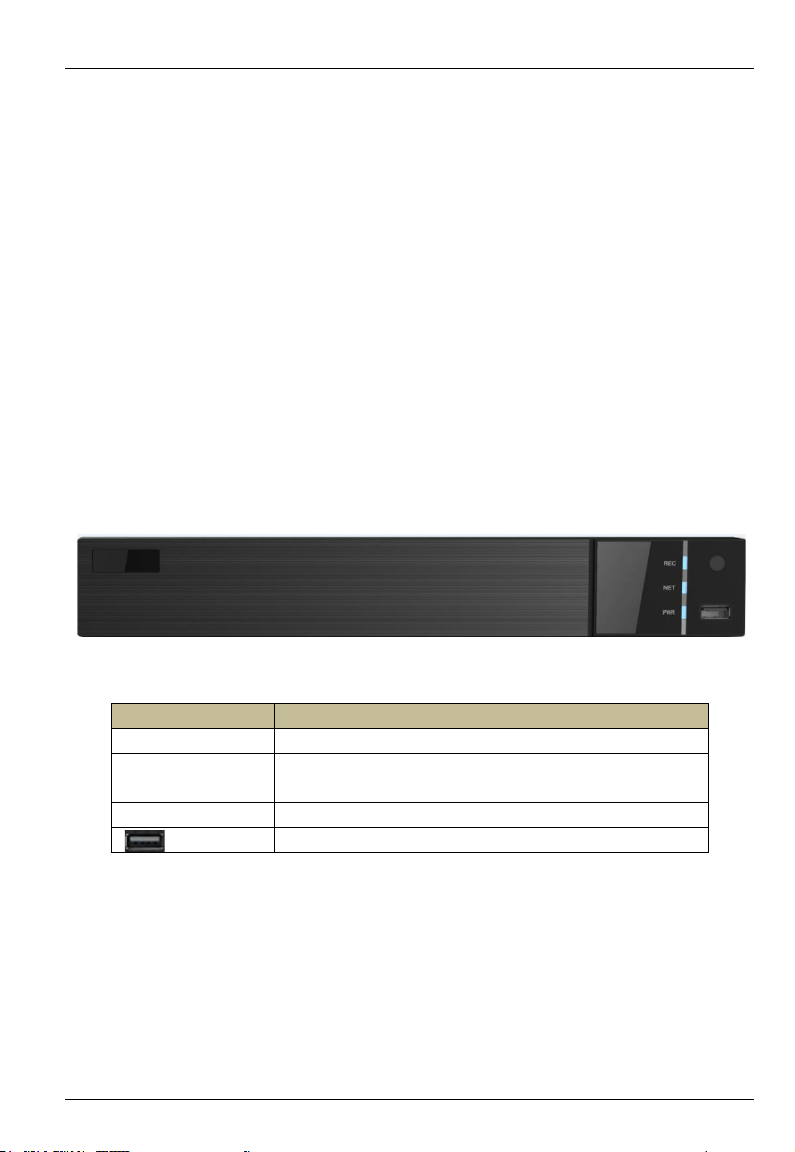
1.3 Front-panel Descriptions
Front panel
Name
Description
REC
Record indicator (unavailable)
NET
Network indicator. The light will go on when it is connected to
network.
PWR
Power indicator. The light will go on when it is powered.
USB interface
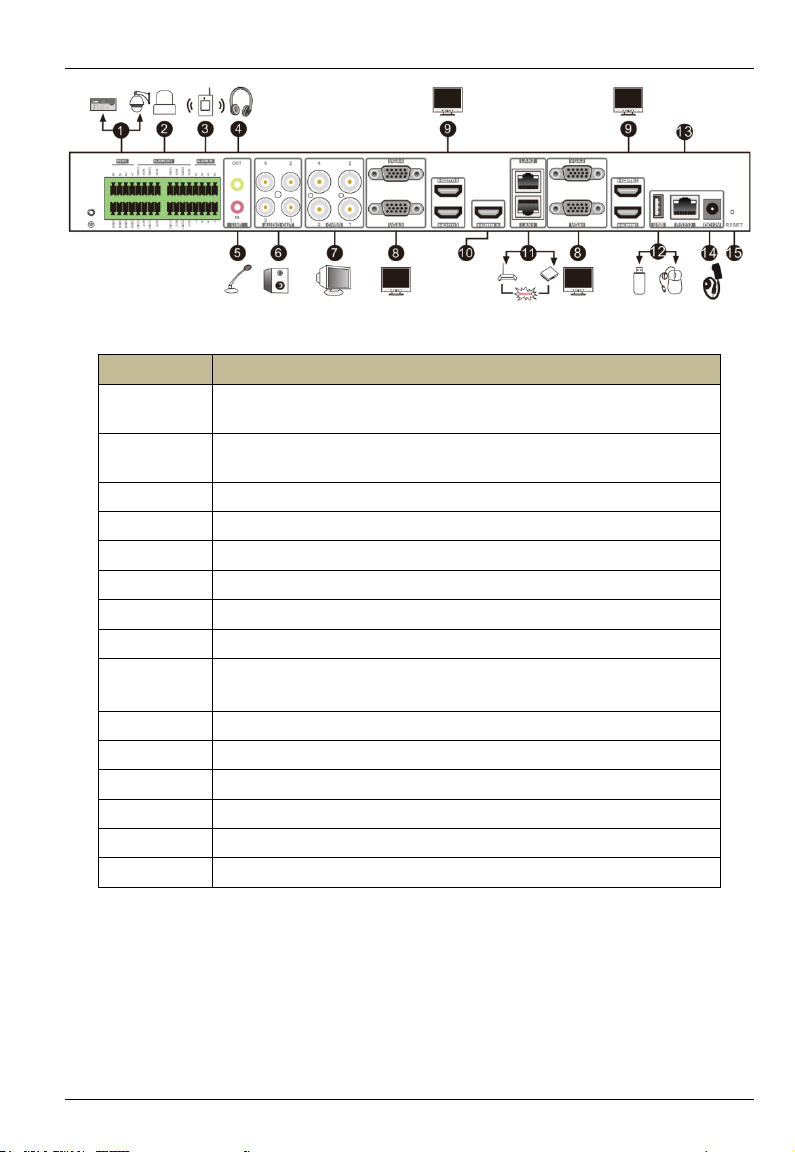
1.4 Real-panel Descriptions

HD Decoder User Manual
3
Rear panel
Number
Description
1
RS485 interfaces. Connectors for speed domes.Y is TX+; Z is TX-;
Connects for keyboards.A is TX+; B is TX- (unavailable temporarily)
2
8CH alarm output (unavailable temporarily); Relay output. Connect to external
alarms.
3
8CH alarm input (unavailable temporarily)
4
Connector for audio output (used for two-way talk)
5
Connector for audio input (used for two-way talk)
6
Audio output × 4
7
CVBS output × 4
8
VGA output × 4 (1920×1080,1280×1024)
9
HDMI output × 4 (HDIM1/HDMI3:3840×2160,1920×1080,1280×1024;
HDMI2/HDMI4:1920×1080,1280×1024)
10
HDMI input× 1
11
Gigabit Ethernet port× 2
12
Connector for external USB devices (like USB mouse)
13
RS232 serial port
14
DC12V power input
15
Reset

HD Decoder User Manual
4
2Login
The login settings are as follows.
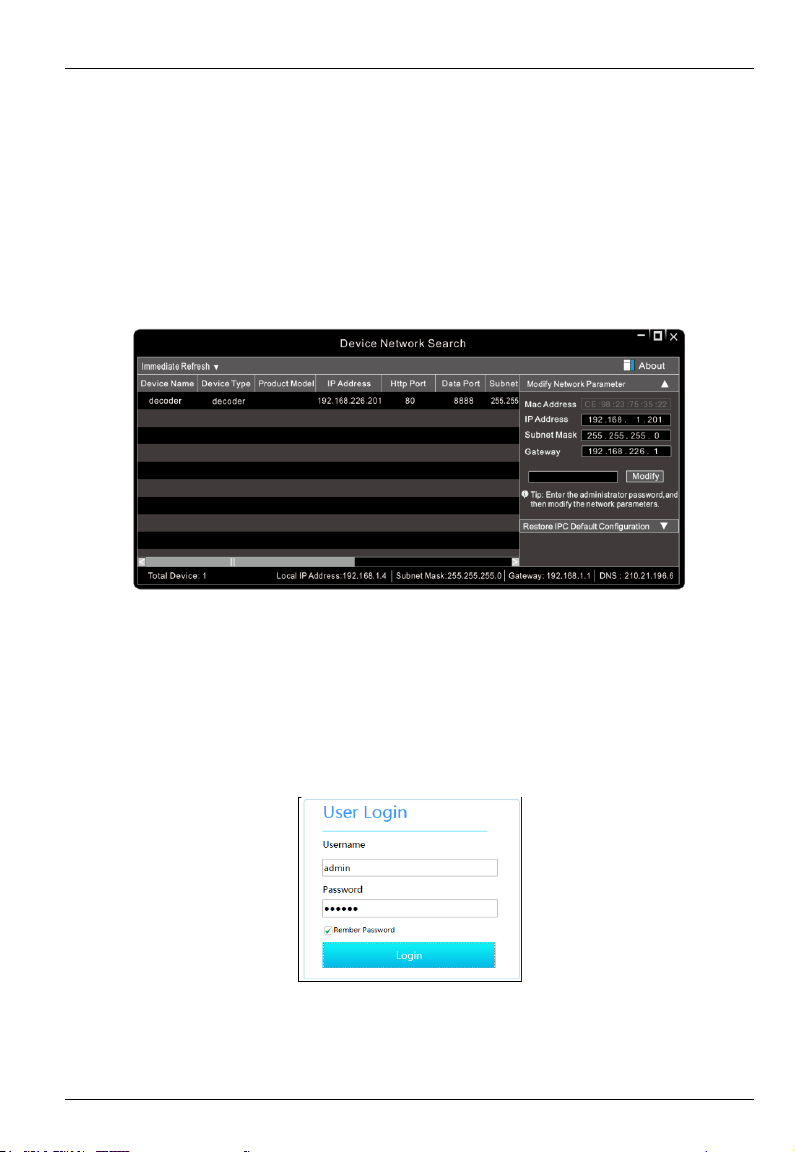
①Make sure the PC and decoder are connected to the LAN.
②Find the IP-Tool from the CD and then install it on your computer.
③Run the IP-Tool. Then the decoder can be searched. If the decoder can’t be searched,
please check whether the PC and the device are connected to the network or not. Click the
device to check its detail information as shown below.
④Modify the IP address. Click the information of the decoder listed in the above table to show
the network information. Modify the IP address and gateway of the decoder and make sure its
network address is in the same local network segment as the computer’s. Please modify the IP
address of your device according to the practical situation.
Double click the decoder information in IP-Tool or directly enter IP address in the web browser
to access. Here we take IE client for example.
Username:The default username is admin.
Password:The default password is 123456.
Enter the default username and password and then click [Login].

HD Decoder User Manual
5
3Device Running Mode
3.1 Video Settings
In device running mode, video settings can be set. If the decoder is platform running mode,
please skip this chapter.
Note: The decoder runs in platform mode by default. Video and decoding settings cannot be
configured in this mode. If you want to manage videos by your local device, please switch the
running mode to device mode (See Basic Settings).
3.1.1 Video Management
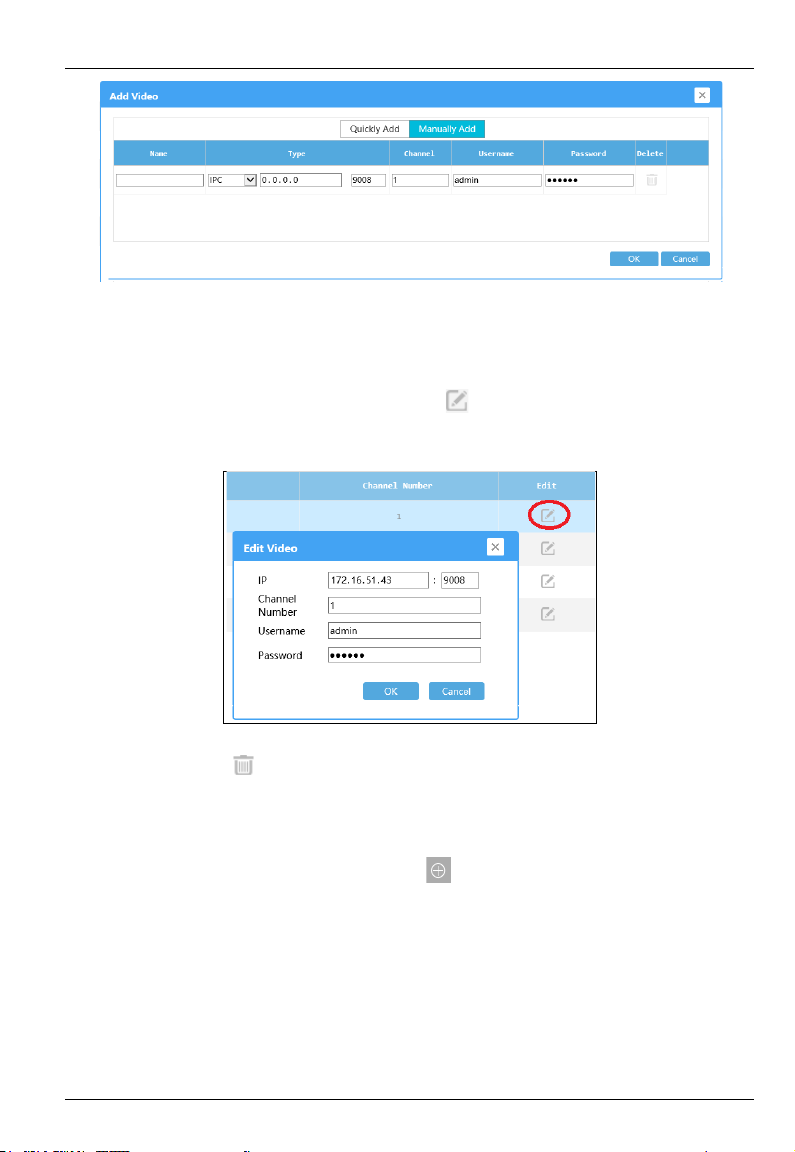
Go to Video Settings→Video. Then click to add videos.
Videos can be quickly add or manually add through the above interface.
Quickly Add: Click [Refresh] to search video devices (like IPC, DVR, NVR, etc.) in the same
local network. Select the desired video devices and then enter username, password and
channel number of the devices. Then click [OK] to save the settings.
Manually Add: Click the “Manually Add”tab to add the video devices manually.

HD Decoder User Manual
6
Users can add IPC, NVR and DVR of our company or the video devices supporting ONVIF or
RTSP protocol. Please select as needed. Then enter the corresponding IP address, port, channel
number, username and password.
Modify the information of a video device: Click behind the channel number to change
the IP address, channel number, username and password.
Delete videos: Click to delete the added videos.
3.1.2 Video Group Settings
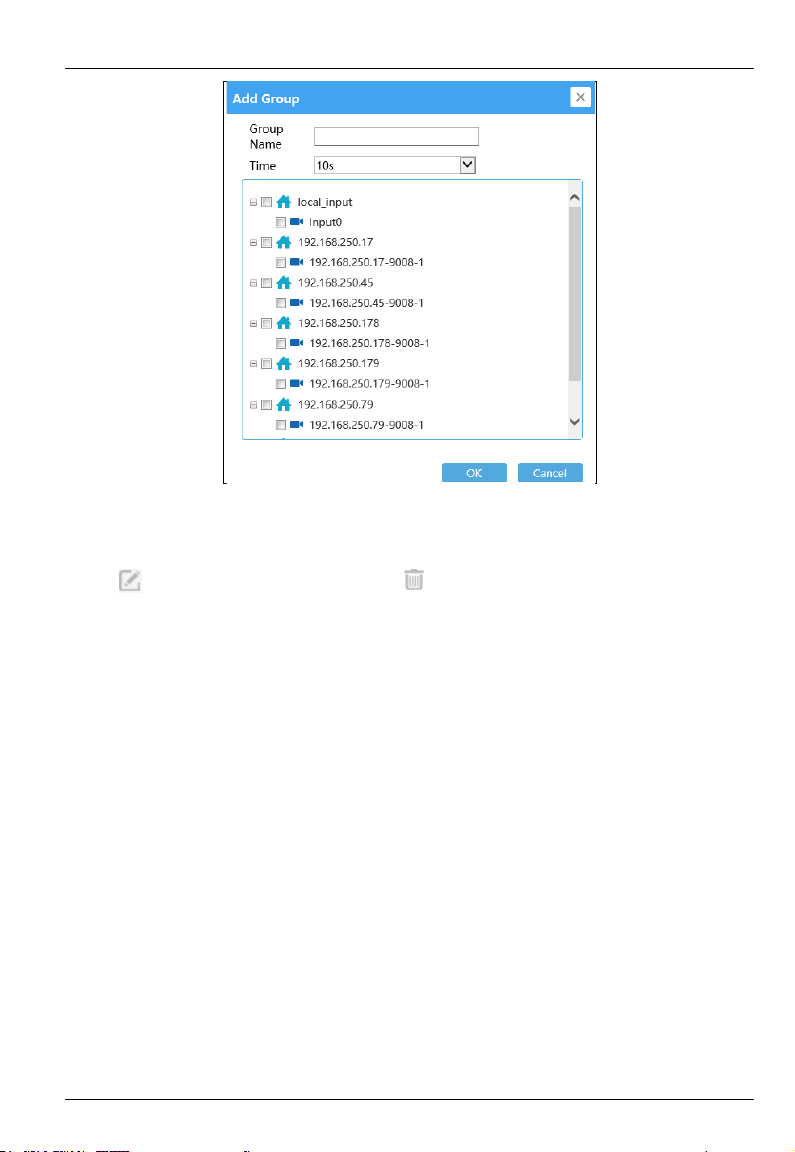
Go to Video Settings→Video Group. Then click to assign channels for the desired group.

HD Decoder User Manual
7
Enter the group name, select the dwell time and then check videos. After that, click [OK] to
save the settings.
Click to modify the added group; click to delete the added group.
3.2 Decoding Settings
In device running mode, decoding settings can be set. If the decoder is platform running mode,
please skip this chapter.
3.2.1 Plan Settings
Click Decoding Settings→Plan to go to the plan settings interface as shown below.
Set the screen display mode and then drag a video to a window to decode the video.
Tabla de contenidos