
Colorlight C6 Manual de usuario

C6 LED Player

CONTENT
1 C6 Interface and Hardware Connection ....................................................... 1
1.1 C6 Interface ...................................................................................... 1
1.2 Hardware Connection ....................................................................... 2
2 LEDVISION Installation ................................................................................ 3
3 C6 Parameter Settings ................................................................................. 5
3.1 Connection Settings .......................................................................... 5
3.2 Basic Settings ................................................................................... 7
3.3 Advanced Settings ...........................................................................10
3.3.1 Playing Parameters ..............................................................10
3.3.2 Network ................................................................................ 11
4 Async Program Editing and Sync Playing ...................................................15
4.1 Async Program Editing .....................................................................15
4.2 Async Program Publishing ...............................................................16
4.2.1 Publish Program through Direct USB ...................................16
4.2.2 Publish Program through Ethernet Port ................................17
4.2.3 Publish Program through USB Disk ......................................17
4.3 Sync Playing ....................................................................................20
5 Network Management of C6 ........................................................................21
5.1 Connection and Management ..........................................................21
5.2 Add Group and C6 ...........................................................................21

www.colorlightinside.com
1
1 C6 Interface and Hardware Connection
1.1 C6 Interface
No
Name Functions
1 Indicator Green indicator shows Async or Sync display
2 Switch Button Switch between Async & Sync display
3 WiFi Interface Connect with WiFi antenna
4 4G Interface Connect with 4G antenna (Optional)
5 GPS Interface Connect with GPS antenna (Optional)
6 Sensor Interface
Environmental temperature and brightness monitoring;
Automatic brightness adjustment
7 Ethernet Output RJ45, signal output, connecting with receiving cards
8 HDMI OUT HDMI output, for cascading between players
9 HDMI IN HDMI input, for cascading between players
10
Audio Output HiFi stereo output
11
LAN Port Access network
12
USB Port Program updating through U disc
13
CONFIG Screen parameters setting; Program publishing
www.colorlightinside.com
2
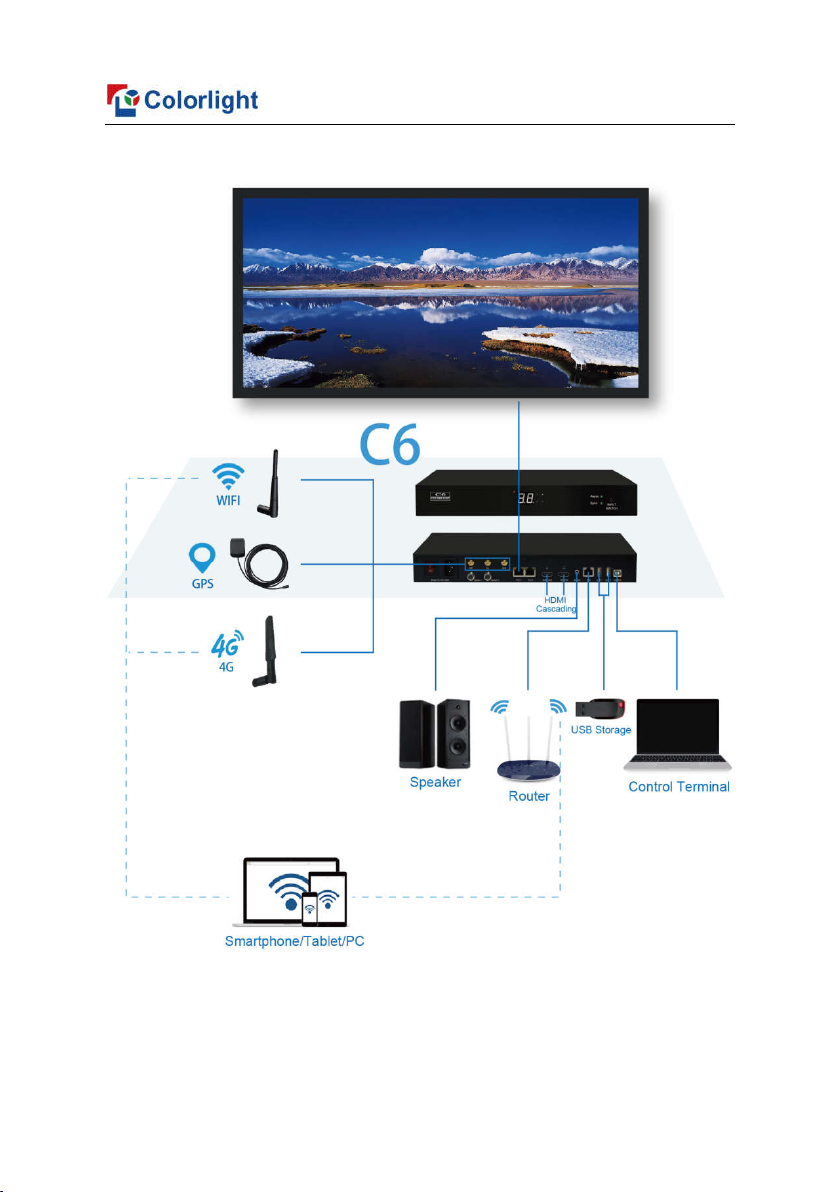
1.2 Hardware Connection

www.colorlightinside.com
3
2 LEDVISION Installation
First download the installation package of LEDVISION software from
Colorlight’s official website www.colorlightinside.com, and complete the
installation according to the diagrams below.
1. Run the software package, and select [ English ] for installer language.
Click [ OK ] to move on.
Note: Run LEDVISION version 5.0 or higher while using C6.
2. After selecting a language, an installation wizard like below will appear. Click
[ Next ]. Then choose installation location, click [ Browse ] to change default
target location, then click [ Next ] after completing;

www.colorlightinside.com
4
Choose components according to your own computer status, click [ Install ]
to complete;
After the installation is complete you are ready to use LEDVISION.

www.colorlightinside.com
5
3 C6 Parameter Settings
3.1 Connection Settings
1. Before connecting C6 to the computer, first click the control menu [ Control ]
– [ Screen Control ], then select [ C-Series Play Box ] in Select Sending
Device, then set up [ LED Screen Window Management ].

www.colorlightinside.com
6
Note: If you do not complete this step, LEDVISION may not function properly
because of a conflict between Net Card mode and C6 CONFIG interface.

www.colorlightinside.com
7
2. Use standard USB A/B cable to connect C6 to computer when C6 is
powered on, one side to connect USB port, another side for C6 CONFIG port.
Click [ Publish Program to C Series Playboxes ] (as shown in the red
box) to enter program publish interface.
3.2 Basic Settings
● Ensure LED display is under normal configuration before setting on C6
parameters.
● When setting C6 parameters, you can connect C6 to your PC through a
standard USB A/B cable, and connect C6 to LED screen through network
cable.

www.colorlightinside.com
8
Time Settings: Click [ Modify ] to set up date and time, or time zone as
well.
Player Time: Display current time.
Uptime: Calculated running time once C6 powered on.
Total/Available: View memory utilization.
Wakeup, Sleep, Reboot: To perform C6 operation like wakeup, sleep and
reboot once clicked.
Program: Use the drop down menu to play programs.
Management: Check, delete and choose program, and much more.
Schedule: Conduct timing settings on command contents like play
program, sleep, wakeup, reboot, brightness adjustment, etc.
1. After connecting C6 to the computer, a C6 player will show up in Direct USB,
you can check the specific information and some basic settings about it
through selecting the player.
Otros manuales para C6
1
Tabla de contenidos


