
Code Code Reader 4405 Manual de usuario

D018433_01_CR4405_User_Manual
D018433_01_CR4405_User_Manual
User Manual
Code Reader™ 4405
Manual Version 01
Release Date: February 2014
Compable with Apple® iPhone® 5 and 5s
Apple and iPhone are trademarks of Apple Inc., registered in the U.S. and other countries.

D018433_01_CR4405_User_Manual
Statement of Agency Compliance
The Code Reader™ 4405 (CR4405) has been tested for compliance with FCC regulaons and was found to be compliant with
all applicable FCC Rules and Regulaons.
IMPORTANT NOTE: To comply with FCC RF exposure compliance requirements, this device must not be co-located or operate
in conjuncon with any other antenna or transmier.
CAUTION: Changes or modicaons not expressly approved by the party responsible for compliance could void the user’s
authority to operate the equipment.
The CR4405 has been tested for compliance to CE standards and guidelines and was found to conform to applicable CE
standards, specically the EMC requirements EN 55024, ESD EN 61000-4-2, Radiated RF Immunity EN 61000-4-3, ENV 50204,
EFT EN 61000-4-4, Conducted RF Immunity EN 61000-4-6, EN 55022, Class B Radiated Emissions, and Class B Conducted
Emissions.
The CR4405 has been tested and cered in compliance with the Technical Regulaons Conformity Cercaon of Specied
Radio Equipment (ordinance of MPT N°.37. 1981), Arcle 2, Paragraph 1, Item 19.
Code voids product warranty if the hard case has been opened or tampered with in any way.
The CR4405 meets all safety and quality standards in accordance to EN 60950-1:2006/A11:2009/A1:2010.
CR4405 FCC Compliance
NOTE: This equipment has been tested and found to comply with the limits for a Class B digital device, pursuant to part 15
of the FCC Rules. These limits are designed to provide reasonable protecon against harmful interference in a residenal
installaon. This equipment generates, uses and can radiate radio frequency energy and, if not installed and used in
accordance with the instrucons, may cause harmful interference to radio communicaons. However, there is no guarantee
that interference will not occur in a parcular installaon.
If this equipment does cause harmful interference to radio or television recepon, which can be determined by turning the
equipment o and on, the user is encouraged to try to correct the interference by one or more of the following measures:
• Reorient or relocate the receiving antenna.
• Increase the separaon between the equipment and receiver.
• Connect the equipment into an outlet on a circuit dierent from that to which the receiver is connected.
• Consult the dealer or an experienced radio/TV technician for help.
This device complies with part 15 of the FCC Rules. Operaon is subject to the following two condions: (1) This device may
not cause harmful interference, and (2) this device must accept any interference received, including interference that may
cause undesired operaon.

D018433_01_CR4405_User_Manual
Code Reader™ 4405 User Manual
Copyright © 2014 Code Corporaon.
All Rights Reserved.
The soware described in this manual may only be used in accordance with the terms of its license agreement.
No part of this publicaon may be reproduced in any form or by any means without wrien permission from Code Corporaon. This includes
electronic or mechanical means such as photocopying or recording in informaon storage and retrieval systems.
NO WARRANTY. This technical documentaon is provided AS-IS. Further, the documentaon does not represent a commitment on the part of Code
Corporaon. Code Corporaon does not warrant that it is accurate, complete or error free. Any use of the technical documentaon is at the risk
of the user. Code Corporaon reserves the right to make changes in specicaons and other informaon contained in this document without prior
noce, and the reader should in all cases consult Code Corporaon to determine whether any such changes have been made. Code Corporaon
shall not be liable for technical or editorial errors or omissions contained herein; nor for incidental or consequenal damages resulng from the
furnishing, performance, or use of this material. Code Corporaon does not assume any product liability arising out of or in connecon with the
applicaon or use of any product or applicaon described herein.
NO LICENSE. No license is granted, either by implicaon, estoppel, or otherwise under any intellectual property rights of Code Corporaon. Any
use of hardware, soware and/or technology of Code Corporaon is governed by its own agreement.
The following are trademarks or registered trademarks of Code Corporaon:
CodeXML®, Maker, QuickMaker, CodeXML® Maker, CodeXML® Maker Pro, CodeXML® Router, CodeXML® Client SDK, CodeXML® Filter, HyperPage,
CodeTrack, GoCard, GoWeb, ShortCode, GoCode®, Code Router, QuickConnect Code, Rule Runner®, Cortex®, CortexRM, CortexMobile, Code, Code
Reader, CortexAG, CortexStudio, CortexTools, Anity®, CortexDecoder, CortexJPOS, and CortexOPOS.
Apple and iPhone are trademarks of Apple Inc., registered in the U.S. and other countries. App Store and iTunes are trademarks of Apple Inc.
All other product names menoned in this manual may be trademarks of their respecve companies and are hereby acknowledged.
The soware and/or products of Code Corporaon include invenons that are patented or that are the subject of patents pending. U.S. Patents:
6997387, 6942152, 7014113, 7070091, 7097099, 7353999, 7519239, 7621453, 8001550, 8011584.
The Code Reader soware uses the Mozilla SpiderMonkey JavaScript engine, which is distributed under the terms of the Mozilla Public License
Version 1.1. The Code Reader soware is based in part on the work of the Independent JPEG Group.
Code Corporaon, 12393 S. Gateway Park Place, Suite 600, Draper, UT 84020. www.codecorp.com

D018433_01_CR4405_User_Manual
Table of Contents
1.0 - Unpacking.............................................................................................................................................. 1
2.0 - Sled Baery Installaon and Removal.................................................................................................... 1
3.0 - Charging the CR4405 Sled ...................................................................................................................... 1
3.1 - Docking the Sled in the Charging Staon................................................................................................ 2
3.2 - USB Direct Connecon to Sled ............................................................................................................... 3
4.0 - Charging a Spare Sled Baery ................................................................................................................ 3
5.0 - iPhone Installaon in the Sled................................................................................................................ 3
6.0 - Baery Charge Times............................................................................................................................. 4
7.0 - Powering On the iPhone and Sled Reader .............................................................................................. 4
8.0 - Sled Baery Status Indicaon ................................................................................................................ 5
9.0 - Using the CR4405.................................................................................................................................. 5
10.0 - Symbologies Defaulted On ................................................................................................................... 6
11.0 - Symbologies Defaulted O................................................................................................................... 6
12.0 - Reading Ranges.................................................................................................................................... 6
13.0 - CR4405 Sled Reader Conguraon ....................................................................................................... 6
14.0 - CR4405 Communicaon Modes ........................................................................................................... 7
15.0 - Power Management ............................................................................................................................ 7
16.0 - Soware Development Kit (SDK).......................................................................................................... 8
17.0 - Using CortexMobile™........................................................................................................................... 8
18.0 - Good Read Indicators......................................................................................................................... 10
19.0 - CortexMobile Used For Demonstraons............................................................................................. 10
20.0 - Baery Life Management via the SDK ............................................................................................... 10
21.0 - CR4405 Dimensions ........................................................................................................................... 11
22.0 - Charging Staon Dimensions ............................................................................................................. 11
23.0 - Sled Reader ID and Firmware Version................................................................................................. 12
24.0 - Upgrading CR4405 Firmware.............................................................................................................. 13
25.0 - CR4405 Maintenance ......................................................................................................................... 13

D018433_01_CR4405_User_Manual
1.0 - Unpacking
Remove the CR4405 from its packing and inspect it for damage. If the reader was damaged during shipping, please contact Code.
Based on the kit purchased, a combinaon of the following components will be included with the CR4405. Note: Kit does NOT
include an iPhone.
1
Charging Staon USB Cable Power Supply
Baery Torx™ T6 Security Screws
2.0 - Sled Baery Installaon and Removal
Place the baery into the sled as shown below (Figure 1). Once in place, the baery latch will swivel into a locked posion indicang
proper installaon (Figure 2). If desired, a Torx T6 screw can be inserted in the latch to prevent baery removal (Figure 3).
NOTE: Baeries ship with approximately 50% baery life and should be completely charged before inial use.
3.0 - Charging the CR4405 Sled
There are two ways to charge the CR4405: 1) Docking the sled in the Charging Staon powered by an AC-to-DC adapter (hereaer
referred to as “AC” or “AC adapter”) or by USB, and 2) Directly connecng the sled to a USB powered cable.
NOTE: The rst charging opon (AC powered Charging Staon) is recommended for fast charge me.
Figure 1 Figure 2 Figure 3

D018433_01_CR4405_User_Manual
3.1 - Docking the Sled in the Charging Staon
2
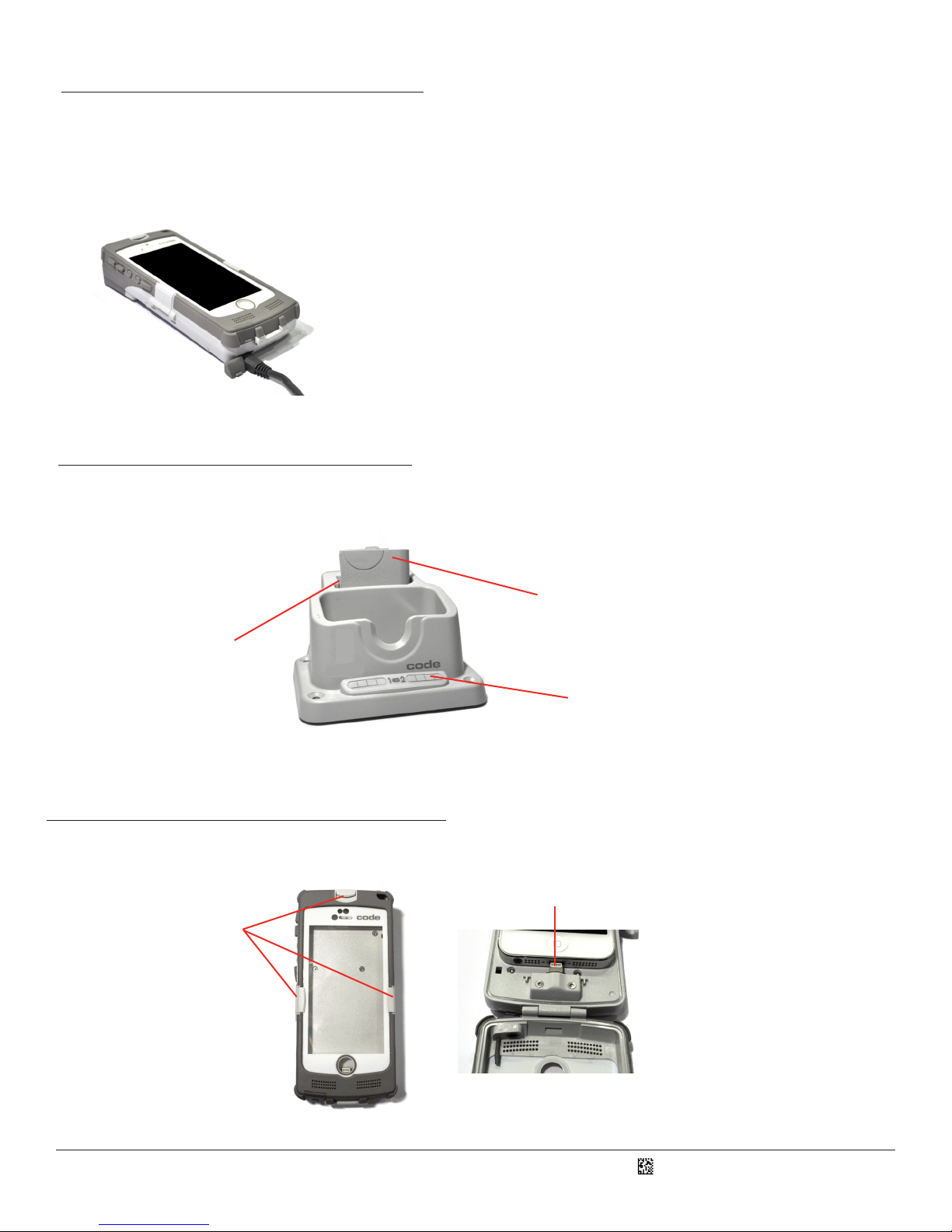
1. Plug the barrel side of the AC adapter or USB charge cable into the power jack of the charging staon (Figure 4).
2. Plug the AC adapter into the wall outlet (Figure 5) or USB cable into a computer’s USB port (Figure 6).
Figure 5 Figure 6
Figure 4
3. Insert the sled (with baery installed) in the larger front bay (Figure 7).
4. Two banks each consisng of four charge status LED indicators are located on the front of the Charging Staon. All four LEDs
of LED Bank 1 will rapidly ash indicang readiness to charge, and will then display the sled’s baery status as shown below in
Figure 8.
5. During charging, the LED located at the top right corner of the sled (Figure 9) will also light up according to Figure 10.
Sled Baery Status LED Display On Charging Staon
91 – 100%
61 – 90%
31 – 60%
0 – 30%
Figure 7
Figure 8
Sled Baery Status While Charging Sled LED Behavior
96 – 100% Solid green
31 – 95% Flashes green
11 – 30% Flashes yellow
0 – 10% Flashes red
Figure 10
Figure 9
D018433_01_CR4405_User_Manual 3
5.0 - iPhone Installaon in the Sled
Open the three security latches on the sled (Figure 13). Slide the phone on to the connector (Figure 14). Close the cover and secure
the latches. Phone removal is done in reverse. Be careful to not bend the electrical connector outward while sliding the phone away
from it.
3.2 - USB Direct Connecon to Sled
1. Plug the Micro-B side of the USB cable into the sled (Figure 11).
2. Plug the other side of the USB cable into a computer USB port (Figure 6).
3. During charging, the LED located at the top right corner of the sled (Figure 9) will light up according to Figure 10.
NOTE: The USB cable provided was custom developed to reduce charge me. Using a non-Code cable may signicantly increase the charge me.
Figure 11
4.0 - Charging a Spare Sled Baery
A spare sled baery can be docked for charging in the rear bay of the Charging Staon (Figure 12). Similar to LED Bank 1, upon
baery inseron all four LEDs of LED Bank 2 will rapidly ash indicang readiness to charge, and then display spare baery status
according to Figure 8.
Figure 12
Spare Baery Cartridge
Rear Charging Bay
Rear Charging Bay LEDs
Security
Latches
Figure 13
Figure 14
Connector

D018433_01_CR4405_User_Manual 4
6.0 - Baery Charge Times
Depending on the conguraon of power supply, CR4405 sled, iPhone, and spare baery docked in the Charging Staon, charge me
can be as lile as 2-4 hours.
7.0 - Powering On the iPhone and Sled Reader
With the phone inserted in the sled, if the phone is o, press the buon on the top of the sled to turn it on (Figure 15).
Power On
Figure 15
Figure 16
Home Buon
The CR4405 sled can be powered on by pressing the scan buon on the right side of the sled (Figure 17). The sled’s upper right
LED (Figure 17) will ash red, pause for approximately 10 seconds to boot up, then ash green indicang the sled is ready for use.
Powering o the reader is done by pivong the baery latch counter-clockwise to unlock and removing the baery (Figure 2).
Figure 17
Scan Buon
LED
If you wish to wake the reader from sleep, simply push the scan buon and the barcode illuminaon LEDs will ash, indicang the
CR4405 is ready to scan. If the reader sleeps for 2 hours it will power o. Press the scan buon to power it back on. The LED will
ash red, boot up, and then ash green, ready to scan.

D018433_01_CR4405_User_Manual 5
9.0 - Using the CR4405
With the iPhone inserted, navigate to the Home Screen and touch the Notes icon as an example. Notes is a standard iPhone
applicaon that can receive scanned in data as if it were entered via a keyboard.
NOTE: The CR4405 sled’s default communicaon mode which supports this type of scanning is called iPhone Keyboard Mode.
Press the scan buon on the right side of the CR4405 (Figure 17). Two blue bars eming from the reader shine from targeng LEDs.
Center the blue bars in the middle of a barcode (Figure 20). When the barcode is in the reader’s eld of view and at the opmal
distance (4” from the barcode), the reader will automacally read the barcode and the sled LED will ash green once. The data will
display in the Notes app. If the sled does not successfully read the barcode, then the sled LED status indicator will not ash. The
Notes screen shot (Figure 21) below shows 3 instances of a sample barcode scanned in.
Figure 20
Figure 21
When the sled is disconnected from the Charging Staon or USB cable, pressing the scan buon once will cause the LED status
indicator located at the top right corner of the sled (Figure 18) to light up according to Figure 19.
Sled Baery State While Not Charging Sled LED Behavior
31 – 100% None
11 – 30% Flashes yellow 3 mes
0 – 10% Flashes red 3 mes
Figure 18
Figure 19
8.0 - Sled Baery Status Indicaon

D018433_01_CR4405_User_Manual
12.0 - Reading Ranges
CR4405 Performance
Test Barcode Min Inches (mm) Max Inches (mm)
3 mil Code 39 3.1” (80 mm) 4.0” (102 mm)
7.5 mil Code 39 1.3” (33 mm) 7.2” (182 mm)
10.5 mil GS1 DataBar 0.8” (20 mm) 8.7” (220 mm)
13 mil UPC 1.1”(28 mm) 11.0” (280 mm)
5 mil Data Matrix 1.7” (43 mm) 4.5” (115 mm)
6.3 mil Data Matrix 1.3” (33 mm) 5.9” (150 mm)
10 mil Data Matrix 0.8” (20 mm) 7.1” (180 mm)
20.8 mil Data Matrix 1.1” (28 mm) 13.5” (343 mm)
Note: Working ranges are a combinaon of both the wide and high density elds. All samples were high quality barcodes
and were read along a physical center line at a 10° angle. Default AGC sengs were used. Accuracy= +/- 10%.
6
The following symbologies are enabled by default. To turn symbologies on or o, scan the symbology barcodes located in the
CR4405 Conguraon Guide located on our website at hp://www.codecorp.com/les.php.
10.0 - Symbologies Defaulted On
11.0 - Symbologies Defaulted O
Code barcode readers can read a number of symbologies that are not enabled by default. For a complete list (and the conguraon
barcodes to enable those symbologies), please reference the CR4405 Conguraon Guide located on our website at
www.codecorp.com/les.php.
13.0 - CR4405 Sled Reader Conguraon
The CR4405 can be congured for specic tasks, data manipulaon, or operaonal modes by scanning conguraon barcodes
found in the CR44x5 Conguraon Guide at www.codecorp.com/les.php.
Aztec
Codabar
Code 39
Code 93
Code 128
Data Matrix
MSI Plessey
PDF417
QR Code
UPC/EAN/JAN
Data Matrix Rectangle
All GS1 DataBar
Interleaved 2 of 5
Tabla de contenidos
Otros manuales de Accesorios para teléfonos celulares de Code


