CNET CUA-854 Manual de usuario

CUA-854
Wireless-G Long Range
USB Adapter with Antenna
User’s Guide

2
Table of Contents
Chapter 1. Introduction....................................................................................5
1.1. About CUA-854 ......................................................................................................5
1.2. Key Features ..........................................................................................................5
1.3. Package Included...................................................................................................5
Chapter 2. Connect your antenna...................................................................6
Chapter 3. Installing Driver, Configuration Utility and Hardware.................7
3.1. Driver Installation for Windows 98SE/ME/2000/2003/XP.......................................7
3.2. Driver Installation for Windows Vista................................................................... 10
Chapter 4. Using the Configuration Utility for 98SE/ME/2000/2003/XP .....14
4.1. Overview.............................................................................................................. 14
4.2. Access the Configuration Utility........................................................................... 14
4.3. Getting to Know the Utility................................................................................... 16
4.3.1. Profile.................................................................................................................. 16
4.3.2. Link Status ......................................................................................................... 27
4.3.3. Site Survey......................................................................................................... 28
4.3.4. Statistics............................................................................................................. 30
4.3.5. Advanced............................................................................................................ 31
4.3.6. About .................................................................................................................. 33
Chapter 5. Troubleshooting ..........................................................................34

3
List of Figures
Figure 2-1 connect antenna with SMA connector.......................................................................6
Figure 3-1 AutoPlay Menu..............................................................................................................7
Figure 3-2 Setup: License Agreement..........................................................................................7
Figure 3-3 Setup: Choose Configuration TxBurst or WiFi .........................................................8
Figure 3-4 Setup: Setup Status .....................................................................................................8
Figure 3-5 Setup: plug-in message...............................................................................................9
Figure 3-6 Setup: Click Finish to Complete (for WIN2000 / 2003 / XP)......................................9
Figure 3-7 Setup: Click Finish to Complete (for WIN98 / ME) ................................................. 10
Figure 3-8 AutoPlay Confirm Window (Vista) ........................................................................... 10
Figure 3-9 AutoPlay Menu (Vista)................................................................................................11
Figure 3-10 Setup: License Agreement (Vista) ..........................................................................11
Figure 3-11 Setup: Setup Status (Vista)..................................................................................... 12
Figure 3-12 Setup: plug-in message (Vista).............................................................................. 12
Figure 3-13 Setup: Found New Hardware (Vista) ..................................................................... 13
Figure 3-14 Setup: Click Finish to Complete (Vista)................................................................ 13
Figure 4-1 Utility Icon.................................................................................................................. 14
Figure 4-2 Wireless Zero Configuration: Select Manage......................................................... 14
Figure 4-3 Wireless Zero Configuration: Select Wireless Zero Configuration...................... 15
Figure 4-4 Wireless Zero Configuration: Select Disable ......................................................... 15
Figure 4-5 Utility – Profile........................................................................................................... 16
Figure 4-6 Add Profile: Configuration ....................................................................................... 18
Figure 4-7 Add Profile: Authentication and Security: Open or Shared Key .......................... 20
Figure 4-8 Add Profile: Authentication and Security: LEAP ................................................... 22
Figure 4-9 Add Profile: Authentication and Security: WPA/ WPA-PSK/ WPA2/ WPA-PSK... 23
Figure 4-10 Add Profile: Authentication and Security: 802.1x Setting: Certification ........... 24
Figure 4-11 Add Profile: Authentication and Security: 802.1x Setting: CA Server ............... 26
Figure 4-12 Utility - Link Status.................................................................................................. 27
Figure 4-13 Utility – Site Survey................................................................................................. 28
Figure 4-14 Utility – Statistics..................................................................................................... 30
Figure 4-15 Utility – Advanced ................................................................................................... 31
Figure 4-16 Utility - Link About................................................................................................... 33

4
List of Figures
Table 4-1 Profile ........................................................................................................................... 17
Table 4-2 Configuration............................................................................................................... 19
Table 4-3 Authentication: Open or Shared................................................................................ 21
Table 4-4 Authentication: LEAP ................................................................................................. 22
Table 4-5 Authentication: WPA/ WPA-PSK/ WPA2/ WPA-PSK................................................. 23
Table 4-6 Authentication: 802.1x Setting: Ceritication............................................................. 25
Table 4-7 Authentication: 802.1x Setting: CA Server............................................................... 26
Table 4-8 Link Status ................................................................................................................... 27
Table 4-9 Site Survey................................................................................................................... 29
Table 4-10 Statistics..................................................................................................................... 30
Table 4-11 Advanced.................................................................................................................... 32

5
Chapter 1. Introduction
1.1. About CUA-854
The CUA-854 is a wireless-G long range USB adapter which offers you a removable antenna with
SMA connector which can connect with any long range antenna you prefer. With a magnetic base,
it helps you easily to stick it on the metal wall and extend your network coverage significantly.
Once installed and connected, you can keep in touch with friends and work through e-mail,
instant messaging and chat rooms as well as sharing files and other network resources such as
printers and network storage with other computers.
The CUA-854 follows IEEE 802.11g wireless standard works at the speed of 54Mbps and for
added versatility; it also interoperates with all Wireless-B (IEEE 802.11b) products found at
homes, businesses, and public wireless hotspots around the country.
1.2. Key Features
The following lists the main features of the Wireless-G USB Adapter.
•5 Times Faster and seamless operation with existing Wireless-B networks.
•64/128-bit WEP and WPA/WPA2 (Wi-Fi Protected Access) Encryption Provides Maximum
Wireless Security.
•Compatible with Windows 98SE/ME/2000/2003/XP/Vista.
•User can change antennas according to their demand by connecting the antenna with the
SMA connector.
•The CUA-854 is with a magnet base which can be stick.
1.3. Package Included
•CUA-854 with 5 dBi or 7 dBi antenna
•CD with driver, utility and User’s Guide
•The QIG

6
Chapter 2. Connect your antenna
Figure 2-1 connect antenna with SMA connector

7
Chapter 3. Installing Driver, Configuration Utility and Hardware
3.1. Driver Installation for Windows 98SE/ME/2000/2003/XP
Before installing your long range Wireless-G USB Adapter, insert the Auto-Install CD into your
CD-ROM drive. Unless you have disabled the auto-run feature of Windows, the AutoPlay Menu
should appear automatically. If not, you can manually access the installation by clicking the Start
button and choosing Run. In the drop-down box type D:\ AUTORUN.EXE (where D: is the drive
letter for your CD-ROM drive).
Alternately, double-click My Computer and double-click on the CD drive icon.
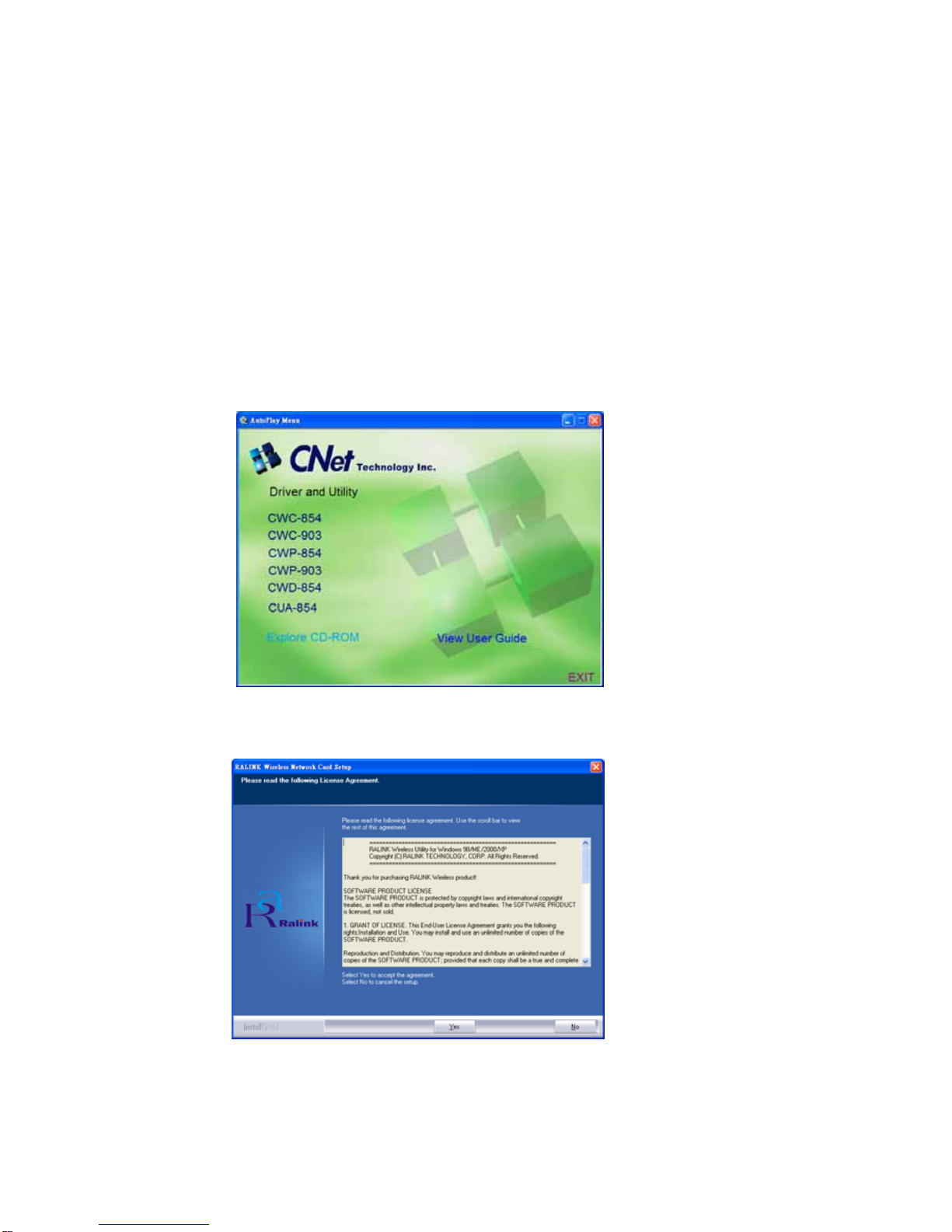
- Click on CUA-854 to install driver/utility for your Long Range Wireless-G USB Adapter.
Figure 3-1 AutoPlay Menu
- After reading through the License Agreement, please click Yes to continue.
Figure 3-2 Setup: License Agreement
- Choose the Optimize for performance mode and click Next, you will get

8
better performance. It will enable the Tx BURST and TCP Window Size feature in the
utility. Figure 3-3 Setup: Choose Configuration TxBurst or WiFi
Figure 3-4 Setup: Setup Status
- During the installation, there will pops up a plug-in message screen. Please insert the
Wireless-G USB Adapter into the USB port at this moment.
Figure 3-5 Setup: plug-in message

9
- In Windows XP and 2000, click Finish to complete the installation.
Figure 3-6 Setup: Click Finish to Complete (for WIN2000 / 2003 / XP)
- In Windows 98SE and ME, please select Yes, I want to restart my computer now and
click Finish to complete the installation. The system will restart automatically.

10
Figure 3-7 Setup: Click Finish to Complete (for WIN98 / ME)
Note: In Windows ME and 98SE, after the installation is completed, Windows will ask to restart
the computer, just click Yes to restart.
3.2. Driver Installation for Windows Vista
Before installing your Long Range Wireless-G USB Adapter, insert the Auto-Install CD into your
CD-ROM drive.
- There will be a Vista AutoPlay Confirm Window. Click Run AUTORUN.EXE icon.
Figure 3-8 AutoPlay Confirm Window (Vista)
- Click on CUA-854 to install driver/utility for your Wireless-G USB Adapter.
Figure 3-9 AutoPlay Menu (Vista)
Otros manuales para CUA-854
1
Tabla de contenidos
Otros manuales de Adaptador de CNET

CNET
CNET Wireless-G CardBus Adapter CWC-800 Manual de usuario

CNET
CNET CWP-906E Manual de usuario

CNET
CNET CWP-906 Manual de usuario

CNET
CNET WNUD1150 Manual de usuario

CNET
CNET CQU-906 Manual de usuario

CNET
CNET CNF401 Manual de usuario

CNET
CNET WNUD1150H Manual de usuario

CNET
CNET CWP-854 Manual de usuario

CNET
CNET CWC-854 Instrucciones de instalación