
CipherTV S35218NA Manual de usuario
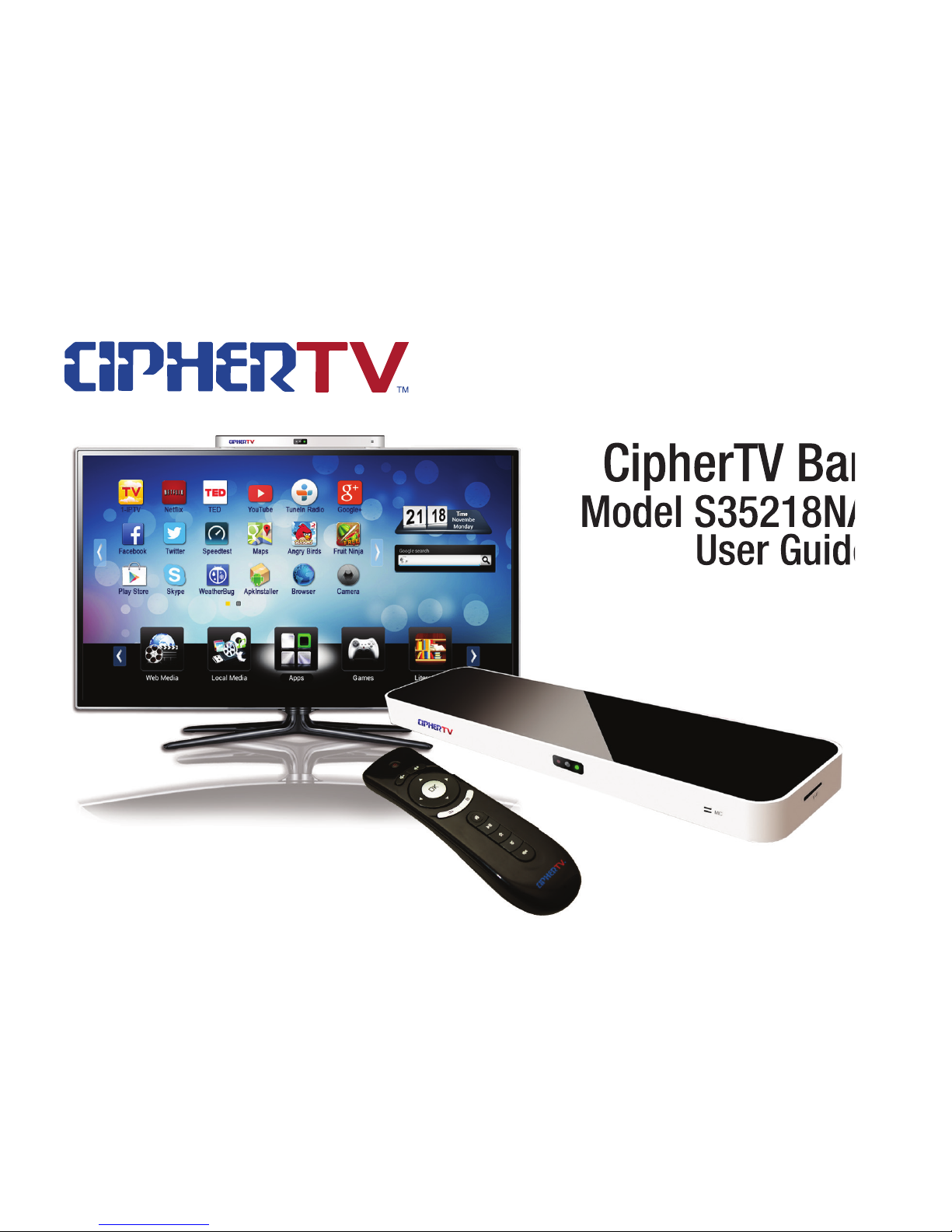
CipherTV Bar
Model S35214NA
User Guide
CipherTV Bar
Model S35218NA
User Guide
CipherTV Bar
Model S35218NA
User Guide

Welcome to the CipherTV Bar
Quick Start Guide
Congratulations on your purchase of the CipherTV Bar. In just a few minutes
you’ll be ready to connect to your loved ones through Skype and explore your
favorite applications such as YouTube, Netflix, Google Play, Facebook, Twitter
and more. The CipherTV Bar makes your TV smarter by conveniently bringing
applications and internet into the comfort of your living room. CipherTV Bar is
plug and play, supporting both wired and wireless networks. CipherTV Bar lets
you experience a new world of entertainment on demand!
“REMOTE CONTROL POWER BUTTON IS DISABLED”
**No need to power down the CipherTV Bar – power saving mode is auto activated after
4 hours of TV or by pressing the ‘home’ button on the remote to bring you back to
the home screen and activate power saving mode at the same time.**

Contents Page no. Attention
To ensure proper use, maintain warranty eligibility
and avoid unnecessary damage, please pay
attention to the following:
Attention---------------------------------------------
What’s in the Box----------------------------------
Front View-------------------------------------------
Back View-------------------------------------------
Mounting Stand Installation---------------------
Connection Diagram------------------------------
Installation Steps----------------------------------
Air Mouse Remote Control----------------------
Technical Specification---------------------------
Add/Remove Applications------------------------
Operating Guide-----------------------------------
Register Your Device------------------------------
Frequently Asked Questions---------------------
Wi-Fi Hotspot Setup Guide----------------------
Wi-Fi Connection Setup Guide-----------------
Warranty---------------------------------------------
1
2
3
3
3
4
4
5
6
6
7
8
8
10
11
12
1
Avoid putting the STB on hot surfaces and in high
humidity or dusty environments.
Avoid putting the STB close to any materials with
strong magnetic or electrical fields.
Avoid spilling water or other liquids on the STB.
Keep the STB well ventilated by making sure
cooling holes are not blocked.
Avoid exposing the STB from excessive vibration or
collision.
Do not disassemble or open the STB. Maintenance
work should only be done by the original
manufacturer or by an authorized staff.
Only use the provided power adapter and remote
control.
Make sure to unplug the power cord when cleaning
the STB. Wipe it with a clean dry cloth.
When encountering any unusual circumstances or
technical concerns, unplug the power adapter to
reset or contact your technical service provider.
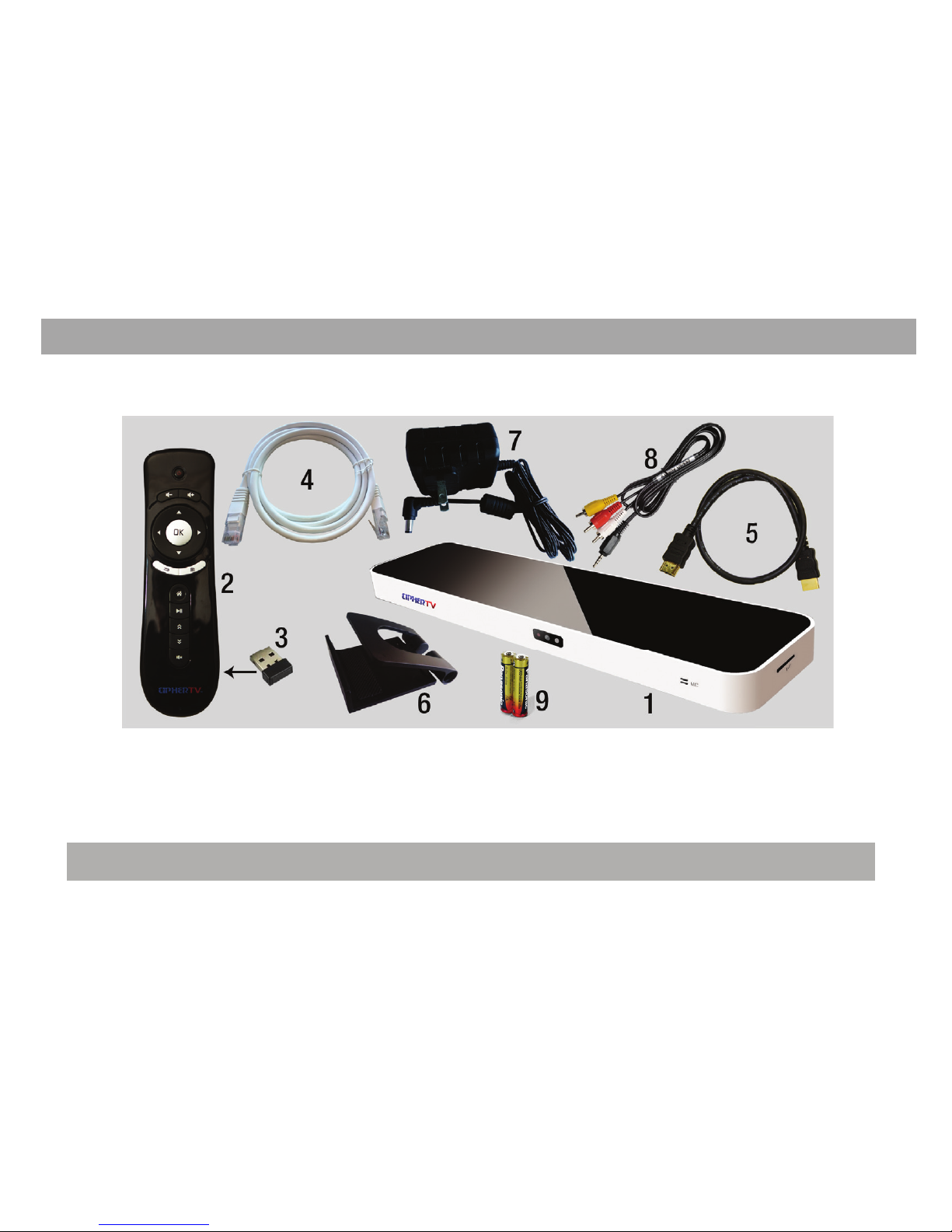
1. CipherTV Bar
2. Air Mouse Remote Controller
3. Air Mouse USB Receiver (refer to Page 4, Figure 4)
4. Ethernet Cable
5. HDMI Cable
What’s in the Box?
Your CipherTV Bar includes the following items
2
Infrared Remote, Micro-SD or TF card. For replacement parts visit www.ciphertv.com
Optional Accessories:
6. CipherTV Bar Mount Stand
7. Power Adapter
8. 3.5mm AV cable
9. 2 AAA Batteries required
USB Receiver
inside
**Actual product & accessories may look different and batteries may not be included.
Front View
Back View
Installation
TV
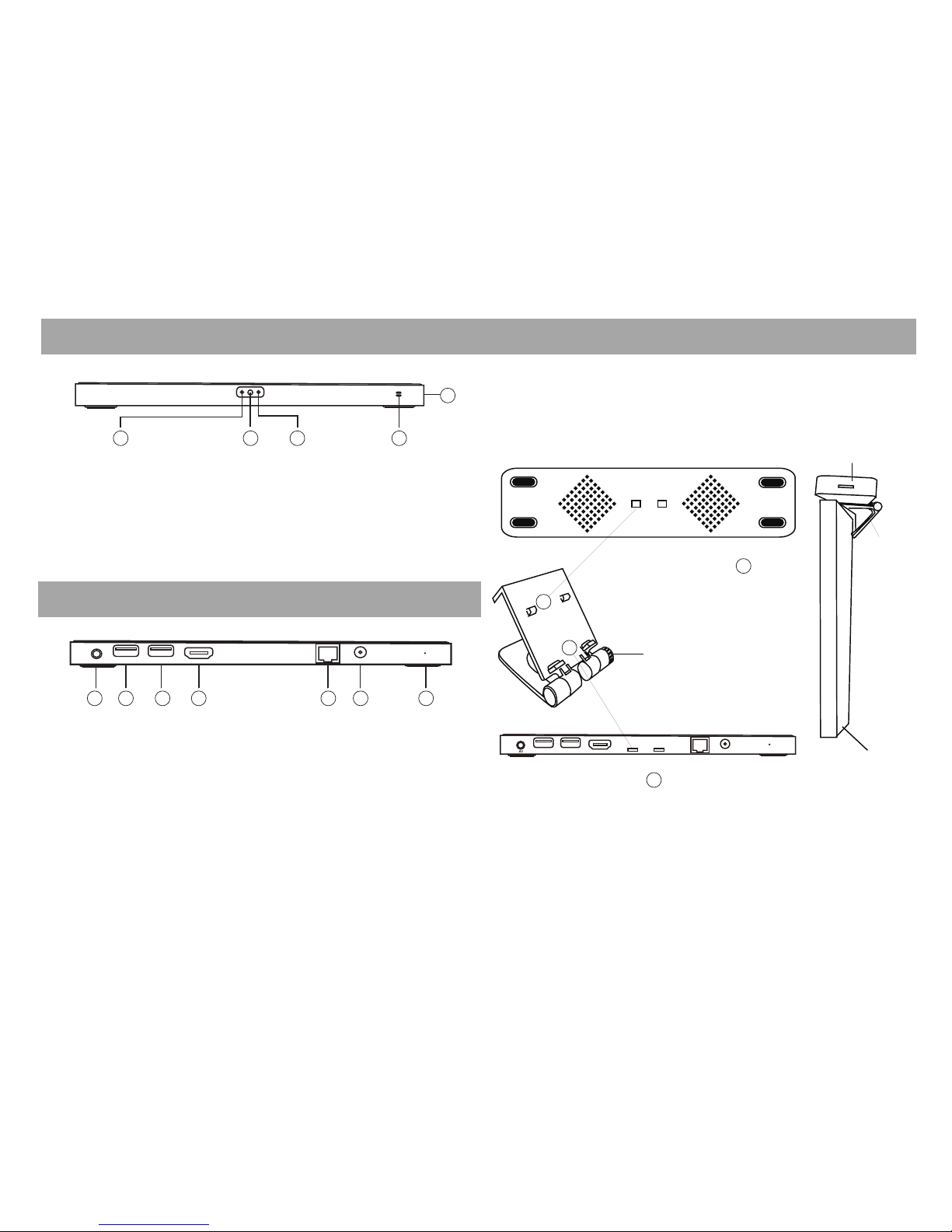
3. Simply tighten or adjust
the screws by turning it
using your thumb and
index finger.
1.The buckle position of the
Mount Stand corresponds to the
groove at the bottom of the STB
STB
Mount
2. The buckle position of the Mount Stand
corresponds to the notch at the back of the
STB. Attach stand, then push clamp to latch
into place.
1. 3.5mm Audio/Video Output Port (cable included)
2. USB/OTG Port
3. USB Port
4. HDMI Port
5. Network Port
6. 12V 1A DC Power
7. Factory Use Only firmware programming button
3
1. Infrared Receiver
2. Camera
3. Power Status (very dim, on at all times)
4. Microphone
5. TF/SD Card Slot (side)
MIC 5
Mounting Stand Installation
4321
1 2
1
1
2
2
3 4 5 6 7
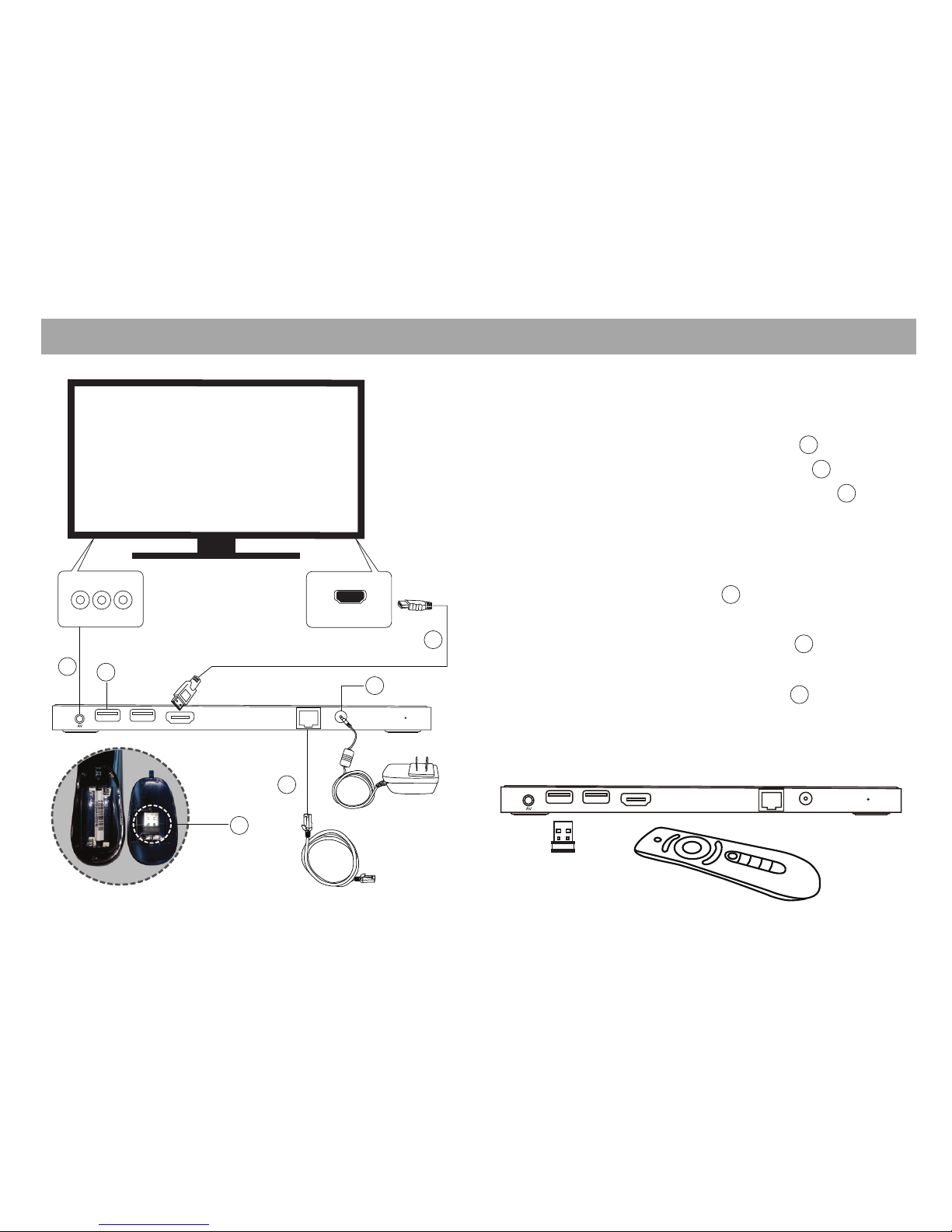
1. Ensure TV and STB powers are OFF before
installation.
2. Connect the HDMI cable, see Figure
OR Connect with AV cable, see Figure
3. Link the Air Mouse to the STB, see Figure
Link the Air Mouse remote control to the STB
by plugging in the Air Mouse USB receiver (that’s
pre-inserted in the battery compartment hatch of
the air mouse, see Figure ) into the USB/OTG
port as show below.
4. Connect Power Adapter, see Figure
5. Network Connection
*Connecting with RJ45, see Figure
*Connecting Wireless network, please see
page 10 “Wi-Fi Connection Setup Guide”.
Connection Diagram Installation Steps
4
HDMI
1
1
2
3
4
5
6
23
4
5
6
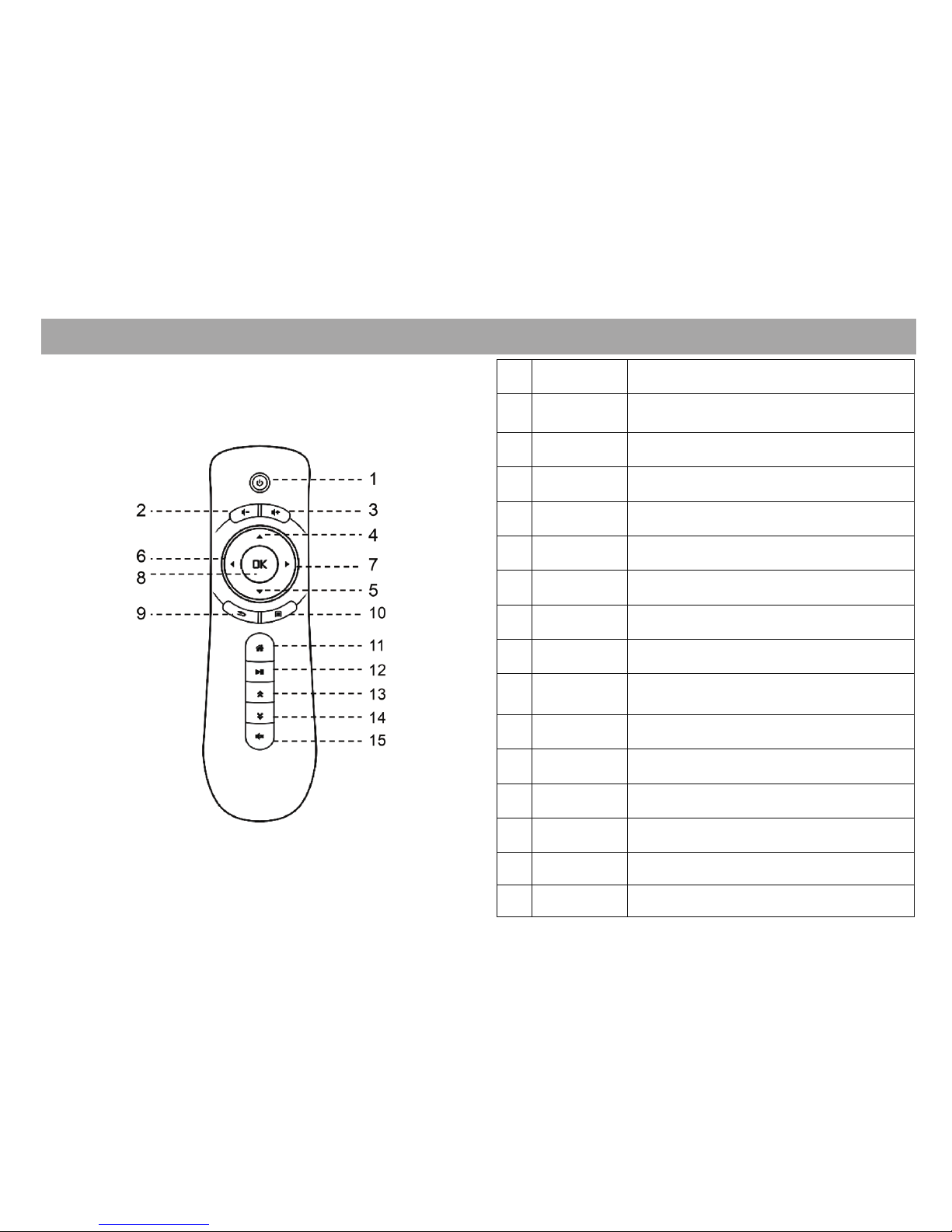
Definition Function
‘*EPG – Electronic Programming Guide
Air Mouse Remote Control
No.
1
Power button is disabled
2
Decrease volume
3
Increase volume
4
Move cursor up / TV channel up
5
Move cursor down / TV channel down
6
Move left / TV EPG left
7
Move right / TV EPG right
8Confirm / hold for Icon properties
9
Back to previous page TV EPG
or full screen
10 Display the running App menu
11
Go to Apps page / hold to reboot STB
12
Play or pause
13
Page Up on EPG
14
Page Down on EPG
15 Turn off the sound
5
Page Down
Page Up
Play/Pause
Home
Menu
Back
OK
Right
Left
Down
Up
Volume +
Volume -
Power
Mute
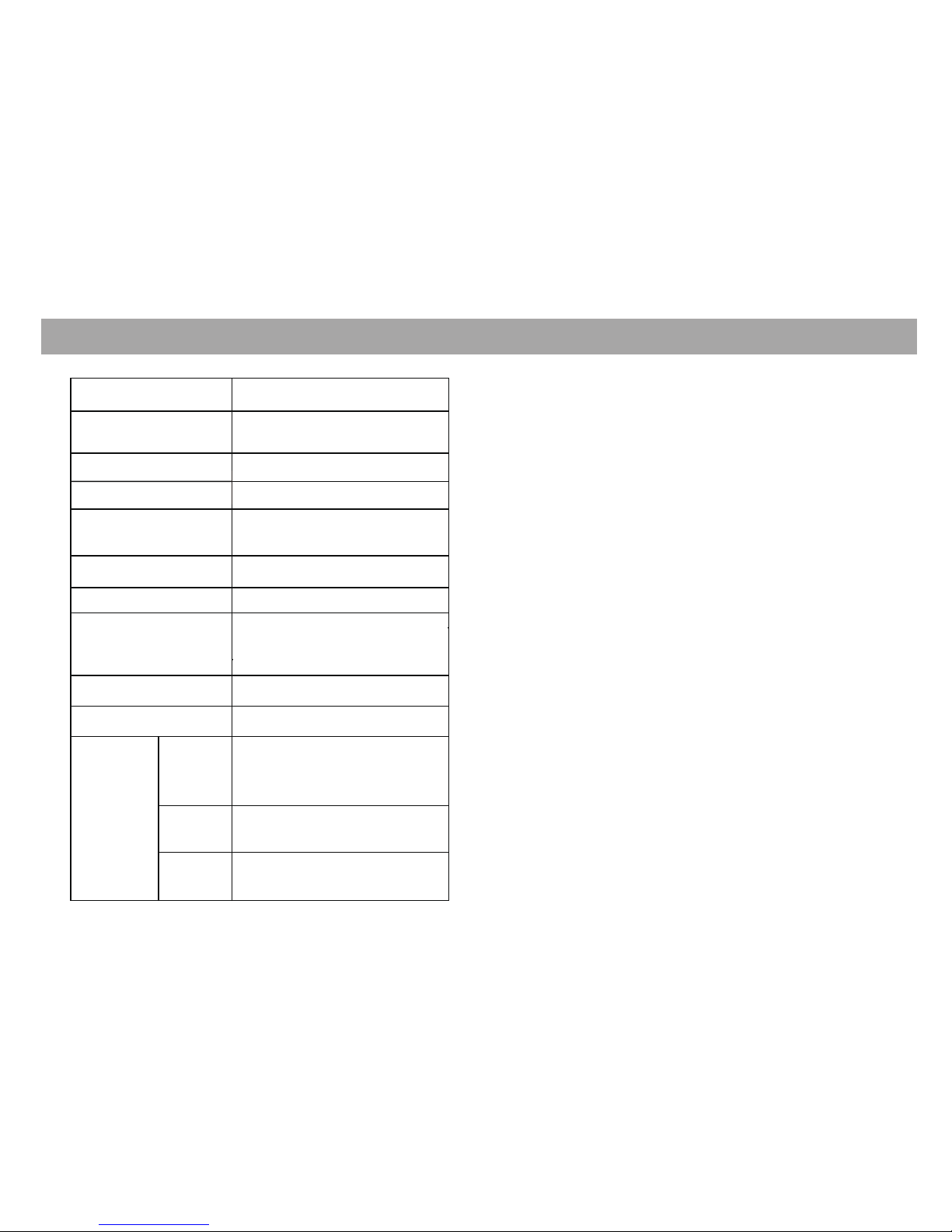
Technical Specification Add / Remove Applications
6
2 Megapixels Camera & Mic
Wi-Fi, Bluetooth, Ethernet
Install new Apps
There are two ways to install apps into the CipherTV Bar.
1.6GHz
Dual Core CPU
Android 4.1.1, online upgrade
DC 12V 1A
2 USB ports
Wi-Fi, USB, IR, Bluetooth, up
to 32GB TF card slot
HDMI, CVBS
1 GB DDRIII
8GB Flash Memory
CPU
Memory
OS
Power
802.11 B/G/N
Wi-Fi
Audio/Video
output
USB
Video Camera
Multimedia
Formats
Video
Audio
Photo
Network Interface
Peripheral
Interface
H.264, H.263, AVI, MKV, DAT,
MPG1/2/4, VOB, TS, RM,
MOV & 3GP
MP3, WMA, AAC, APE,
FLAC, OGG
JPEG, BMP, PNG, etc.
Download through Google Play Store and Install
Look for the Google Play Store icon on the apps home
screen then click on it. (Make sure you have registered your
free Google account either at google.com online or simply
through Play Store).
Enter your Play Store login information. Locate the app or
enter app's name on the search box you wish to install, then
click install.
Local Installation - Install Apps from USB and SD Cards
Insert the SD card or USB memory drive into the STB, click
APK installer or select explorer. Select SD card/USB on
where you have the App you wish to install.
Click on the APK file to install and follow the on screen
instructions to confirm.
Removing Installed Apps
On the home page, click “APK Installer” -> “Manager”. Click
on the App you wish to uninstall, and confirm removal. (Note:
Factory installed apps cannot be uninstalled).
Or go to “Settings” -> “App Manager”, select app to uninstall.
1)
2)
3)

Operating Guide
7
After plugging in the power, CipherTV Bar will auto start.
Operate with Air Mouse (or RF remote control)
Plug in the Air Mouse Remote USB receiver into the
OTG/USB or USB port and you will see the mouse cursor on
the TV screen. Shake the Air Mouse remote control gently to
get a feel how the mouse cursor moves and adapts. Move the
cursor to the icon you want to run, and press OK button to
confirm. Press and hold OK button for a few seconds to pop
up the Property window of the application. You can sort
applications into different group folders or auto-launch during
power up.
Starting the Application
Press “ ” button on the remote control anytime to return back
to the main page. Move the cursor to the application icon that
you want to run, press Ok button.
On-line Video: (e.g. Netflix, Youtube)
Move the cursor to the application you want to run (for
example, Netflix), press the OK button on the remote control
to enter. Log in, then select the video you want to watch.
Reboot App
Use the reboot app to reboot the CipherTV Bar. Press “ ”
button on the remote control, move the cursor to the Reboot
icon and press OK button to run, and select YES to reboot.
Games: Angry Birds, Fruit Ninja and so on
Move the cursor to the application you want to run (for
example, Angry Birds), press the OK button on the
remote control to enter the game.
Media Player: Supports USB, MicroSD
Select “Video Player/Explorer” on the main page and
browse to open the movie or music you want to play.
Settings
Open the settings icon to define network, language,
time, etc..
Video Phone
Click on the SKYPE icon. After login, click the Video
button to make video phone calls with your friends and
family.
Auto-Launch an Application during Power Up
On the application of your choice, press OK and hold
the button for 5 seconds to access the property
window. Select ‘Enable’ in the Auto Boot-up section to
set Auto Launch. This application will auto start each
time the STB is powered up. To disable the auto
boot-up feature, repeat the above steps and select
None or Disable on the Auto Boot-up section.

Register Your Device Frequently Asked Questions
8
We want you to enjoy your purchase to the fullest and that
starts with a few easy registration steps below. Your
registration verifies your warranty, helps ownership
verification for lost or stolen devices and allows you to
access tips, special offers and more.
Benefits:
Activates warranty
Verifies ownership for lost or stolen devices
Updates on your warranties
Special promotions, access and offers.
How to Register:
1. Locate the 12-digit MAC address found at the base of
your CipherTV Bar.
2. Contact your service provider who sold you the
CipherTV Bar to complete registration.
3. If you are unsure who your service provider is, visit
www.ciphertv.com or call us at 1-888-851-8858
How do I clear data or force stop an application?
1. Click on "Settings".
2. Under "Device", click on "Apps". Press the right
arrow button until you reach the "ALL" tab.
3. Click the app you want to stop.
4. Click force stop and clear data
How do I change language settings?
1. Locate the settings icon on the home screen.
2. Under "Personal", click on "Language & Input"
3. On the right side, long press the "OK" button to scroll
down to choose the language you want to use.
Do I need to turn off the CipherTV Bar after use?
The CipherTV Bar uses very little power and uses
power saving when in idle mode.
How do I use the video conferencing feature?
The CipherTV Bar has a built in video camera and
microphone that can be used for video conferencing
applications such as Skype. If you have a Skype
account, simply launch Skype, login and start a video
conference right in your living room!
Este manual sirve para los siguientes modelos
1
Tabla de contenidos
Otros manuales de Accesorios de TV de CipherTV


